Note
Access to this page requires authorization. You can try signing in or changing directories.
Access to this page requires authorization. You can try changing directories.
[This article is prerelease documentation and is subject to change.]
Use the steps in this article to add and configure the Escalate prebuilt tool and the Biometric Authentication voice capability. For a description of what each does, see Prebuilt contact center tools (Customer Conversation).
Add the Escalate tool
Open your agent in Copilot Studio, and select the Build tab.
Select the primary agent's card to open its configuration panel. If you've added any sub-agents, select a sub-agent's card instead to configure that sub-agent.
In the Tools section, select Add tool, and then select the System tools tab. Select Escalate.
Choose which escalation path to configure:
Configure the escalation path as described in the following sections.
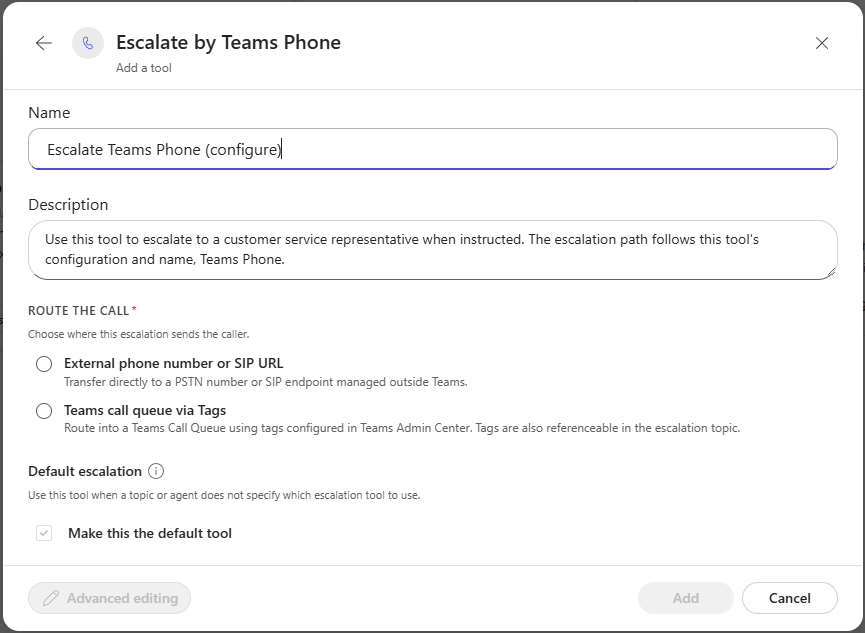
Configure Teams Phone escalation
Use Teams Phone when a caller needs immediate voice assistance from a human representative. For example, transfer a call when the request is urgent, complex, or sensitive, when the agent can't complete the request, or when the caller asks to speak with a representative.
Enter a name and description for the tool.
Under Route the call, choose where the escalation sends the caller:
- External phone number or SIP URI: Transfer the call directly to a PSTN number or SIP endpoint managed outside Teams.
- Teams call queue via Tags: Route the call to a Teams call queue by using tags configured in the Teams admin center. You can also reference these tags in the escalation topic.
To use Teams Phone when an agent or sub-agent doesn't have escalation configured, select Make this the default tool.
Select Add.
Configure email escalation
Use Email when a customer's request needs human follow-up but doesn't require an immediate, live handoff. For example, route a conversation to an email address when a specialist needs to investigate an issue, a back-office team needs to complete a task, or a representative can respond later. For urgent requests that require real-time assistance, use a live escalation path instead.
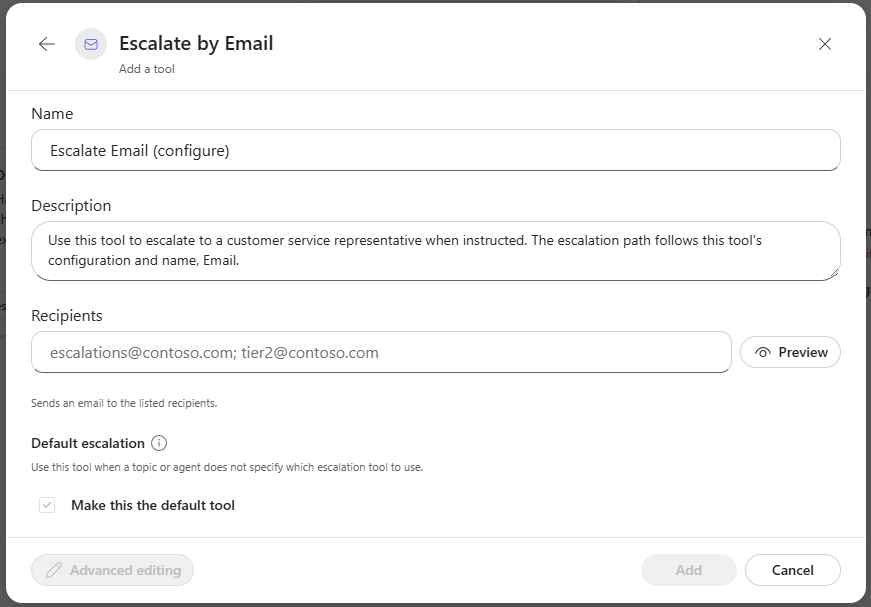
Enter a name and description for the tool.
Under Recipients, enter one or more email addresses for the people or teams that handle these requests.
To use email when an agent or sub-agent doesn't have escalation configured, select Make this the default tool.
Select Add.
Configure Customer Engagement escalation
Use Customer Engagement when a customer needs a live representative. A customer can explicitly ask for a representative, or the agent's instructions can trigger the escalation. The agent sends the conversation to the engagement hub so the representative can continue with the conversation context.
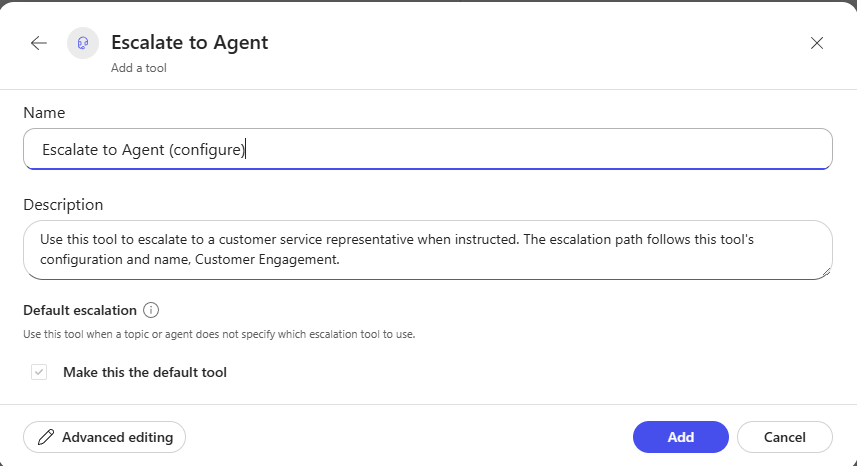
Enter a name and description for the tool.
To use Customer Engagement when an agent or sub-agent doesn't have escalation configured, select Make this the default tool.
Select Add.
Enable Biometric Authentication
Have an admin enable biometric authentication and fraud detection capabilities in the Microsoft Contact Center Intelligence portal. This action pre-enables the Biometric authentication setting for every agent, which you can confirm from Shared Settings > Security. See Configure agent details and security (Customer Conversation).
From the Voice capabilities section of the Build tab, select the primary agent's card (or a sub-agent's card, if you're configuring that sub-agent instead) to open its configuration panel, then select Enable next to Biometric Authentication. It shows a setup-needed indicator until it's configured.
Give the tool a name and description. For example, name it Verify callers before discussing account details and describe it as Use this tool to verify the user's identity before discussing account details. Trigger it when the user asks to look at information that requires account information. This description helps the orchestrator decide when to invoke the tool.
Tip
It's better to name and describe the tool using a specific purpose rather than as a generic authentication tool. For example, "Verify callers before discussing account details" or "Verify callers before checking account balance" is better than "Authenticate user" because the generative orchestration may unintentionally over-invoke the tool.
Under Identify user, select how to identify the caller:
- Use phone number: Detect the caller's phone number.
- Use custom identifier: Prompt the user for a custom identifier, such as an account number.
Turn on Use selected identifiers to look up user record, and set the Lookup table to the table that contains your contact records (for example, the Contact table). Dataverse provides Contact and Account lookup tables by default; you can also use Advanced editing to add custom lookup tables from external systems.
Under Authenticate user, review the Authentication profile (defaults to Default authentication profile) and the resolved Unique identifier (for example, Contact ID from phone number).
Select Add behavior to save the tool.
For more advanced customization, select Advanced editing to open the underlying topic dialog, where you can customize trigger phrases, messages, branches, and node-level logic directly.
Important
Switching to advanced editing is a one-way change. Once you save edits in the topic dialog, you can't return to the simplified editor - future configuration for this tool must be done in the topic editor.
Advanced configuration
After you switch to advanced editing, the topic's Voice Authenticate node saves its result as a topic variable by default, which means it's only available within that topic. Select the gear icon next to the variable to turn it into a global variable, so other topics can reference the same authentication result. You can also check Return values to original topics so other topics can use the variable.
To make sure a caller is authenticated before your agent runs another tool, action, or connector:
In your topic, add a Condition node checking the Voice Authentication status variable for a successful authentication value. The condition should be on the Voice Authentication status variable. You should check if the variable is "Verified" or not. The other applicable values returned by the Voice Authenticate node are "Verified" or "Error".
Add the tool, action, or connector you want to run after a successful authentication in the branch that matches the verified condition.
Alternatively, instead of creating a separate topic, you can add the desired tool, action, or connector directly inside the Biometric Authentication tool itself using Advanced editing.
Tip
As with any topic output, remember to save a node's output as a variable if you plan to reference it later in the conversation.