Note
Access to this page requires authorization. You can try signing in or changing directories.
Access to this page requires authorization. You can try changing directories.
Note
This article describes features used in agents or agent flows powered by the standard harness.
During or after creating a test set, you can edit the test cases by changing the wording of questions or modifying the expected responses, keywords, or tools as needed. You can select multiple test cases to edit them in bulk by selecting the checkboxes beside each test case.
Edit test cases within a test set
Go to your agent's Evaluation page.
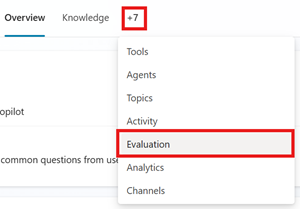
Select the test set.
In the test set, select the test case you want to edit.
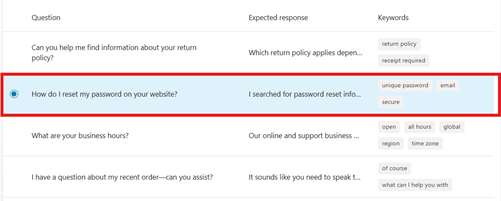
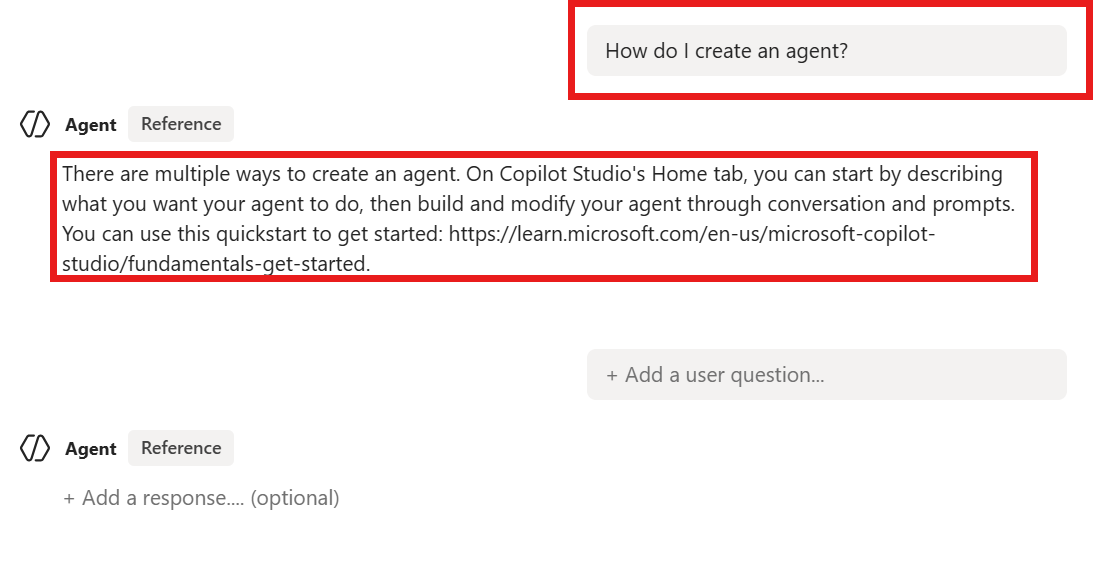
Change the wording of a question by editing the text in the Question field.
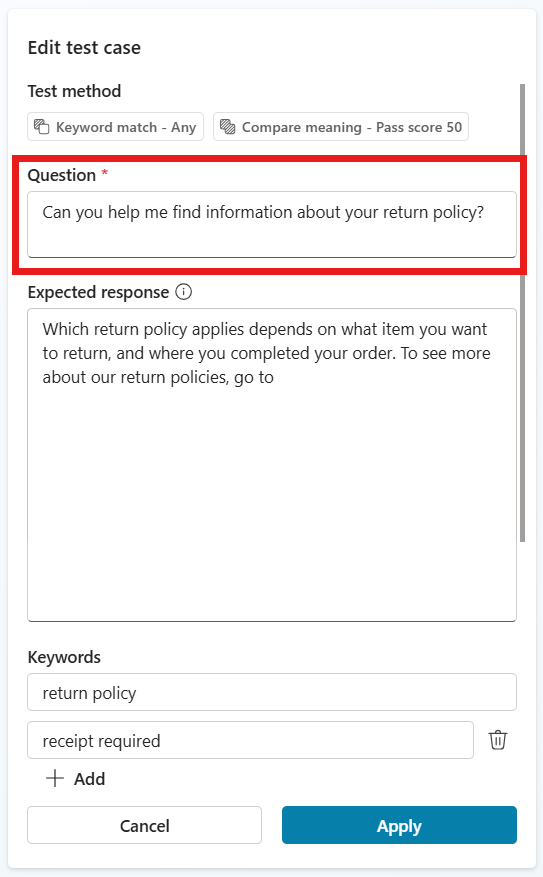
Some test methods require expected answers, keywords, or capabilities for each test case. Add that information to each field. To learn more about configuring each test method, see Choose evaluation methods.
Test method Measures Test set type Scoring Configurations General quality How good is a test case's response(s) based on specific qualities Single response or conversation Scored out of 100% None Content safety Whether the test case's response contains harmful content, such as hate, violence, self-harm, or sexual content Single response or conversation Pass/fail Content type, Permitted content safety level Compare meaning How well the meaning of the test case's answer matches the expected answer Single response Scored out of 100% Pass score, expected answer Tool use Whether the test case used all or any the expected resources Single response Pass/fail Expected capabilities Keyword match Whether the test case used all or any of the expected keywords or phrases Single response or conversation Pass/fail Expected keywords or phrases Text similarity How well the text of the test case's answer matches the expected answer Single response Scored out of 100% Pass score, expected answer Exact match Whether the test case's answer matches the expected answer exactly Single response Pass/fail Expected answer Custom Whether the test case's response meets your defined criteria or expectations. Single response or conversation Pass/fail (passes the defined label criteria) Name, evaluation instructions, labels Select Apply to save changes to a test case.
When you're finished with your changes to your test set, select Save to save your test set or Evaluate to run the test.
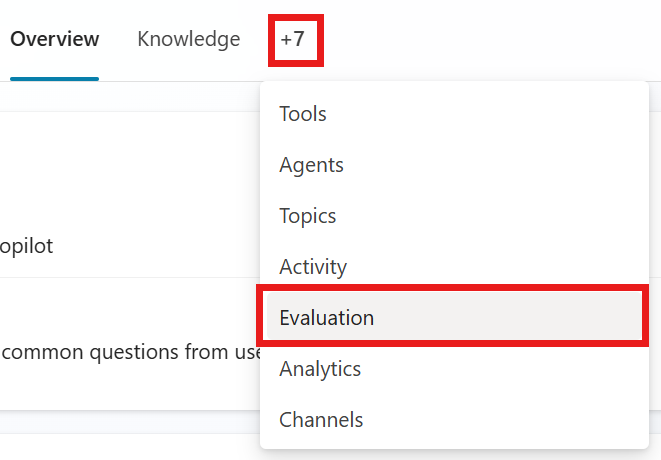
 icon.
icon.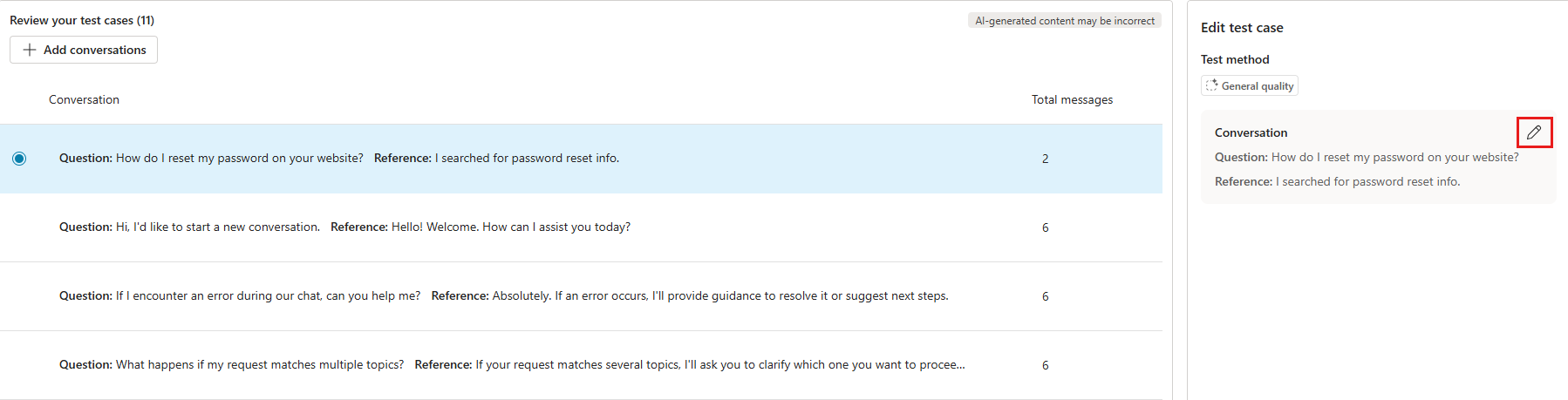
Add more test cases to a test set
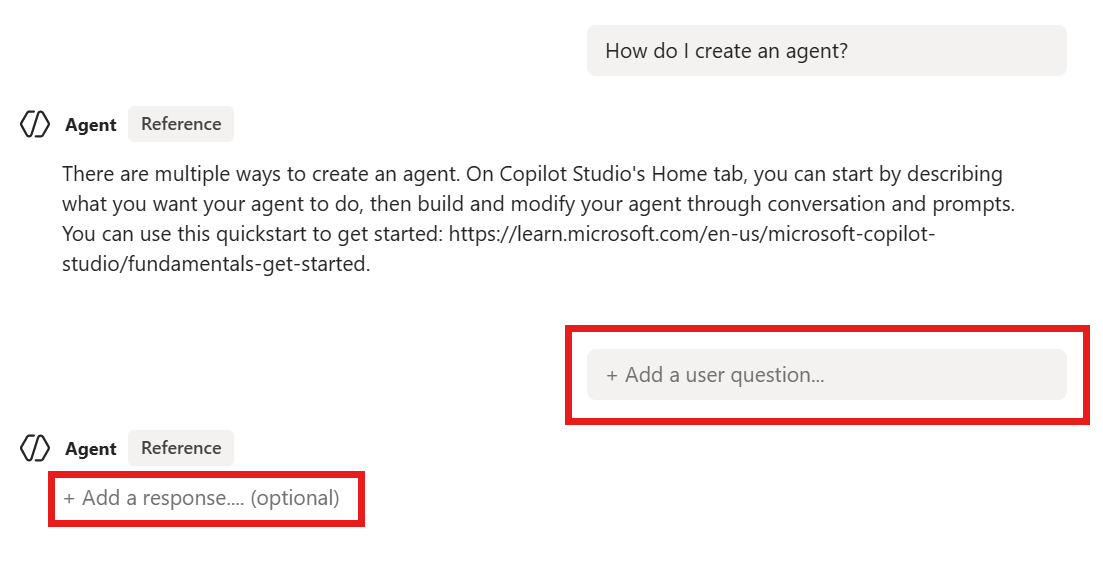
While creating or editing a test set, you can add more test cases.
In your agent's Evaluation page, select the test set.
Select Add questions or Add conversations. Then select an option to generate or manually add more test cases.

To add details, select and edit any new test cases.