Note
Access to this page requires authorization. You can try signing in or changing directories.
Access to this page requires authorization. You can try changing directories.
[This topic is prerelease documentation and is subject to change.]
The output of the Document (preview) feature lets you generate a Microsoft Word document for your prompt response instead of text. The generated document follows a layout that needs to be provided in the document output settings.
The following list contains some possible use cases with document output:
- Generate business documents within automations such as invoices, request for proposals (RFPs), contracts, and more.
- Build reports or write documentation by gathering information from various sources.
- Answer users with a specific document during chat sessions when using an agent.
Important
- This is a production-ready preview feature.
- Production-ready previews are subject to supplemental terms of use.
- Prompt builder prompts run on GPT models powered by Azure OpenAI Service.
- This capability might not be available in your region yet. Learn more in the Prompts section in Feature availability by region or US Government environment.
- This capability might be subject to usage limits or capacity throttling.
Create a prompt with document output
This section describes how to select document as output and supply a Word document layout. Suppose you want to create an invoice using unstructured information passed to the prompt.
As the output, select Document (preview) in the top-right corner.
To the left of the Document (preview) output option, select Document settings.
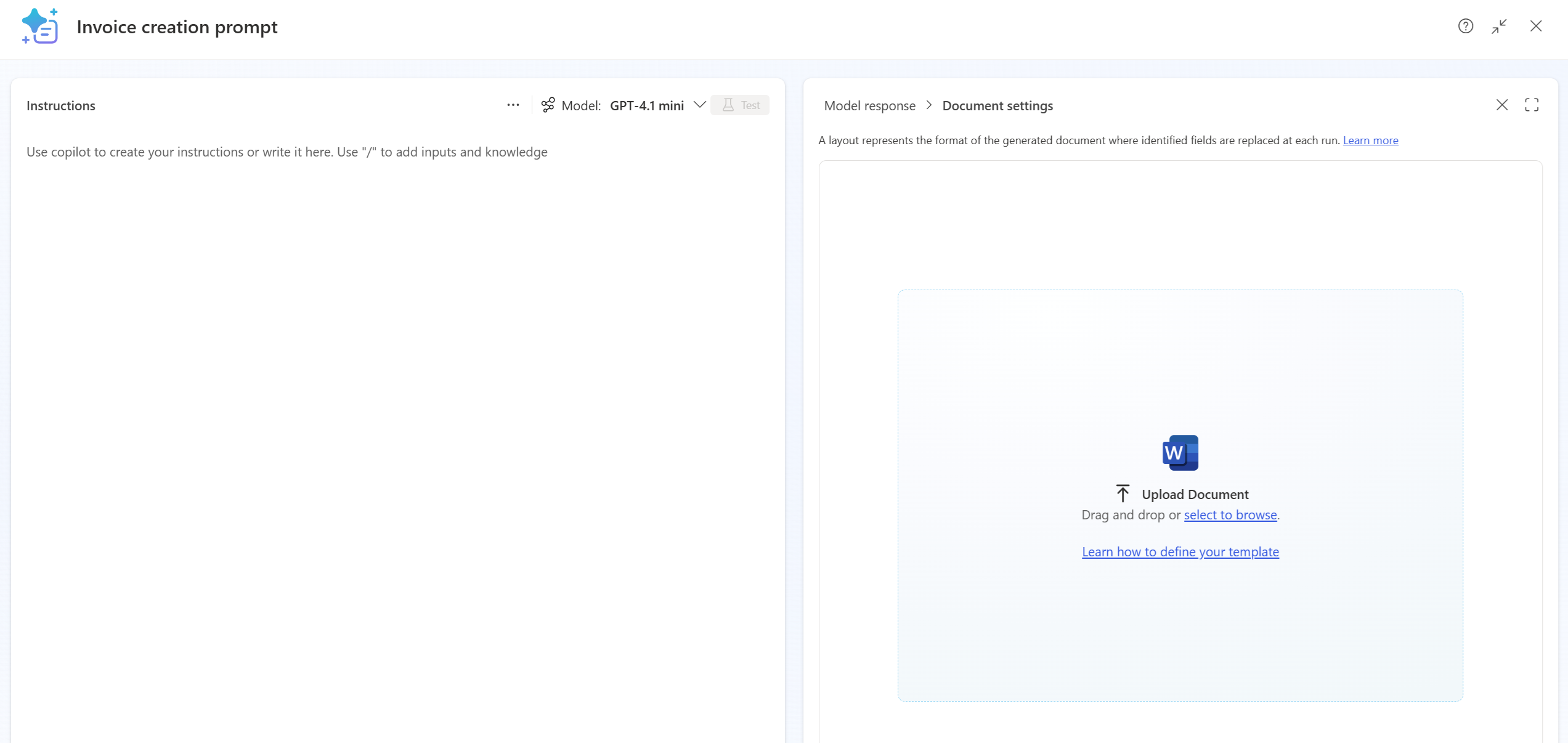
Select select to browse and upload a Word document layout that contains fields to replace by the prompt.
Follow these rules:
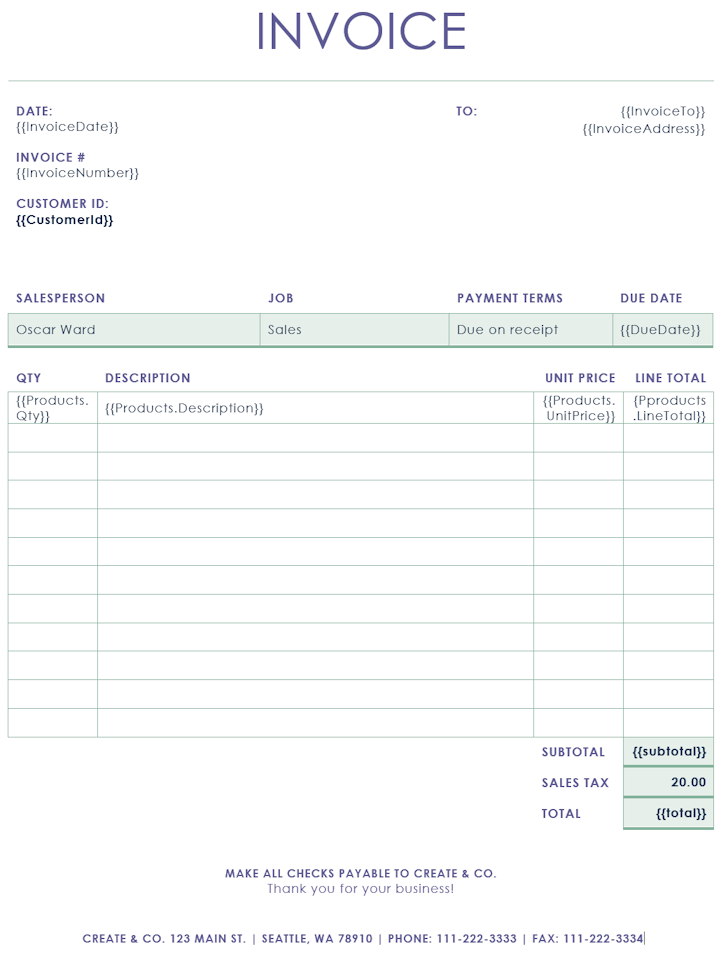
- Fields to replace should be identified using double curly brackets. Example:
{{FirstName}} - Fields to replace in a table should identify the table name and the column name, separated with a period. Example:
{{items.quantity}} - Fields to replace shouldn't contain space in the name.
Important
Your document layout can't exceed 20 MB, can't be confidential, or contain passwords.
For this scenario, you'll use the following invoice document layout:
- Fields to replace should be identified using double curly brackets. Example:
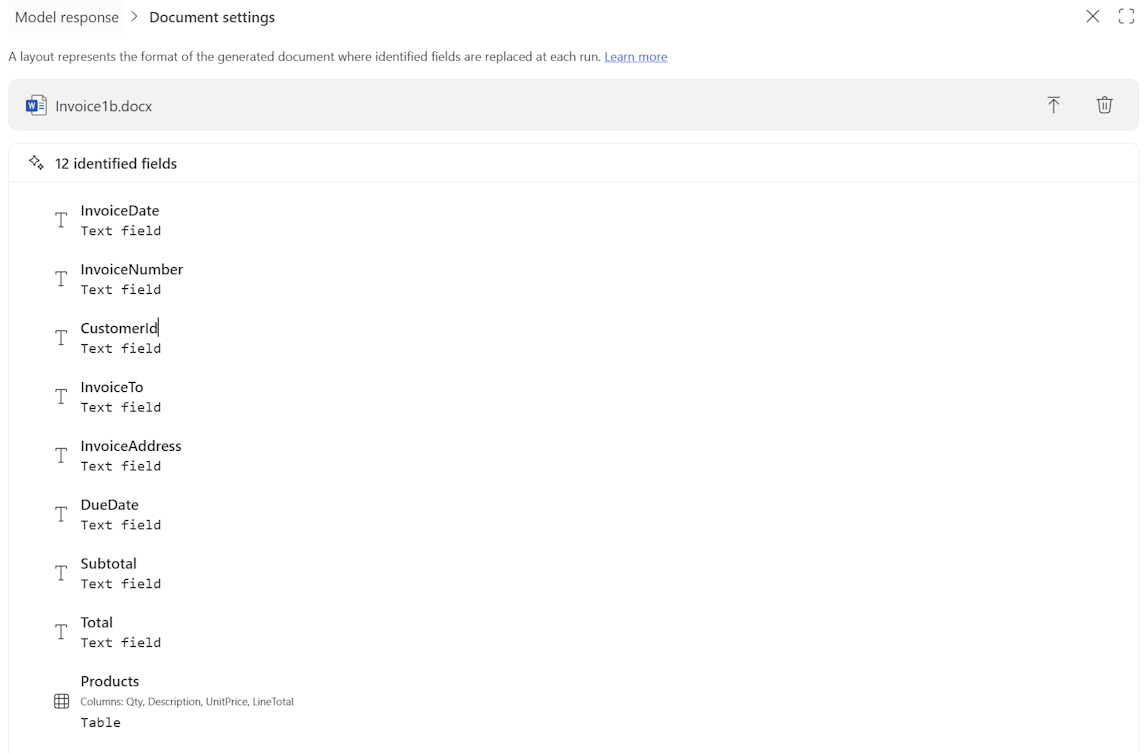
After you upload the layout, the identified fields to replace display for your review.
Write the instruction that generates the adequate text for each field to replace.
Select Test.
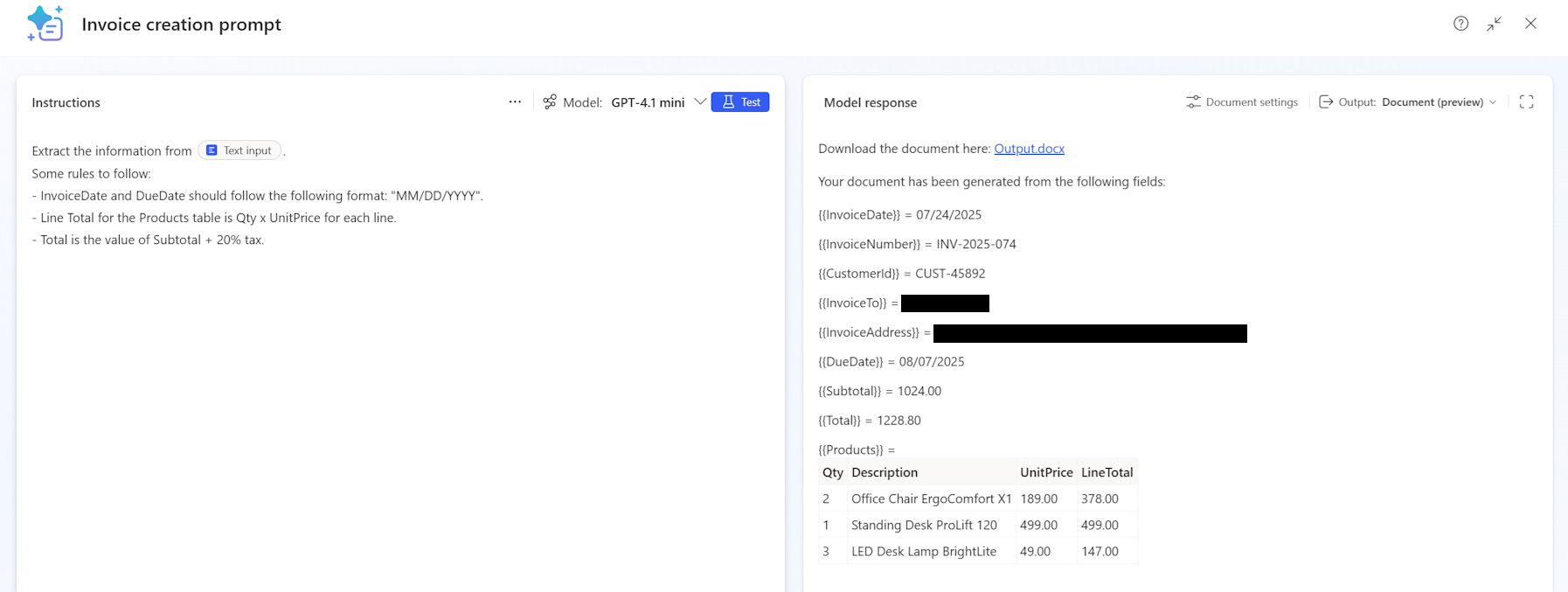
The content of the Text input can contain all the information about an invoice.
Example:
Invoice INV-2025-074 – Payment Due by 2025-08-07
Please find below the details of your invoice:
Invoice Date: 2025-07-24
Invoice Number: INV-2025-074
Customer ID: CUST-45892
Billed To: Adatum
Billing Address: 145 Greenfield Avenue, Suite 12, Springfield, IL 62704
Due Date: 2025-08-07
Products/Services Provided:
- Office Chair ErgoComfort X1 – Qty: 2 – Unit Price: $189.00
- Standing Desk ProLift 120 – Qty: 1 – Unit Price: $499.00
- LED Desk Lamp BrightLite – Qty: 3 – Unit Price: $49.00
Subtotal: $1,024.00Download the document that appears on the right. All fields should be filled in.
Note
If the fields to replace have meaningful names, the AI model can efficiently generate the correct text for each field to replace with minimal instruction. Add specific instructions to correctly fill in each field to replace, especially when:
- The name of the field to replace might be ambiguous, like multiple people names.
- There's a specific formatting needed, like date format.
- Other rules must be applied, like text combinations or calculations.
Use a prompt with document output in a cloud flow or agent flow
Create a new flow and select the trigger action When a new email arrives (V3).
Add the action Run a prompt, and then select the prompt created in Create a prompt with document output.
Select the body of the email as input of the prompt.
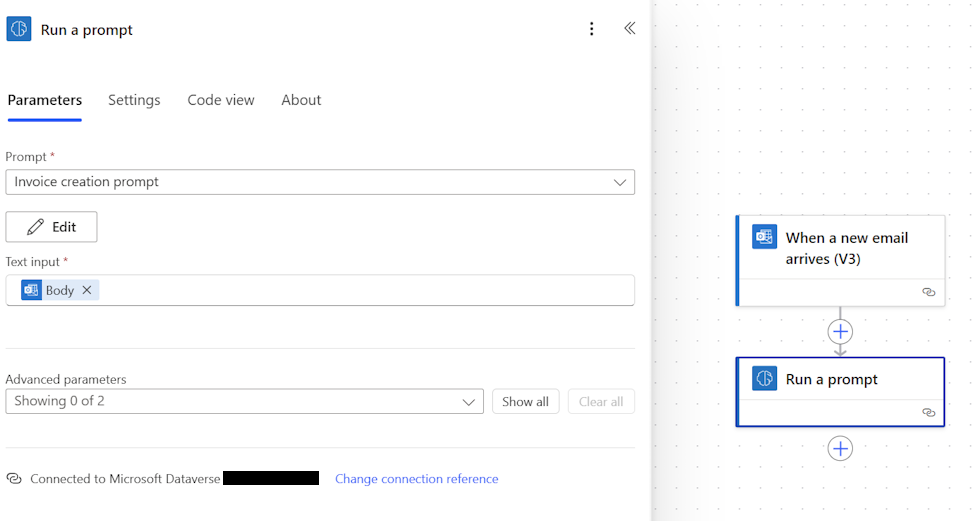
Add the action Create file from OneDrive.
Define the path and file name.
From the prompt action in the File content field, select Document Output Content Bytes.
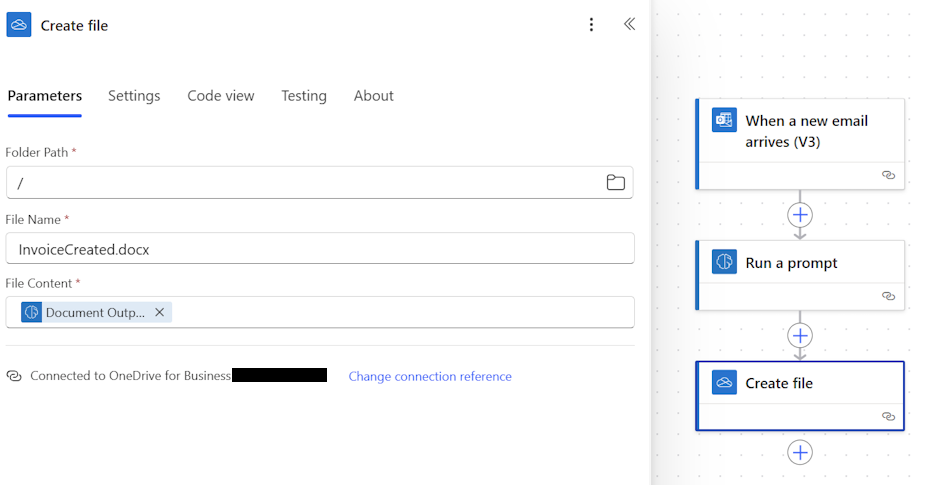
You can now send yourself an email with invoice information and get your file created in your OneDrive folder.
Use a prompt with document output in a topic
Unlike cloud flows and agent flows, the Document Output Content Bytes output isn't directly available as a node output in a topic. To allow a user to download the generated document in a topic, use a cloud flow as an intermediary to save the document and return a download link.
Step 1: Create a cloud flow to generate and store the document
- Create a new instant cloud flow with a Copilot Studio trigger.
- Add a Run a prompt action and select the prompt created in Create a prompt with document output.
- Add the action Create file from OneDrive or SharePoint.
- Define the path and file name.
- From the prompt action in the File content field, select Document Output Content Bytes.
- Add a Create sharing link action for the file to generate a shareable download URL.
- Add a Return value(s) to Power Virtual Agents action and return the sharing link URL as an output variable (for example,
DocumentURL).
Step 2: Call the flow from a topic
In Copilot Studio, open or create a topic.
Add a Call an action node and select the cloud flow you created in Step 1.
Map the required topic variables to the flow inputs (for example, a variable containing the source text to process).
Store the returned
DocumentURLoutput in a topic variable (for example,varDocumentURL).Add a Send a message node and include the download link for the user.
Example message:
Your document is ready. [Download it here]({varDocumentURL})
The user can select the link in the chat to download the generated Word document.
FAQ
Why is the document layout analysis failing?
You might encounter the following error after uploading a layout: Error File analysis failed. Please check if your placeholders are in the correct format of '{{placeholder}}' and try again.
This error means one of several fields to be replaced doesn't have the right format. All fields to replace should be between {{ and }}.
Why does document generation fail after saving, with the error "An error occurred while replacing output document placeholders"?
You might encounter this error after saving a prompt that worked correctly during testing. This error can occur when the saved prompt loses the reference to the uploaded document layout.
To resolve this issue, re-upload the Word document layout in the Document settings after saving the prompt:
- Open the saved prompt.
- Select Document settings.
- Select select to browse and re-upload the same Word document layout.
- Save the prompt again.
If the error persists even with a minimal template containing a single placeholder, verify that:
- The placeholder is formatted correctly with double curly brackets, for example
{{FieldName}}. - The placeholder name doesn't contain spaces.
- The Word document was saved in
.docxformat.
Is it possible to generate a document without uploading a layout?
It's not possible to generate a document without uploading a layout.
Limitations
- When you move a prompt from one environment to another by using Solutions, the Word template doesn't move with the prompt. You need to re-upload the Word template in the prompt output settings of the target environment.
- After saving a prompt with a document layout, you might need to re-upload the Word document layout before the prompt runs successfully. Learn more in Why does document generation fail after saving.
- Defining a text formatting in the instruction isn't supported. For example, you can't set a field in bold, or add a title, or change the color.
- Generating only a Word document is supported.
- A document layout can't be more than 20 MB.
- When you upload a document layout of more than 5 MB, you need to save and reopen the prompt before testing.