Note
Access to this page requires authorization. You can try signing in or changing directories.
Access to this page requires authorization. You can try changing directories.
Custom agent templates are prebuilt Copilot Studio agents packaged as Power Platform solutions. They provide a fully functional starting point that you can customize with your own topics, knowledge sources, and components.
Prerequisites
Before you begin:
- Install and configure Copilot Agent Kit in your Power Platform environment.
- The signed-in user has the CSK - Maker security role assigned in Copilot Agent Kit to browse and install templates.
- The Power Platform environment has Copilot Studio enabled.
Install from Copilot Agent Kit
Install from Copilot Agent Kit is the recommended way to install a custom agent template.
In Copilot Agent Kit, go to Agent Library in the left pane. The Agent library page opens.
Select the Templates tab.
Browse or search for the custom agent template you want to install.
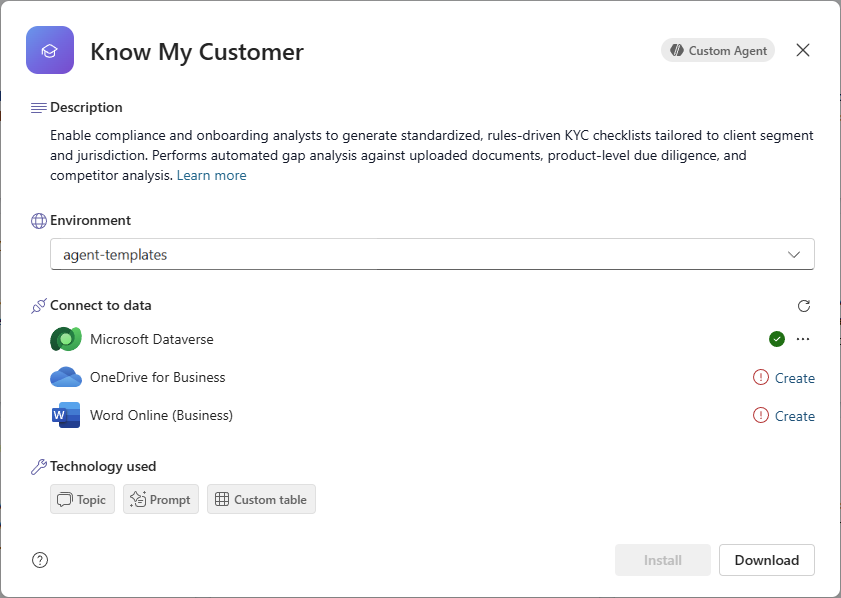
Select a custom agent template card to open the template details panel. The panel includes the following sections:
- Description: An overview of the template and what it does.
- Environment: A picker listing all environments in your tenant. You can install only when you have System Customizer or System Administrator access in the selected environment.
- Connect to data: Lists the connection references required by the template (for example, Dataverse, OneDrive, or Word Online). Each connection shows a status. A green check mark indicates the connection is ready; a Create button indicates you need to set up the connection before installing.
- Technology used: Tags that indicate the technologies included in the template, such as Topic, Prompt, or Custom table.
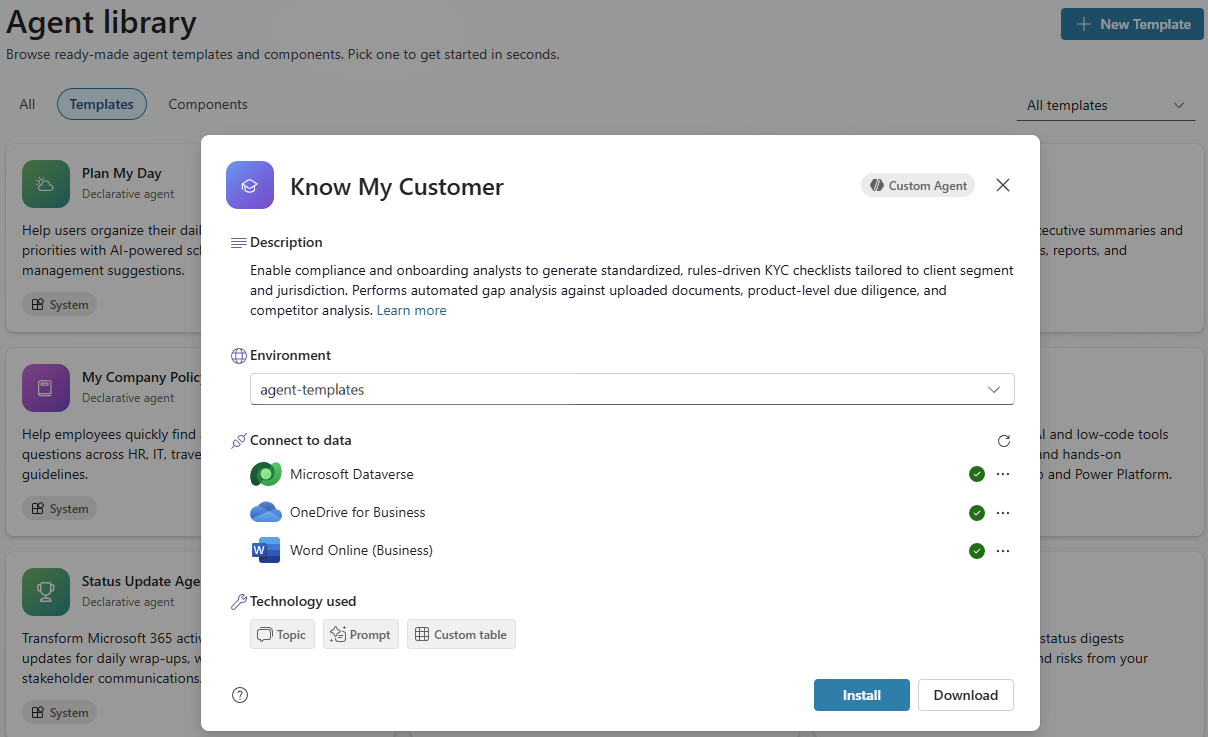
The action buttons depend on the template's install status and your permissions:
Scenario Buttons shown What happens You have install privileges in the selected environment. Install + Download Install imports the agent solution directly into your environment. You don't have install privileges in the selected environment. Download only Download saves a .zipfile so you can import it manually. Learn more in Import a custom agent template manually.Make sure all required connections under Connect to data show a green check mark. If any connection shows a Create button, select it to set up the connection in Power Apps before proceeding. Learn more in Connection references.
To begin the installation, select Install. A progress indicator appears while the solution is imported.
Wait for the installation to complete. A confirmation dialog appears when the agent is ready.
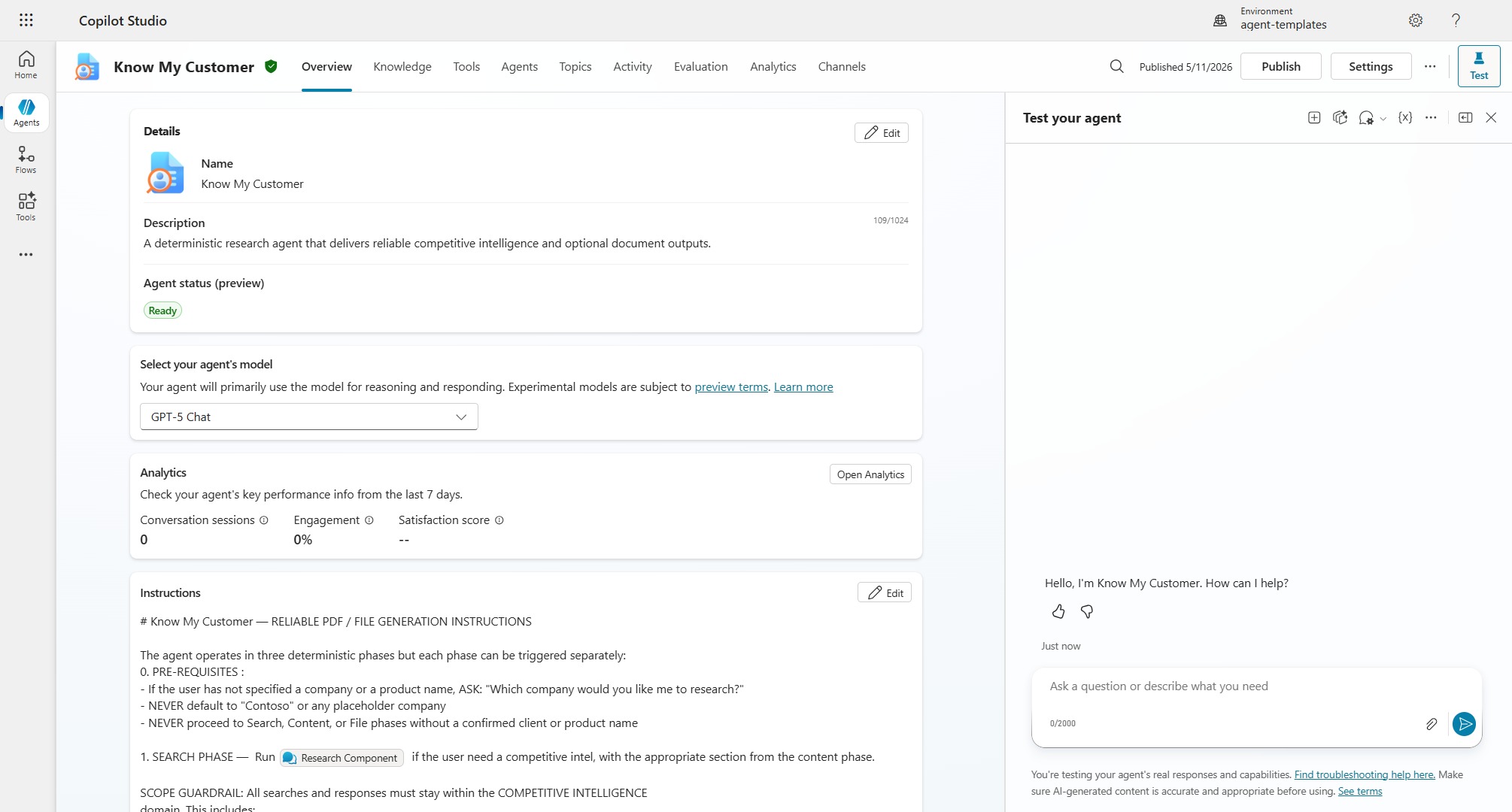
Select Launch Copilot Studio to open the agent in Copilot Studio and start customizing it.
Tip
After installation, open the agent in Copilot Studio to review the preconfigured topics, knowledge sources, and instructions. Customize them to match your organization's specific needs before publishing.
Connection references
Some custom agent templates require connection references to external services, such as Dataverse, OneDrive, or Word Online. The Connect to data section in the template details panel helps you manage these connections.
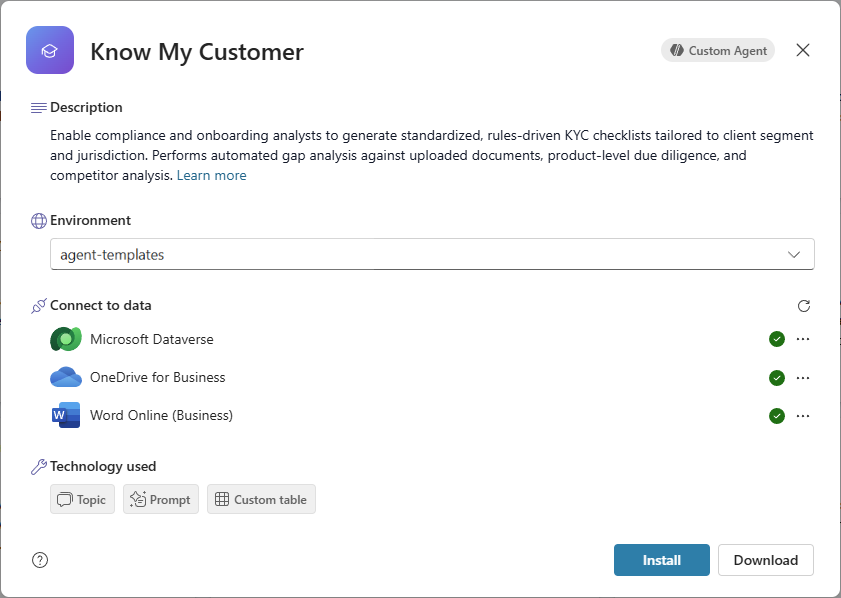
All connections ready: All connection references show a green check mark. The template is ready to install without additional configuration.
Connection references need setup: One or more connections show a Create button. Select Create to be redirected to Power Apps, where you can set up the required connection.
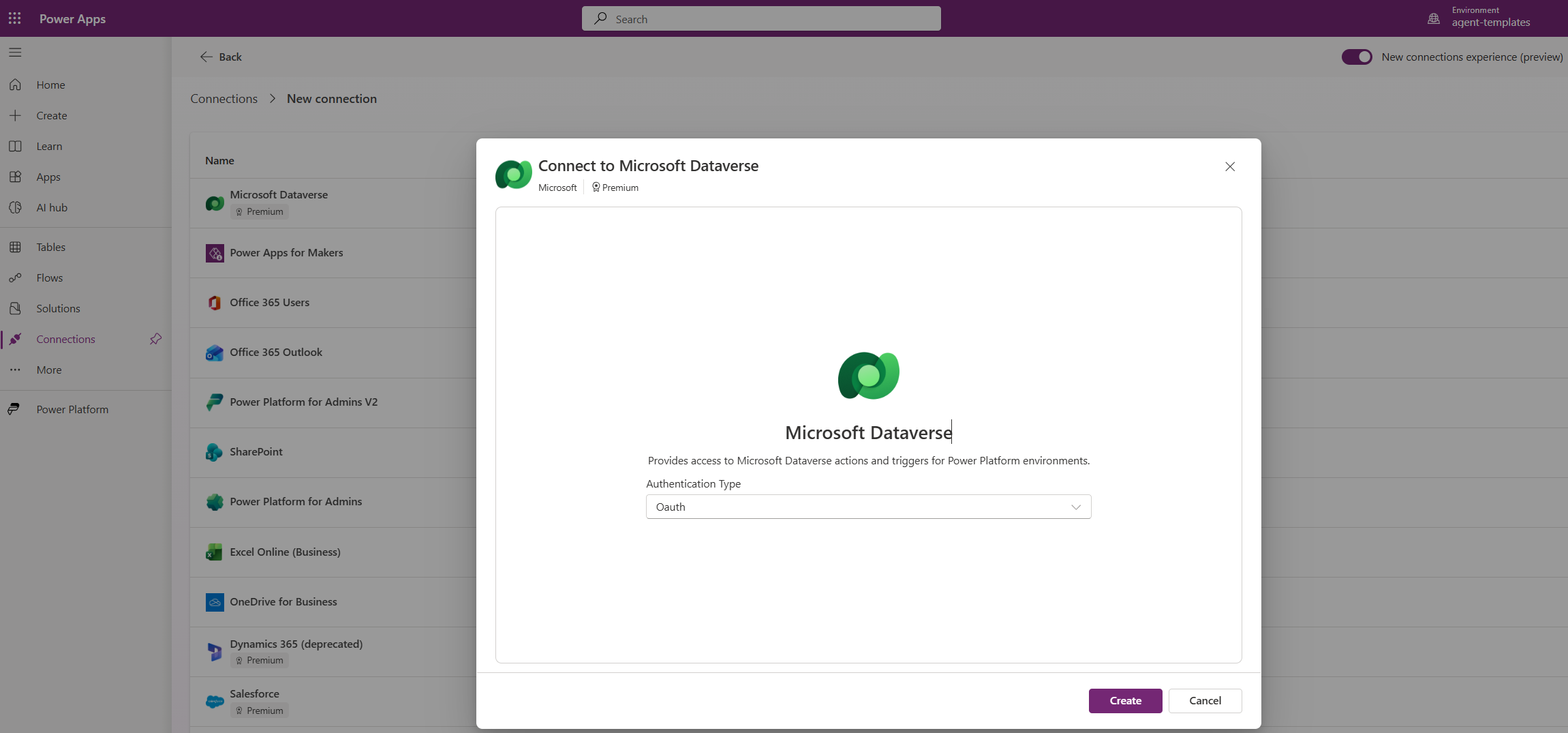
Mixed connection status: Some connections are ready, while others still need setup. Resolve all outstanding connections before installing. After you create a missing connection, return to the template panel and select the refresh icon next to the connection to update its status.
Import a custom agent template manually
Use this option if you prefer to import the template solution manually, or if you downloaded the .zip file from Agent Library.
In Copilot Agent Kit, go to Agent Library in the left pane. The Agent library page opens.
Select the Templates tab.
Browse or search for the custom agent template you want to download the template
.zipfile from.Select a custom agent template card to open the template details panel.
Select Download.
Go to Power Apps.
On the top bar, verify you're in the correct environment. Select Environment to switch if needed.
In the left pane, select Solutions.
Select Import solution from the top menu bar.
Select Browse, and then choose the
.zipfile you downloaded.Select Next, review the solution details, and select Next again.
If prompted, configure any required connection references.
Select Import and wait for the import to complete.
Important
When you import manually, make sure to configure all required connection references during the import process. Missing connections cause the agent to fail at runtime.