Note
Access to this page requires authorization. You can try signing in or changing directories.
Access to this page requires authorization. You can try changing directories.
Only applies to:  Microsoft Copilot harness
Workflows let you apply different levels of intelligence to different parts of a process. Some steps are predictable and work best with deterministic logic. Others require interpretation, reasoning, or tool orchestration. A workflow can combine deterministic logic, AI-powered tasks, and agent-driven tool orchestration.
These choices affect cost, latency, maintainability, and consistency.
Deterministic steps
A deterministic step follows a defined path from input to output. Given the same input, it produces the same result. Deterministic steps transform, calculate, look up, request, and route.
Use a deterministic step when:
- The step is simple, and the path from input to output is known.
- The logic is easy to build and maintain.
- The logic is more complex to build, but the resulting predictability and performance justify the effort.
Examples: data operations, conditions, loops, scopes, HTTP requests, functions, and connectors.
AI-powered steps
An AI-powered step uses a model to interpret information, generate content, make decisions, or orchestrate tools.
Use an AI-powered step when:
- The step requires reasoning, and you can't express its logic as a rule.
- Writing the rules is too complex or too costly to maintain.
- The action path is ambiguous, and the workflow must determine which action or tool to use at runtime.
Examples: classification, published agents (first-party or custom), and inline agents.
Design a mixed workflow
Most business processes include both predictable and ambiguous steps. For example, a logistics team classifies and routes inbound orders automatically, then adds an approval gate before dispatch.
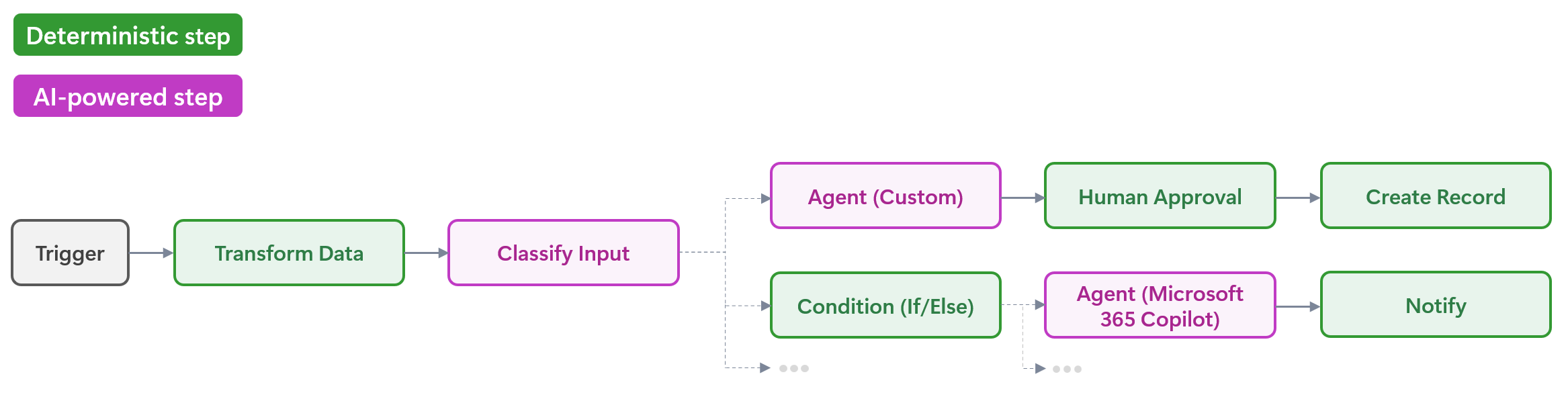
In this example:
- A trigger starts the workflow.
- Deterministic steps transform and validate incoming data.
- An AI step classifies the request.
- A condition routes the workflow based on the result.
- An agent handles cases that require judgment.
- A person reviews or approves the outcome when needed.
- Deterministic steps update systems and send notifications.
When building a workflow:
- Map the process using deterministic steps first.
- Identify the decisions that can't be expressed with rules.
- Add the smallest AI capability that solves those decisions.
- Review cost and latency, and move work back to deterministic steps where possible.
Choose a model for each step
For AI-powered steps, choose a model that matches the task.
For example, a classification task might use a smaller model than a step that reasons across multiple inputs or orchestrates tools. Matching model capability to the task helps control cost and latency while maintaining quality.
Learn more: Plan cost and credit consumption for workflows
Validate AI-powered steps
To validate a deterministic step, run it with a given input and check that the output matches the expected result. An AI-powered step needs a different approach because the same input doesn't guarantee the same output.
When you add an AI-powered step, plan to:
- Test it more than once: One successful run doesn't establish reliability. Run it repeatedly with the same input to measure how much the output varies.
- Test inputs that could fit multiple categories: A classification step is most likely to produce inconsistent results for these inputs.
- Check the output shape, not only the content: Downstream steps rely on consistent output formats. An unexpected format can cause downstream steps to fail even when the content is correct.
- Retest after you change the model: Changing the model for a step changes its behavior, its latency, and its consumption. Treat a model change as a change that needs revalidation, not as a minor configuration tweak.
Note
Building a workflow manually doesn't consume Copilot Credits, but testing and evaluating an AI-powered step does. Include repeated validation runs in your consumption estimate. Learn more in Plan cost and credit consumption for workflows.
Learn how to run a test on a single node or on the entire workflow in Edit and manage your workflow in the designer.