Note
Access to this page requires authorization. You can try signing in or changing directories.
Access to this page requires authorization. You can try changing directories.
Important
- This is a preview feature.
- Preview features aren't meant for production use and might have restricted functionality. These features are subject to supplemental terms of use. Microsoft makes preview features available before an official release so that customers can get early access and provide feedback.
Note
Work IQ (preview) is powered by the GitHub Copilot harness, which uses Copilot Credits for usage-based billing. Learn more about usage-based billing and cost management in the following articles:
Add Work IQ to your agents in Microsoft Copilot Studio to enhance what they can understand and do. Work IQ is the intelligence layer that grounds Microsoft Copilot and your agents in real-time, shared context across your organization. It enables personalized search, advanced reasoning, and deeper semantic understanding by connecting signals across the Microsoft 365 ecosystem and your Business Applications. Work IQ applies an extensive understanding of your work to help Microsoft Copilot and your agents deliver insights, recommendations, and actions that closely align with the reality of your business.
Work IQ is built on three tightly integrated layers: Data, Memory, and Inference. These layers work together to give Microsoft Copilot and your agents continuous, contextual understanding of work.
- Data unifies signals from files, emails, meetings, chats, and Business Applications across Microsoft 365 to capture how work happens across the organization.
- Memory builds persistent understanding of how people and teams work, enabling Agent 365–managed agents to stay aligned to priorities and remain consistent across tasks, apps, and sessions.
- Inference brings together models, skills, and tools so agents can reason and take action—using Work IQ MCP tools—while the Agent 365 control plane ensures those actions remain observable, governed, and compliant. Copilot and your agents don't just understand your work, they actively move it forward.
Extend your agents by adding Work IQ (preview) in Copilot Studio so you can experience more accurate, relevant, and personalized responses that are grounded in your work, line-of-business, and web data.
Learn how to get started with Work IQ (preview) in Enable your tenant for Work IQ.
Important
In Copilot Studio, only Work IQ (preview) connects your agents to the unified tool surface that uses context and actions across Microsoft 365 services.
Separate workload-specific tools, such as Mail, Teams, OneDrive, SharePoint, User or User profile, Copilot, Search, Calendar, and Word, might also appear in the tool catalog. These tools are part of a legacy experience that remains available for testing and backward compatibility. Don't select them in place of Work IQ (Preview) when you configure the new experience.
Work IQ (Preview) isn't a new label for the workload-specific, legacy tools.
The experiences also use different runtime and billing models. Work IQ (preview) uses the GitHub Copilot harness and Copilot Credits. The separate workload-specific tools use the standard harness and standard Copilot Studio licensing and billing.
Work IQ (preview) key features
Extend your agents' capabilities by using Work IQ (preview). It's secure, scalable, and compliant by design. Key features include:
- Centralized governance: Admins manage Work IQ MCP in the Microsoft 365 admin center.
- Enterprise‑grade security: Agents are secure and operate within compliance boundaries through scoped permissions, policy enforcement, and runtime observability.
- Continuous evaluation: The Work IQ MCP server undergoes rigorous testing across diverse datasets and models to ensure production-grade robustness and consistent performance. The evaluation measures:
- Accuracy
- Latency
- Reliability
- Integrated developer experience: Tooling infrastructure is built into GitHub Copilot CLI, Microsoft Foundry, and Copilot Studio.
Note
- Microsoft 365 Work IQ is read-only unless an administrator explicitly turns on write operations in the Microsoft 365 admin center.
- Admins need to create a separate spending policy for Work IQ usage.
- The ability to allow or disallow tooling and MCP servers in the Microsoft 365 admin center might not be available in your region yet.
Add Work IQ (preview) to your agent
Add Work IQ (preview) to your agent so it can access real-time insights and context from your Microsoft 365 work data.
Select or create your agent.
Select the Tools tab, and then select Add Tool.
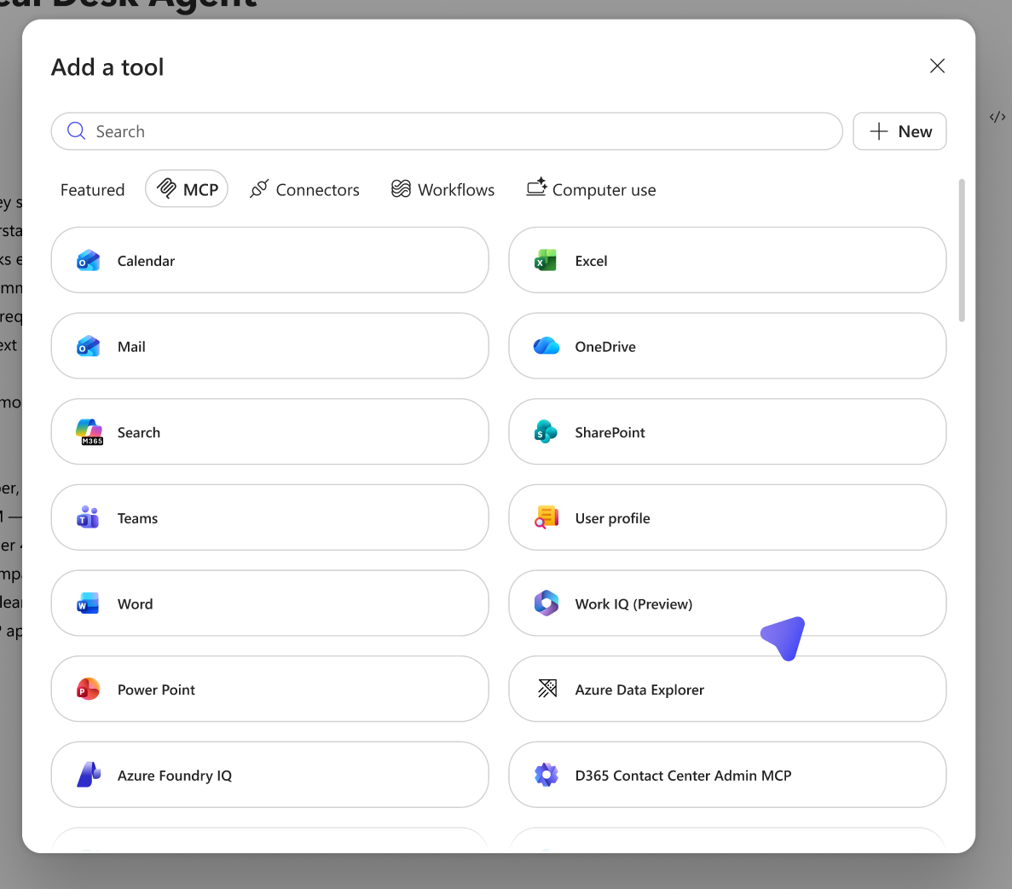
On the Add a tool page, select MCP to see Work IQ (Preview) and other tools.
Select Work IQ (Preview), expand the Connection list, and then select Create new connection.
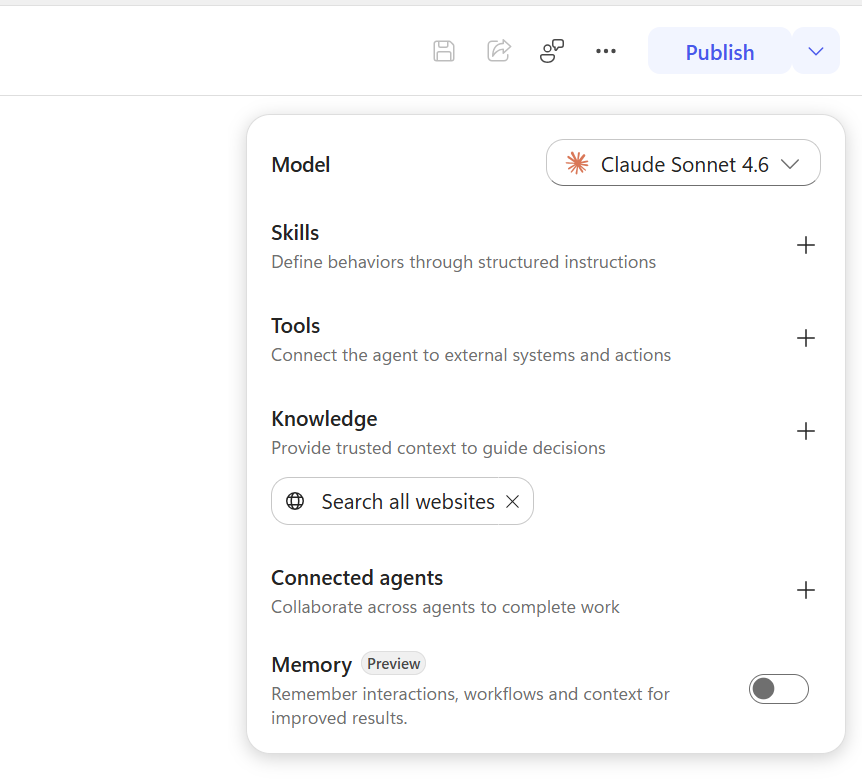
Select Create.
Enter your credentials, and then complete the sign-in process.
Select Add and Configure.
Test the agent. Select Test, and then enter a prompt that requires email context to see Work IQ in action. For example, use the following prompt: Send an email to <your test tenant email address> and ask how the hands-on lab is going.
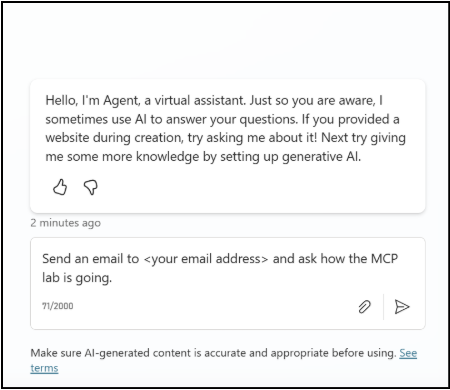
Select Enter.
When asked to allow Work IQ to connect and use services, select Allow.
After a few moments, you receive an email.
The agent can now access the email content, understand its context, and respond accordingly.