Note
Access to this page requires authorization. You can try signing in or changing directories.
Access to this page requires authorization. You can try changing directories.
Note
This article describes features used in agents or agent flows powered by the standard harness.
Synchronization keeps your local agent files in sync with the cloud-based Microsoft Copilot Studio service and helps teams collaborate and manage conflicting changes.
Understand synchronization operations
The Copilot Studio extension for Microsoft Visual Studio Code provides three core synchronization operations:
| Operation | Description | Direction | Safety |
|---|---|---|---|
| Preview | Preview remote changes without applying them | Cloud to Local | No local changes |
| Get | Download and apply remote changes to local files | Cloud to Local | Any changes to the same component show both versions and expect the local user to review and confirm which version to keep |
| Apply | Upload local changes to Copilot Studio remote | Local to Cloud | Modifies the live agent immediately. If there are remote changes that occur since you cloned the agent, you get a pop-up to inform you. The pop-up recommends reviewing the changes before you apply them remotely. Users can't apply changes if there are remote changes that aren't yet retrieved through the get command. The apply icon and command are blocked. The apply action isn't the same as a publish operation in Copilot Studio, and doesn't publish the agent. |
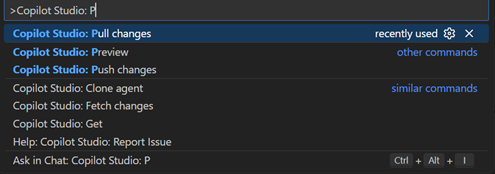
The Agent Changes pane
Access agent changes
Select the Copilot Studio icon in the activity bar.
The Agent Changes pane appears:
AGENT CHANGES
├─ Agent 1
│  ├─ Local Changes (1)
│  │  └─ topics/greeting.topic.yaml
│  └─ Remote Changes (1)
|     └─ agent.yaml
Preview changes
Here are common scenarios for when to preview:
- When you start your work session
- Before you make major changes
- When you work in a team environment
- Periodically (every 30-60 minutes)
Preview with Agent Changes pane
Open the Agent Changes pane.
Select the Preview button.
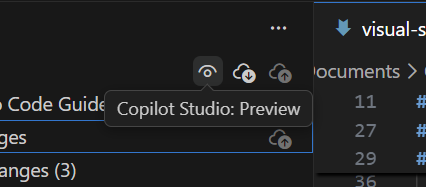
Wait for the preview to complete.
Review the changes in the Remote Changes folder of the Agent Changes pane.
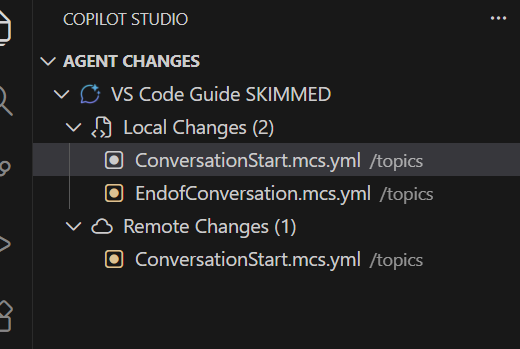
Preview with the command palette
Press
Ctrl+Shift+P.Enter: "Copilot Studio: Preview."
Press
Enter.
Get changes
Get downloads and apply remote changes to your local files.
When to get changes
The following are common scenarios for when to get changes:
- After the preview command reveals remote changes
- At the start of a work session
- Before pushing your changes
- When collaborating with others
How to get changes
Get changes with the Agent Changes pane
Open the Source Control pane.
Select Get.
Confirm if prompted: "This action overwrites uncommitted local changes."
Wait for the pull to complete.
The changes are immediately applied to your file directory.
Get changes with command palette
Press
Ctrl+Shift+P.Type: "Copilot Studio: Get Changes."
Press
Enter.
Resolve conflicts
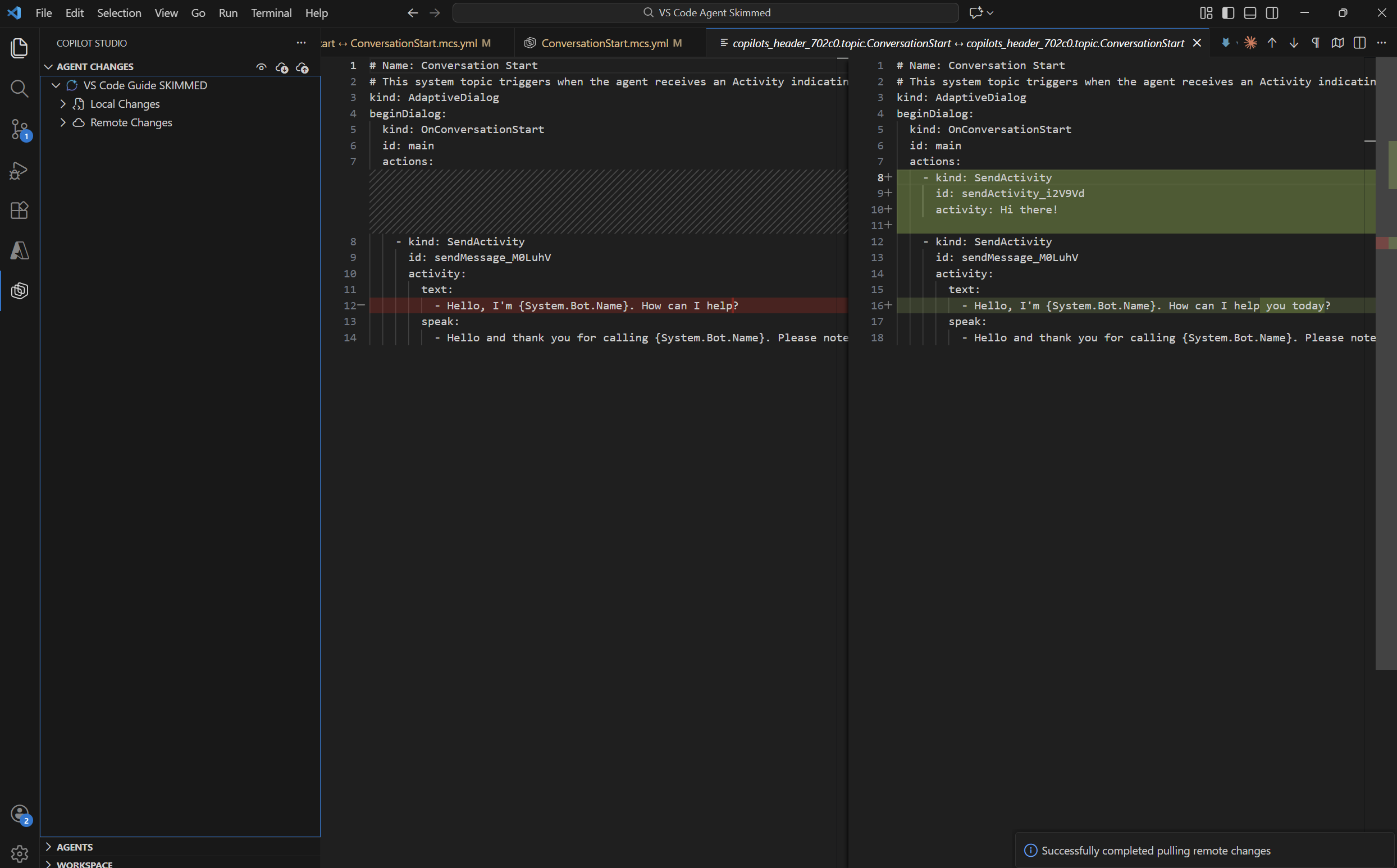
When both local and remote versions of a file change, you might see conflicts (which you should be aware of since you previously did a preview operation, which informs you of remote changes) when you perform a get operation.
You can then choose to revert the changes back to your original local version, or choose to keep the remote change, which is considered the "Latest change."
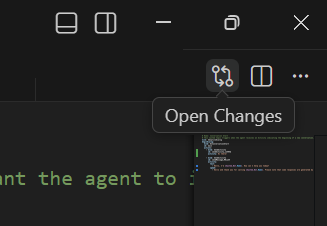
If you close the action window before addressing changes from operations, select the Open Changes icon on the topic that is changed (which is highlighted if it has actions pending).
Apply changes
Select Apply to upload your local changes to Copilot Studio, updating the agent in your environment. This action doesn't publish your changes. After you apply your changes, test them by using the test pane in the Copilot Studio UI in the browser. You can start a conversation or use the trigger for workflows to begin testing.
Before you apply changes
Here are items to verify before applying your changes:
- No unresolved merge conflicts
- Preview and get run for the latest remote changes
- Files pass validation (no errors in Problems pane)
- Changes committed to Git (if using version control)
- Permission to modify the agent
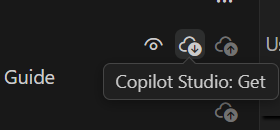
Users can't apply changes if there are remote changes that aren't yet retrieved through the get command. The apply icon and command are blocked.
When to apply changes
Here are common scenarios for when to apply your changes:
- When you complete a feature or fix
- When you finish your work session
- When you want to test in cloud environment
- When ready to share changes with team
How to apply changes
Apply changes with Agent Changes pane
Open the Agent Changes pane.
Review your changes in the Changes section.
Select Apply.
Wait for the push to complete.
Apply changes with command palette
Press
Ctrl+Shift+P.Type:
Copilot Studio: Apply Changes.Press
Enter.
Apply results
When you apply your changes, you see the latest status displayed in Visual Studio Code.