Note
Access to this page requires authorization. You can try signing in or changing directories.
Access to this page requires authorization. You can try changing directories.
Use the Language Detector API to detect the language of text from JavaScript code in your website or browser extension. The API uses a task-specific model that's built into Microsoft Edge.
Detailed contents:
- Introduction
- Use the Language Detector API with the Translator API
- Benefits of the Language Detector API
- Alternatives to the Language Detector API
- Disclaimer
- Model availability
- See a working example
- Use the Language Detector API
- Check if the Language Detector API is enabled
- Check if the model can be used (availability())
- Create a new session (create())
- Monitor the progress of the model download (monitor)
- Run the Language Detector API (detect())
- Understanding the confidence scores
- Destroy a session (destroy())
- Send feedback
- See also
Introduction
For introductory information about the Language Detector API, see:
Use the Language Detector API with the Translator API
To facilitate translating user-provided text to another language, use the Language Detector API in conjunction with the Translator API.
To learn about the Translator API, see Translate text with the Translator API.
Benefits of the Language Detector API
The Language Detector API uses a language detection model that runs on the same device where the inputs to and outputs of the model are used (that is, locally). This approach has the following benefits compared to cloud-based solutions:
Reduced cost: There's no cost associated with using a cloud language detection service.
Network independence: Beyond the initial model download, there's no network latency when using this API to detect languages, and the API can also be used when the device is offline.
Improved privacy: The data input into the model never leaves the device, and isn't collected to train other AI models.
The language detection model is downloaded the first time the API is used in Microsoft Edge, and is subsequently shared across all websites in the browser. The model is accessed via a straightforward web API that doesn't require knowledge of third-party frameworks, and doesn't require Artificial Intelligence (AI) or Machine Learning (ML) expertise.
Alternatives to the Language Detector API
You can send network requests to cloud-based language detection services with more sophisticated capabilities; see Azure AI Language documentation.
As an on-device alternative, the Prompt API serves more custom scenarios, with a small language model that's built into Microsoft Edge; see Prompt a built-in language model with the Prompt API.
Disclaimer
Like other machine learning models, the language detection model in Microsoft Edge can potentially produce results that are inaccurate or unreliable for certain inputs, such as short text or single words.
Model availability
An initial download of the model is required the first time a website calls the Language Detector API. You can monitor the model download by using the monitor option when creating a new Language Detector API session; see Monitor the progress of the model download (monitor), below.
See a working example
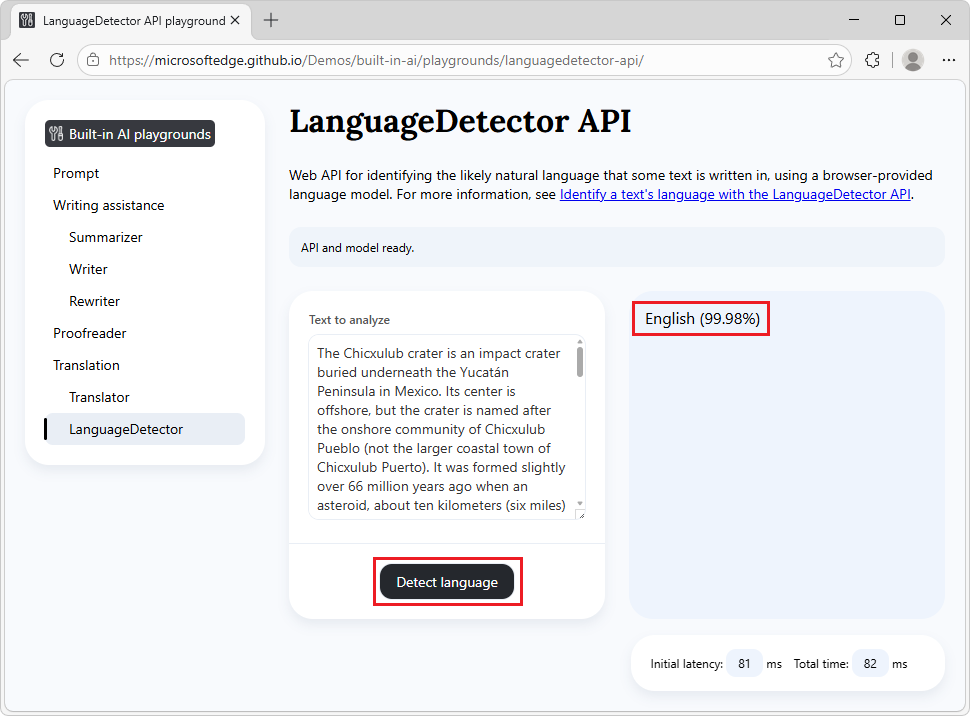
To see the Language Detector API in action, and view existing code that uses this API:
Go to Language Detector API playground in a new window or tab.
In the information banner at the top, check the status: it initially reads: On-device API and model available.
In the Text to analyze text box, you can optionally change the text.
Click the Detect language button.
The model starts detecting the language of the text.
The output is generated in the response section of the page.
The output displays:
- The name of the detected language.
- The percent certainty of which language.
See also:
- /built-in-ai/ - Source code and Readme for the Built-in AI playgrounds demo.
Use the Language Detector API
The next sections are about using the Language Detector API.
Check if the Language Detector API is enabled
Before using the Language Detector API in your website's code, check that the API is available in the browser, by testing for the presence of the LanguageDetector object:
if (!LanguageDetector) {
  // The Language Detector API is not available.
} else {
  // The Language Detector API is available.
}
Check if the model can be used (availability())
The Language Detector API can be used if the model and model runtime have been downloaded by Microsoft Edge.
To check if the API can be used, call LanguageDetector.availability():
const availability = await LanguageDetector.availability();

if (availability == "unavailable") {
  // The model is not available.
}

if (availability == "downloadable" || availability == "downloading") {
  // The model can be used, but it needs to be downloaded first.
}

if (availability == "available") {
  // The model is available and can be used.
}
Create a new session (create())
Creating a session instructs the browser to load the language detection model in memory, so that the model can be used. Before you can detect the language, create a new session by using the LanguageDetector.create() method:
// Create a Language Detector session.
const session = await LanguageDetector.create();
To customize the model session, you can pass options to the create() method:
// Create a Language Detector session with options.
const session = await LanguageDetector.create({
  expectedInputLanguages: ["en", "es", "fr"]
  monitor: monitorProgress
});
The available options are:
| Option | Description |
|---|---|
expectedInputLanguages |
An array of language codes. If there are certain languages that you need to be able to detect for your use case, include those languages in the expectedInputLanguages option. This allows Microsoft Edge to download additional resources, if necessary, for better accuracy. The language codes should be in BCP 47 format (for example, "en" for English, "es" for Spanish, or "fr" for French). |
monitor |
A function that's used to monitor the progress of the model download. See Monitor the progress of the model download (monitor), below. |
Monitor the progress of the model download (monitor)
You can follow the progress of the model download by using the monitor option. This is useful when the model has not yet been fully downloaded onto the device where it will be used, to inform users of your website that they should wait.
// Create a Language Detector session with the monitor option
// to monitor the model download.
const session = await LanguageDetector.create({
  monitor: m => {
    // Use the monitor object argument to add a listener for the
    // downloadprogress event.
    m.addEventListener("downloadprogress", event => {
      // The event is an object with the loaded and total properties.
      if (event.loaded == event.total) {
        // The model is fully downloaded.
      } else {
        // The model is still downloading.
        const percentageComplete = (event.loaded / event.total) * 100;
      }
    });
  }
});
Run the Language Detector API (detect())
After you have created a model session, you can detect the language of text. The Language Detector API provides the detect() method to detect languages:
// Create a Language Detector session.
const session = await LanguageDetector.create();

// Detect the language of the text.
const results = await session.detect(someUserText);

// Use the results.
for (const result of results) {
  // Show the full list of potential languages with their likelihood, ranked
  // from most likely to least likely.
  console.log(result.detectedLanguage, result.confidence);
}
The detect() method returns a promise that resolves to an array of language detection results. Each result is an object with the following properties:
| Property | Description |
|---|---|
detectedLanguage |
The BCP 47 language tag of the detected language (for example, "en" for English, "es" for Spanish, or "und" for undetermined). |
confidence |
A number between 0.0 and 1.0, indicating the confidence level of the detection. Higher values indicate higher confidence. |
The results are sorted by confidence in descending order, with the most likely language first. The last entry in the results array is always the undetermined language ("und"). The undetermined member in the array represents the percent confidence that the text is not in any of the languages that the model knows.
Understanding the confidence scores
The confidence scores that are returned by the Language Detector API have the following characteristics:
Range: Each confidence score is a number between 0 (lowest confidence) and 1 (highest confidence), inclusive.
Sorted results: The results are sorted from highest to lowest confidence.
Low-confidence filtering: Languages that have very low confidence are automatically filtered out, to reduce noise. Low confidence is typically less than 1%, or less confident than the "undetermined" category.
Sum of scores: The sum of all confidence scores might be less than 1, because low-probability languages are omitted from the results.
Destroy a session (destroy())
After detecting languages, destroy the session. This lets the browser know that you don't need the language model anymore, so that the model can be unloaded from memory.
You can destroy a session in two different ways:
- By using the
destroy()method. - By using an
AbortController.
Details are below.
Destroy a session by calling destroy()
To destroy a session by calling destroy() with a LanguageDetector session:
const session = await LanguageDetector.create();

// Later, destroy the session by using the destroy method.
session.destroy();
Destroy a session by using AbortController
To destroy a session by creating an AbortController object, create a LanguageDetector session, and then call abort():
// Create an AbortController object.
const controller = new AbortController();

// Create a Language Detector session and pass the
// AbortController object by using the signal option.
const session = await LanguageDetector.create({
  signal: controller.signal
});

// Later, perhaps when the user interacts with the UI, destroy the session by
// calling the abort() function of the AbortController object.
controller.abort();
Send feedback
We're interested in learning about:
- The range of scenarios for which you're using the Language Detector API.
- Any issues you encounter with the API or language detection model.
- Whether other task-specific, built-in APIs would be useful.
To send feedback about your scenarios and the tasks you want to achieve, add a comment to the Language Detector API feedback issue.
If you notice any issues when using the API instead, please report it on the repo.
You can also contribute to the discussion about the design of the Language Detector API, at the W3C Web Machine Learning Working Group repository.
See also
- Translate text with the Translator API
- Prompt a built-in language model with the Prompt API
- Summarize, write, and rewrite text with the Writing Assistance APIs
- Correct grammar and spelling with the Proofreader API
GitHub:
Azure docs:
Demos repo:
- Language Detector API playground
- /built-in-ai/ - Source code and Readme for the Built-in AI playgrounds demo.