Note
Access to this page requires authorization. You can try signing in or changing directories.
Access to this page requires authorization. You can try changing directories.
The SpeechRecognition API is a standard web API that enables converting speech, from an audio source such as a media file or device microphone, into text, directly from a website's or browser extensions's JavaScript code. This article focuses on using the SpeechRecognition API with the on‑device (or local) speech recognition model that is built into Microsoft Edge.
For more information about the API, see Web Speech API, at MDN.
Detailed contents:
- Availability of the local speech recognition model
- Benefits of the local speech recognition model
- Enable local speech recognition in Microsoft Edge
- See a working example
- Use the SpeechRecognition API with local recognition in your website
- Send feedback
- See also
Availability of the local speech recognition model
The local speech recognition model is available in Microsoft Edge Canary or Dev (version 150.0.4076 or later). See Become a Microsoft Edge Insider.
Benefits of the local speech recognition model
When using the SpeechRecognition API with the local model in Microsoft Edge, speech recognition happens on the same device where the speech is captured. This approach has the following benefits compared to cloud-based solutions:
Reduced cost: There's no cost associated with using a cloud recognition service.
Network independence: Beyond the initial model download, there's no network latency when using this API to convert speech, and the API can also be used when the device is offline.
Improved privacy: The speech input into the model never leaves the device, and isn't collected to train AI models.
Model availability
An initial download of the model is required the first time that a website uses the local speech recognition model with the SpeechRecognition API.
You can monitor the model download by using the promise that's returned by the SpeechRecognition API install() method. See Check whether the local model is already installed, below.
Enable local speech recognition in Microsoft Edge
To use the local speech recognition model with the SpeechRecognition API, you need to enable the feature in Microsoft Edge Canary or Dev. To enable speech recognition using the on-device model:
Make sure you're using Microsoft Edge Canary or Dev (version 150.0.4076 or newer). See Become a Microsoft Edge Insider.
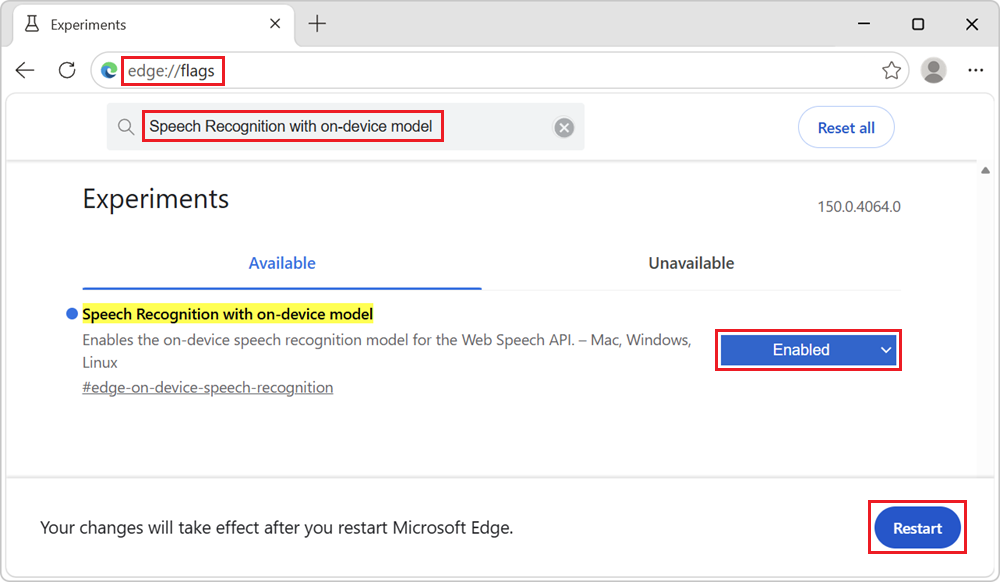
In Microsoft Edge Canary or Dev, open a new tab or window and go to
edge://flags.In the search box at the top of the page, enter Speech Recognition with on-device model.
In the Speech Recognition with on-device model drop-down list, select Enabled, and then click the Restart button in the lower right:
See a working example
To see the SpeechRecognition API in action and view the demo code:
Enable local speech recognition in Microsoft Edge, as described above.
In Microsoft Edge Canary or Dev, open a tab or window and go to SpeechRecognition API playground.
In the information banner at the top, check the status: it initially reads SpeechRecognition API ready. Click Start to begin.
In the Input language drop-down list, select the language that you want to use for speech recognition.
In the Audio source drop-down list, select an audio source for speech recognition:
- Select Microphone to use your device microphone as the audio source.
- Select File to use an audio or video file from your device as the audio source.
If you selected File as the audio source, a Media file section is displayed. Click the Choose File button, and then select an audio or video file from your device.
Click the Start button.
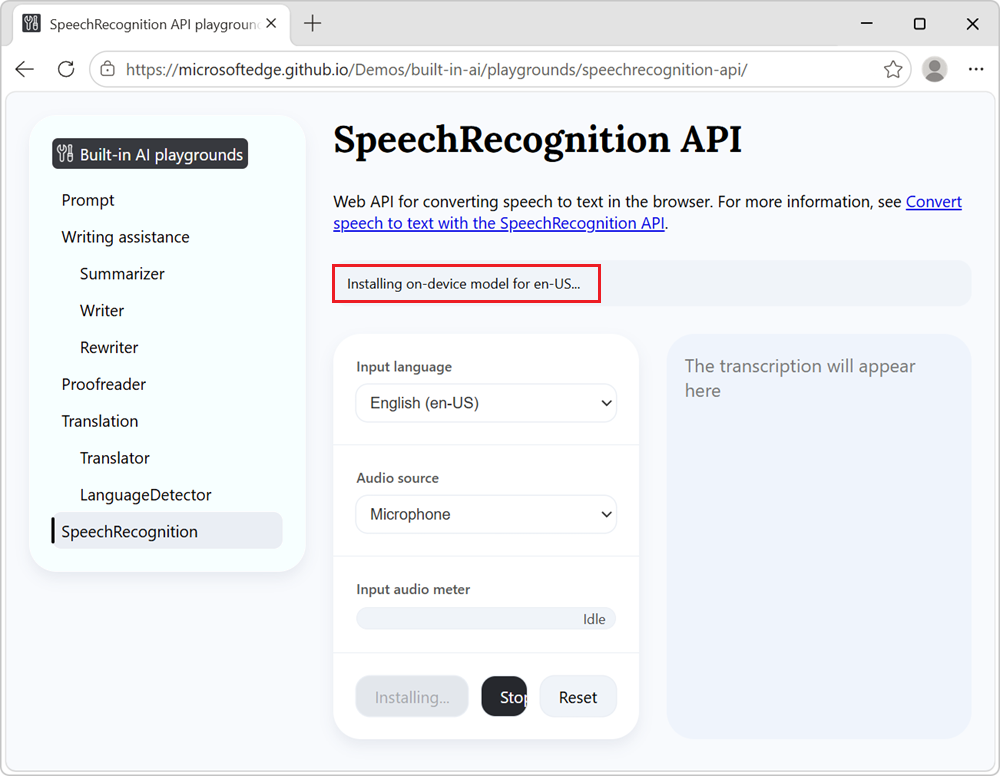
If you haven't already downloaded the local speech recognition model for the selected language, the download starts and the information banner reads Installing on-device model for en-US...:
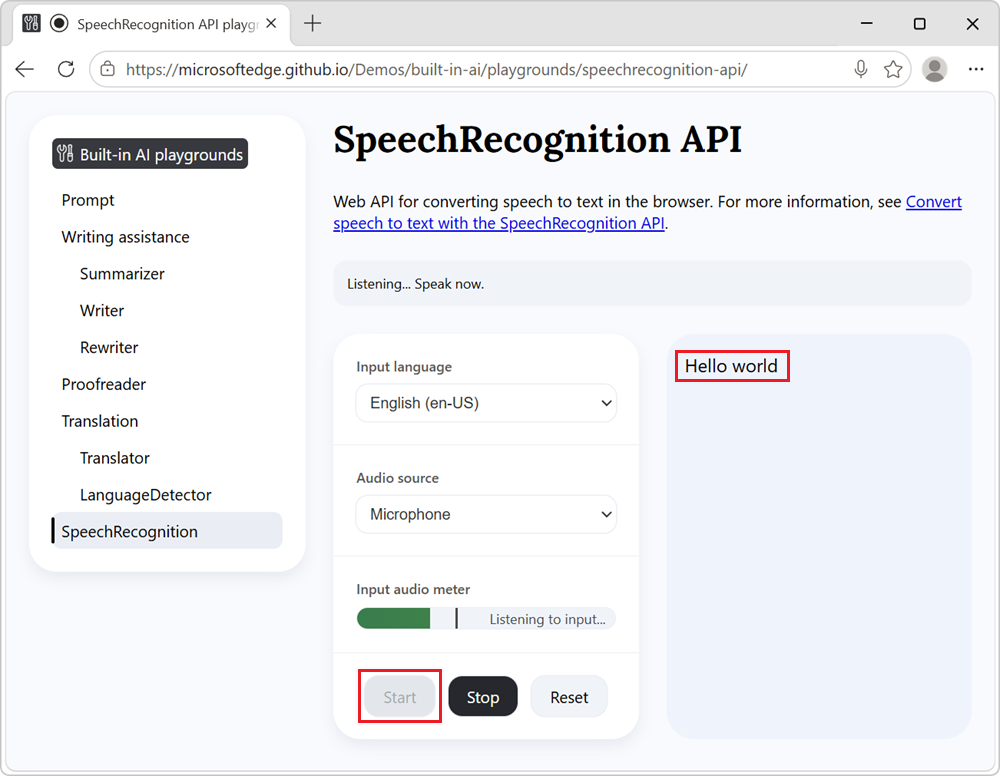
After the model is installed, the text transcription is displayed in the page:
To stop converting speech to text, at any time, click the Stop button.
The transcription might also stop automatically after a long period of silence in the input audio.
See also:
- /built-in-ai/playgrounds/speechrecognition-api/ - Source code for the SpeechRecognition API playground demo.
Use the SpeechRecognition API with local recognition in your website
The following sections describe how to use the SpeechRecognition API with local speech recognition in your website's code. For more details about the API itself, see Web Speech API, at MDN.
Check if the API is supported and instantiate a SpeechRecognition object
To ensure that the SpeechRecognition API is supported in the browser, test whether the SpeechRecognition object is available:
if (!window.SpeechRecognition) {
  console.log("The SpeechRecognition API is not available in this browser.");
} else {
  console.log("The SpeechRecognition API is available.");
}
If the API is supported, create a new SpeechRecognition instance to start using the API:
const recognition = new SpeechRecognition();
See also:
- SpeechRecognition, at MDN.
Choose an input language and opt-in to local recognition
To configure speech recognition by using a local model, specify an input language and set the processLocally option:
recognition.lang = "en-US";
recognition.processLocally = true;
The following input languages are supported for local speech recognition:
- English (en-US)
- German (de-DE)
- Italian (it-IT)
- Portuguese (pt-PT)
- Spanish (es-ES)
- Korean (ko-KR)
Language support is expected to expand in future versions.
Also set the continuous and interimResults options to true to transcribe long audio sessions without stopping and receive interim results:
recognition.continuous = true;
recognition.interimResults = true;
See also:
- SpeechRecognition: lang property, at MDN.
- SpeechRecognition: processLocally property, at MDN.
- SpeechRecognition: continuous property, at MDN.
- SpeechRecognition: interimResults property, at MDN.
Check whether the local model is already installed
Before starting recognition, check if the local model is available for your selected language by using the SpeechRecognition.available() method.
If the model is not yet installed, trigger the installation by using the SpeechRecognition.install() method and wait for the model to complete before starting recognition:
async function ensureModelReady(lang) {
  // Check if the model is already available.
  const availability = await SpeechRecognition.available({
    langs: [lang],
    processLocally: true,
  });

  // If the model is already available, proceed to recognition.
  if (availability === "available") {
    return true;
  }

  // If the model is not available but can be downloaded,
  // trigger the installation and wait for it to complete
  // before proceeding to recognition.
  if (availability === "downloadable" || availability === "downloading") {
    const installed = await SpeechRecognition.install({
      langs: [lang],
      processLocally: true,
    });

    if (!installed) {
      throw new Error(`Failed to install local model for ${lang}.`);
    }

    return true;
  }

   return false;
}
The promise returned by SpeechRecognition.install() resolves when installation succeeds or fails.
See also:
- SpeechRecognition: available() static method, at MDN.
- SpeechRecognition: install() static method, at MDN.
Start speech recognition
After you've made sure that the API and model are both ready, to start recognition, use the start() method.
When called without a parameter, the start() method recognizes audio from the user's microphone:
recognition.start();
To recognize audio from a media file instead of from the user's microphone, pass a MediaStreamTrack instance as an argument to the start() method. For example, you can create a MediaStreamTrack instance by creating a MediaStreamDestinationNode instance by using the WebAudio API:
const audioContext = new AudioContext();
const mediaStreamDestination = audioContext.createMediaStreamDestination();
recognition.start(mediaStreamDestination.stream.getAudioTracks()[0]);
See also:
- SpeechRecognition: start() method, at MDN.
- Web Audio API, at MDN.
Stop recognition explicitly and on media end
To stop recognition, use the stop() method:
recognition.stop();
You can also choose to stop recognition when the media input ends, by using the onended event handler of the media element that you're using as input. For example, if you're using a HTMLAudioElement or HTMLVideoElement as the audio source, you can set up the event handler as follows:
mediaElement.onended = () => recognition.stop();
See also:
- SpeechRecognition: stop() method, at MDN.
Send feedback
We're interested in hearing your feedback about:
- The local speech recognition model.
- The performance of the local speech recognition model.
- Any other improvements you'd like to see for your use-cases.
Please send feedback, by adding a comment to the SpeechRecognition API feedback issue.
See also
Microsoft:
MDN:
- SpeechRecognition
- SpeechRecognition: available() static method
- SpeechRecognition: continuous property
- SpeechRecognition: install() static method
- SpeechRecognition: interimResults property
- SpeechRecognition: lang property
- SpeechRecognition: processLocally property
- SpeechRecognition: start() method
- SpeechRecognition: stop() method
- Web Audio API
- Web Speech API
GitHub: