Note
Access to this page requires authorization. You can try signing in or changing directories.
Access to this page requires authorization. You can try changing directories.
The initial scenario is external user AD account lifecycle management. In this scenario, an organization has invited guests into their Microsoft Entra directory, and wishes to give those guests access to on-premises Windows-Integrated Authentication or Kerberos-based applications, via the Microsoft Entra application proxy or other gateway mechanisms. The Microsoft Entra application proxy requires each user to have their own AD DS account, for identification and delegation purposes.
Scenario-Specific Guidance
A few assumptions made in the configuration of B2B with MIM and Microsoft Entra ID Application Proxy:
You have already deployed an on-premises AD, and Microsoft Identity Manager is installed and basic configuration of MIM Service, MIM Portal, Active Directory Management Agent (AD MA) and FIM Management Agent (FIM MA). For more information, see Deploy Microsoft Identity Manager 2016 SP2.
You have already followed the instructions in the article on how to download and install the Graph connector.
You have Microsoft Entra Connect configured for synchronizing users and groups to Microsoft Entra ID.
You have already set up Application Proxy connectors and connector groups. If not, see Tutorial: Add an on-premises application for remote access through Application Proxy in Microsoft Entra ID to install and configure.
You have already published one or more applications, which rely on Windows Integrated Authentication or individual AD accounts via Microsoft Entra application proxy.
You have invited or you invite one or more guests, that have resulted in one or more users being created in Microsoft Entra ID. For more information, see Self-service for Microsoft Entra B2B collaboration sign-up.
B2B End to End Deployment Example scenario
This guide builds on the following scenario:
Contoso Pharmaceuticals works with Trey Research Inc. as part of their R&D Department. Trey Research employees need to access the research reporting application provided by Contoso Pharmaceuticals.
Contoso Pharmaceuticals are in their own tenant, to have configured a custom domain.
Someone has invited an external user to the Contoso Pharmaceuticals tenant. This user has accepted the invitation and can access resources that are shared.
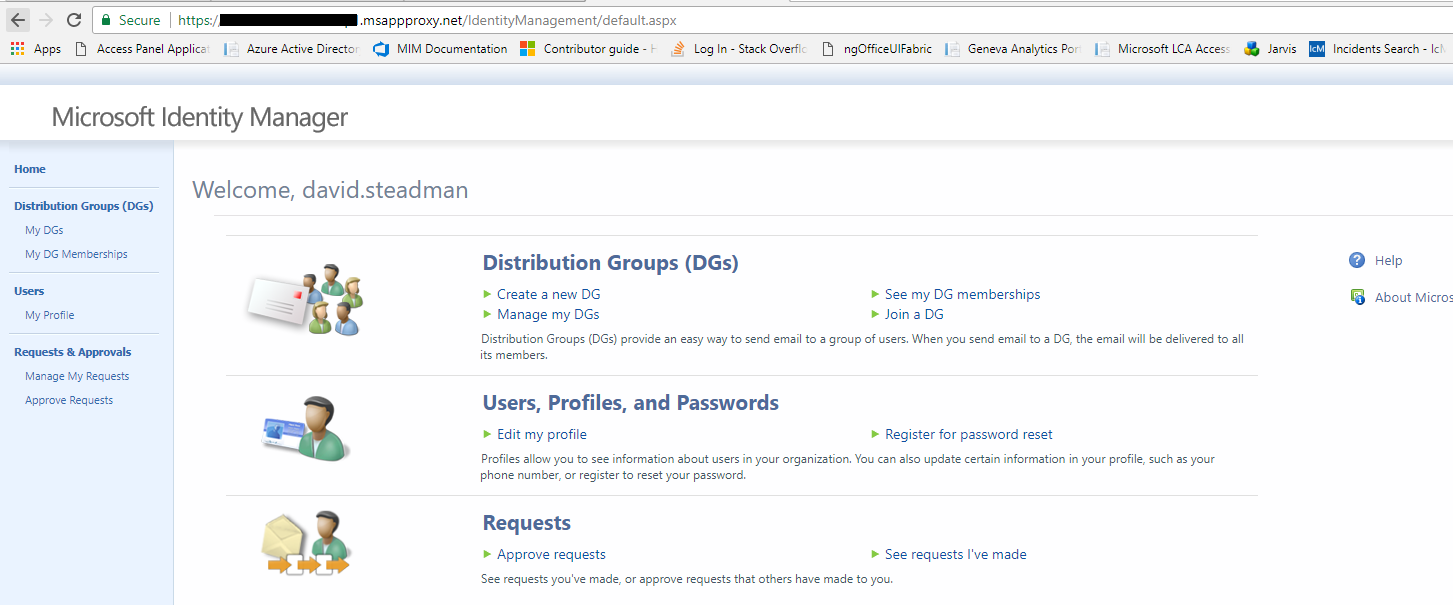
Contoso Pharmaceuticals has published an application via App Proxy. In this scenario, the example application is the MIM Portal. This would enable a guest user to participate in MIM processes, for example in help desk scenarios or to request access to groups in MIM.
Configure AD and Microsoft Entra Connect to exclude users added from Microsoft Entra ID
By default, Microsoft Entra Connect will assume that non-admin users in Active Directory need to be synchronized into Microsoft Entra ID. If Microsoft Entra Connect finds an existing user in Microsoft Entra ID that matches the user from on-premises AD, Microsoft Entra Connect will match the two accounts and assume that this is an earlier synchronization of the user, and make the on-premises AD authoritative. However, this default behavior is not suitable for the B2B flow, where the user account originates in Microsoft Entra ID.
Therefore, the users brought into AD DS by MIM from Microsoft Entra ID need to be stored in a way that Microsoft Entra ID will not attempt to synchronize those users back to Microsoft Entra ID. One way to do this is to create a new organizational unit in AD DS, and configure Microsoft Entra Connect to exclude that organizational unit.
For more information, see Microsoft Entra Connect Sync: Configure filtering.
Create the Microsoft Entra application
Note: Before creating in MIM Sync the management agent for the graph connector, make sure you have reviewed the guide to deploying the Graph Connector, and created an application with a client ID and secret.
Ensure that the application has been authorized for least one of these permissions: User.Read.All, User.ReadWrite.All, Directory.Read.All or Directory.ReadWrite.All.
Create the New Management Agent
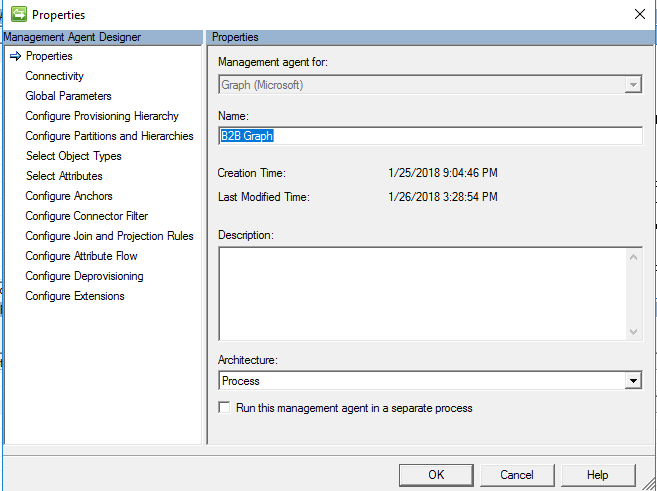
In the Synchronization Service Manager UI, select Connectors and Create. Select Graph (Microsoft) and give it a descriptive name.
Connectivity
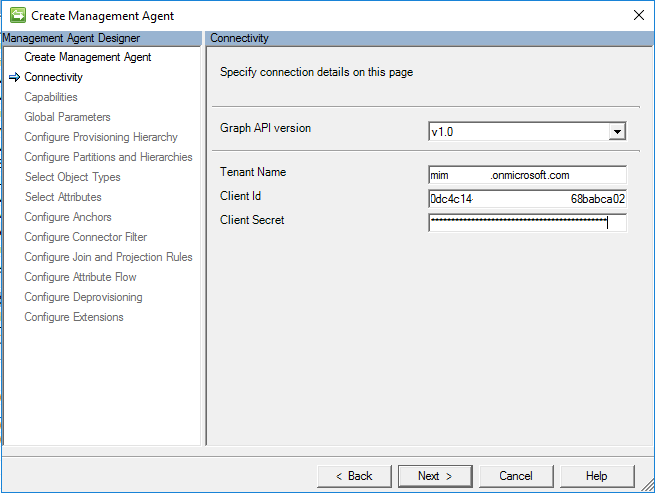
On the Connectivity page, you must specify the Graph API Version. Production ready PAI is V 1.0, Non-Production is Beta.
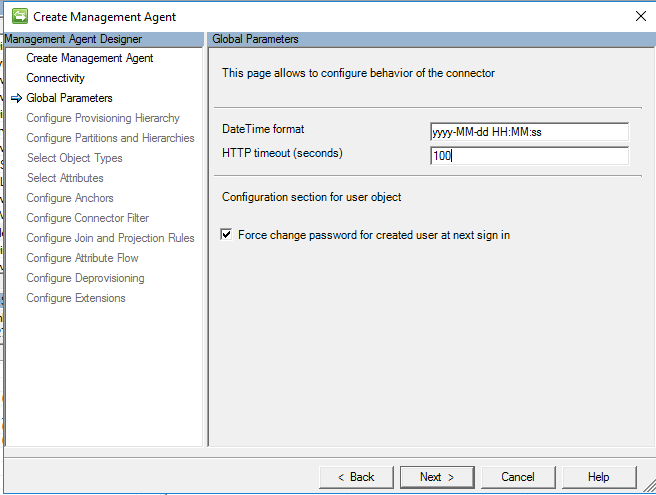
Global Parameters
Configure Provisioning Hierarchy
This page is used to map the DN component, for example OU, to the object type that should be provisioned, for example organizationalUnit. This is not needed for this scenario, so leave this as the default and click next.

Configure Partitions and Hierarchies
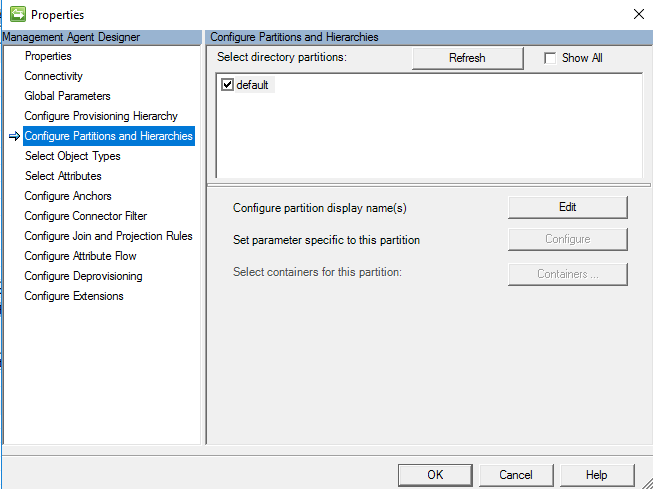
On the partitions and hierarchies page, select all namespaces with objects you plan to import and export.
Select Object Types
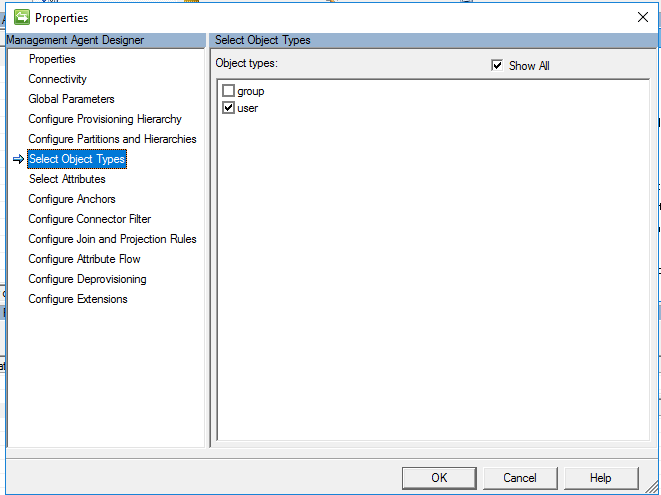
On the object types page, select the object types you plan to import. You must select at least 'User'.
Select Attributes
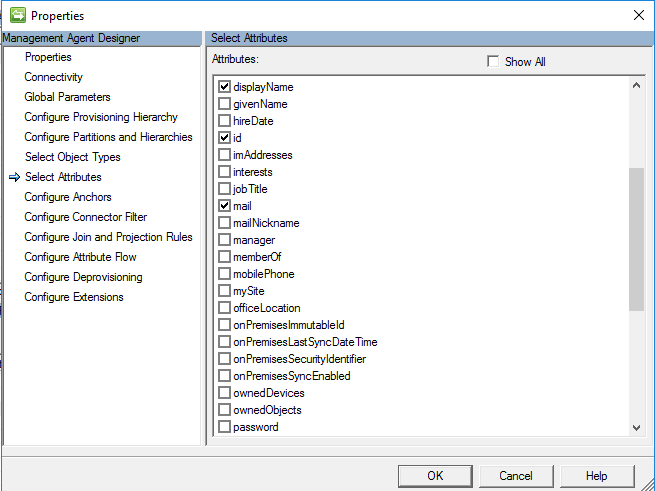
On the Select Attributes screen, select attributes from Microsoft Entra which will be needed to manage B2B users in AD. The Attribute "ID" is required. The attributes userPrincipalName and userType will be used later in this configuration. Other attributes are optional, including
displayNamemailgivenNamesurnameuserPrincipalNameuserType
Configure Anchors
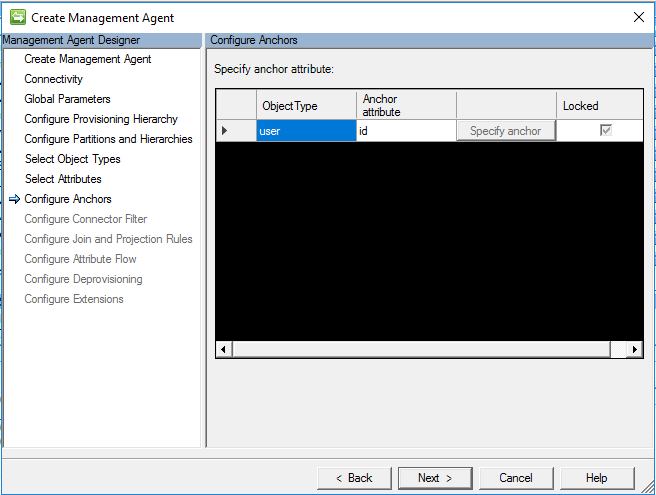
On the Configure Anchor screen, configuring the anchor attribute is a required step. By default, use the ID attribute for user mapping.
Configure Connector Filter
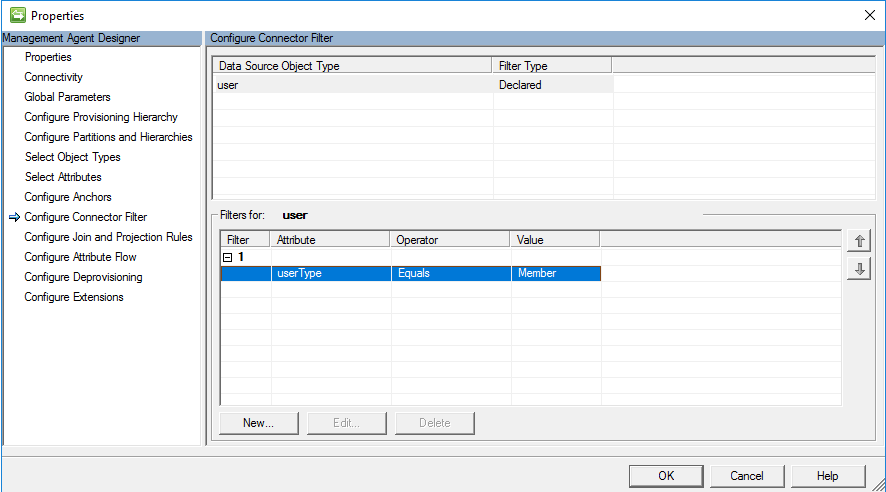
On the configure Connector Filter page, MIM allows you to filter out objects based on attribute filter. In this scenario for B2B, the goal is to only bring in Users with the value of the userType attribute that equals Guest, and not users with the userType that equals member.
Configure Join and Projection Rules
This guide assumes you will be creating a sync rule. As configuring Join and Projection rules are handled by sync rule, it is not needed have to identify a join and projection on the connector itself. Leave default and click ok.

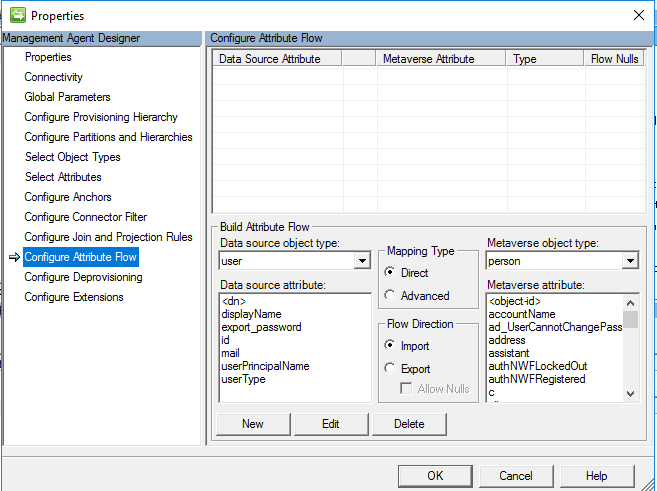
Configure Attribute Flow
This guide assumes you will be creating a sync rule. Projection is not needed to define the attribute flow in MIM Sync, as it is handled by the sync rule that is created later. Leave default and click ok.
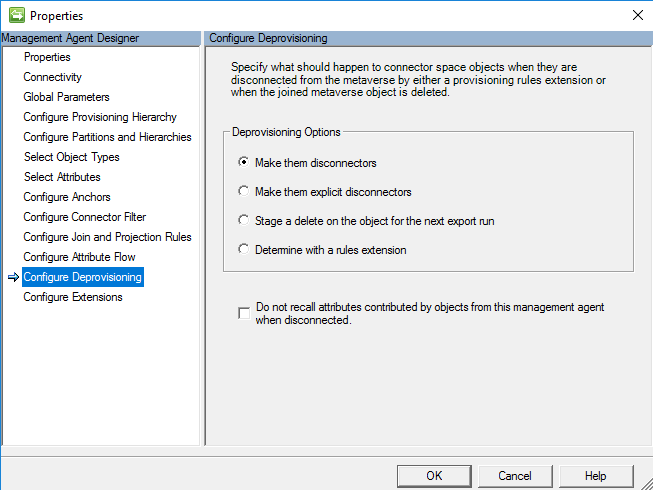
Configure Deprovision
The setting to configure deprovision allows you to configure MIM sync to delete the object, if the metaverse object is deleted. In this scenario, we make them disconnectors as the goal is to leave them in Microsoft Entra ID. In this scenario, we are not exporting anything to Microsoft Entra ID, and the connector is configured for Import only.
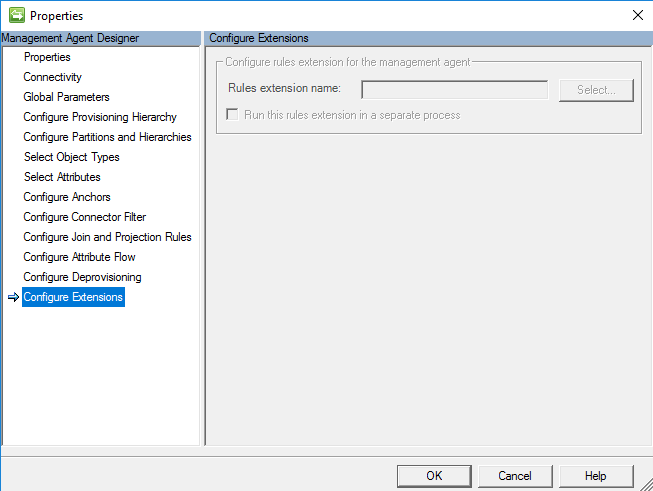
Configure Extensions
Configure Extensions on this management agent is an option but not required because we are using a synchronization rule. If we decided to use an advanced rule in the attribute flow earlier, then there would be an option to define the rules extension.
Extending the metaverse schema
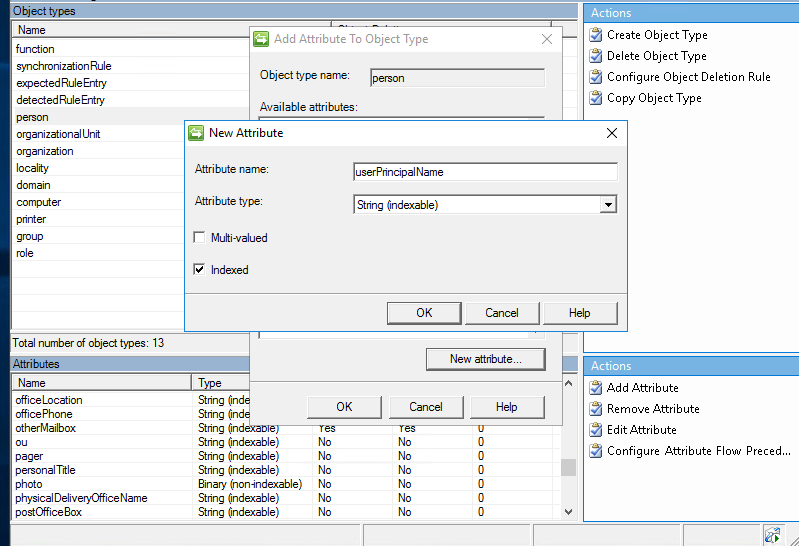
Before creating the sync rule, we need to create an attribute called userPrincipalName tied to the person object using the MV Designer.
In the Synchronization client, select Metaverse Designer

Then Select the Person Object Type
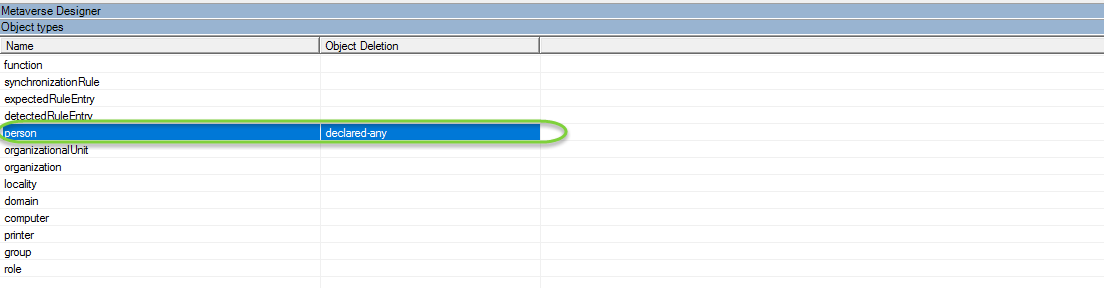
Next under actions click Add Attribute

Then complete the following details
Attribute name: userPrincipalName
Attribute Type: String (Indexable)
Indexed = True
Creating MIM Service Synchronization Rules
In the steps below we begin the mapping of B2B guest account and the attribute flow. Some assumptions are made here: that you already have the Active Directory MA configured and the FIM MA configured to bring users to the MIM Service and Portal.

The next steps will require the addition of minimal configuration to the FIM MA and the AD MA.
More details can be found here for the configuration https://technet.microsoft.com/library/ff686263(v=ws.10).aspx - How Do I Provision Users to AD DS
Synchronization Rule: Import Guest User to MV to Synchronization Service Metaverse from Microsoft Entra ID
Navigate to the MIM Portal, select Synchronization Rules, and click new. Create an inbound synchronization rule for the B2B flow via the graph connector.
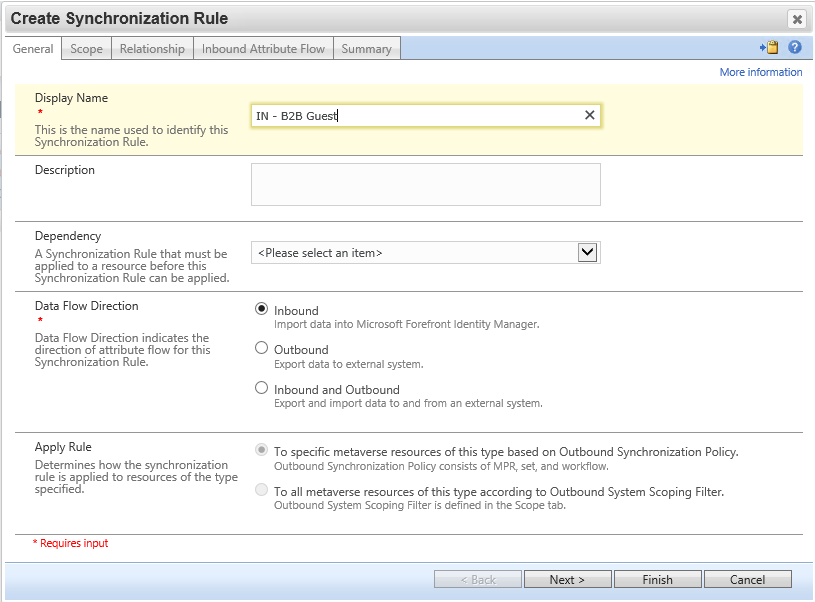
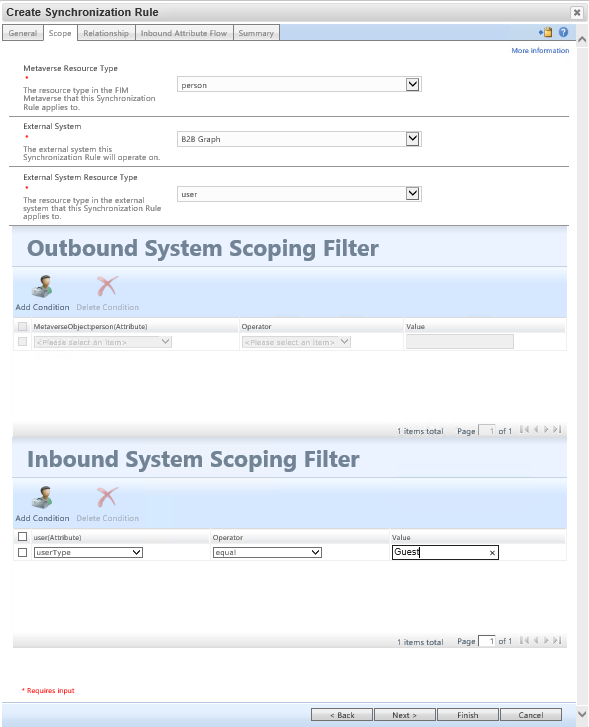
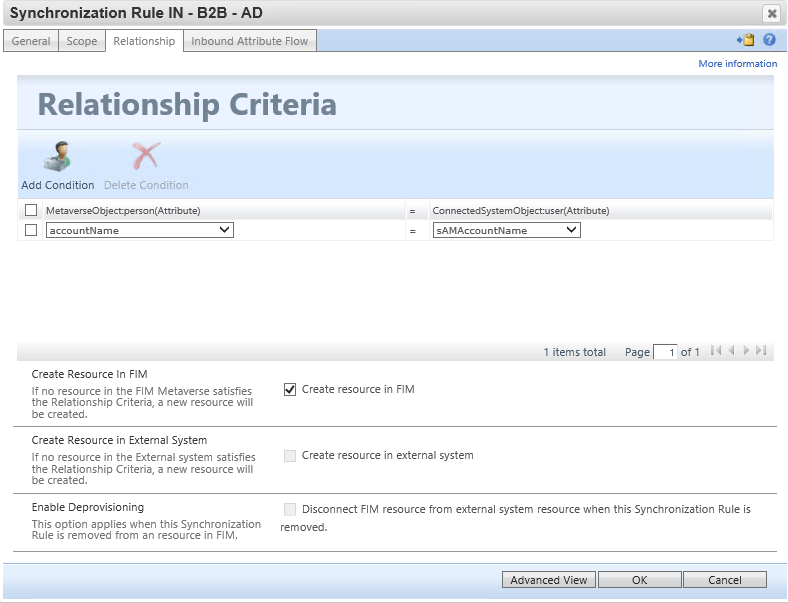
On the relationship criteria step, be sure to select "Create resource in FIM".
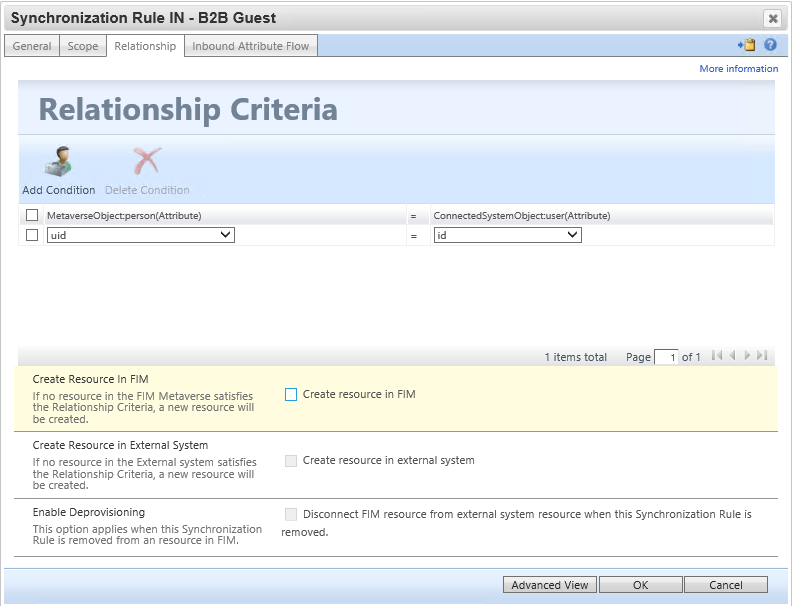
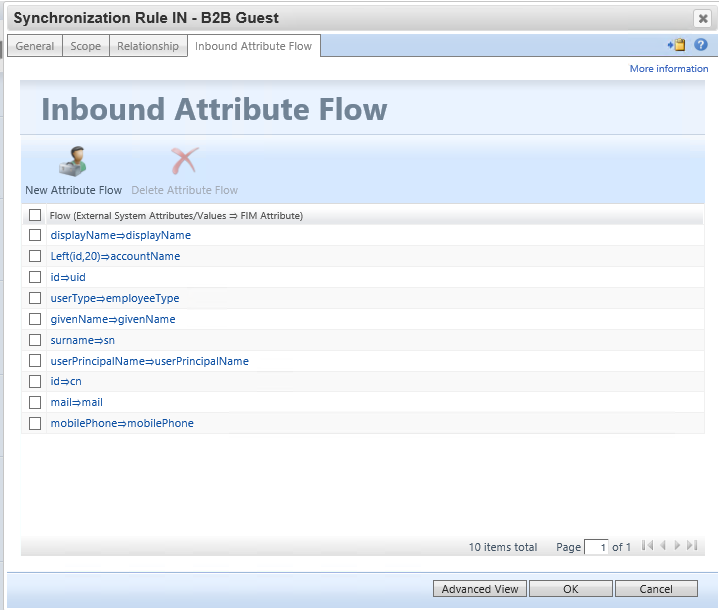
Configure the following inbound attribute flow rules. Be sure to populate the accountName, userPrincipalName and uid attributes as they will be used later in this scenario :
| Initial Flow Only | Use as Existence Test | Flow (Source Value ⇒ FIM Attribute) |
|---|---|---|
[displayName⇒displayName](javascript:void(0);) |
||
[Left(id,20)⇒accountName](javascript:void(0);) |
||
[id⇒uid](javascript:void(0);) |
||
[userType⇒employeeType](javascript:void(0);) |
||
[givenName⇒givenName](javascript:void(0);) |
||
[surname⇒sn](javascript:void(0);) |
||
[userPrincipalName⇒userPrincipalName](javascript:void(0);) |
||
[id⇒cn](javascript:void(0);) |
||
[mail⇒mail](javascript:void(0);) |
||
[mobilePhone⇒mobilePhone](javascript:void(0);) |
Synchronization Rule: Create Guest User account to Active Directory
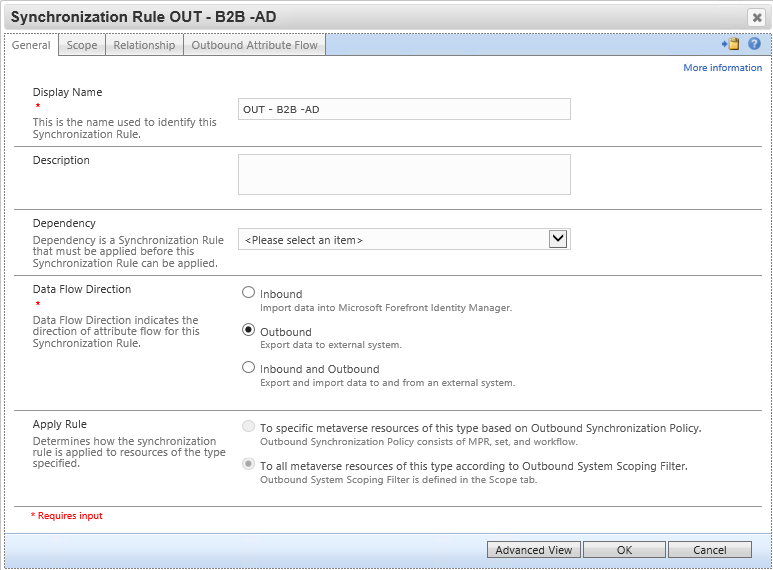
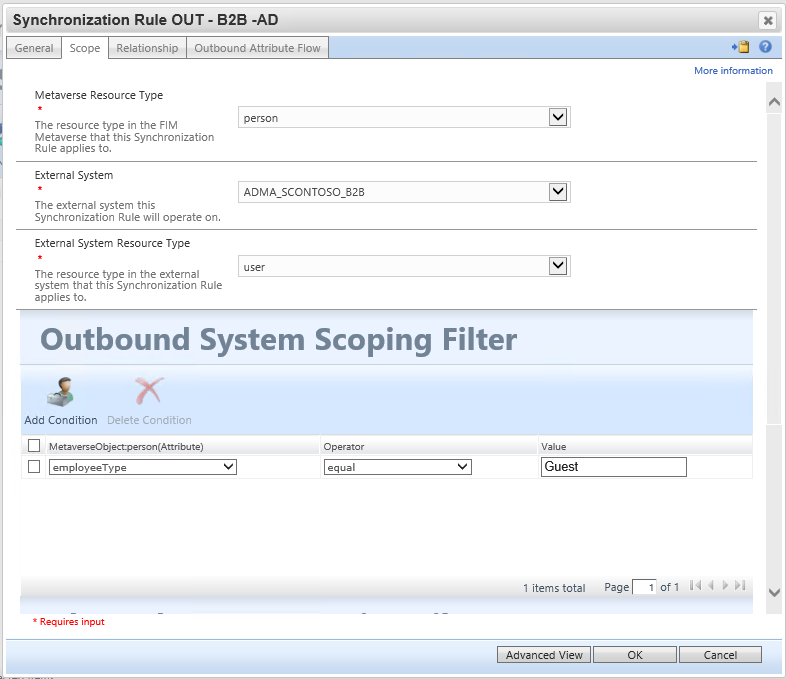
This synchronization rule creates the user in Active Directory. Be sure the flow for dn must place the user in the organizational unit which was excluded from Microsoft Entra Connect. Also, update the flow for unicodePwd to meet your AD password policy - the user will not need to know the password. Note the value of 262656 for userAccountControl encodes the flags SMARTCARD_REQUIRED and NORMAL_ACCOUNT.
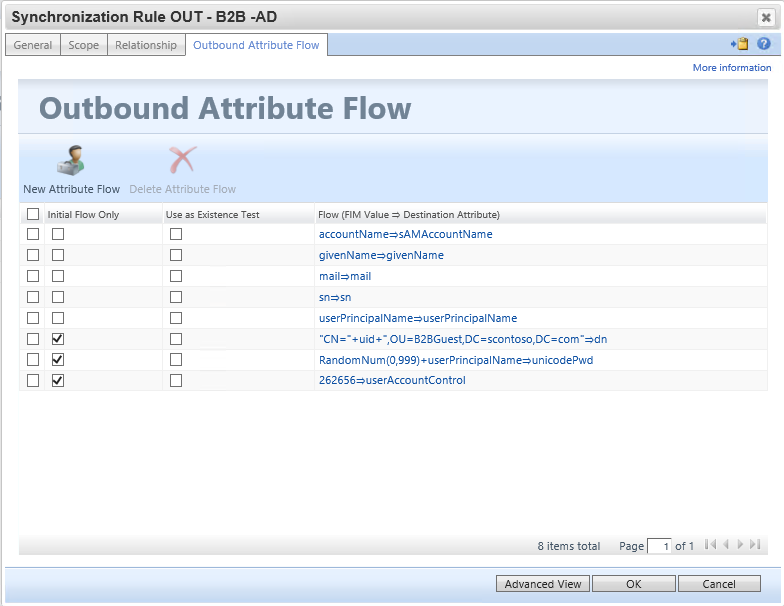
Flow Rules:
| Initial Flow Only | Use as Existence Test | Flow (FIM Value ⇒ Destination Attribute) |
|---|---|---|
[accountName⇒sAMAccountName](javascript:void(0);) |
||
[givenName⇒givenName](javascript:void(0);) |
||
[mail⇒mail](javascript:void(0);) |
||
[sn⇒sn](javascript:void(0);) |
||
[userPrincipalName⇒userPrincipalName](javascript:void(0);) |
||
| Y | ["CN="+uid+",OU=B2BGuest,DC=contoso,DC=com"⇒dn](javascript:void(0);) |
|
| Y | [RandomNum(0,999)+userPrincipalName⇒unicodePwd](javascript:void(0);) |
|
| Y | [262656⇒userAccountControl](javascript:void(0);) |
Optional Synchronization Rule: Import B2B Guest User Objects SID to allow for login to MIM
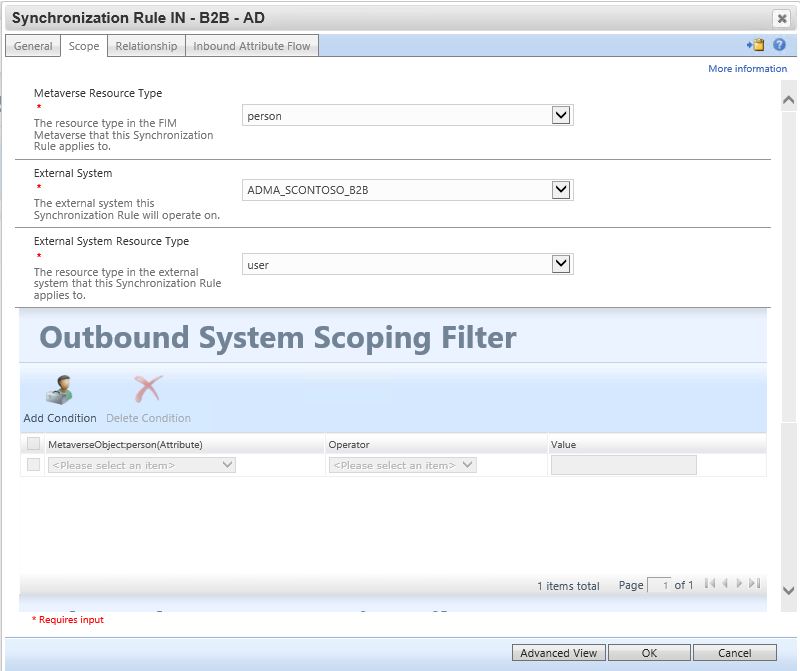
This inbound synchronization rule brings the user's SID attribute from Active Directory back into MIM, so the user can access the MIM Portal. The MIM Portal requires that the user have the attributes samAccountName, domain and objectSid populated in the MIM Service database.
Configure the source external system as the ADMA, as the objectSid attribute will be set automatically by AD when MIM creates the user.
Note that if you configure users to be created in MIM Service, ensure that they are not in scope of any sets intended for employee SSPR management policy rules. You may need to change your set definitions to exclude users who have been created by the B2B flow.
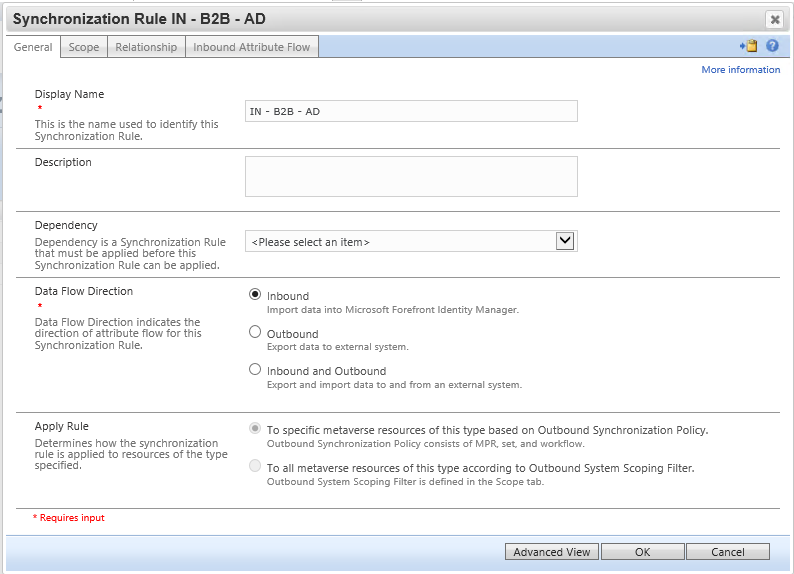
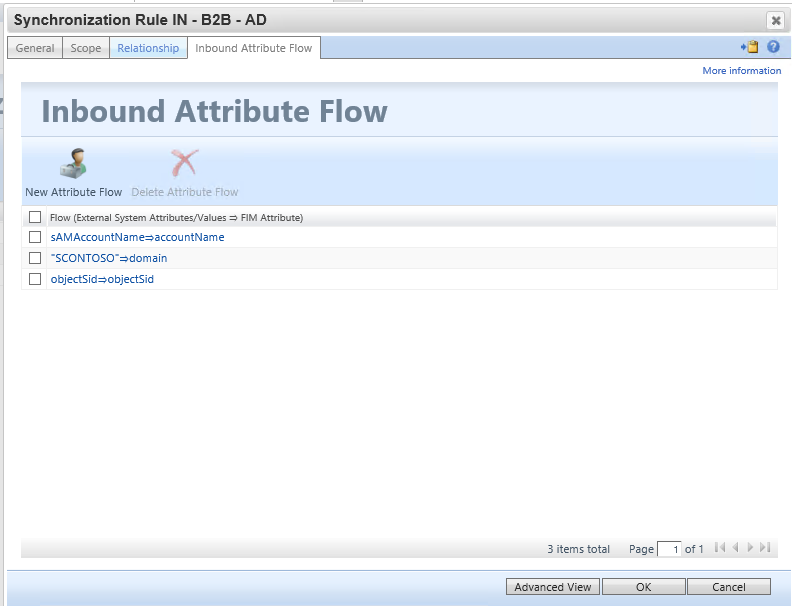
| Initial Flow Only | Use as Existence Test | Flow (Source Value ⇒ FIM Attribute) |
|---|---|---|
[sAMAccountName⇒accountName](javascript:void(0);) |
||
["CONTOSO"⇒domain](javascript:void(0);) |
||
[objectSid⇒objectSid](javascript:void(0);) |
Run the synchronization rules
Next, we invite the user, and then run the management agent sync rules in the following order:
Full Import and Synchronization on the
MIMMAManagement Agent. This ensures MIM Sync has the latest synchronization rules configured.Full Import and Synchronization on the
ADMAManagement Agent. This ensures that MIM and Active Directory are consistent. At this point, there will not yet be any pending exports for guests.Full Import and Synchronization on the B2B Graph Management Agent. This brings in the guest users into the metaverse. At this point, one or more accounts will be pending export for
ADMA. If there are no pending exports, then check that guest users were imported into the connector space, and that the rules were configured for them to be given AD accounts.Export, Delta Import, and Synchronization on the
ADMAManagement Agent. If the exports failed, then check the rule configuration and determine if there were any missing schema requirements.Export, Delta Import, and Synchronization on the
MIMMAManagement Agent. When this completes, there should no longer be any pending exports.

Optional: Application Proxy for B2B guests logging into MIM Portal
Now that we have created the synchronization rules in MIM. In the App Proxy configuration, define use the cloud principal to allow for KCD on app proxy. Also, next added the user manually to the manage users and groups. The options not to show the user until creation has occurred in MIM to add the guest to an office group once provisioned requires a bit more configuration not covered in this document.
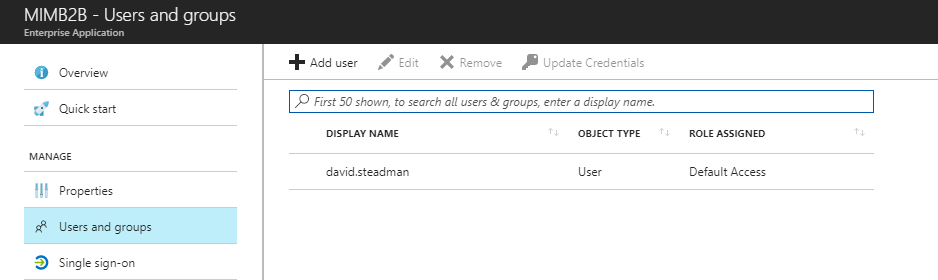
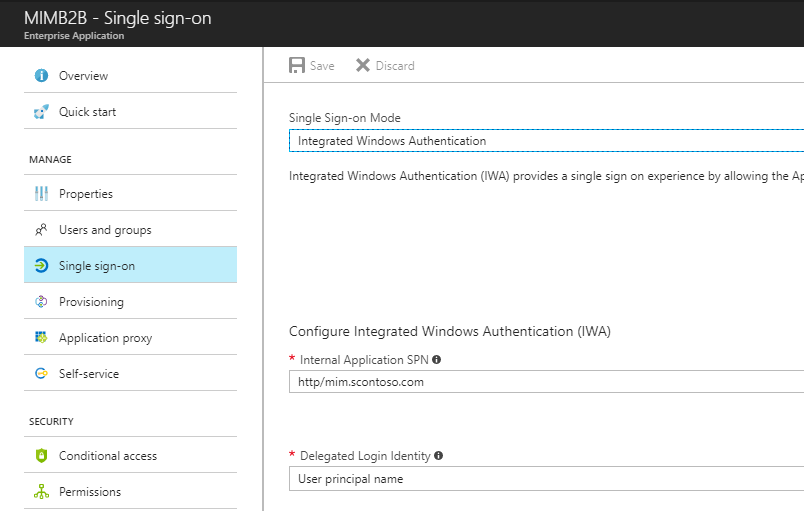
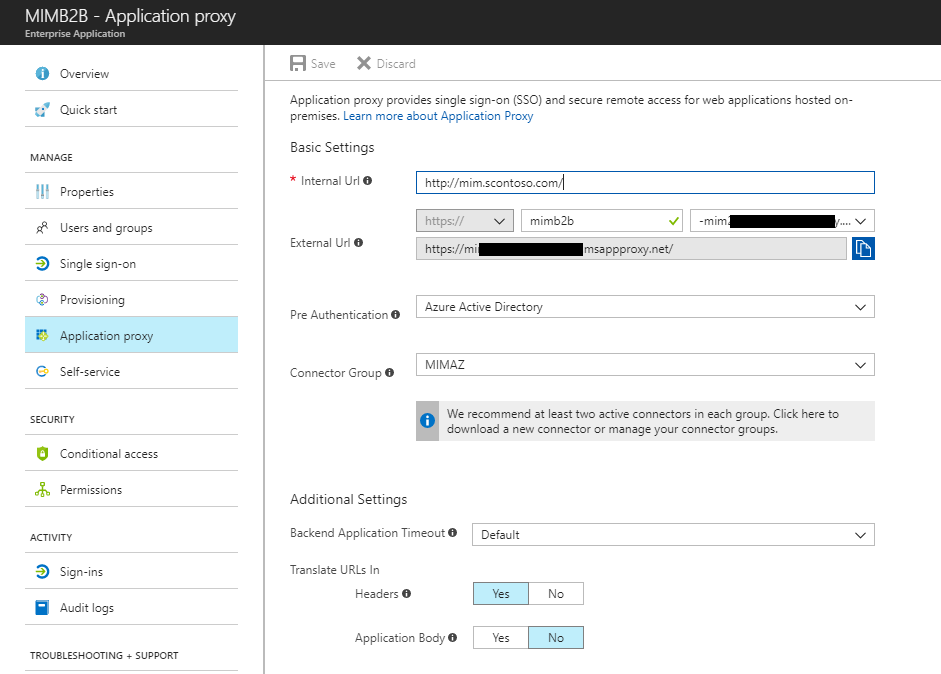
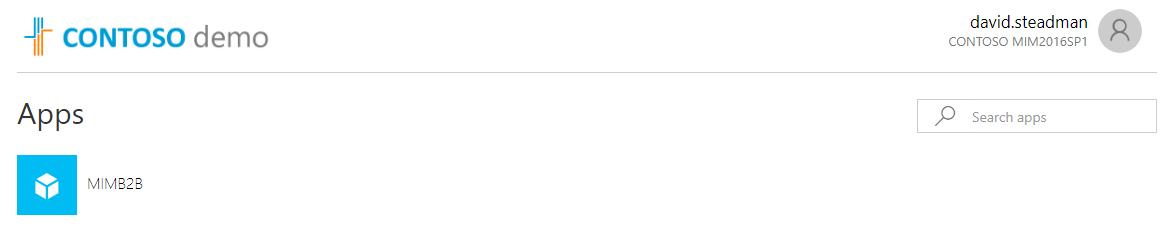
Once all configured, have B2B user login and see the application.
Next Steps
How Do I Provision Users to AD DS
Functions Reference for FIM 2010
How to provide secure remote access to on-premises applications
Download Microsoft Identity Manager connector for Microsoft Graph