Note
Access to this page requires authorization. You can try signing in or changing directories.
Access to this page requires authorization. You can try changing directories.
As an administrator, you can control where the Sales agent is available and which users can access it. At the tenant level, you can manage access settings separately for:
- Microsoft 365 Copilot
- Sales pane in Outlook
- Teams
- Dynamics 365
These settings control access to Sales agent only. They don't:
- Install the Sales app
- Assign licenses
- Connect to a CRM environment
- Grant access to CRM data
Prerequisites
- Sales agent is installed or enabled in each application where your organization plans to use it.
- You must have one of the following Microsoft Entra roles:
- Global Administrator
- Exchange Administrator
- Power Platform Administrator
Configure Sales agent access
Open Sales agent administrator settings.
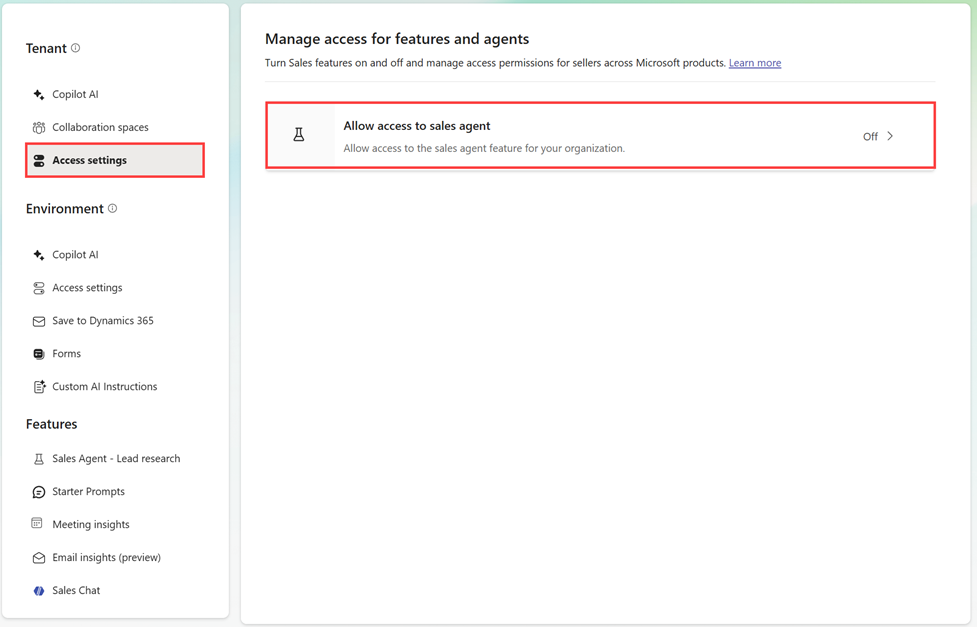
Under Tenant, select Access settings.
Turn on Allow access to Sales agent.
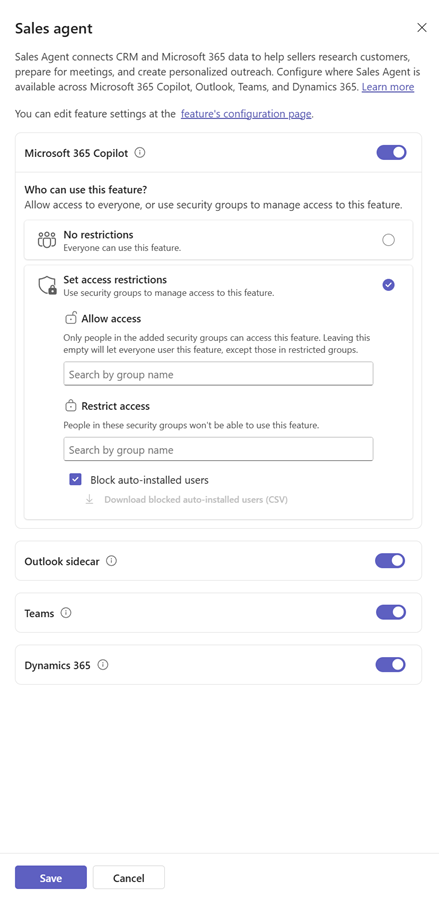
In the Sales agent pane, locate the application you want to configure:
- Microsoft 365 Copilot: Allows access to the Sales agent in Microsoft 365 Copilot.
- Outlook sidecar: Allows access to the Sales agent in the Sales pane in Outlook.
- Teams: Allows access to the Sales agent in Microsoft Teams.
- Dynamics 365: Allows access to the Sales agent in Microsoft 365 Copilot in Dynamics 365.
Use the toggle next to the application to turn Sales agent access on or off:
- On: Allows users to access Sales agent in the selected application. You can configure access restrictions for each application individually.
- Off: Prevents users from using Sales agent in the selected application.
If you turn on access, expand the application and, under Who can use this feature?, select one of the following options:
- No restrictions: Everyone who meets the applicable licensing and configuration requirements can use Sales agent.
- Set access restrictions: Use Microsoft Entra security groups to control access.
If you select Set access restrictions, configure one or both of the following lists:
- Allow access: Search for and add security groups whose members can use Sales agent. If you leave this list empty, everyone can use the feature except members of groups under Restrict access.
- Restrict access: Search for and add security groups whose members can't use Sales agent.
To prevent users who received Sales agent through automatic installation from accessing the feature, select Block auto-installed users.
Optional: Select Download blocked auto-installed users (CSV) to download the list of affected users.
Select Save.
How access rules are evaluated
Sales agent evaluates access settings by using the following rules:
- Restriction rules always take precedence over allow rules.
- Users included in both allowed and restricted groups are denied access.
- If you configure at least one allowed group, users outside those groups are denied access.
- If you configure only restricted groups, all other users can access Sales agent.
- Users affected by Block auto-installed users are denied access even if they belong to an allowed group.
A user can access Sales agent only when the user:
- Has Sales agent installed.
- Isn't affected by any blocking rules.
- Meets all configured allow rules.
- Has the required licenses and permissions and meets all prerequisites.
Note
Tenant access settings don't grant access to CRM data and don't override licensing, environment, or security requirements.
Default access after automatic installation
Automatic installation makes the Sales app available to users. By default, Sales agent is turned on for all apps, but the following access settings apply:
| App | Default access |
|---|---|
| Microsoft 365 Copilot | Auto-installed users are blocked. Other eligible users have access. |
| Sales pane in Outlook | Auto-installed users are blocked. Other eligible users have access. |
| Teams | Auto-installed users are blocked. Other eligible users have access. |
| Dynamics 365 | All eligible users have access. Microsoft 365 Copilot in Dynamics 365 must also be turned on. |
You can modify these defaults by:
- Turning an application off
- Changing security group restrictions
- Clearing Block auto-installed users
Important
Access to either Dynamics 365 Sales Enterprise or Dynamics 365 Sales Premium can make a user eligible for Sales agent and automatic distribution. Additional Microsoft 365 licenses or entitlements might be required to access Microsoft 365-grounded features and data.
What users experience when access is disabled
Disabling access doesn't remove or uninstall Sales agent. The experience depends on the application.
| App | User experience |
|---|---|
| Microsoft 365 Copilot | Sales agent remains visible but displays an administrator-disabled message. |
| Sales pane in Outlook | The add-in remains visible but displays an administrator-disabled message. |
| Teams | Sales agent remains visible but doesn't respond, send notifications, join meetings, or process meeting activities. |
| Dynamics 365 | Sales agent remains available in Microsoft Copilot in Dynamics 365, if enabled, but displays an administrator-disabled message. |
Note
Visibility of Sales agent depends on whether the application is installed. Access settings affect behavior only and don't remove installed experiences.
How tenant access settings work with other controls
Tenant access settings don't override other Sales agent requirements.
| Requirement | Description |
|---|---|
| Environment-level Sales chat access | Sales chat must be enabled and configured for the CRM environment. |
| App installation and enablement | Sales agent must be installed and enabled in the appropriate application. |
| Licensing | Users must have the required licenses and entitlements. |
| CRM connection and privileges | Users can access only the CRM environments, records, tables, and fields permitted by their assigned security roles and privileges. |
Turning on tenant access doesn't move or expose data automatically. Data is accessed only when an eligible user invokes an enabled capability and has the required Microsoft 365 and CRM permissions.
Troubleshoot access issues
If a user can't access Sales agent:
Verify that the Sales app is installed in the affected application.
Verify that agents and Sales are allowed in the Microsoft 365 admin center.
Verify that the application is enabled under Tenant > Access settings.
Check whether the user:
- Belongs to a restricted security group.
- Is excluded from configured allowed groups.
- Is identified as an auto-installed user while Block auto-installed users is enabled.
Verify that Sales Chat is enabled and configured for the user's CRM environment.
Verify the user's:
- Product licenses
- CRM connection
- Environment access
- CRM security privileges
Tip
Changes to Microsoft Entra security group membership can take up to one hour to be reflected in access evaluations.
Administrator permissions error
If you see the message "You need admin permissions to manage these settings", verify that you have one of the following roles:
- Global Administrator
- Exchange Administrator
- Power Platform Administrator
If necessary, contact an administrator with one of these roles.