Note
Access to this page requires authorization. You can try signing in or changing directories.
Access to this page requires authorization. You can try changing directories.
The Dropbox connector for Microsoft 365 Copilot allows your organization to index Dropbox content—including team folders, shared folders, private folders, and Dropbox Paper documents—and surface the content in Microsoft 365 Copilot and Microsoft Search experiences. This article provides information about the configuration steps that Dropbox admins need to complete in order for your organization to deploy the Dropbox connector.
For information about how to deploy the connector, see Deploy the Dropbox connector.
Setup checklist
The following checklist lists the steps involved in configuring the environment and setting up the connector prerequisites.
| Task | Role |
|---|---|
| Set up a team admin user | Dropbox admin |
| Configure a Dropbox app | Dropbox admin |
| Add redirect URIs | Dropbox admin |
| Add API scopes | Dropbox admin |
| Get app key and app secret | Dropbox admin |
Set up a team admin user
Create a Dropbox Business account and assign a team admin user. This account is used to authorize the connector.
Configure a Dropbox app
To configure a Dropbox app:
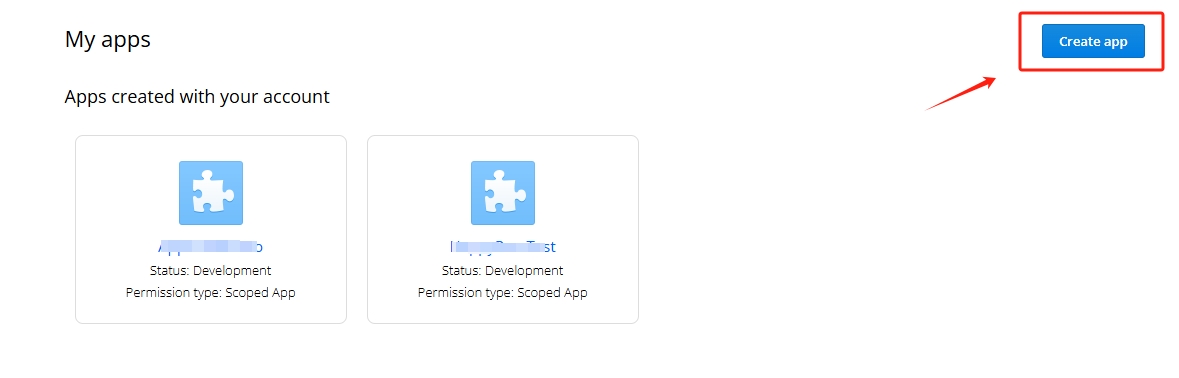
- Go to the Dropbox developer portal and select Create app.
Configure the app with:
- A unique app name
- Scoped access
- Full Dropbox access permissions
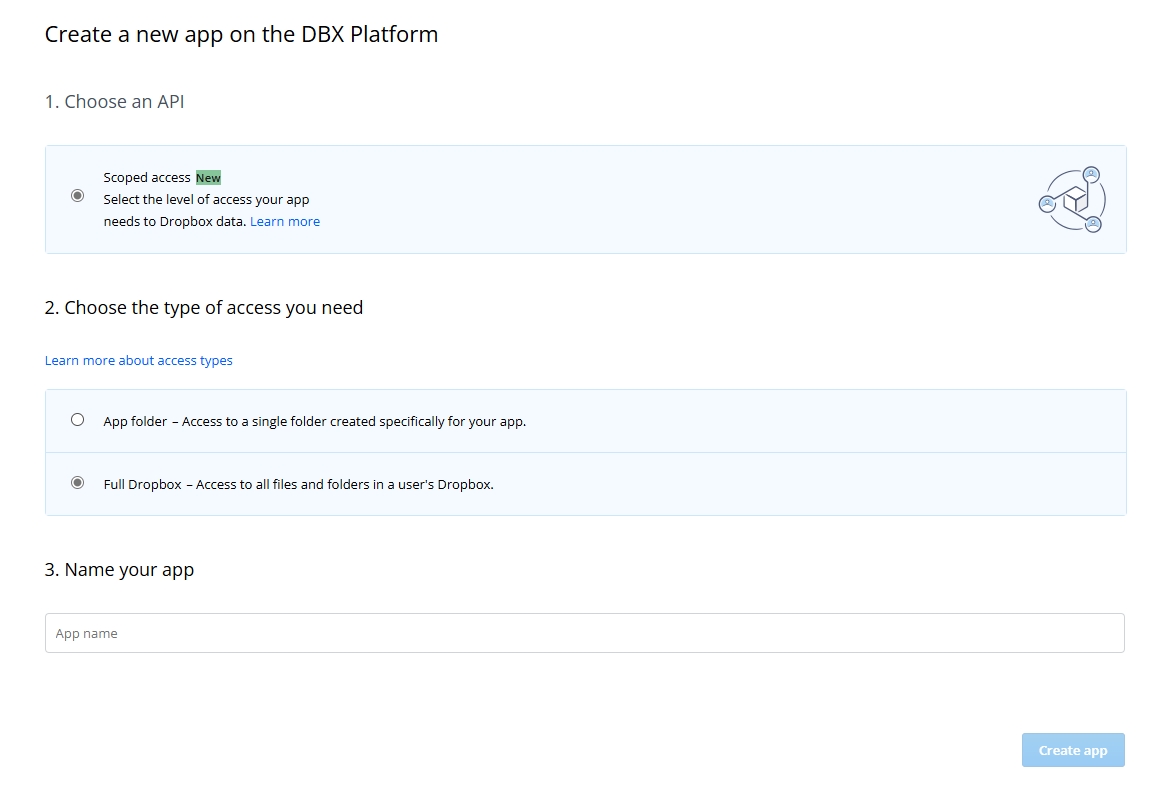
For more information, see Getting started with Dropbox.
Add redirect URIs
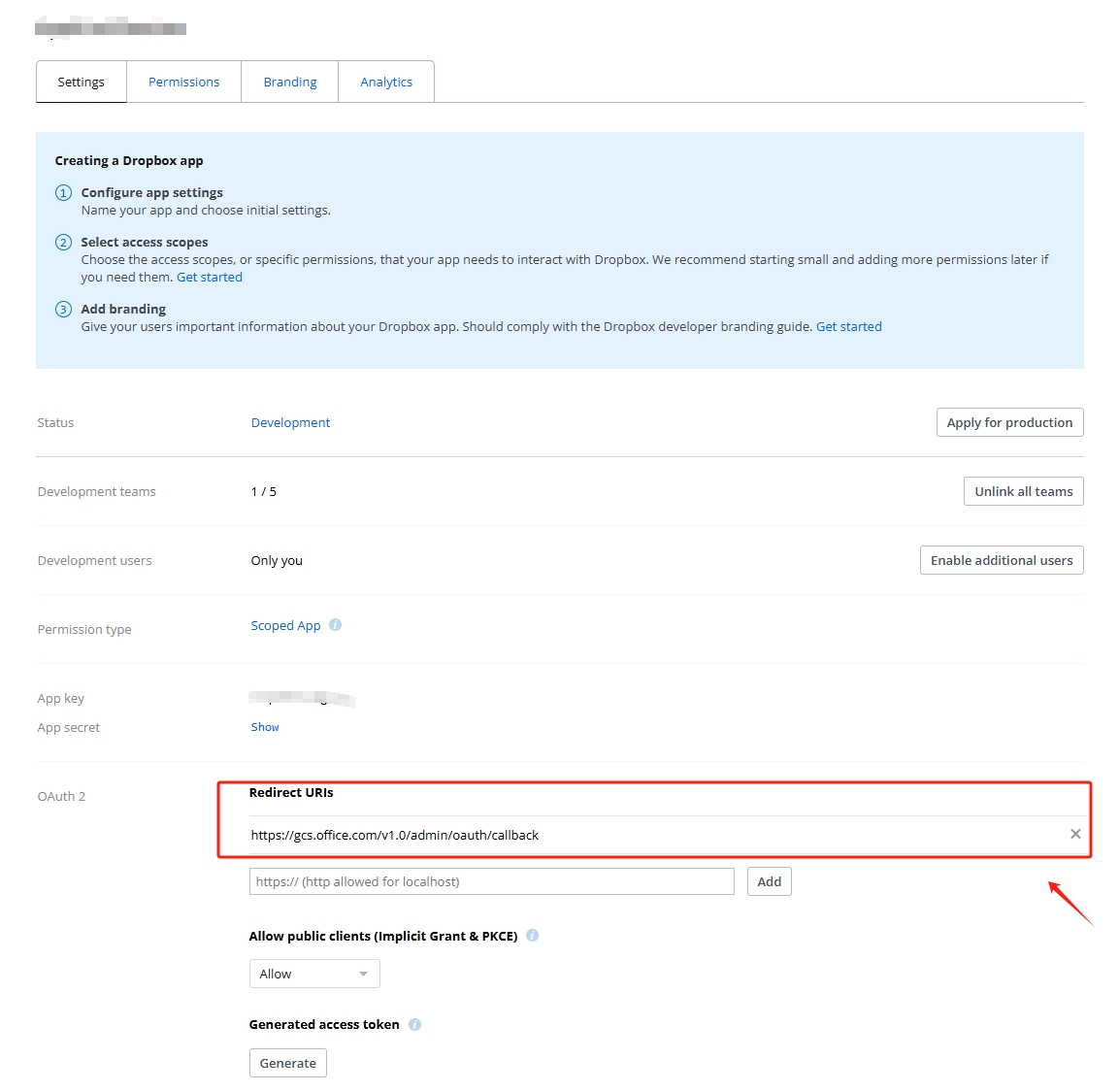
In the OAuth 2.0 section of the Dropbox App Console, add the following URLs:
- For Microsoft 365 Enterprise:
https://gcs.office.com/v1.0/admin/oauth/callback - For Microsoft 365 Government:
https://gcsgcc.office.com/v1.0/admin/oauth/callback
Add API scopes
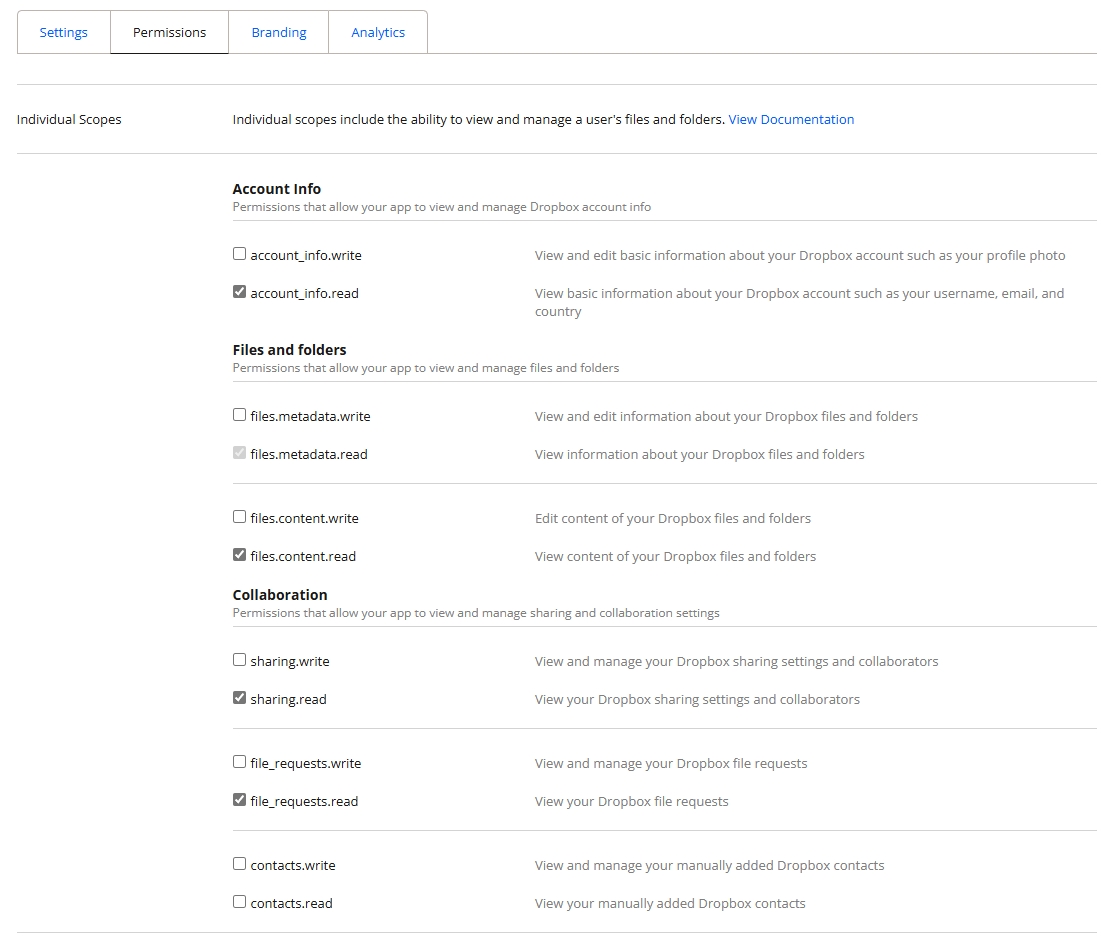
Go to the Permissions tab and add the following API scopes:
Individual scopes
- files.metadata.read
- files.content.read
- sharing.read
- file_requests.read
Team scopes
- team_info.read
- team_data.member
- team_data.governance.write
- team_data.governance.read
- team_data.content.read
- files.team_metadata.read
- members.read
- groups.read
- events.read
Get app key and app secret
From the Settings tab in the Dropbox App Console, copy the app key and app secret. These credentials are required for connector authentication.