Note
Access to this page requires authorization. You can try signing in or changing directories.
Access to this page requires authorization. You can try changing directories.
The Miro Microsoft 365 Copilot connector allows your organization to index boards from Miro. After you configure the connector, users can search for these boards from Miro in Microsoft 365 Copilot and from any Microsoft Search client.
This article provides information about the configuration steps that Miro admins need to complete before your organization deploys the Miro connector.
For information about how to deploy the connector, see Deploy the Miro connector.
Setup checklist
The following checklist lists the steps involved in setting up the Miro service.
| Task | Role |
|---|---|
| Create a Developer team for your Miro account | Miro admin |
| Create app in Miro | Miro admin |
| Grant Content Admin role | Miro company admin |
| Install your app at company level | Miro company admin |
Create a Developer team for your Miro account
Create or use an existing Miro account and create a Developer team for your active Miro account. If your organization uses the Miro Enterprise plan, use Enterprise Developer teams. Miro requires a Developer team to create and manage apps used for connector ingestion.
For more information, see Create a Developer team.
Create your app in Miro
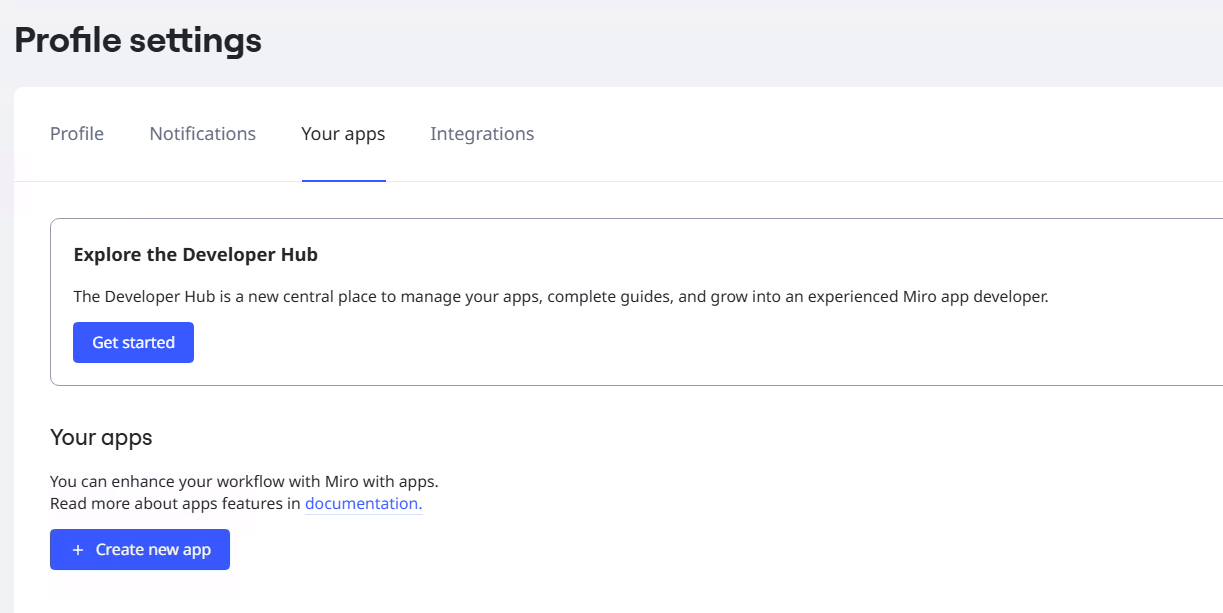
Sign in to Miro and create a new app from Your apps in your profile settings. This app is used to authorize Microsoft 365 Copilot to index content from your Miro instance.
Add the following permissions to the app:
- boards: read
- identity: read
- team: read
- organizations: read
- organizations:teams: read
- projects: read
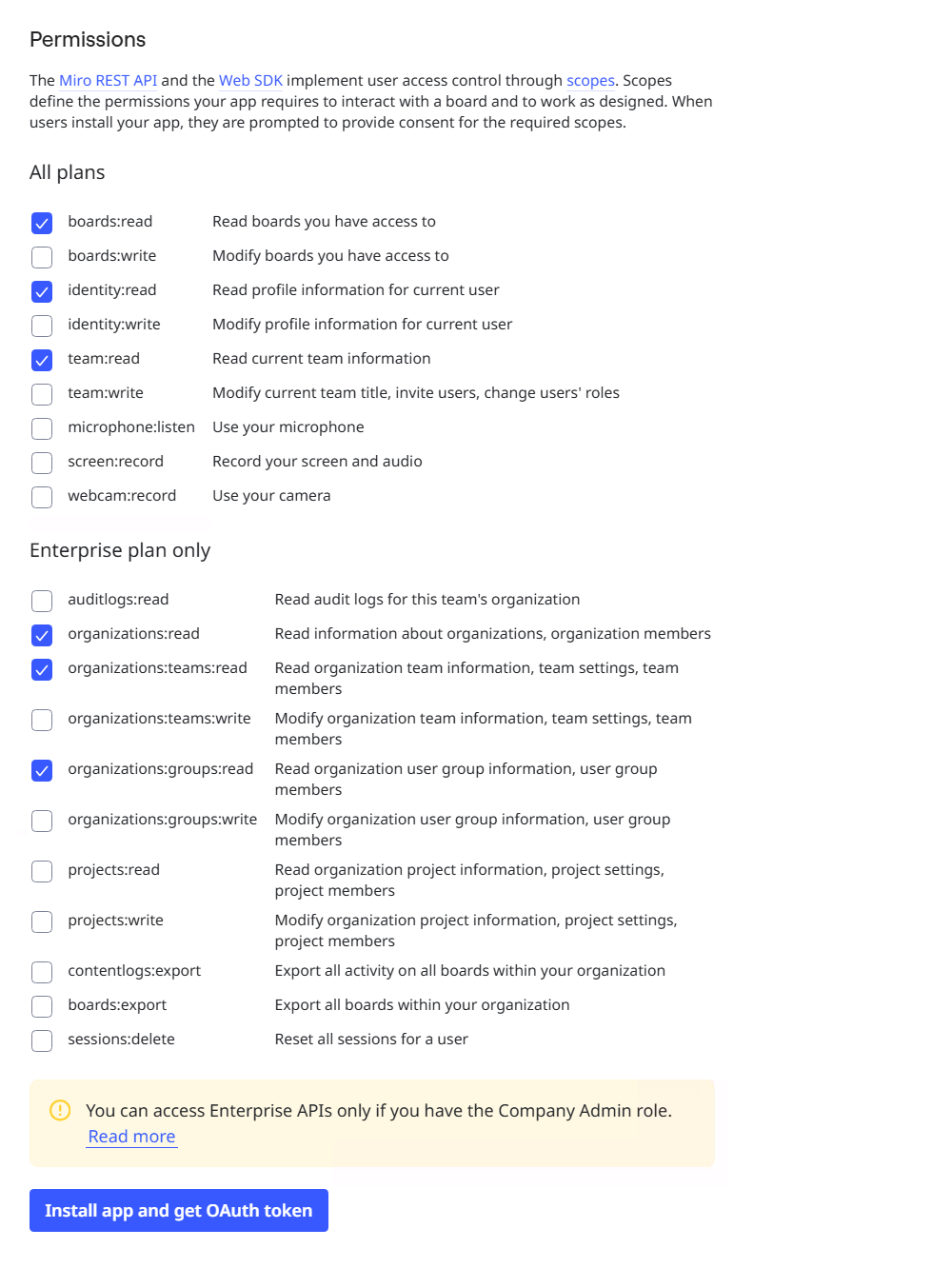
These scopes let the connector read boards, team membership, identities, and metadata required for indexing.
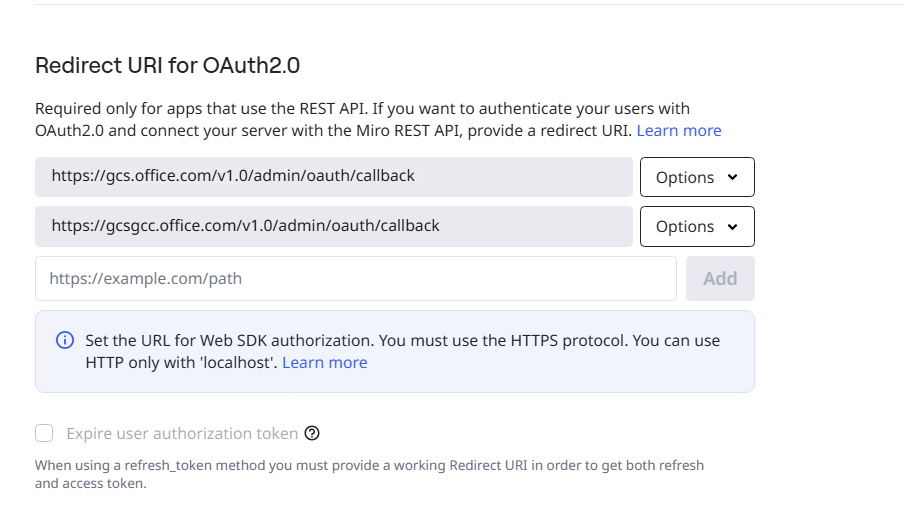
Add the following values to the Redirect URL for OAuth 2.0 field:
- For Microsoft 365 Enterprise:
https://gcs.office.com/v1.0/admin/oauth/callback - For Microsoft 365 Government:
https://gcsgcc.office.com/v1.0/admin/oauth/callback
These URLs allow Microsoft 365 to complete the OAuth flow and retrieve credentials.
- For Microsoft 365 Enterprise:
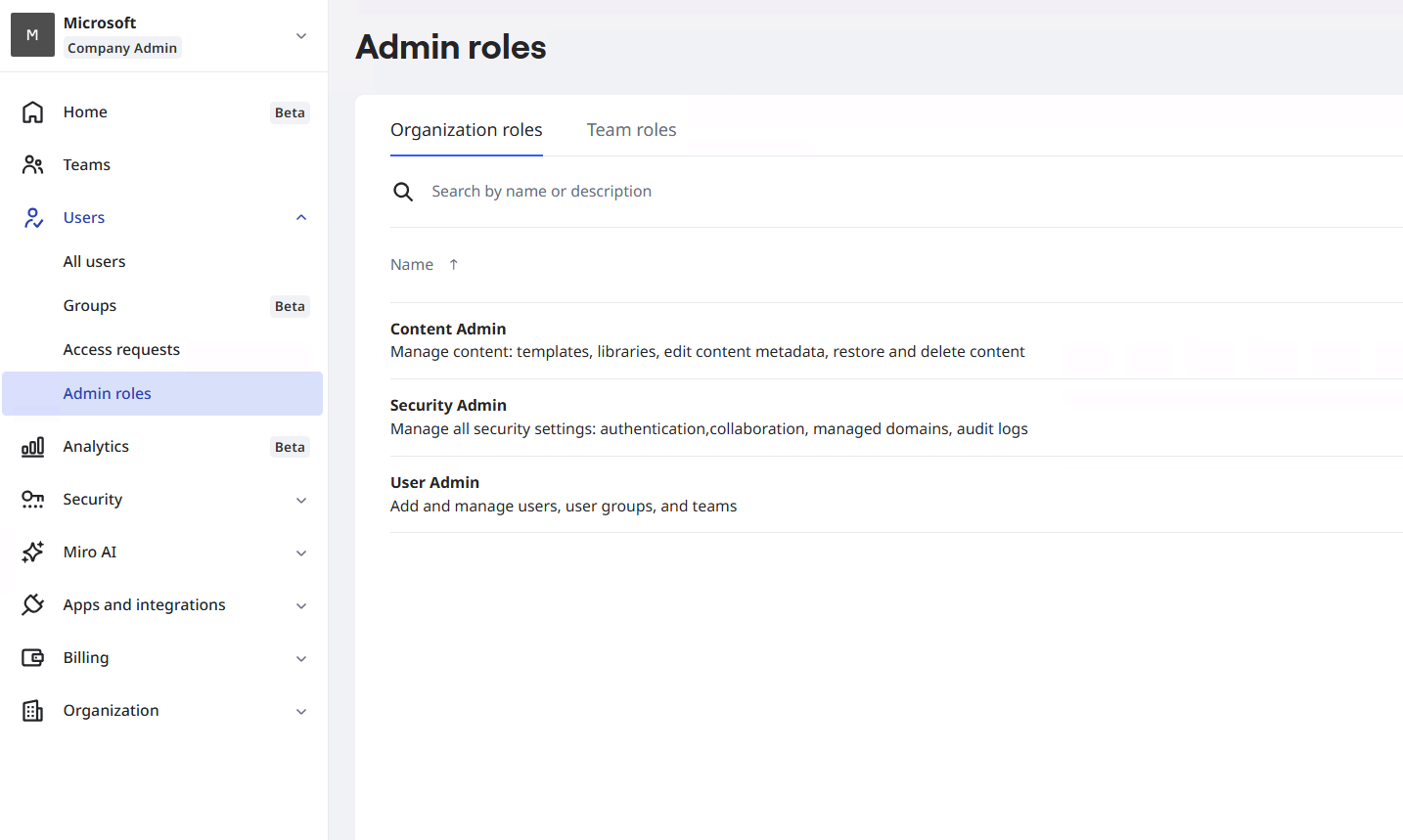
Grant your account the Content Admin role
Your account must be a Miro company admin with Content admin privileges to configure and authorize ingestion.
In the Miro admin console:
Select Team Settings.
Go to Users > Admin roles > Content admin.
Assign the role to the appropriate account.
Install your app at the company level
To install the app at the company level:
Open the Miro admin console.
Go to Apps and integrations.
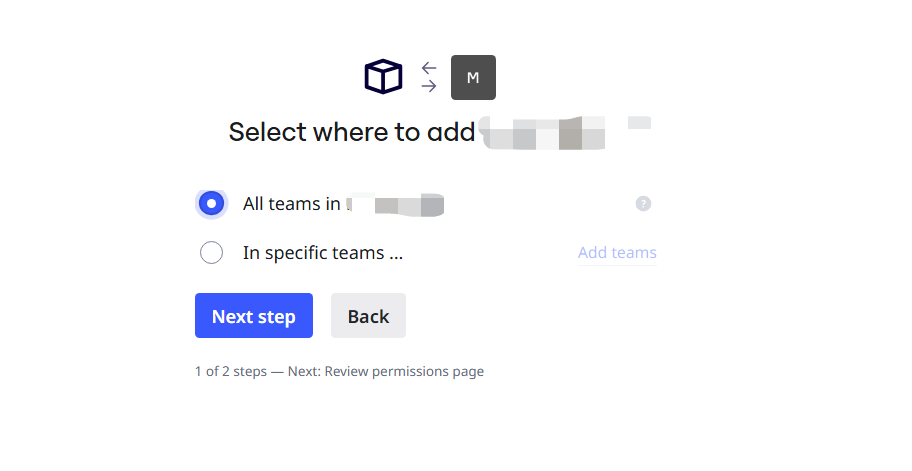
Select Add apps, and then enter the client ID of the app you created.
Choose All teams and approve requested permissions.