Note
Access to this page requires authorization. You can try signing in or changing directories.
Access to this page requires authorization. You can try changing directories.
Note
Teams Phone Agent is currently only available to customers in the Frontier Public Preview program.
This article is for IT pros and Teams administrators who want to create holiday schedules and routing for use with Teams Phone Agent and Auto Attendant.
Planning and licensing review
Planning
Licensing
Known issues
None.
What's new for Holidays in the past six months
- Nothing new in the last six months
Steps to create Holidays
In the Teams admin center, expand Voice, select Holidays, and then select Add.
Select New holiday.
Enter a name for the holiday.
Select Add new date.
Under Start time, select the calendar icon and choose the date when you'd like the holiday to begin.
Use the drop-down list to select a start time for the holiday.
Under End time, select the calendar icon and choose the date when you'd like the holiday to end.
Use the drop-down list to select an end time for the holiday. The End time must be after the Start time.
Note
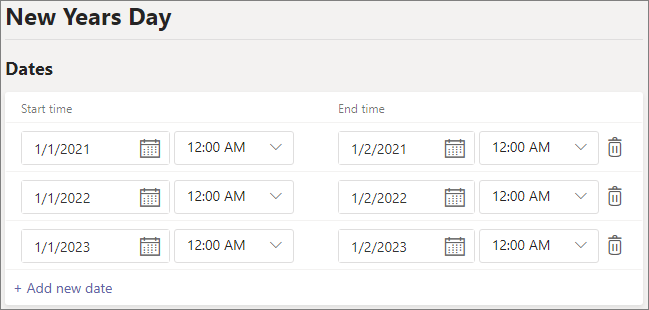
If the holiday is for one full day (that is, a 24 hour period), the End time should be set to the next day and the time to 12:00 AM. For example, if your organization is closed on January 1 for New Year's day, set the Start time to January 1 12:00 AM and set the End time to January 2 @ 12:00 AM.
Optionally, add more dates for recurring holidays. Up to 50 separate date ranges can be added to a single holiday.
Select Save.
Change a holiday
To change a holiday
- In the Teams Admin Center, expand Voice, select Holidays.
- Select the holiday from the list.
- Under Start time, select the calendar icon and choose the date when you'd like the holiday to begin.
- Use the drop-down list to select a start time for the holiday.
- Under End time, select the calendar icon and choose the date when you'd like the holiday to end.
- Use the drop-down list to select an end time for the holiday. The End time must be after the Start time.
- Select Save.
Related Teams Phone Agent and Auto Attendant setup and configuration articles
PowerShell
For instructions on setting up Holidays using PowerShell, see: