Note
Access to this page requires authorization. You can try signing in or changing directories.
Access to this page requires authorization. You can try changing directories.
This article explains how to enable guest collaboration between Microsoft 365 cloud environments so users can work with external guests across Azure clouds. Microsoft 365 organizations have one of several tenant types and are located in one of three Microsoft Azure clouds:
| Microsoft Azure cloud environment | Microsoft 365 cloud environment |
|---|---|
| Microsoft Azure Commercial | Commercial, GCC |
| Microsoft Azure Government | GCC High, DoD |
| Microsoft Azure China | China (21Vianet) |
To invite guests from an organization in a different Microsoft Azure cloud environment, complete the following steps:
If the organization you want to collaborate with is in a different Microsoft Azure cloud environment (such as commercial and DoD), enable cross-tenant connections with that Microsoft Azure cloud environment.
Set up cross-tenant access settings in Microsoft Entra ID with the organization that you want to collaborate with.
Tenants in Microsoft Azure Government (Microsoft 365 GCC High and DoD) can't create a cross-tenant connection with tenants in Microsoft Azure China.
Note
VDI clients using the new SlimCore-based optimization support cross-cloud meetings. WebRTC-based optimization doesn't support cross-cloud meetings.
Note
B2B Member accounts aren't supported for cross cloud guests. All cross cloud users must be of type B2B guest.
Important
The organization that you're collaborating with must also configure these settings for their organization.
Prerequisites
To invite guests from organizations in other Microsoft 365 cloud environments, you need to configure guest access for your organization. If you haven't previously configured guest access, see one of the following articles depending on your scenario:
- Collaborate with guests on a document
- Collaborate with guests in a site
- Collaborate with guests in a team
Additionally, to enable B2B collaboration with an organization in a different Microsoft 365 cloud environment, you need the organization's tenant ID. If you know the fully qualified domain name of the other organization, you can look up the tenantID in the Teams admin center. Open meeting settings, select Lookup under Cross-cloud meetings, type in the fully qualified domain name, and select Show tenant ID.
For the best meeting experiences across Microsoft clouds, make sure your network is ready for Microsoft Teams. Prepare your organization's network for Microsoft Teams contains guidance on how to optimize your network for Teams. Also ensure that the necessary DNS, IPs, and ports are enabled for each of the Microsoft 365 clouds where your users are collaborating. The following table links to the endpoint definitions for each of the Microsoft 365 cloud environments:
| Microsoft 365 Cloud Environment | Endpoints |
|---|---|
| Commercial, GCC | Worldwide endpoints |
| GCC High | U.S. Government GCC High endpoints |
| DoD | U.S. Government DoD endpoints |
| China (21Vianet) | Microsoft 365 operated by 21Vianet |
Allow cross-tenant connections with other Microsoft 365 cloud environments
If you're setting up guest sharing with a tenant that's in a different Azure cloud environment than yours, you need to enable connections with that cloud environment before you add the organizational relationship.
Enable the Microsoft Azure cloud environment you want to collaborate with in Microsoft Entra cross tenant access settings.
Sign in to Microsoft Entra ID by using a Security administrator account.
Select External Identities, and then select Cross-tenant access settings.
Select Microsoft cloud settings.
Select the checkboxes next to the external Microsoft Azure cloud environments you want to enable.
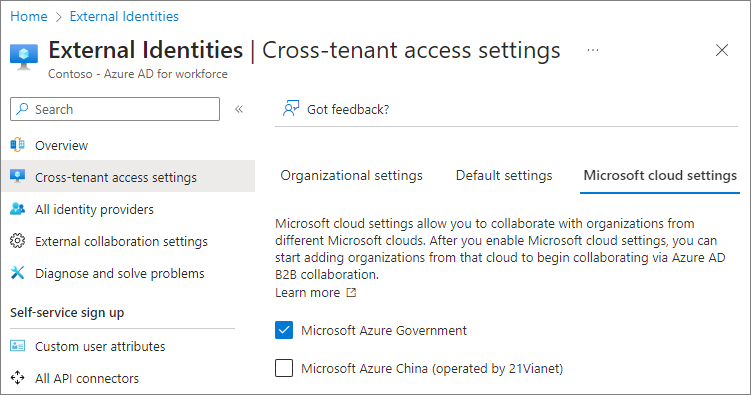
Add an organization
After you enable the cloud environments you want to collaborate with, add the specific organizations for B2B collaboration. Unlike B2B collaboration with organizations in the same cloud environment, B2B collaboration with organizations in different Microsoft 365 cloud environments requires that each organization be added to Microsoft Entra cross-tenant access settings.
To add an organization:
Sign in to Microsoft Entra ID by using a Security administrator account.
Select External Identities and then select Cross-tenant access settings.
Select Organizational settings.
Select Add organization.
On the Add organization pane, enter the tenant ID for the organization and press Enter.
Note
You can't search on domain names from other clouds.
Select Add.
The organization appears in the organizations list. At this point, all access settings for this organization inherit from your default settings.
New organizations inherit B2B collaboration settings from the default. If your default settings block B2B collaboration or if you want to limit collaboration to specific users or groups, update the organization's inbound and outbound settings.
Configure inbound settings for the organization
Use the inbound settings to specify which users or groups from the external organization can access resources in your organization.
To configure inbound settings for an organization:
Select the inbound access link for the organization that you want to modify.
On the B2B collaboration tab, choose Customize settings.
On the External users and groups tab, choose Allow access and All <organization> users and groups. You can choose Select <organization> users and groups if you want to limit access to specific users and groups, such as those who signed a non-disclosure agreement.
If you want to limit guest access to Microsoft 365, select the Office 365 application on the Applications tab.
Select Save and close the Inbound access settings pane.
Configure outbound settings for the organization
Use the outbound settings to specify which users or groups from your organization can access resources in the external organization.
To configure outbound settings for an organization:
Select the outbound access link for the organization that you want to modify.
On the B2B collaboration tab, choose Customize settings.
On the Users and groups tab, choose Allow access and set an Applies to of all users, or select the users or groups that you want to allow to access the external organization.
Select Save, choose Yes to confirm, and close the Outbound access settings pane.