Note
Access to this page requires authorization. You can try signing in or changing directories.
Access to this page requires authorization. You can try changing directories.
 Some features described in this article require Teams Premium.
Overview
As an admin, you can set a custom meeting template as the default to automatically apply your organization's preferred meeting settings when users schedule Teams meetings through the Teams calendar or Outlook. Default meeting templates help you consistently apply meeting settings, including meeting protection settings for security and compliance, and reduce the need for organizers to manually configure meeting options.
Organizers must have a Teams Premium license to use default meeting templates.
After you create a custom meeting template, you can set it as the default in a Teams meeting template policy. When users who are assigned the policy schedule new meetings, the default template is automatically applied, retaining the custom template's default values and any locked or hidden meeting options.
Note
Only custom meeting templates can be set as the default. Predefined meeting templates included in Teams can't be set as the default.
Set the default meeting template
In the left navigation of the Teams admin center, go to Meetings > Meeting template policies.
Select an existing policy or create a new one.
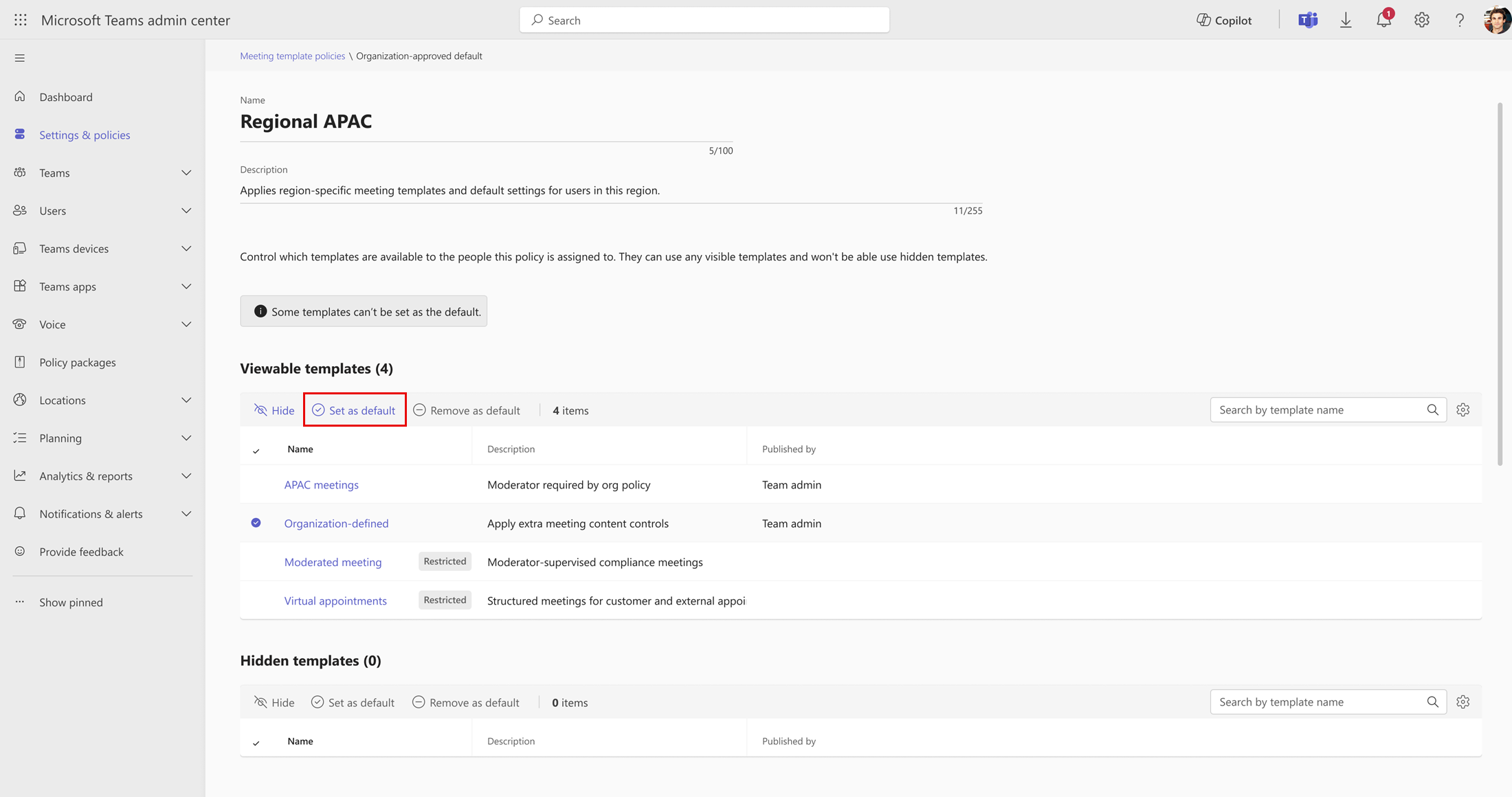
In the list of templates, choose the custom template you want to set as the default, and then select Set as default.
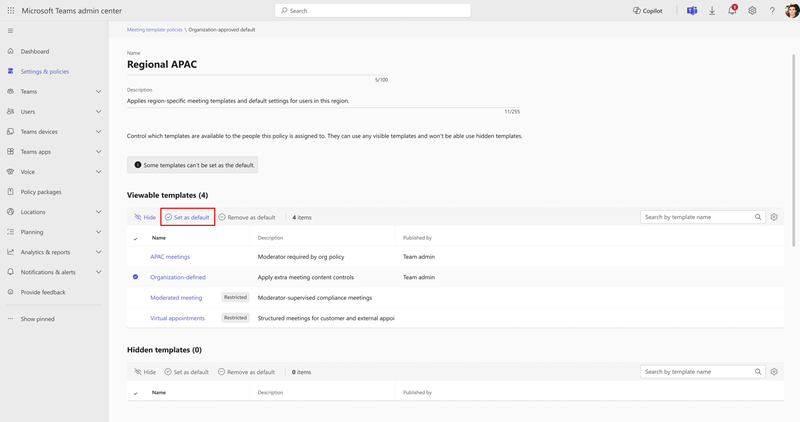
In the dialog, select Set as default to confirm.
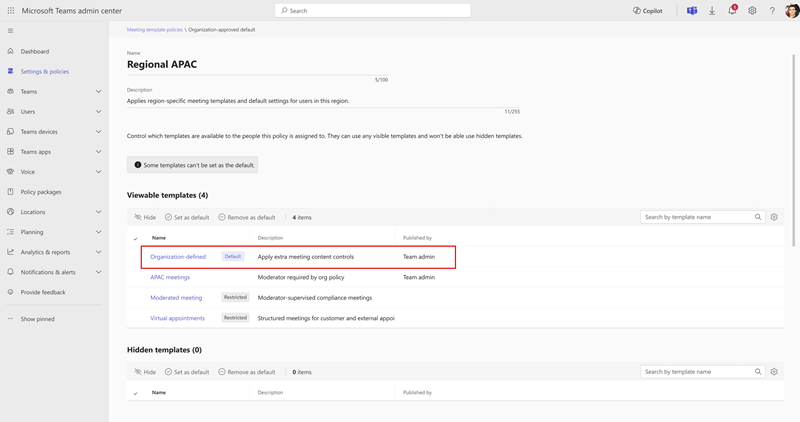
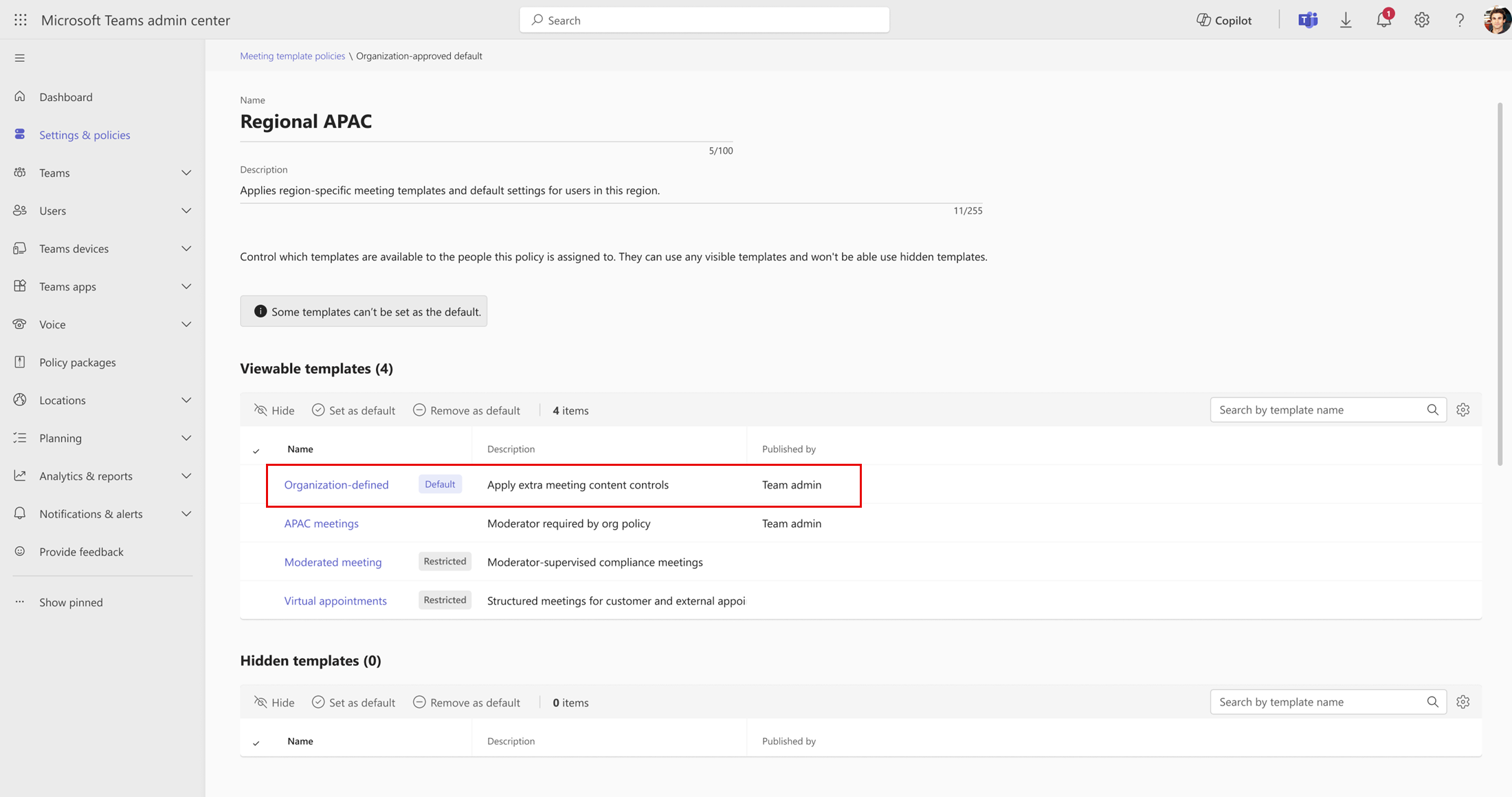
After you set the template as the default, a Default tag appears next to the template in the list.
User experience
Here's an overview of the user experience when you set a default meeting template.
Organizer experience
When an organizer schedules a new meeting in the Teams calendar or Outlook, the default meeting template is automatically applied. Organizers:
- Can change meeting options that have a default value but aren't locked.
- Can't change meeting options that are locked.
- Can't see meeting options that are hidden.
Attendee experience
Any meeting settings enforced through the default meeting template apply to attendees.
Remove a template as the default
In the left navigation of the Teams admin center, go to Meetings > Meeting template policies.
Select the policy you want to configure.
In the list of templates, select the template that's set as the default, and then select Remove as default.
After you remove the template as the default, it's no longer automatically applied to new meetings.
Platform support
Default meeting templates are supported in the Teams calendar and Outlook on Teams desktop (Windows and Mac) and web. Both new Outlook and classic Outlook are supported.
Known issue
Users might encounter errors in certain meeting scenarios when using a default meeting template if the Copilot setting in the Teams meeting policy is set to On with saved transcript required. This issue is related to the Copilot meeting policy and not the default meeting template. Until the issue is resolved, we recommend using a different Copilot setting.