Note
Access to this page requires authorization. You can try signing in or changing directories.
Access to this page requires authorization. You can try changing directories.
You can customize the display name for your Teams panel. For example, you can shorten the name to something that is more easily readable for your users.
The custom name is displayed on the Teams panel home screen, so we recommend making sure it's clear and understandable to your users. In addition, this doesn't change the display name shown on Microsoft Teams Rooms if you have one inside of the room.
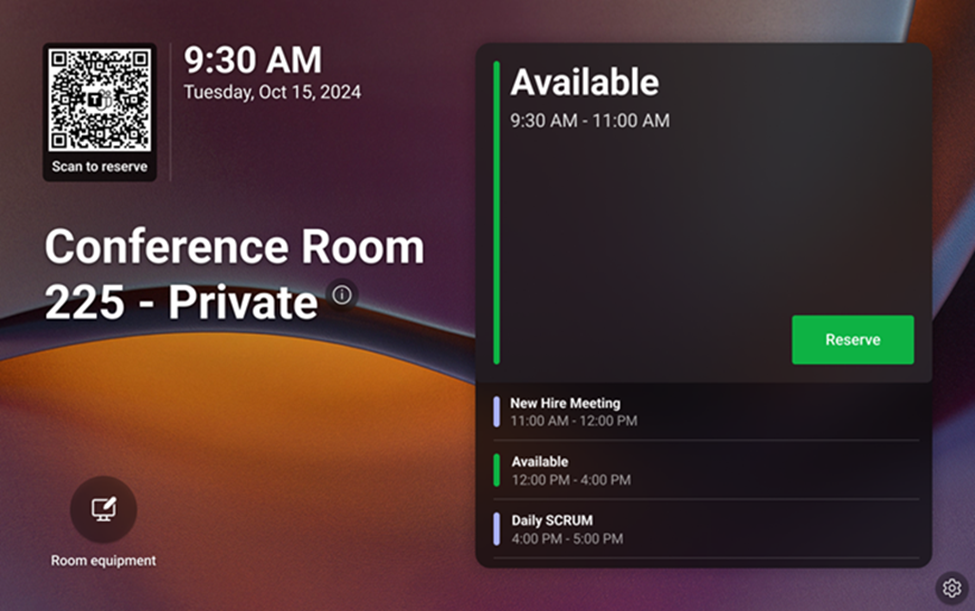
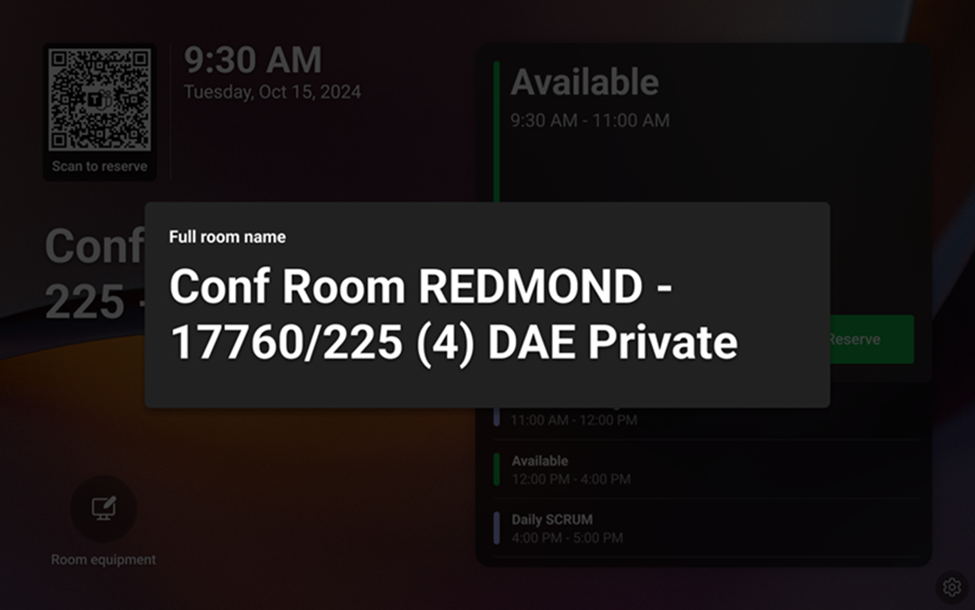
Set up and manage custom names for your Teams panels
Note
Within 24 hours of the custom name being updated to a name other than the GAL one, the Teams panel home screen reflects the new name. The home screen also has a tooltip that when selected, shows the user the GAL name.
Using the Teams Rooms Pro Management Portal
Sign in to the Teams Rooms Pro Management Portal.
Go to Planning > Inventory > Rooms > select the room where you’d like to apply a custom name.
In the Custom name field, add the name for the Teams panel. By default, this field is automatically filled with the name that is shown in the Global Address Book (GAL).
Select Save.
Using Microsoft Places
Teams panels references the "nickname" field within Microsoft Places to determine if a custom name is displayed. You can use the Places Graph APIs to modify the "nickname" value on a given Places object. You can learn more in Update place.
Show or hide the custom name locally on the panel
In Teams admin settings, an admin can view the GAL name and custom name if one is applied under Device settings > Display name. It isn't possible to edit the name in these admin settings. Editing can only be done in the Teams Rooms Pro Management portal.
If you would like to remove the custom name, you can remove the name in the custom name field in the Teams Rooms Pro Management portal or Graph, and the display name on Teams panel automatically defaults to the GAL name.
Frequently asked questions
Question: I'm not able to see the custom name field in Teams Rooms Pro Management portal when I select a room account in Inventory. What am I missing?
Answer: Make sure that the panel is appearing as signed into the room account in the Pro Management portal, and the panel has a Teams Rooms Pro or Teams Shared Device license assigned.
Question: What admin role do I need in order to be able to add a custom name in the Teams Rooms Pro Management portal?
Answer: The admin must be a global admin, Exchange admin, or Mail Recipients admin.