Note
Access to this page requires authorization. You can try signing in or changing directories.
Access to this page requires authorization. You can try changing directories.
Learn how IT administrators can prepare their environment for Teams Android devices to automatically enroll in Intune using a mobile device enrollment (MDM) method called Android Open Source Project (AOSP) Device Management. This MDM enrollment method replaced the legacy Device Administrator enrollment method.
This article covers:
- Setting up new AOSP Device Management enrollment profiles
- Creating new Intune compliance policies
Note
These steps are specific to Teams Android devices (Teams Rooms on Android, Teams phone, & Teams Panels). If you have non-Teams devices, refer to the Intune guidance for setting up profiles: Set up Android (AOSP) device management in Intune for corporate-owned user-associated devices - Microsoft Intune | Microsoft Learn
Prerequisites
To complete this setup, you need:
- Intune licenses assigned to your Teams Android device resource accounts or user accounts.
- Teams Android Devices deployed which are enrolled using Device Administrator.
- Intune administrative permission.
Important
Teams Rooms Basic licenses don't include Intune so devices using a Basic licensed resource account will not enroll with Intune. Likewise, if an organization doesn't want to enroll in Intune, they can remove the Intune license on their resource accounts at which point the AOSP enrollment profile outlined in this article isn't required.
Step 1 - Set up a new AOSP device management enrollment profile
In order for Teams Android Devices to enroll in AOSP Device Management successfully, an enrollment profile must be created.
Setup AOSP management enrollment profiles
Sign in to the Intune Management Console using an account with Intune administrator permissions: https://intune.microsoft.com/.
Select Devices > Enrollment > then Android.
Under Android Open Source Project (AOSP) > Enrollment Profiles, select Corporate-owned, user-associated devices.
Select Create policy.
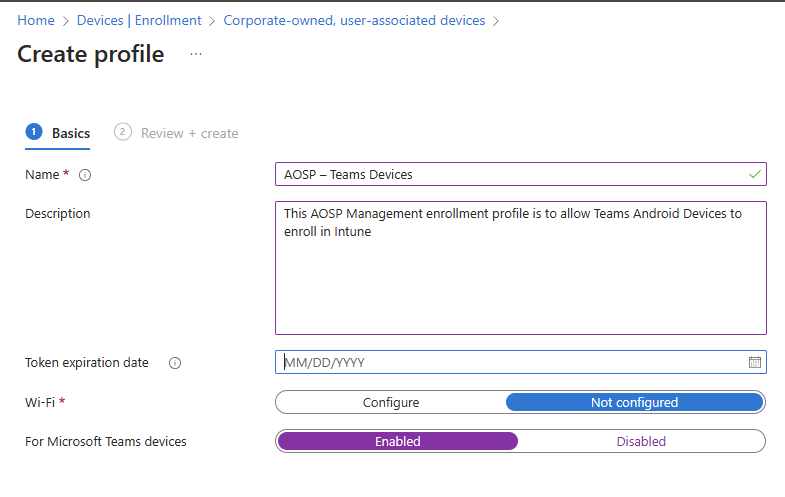
Use the following settings for the profile configuration:
- Name: Give the profile a name like 'AOSP – Teams Devices'.
- Description: Put in a description so others in the organization know what this enrollment profile is used for.
- Token expiration date: Defaults to 65 years into the future and is best left at 65 years to avoid expiration.
- Wi-Fi: Select Not configured.
- For Microsoft Teams devices: Select Enabled.
- Apply device name template: Select No
Note
There's a limit of one enrollment profile per tenant with the For Microsoft Teams devices toggle set as Enabled. An expired enrollment token prevents devices from completing a successful sign-in and blocks new devices from enrolling.
- Select Next.
- Review the profile and then select Create.
The enrollment profile is now ready to enroll devices.
Note
AOSP enrollment profiles include a QR code but Teams Android devices don't use this QR code. The devices have a custom configuration that allows enrollment using the Teams resource account credentials instead of the QR code.
Step 2 - Set up AOSP Device Management Compliance Policies (if necessary)
If your organization uses Conditional Access with Intune Compliance as a requirement for successful sign in, you need to create a compliance policy and assign it to ensure devices are marked compliant post migration. If you don't create a compliance policy while requiring compliance as an authentication factor, the device will sign out after migration.
Create a AOSP Device Management Compliance Policy
- Sign in to the Intune Management Console with an account with Intune administrator permissions: https://intune.microsoft.com/.
- Select Devices > Compliance, then Create policy.
- Under Platform > Android (AOSP), then select Create.
- Provide a name and description for the policy.
- Select Next.
- Under Device Health set 'Rooted Devices' to Block.
- Under Device Properties set the 'Minimum OS version' and 'Maximum OS version' to match devices in your organization.
- Under System Security set 'Require encryption of data storage on device' to Yes.
- Select Next, then select Next.
- Assign this profile to all devices in the organization or a group of devices.
- Select Next, then select Create.
Note
The compliance policy is just an example of conditions you can set, the full list of supported compliance conditions is available in Supported Conditional Access and Intune device compliance policies
In step 10, selecting "All Devices" only assigns this compliance policy to all devices in your organization enrolled using AOSP DM. If you have other AOSP DM enrolled devices, ensure you don't have conflicting compliance policies or assign your policies to groups of devices instead.