Note
Access to this page requires authorization. You can try signing in or changing directories.
Access to this page requires authorization. You can try changing directories.
Overview
The Meeting Recaps app in Microsoft Teams provides a centralized view of meeting recaps, making it easier for users to find, filter, and catch up on their recent meetings. The app supports multiple recap modalities, including intelligent text recap, video recap, and audio recap. Audio recap can combine content from multiple meetings into a single podcast-style summary, helping users stay up to date across meetings.
To learn more about the user experience, see Get started with the Meeting Recaps app.
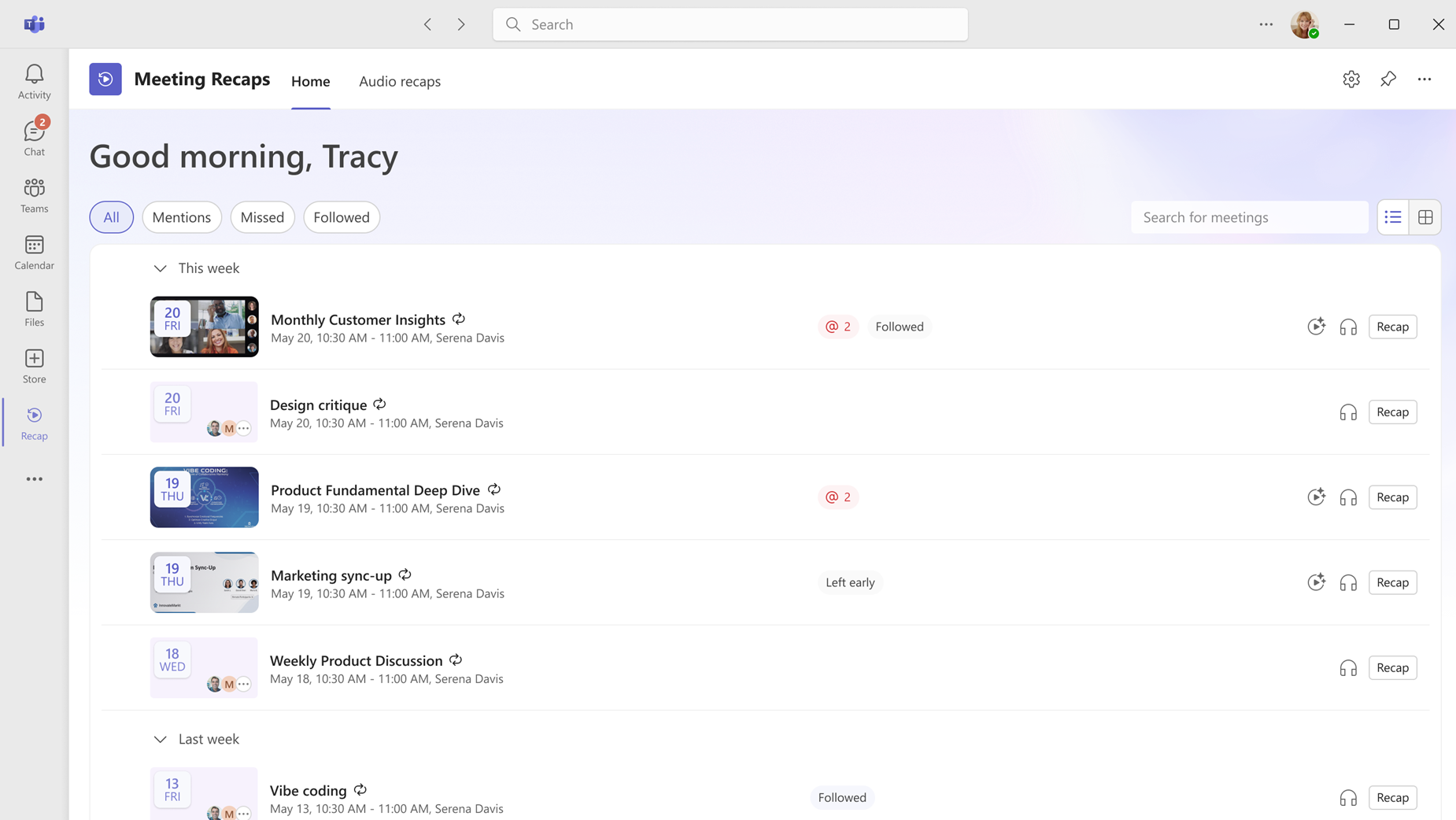
The app is preinstalled in Teams but isn't pinned by default. Users can pin the app themselves, or admins can pin the app for users through an app setup policy in the Teams admin center.
Key considerations
Only recorded or transcribed meetings appear in the Meeting Recaps app.
The Meeting Recaps app displays recaps for meetings that occurred within the previous 30 days.
The app is available in Teams desktop for Windows and Mac and Teams web clients. Mobile support is coming soon.
All Teams users can access the Meeting Recaps app homepage. Users can view meetings in a list or grid layout and use search and filters to find meeting recaps.
Some recap experiences require additional licenses. For more information, see Licensing in this article.
The accuracy of the Missed status on the Meeting Recaps homepage depends on the availability and completeness of Teams meeting attendance report data. If attendance reporting is disabled by policy or for a meeting, or if an attendee isn't included in the report, the status might be inaccurate.
To learn more about attendance reports, see Manage the attendance and engagement report for meetings and events in Microsoft Teams (admins) and Manage meeting attendance reports (meeting organizers).
Licensing
- AI-generated recap experiences, including audio recap and video recap, require a Microsoft Copilot license.
- Intelligent text recap requires a Teams Premium or Microsoft Copilot license.
- Users without a Microsoft Copilot license can still access meeting transcripts that they have permission to view.
Pin the Meeting Recaps app for your users
By using app setup policies, you can customize Teams to pin apps for users in your organization. The apps you add to a policy are pinned to the Teams app bar, where users can quickly access them.
You can edit the global (Org-wide default) policy or create and assign a custom app setup policy.
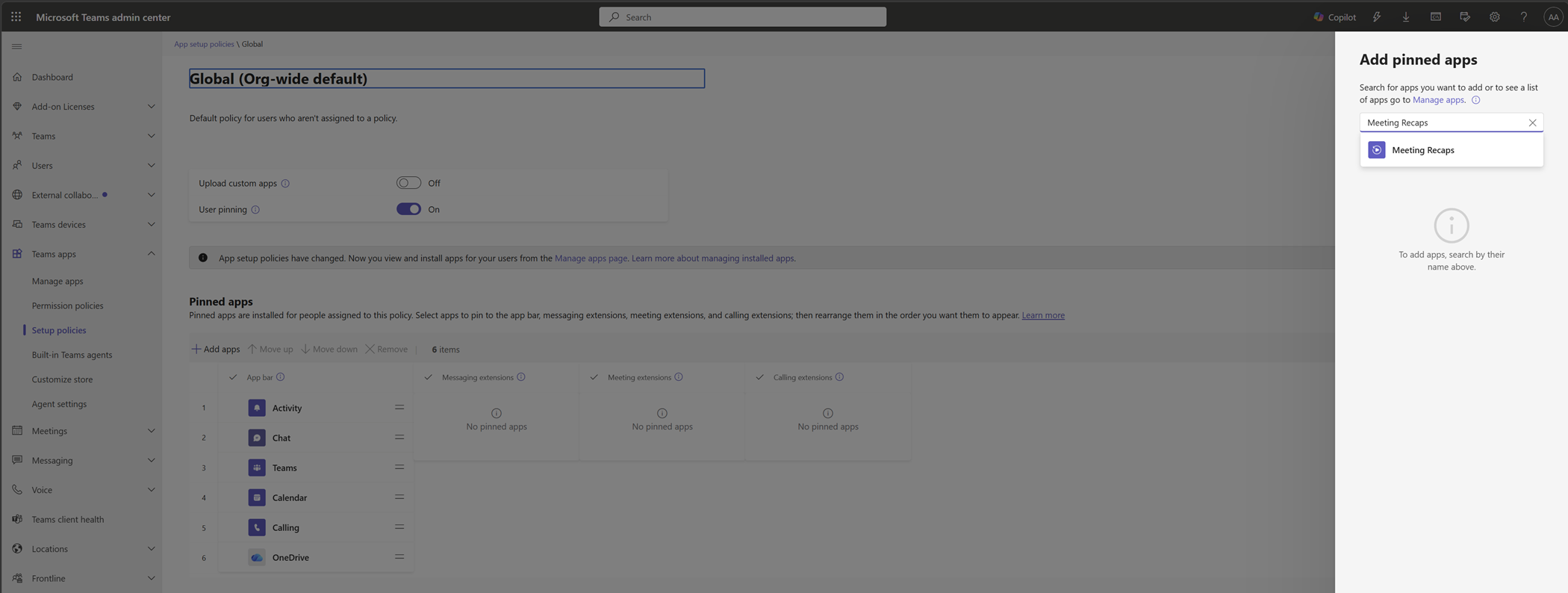
To pin the Meeting Recaps app for users, follow these steps:
In the left navigation of the Teams admin center, go to Teams apps > Setup policies.
Select the Global (Org-wide default) policy or select Add to create a new policy.
Under Pinned apps, select Add apps.
Search for and select Meeting Recaps, and then select Add.
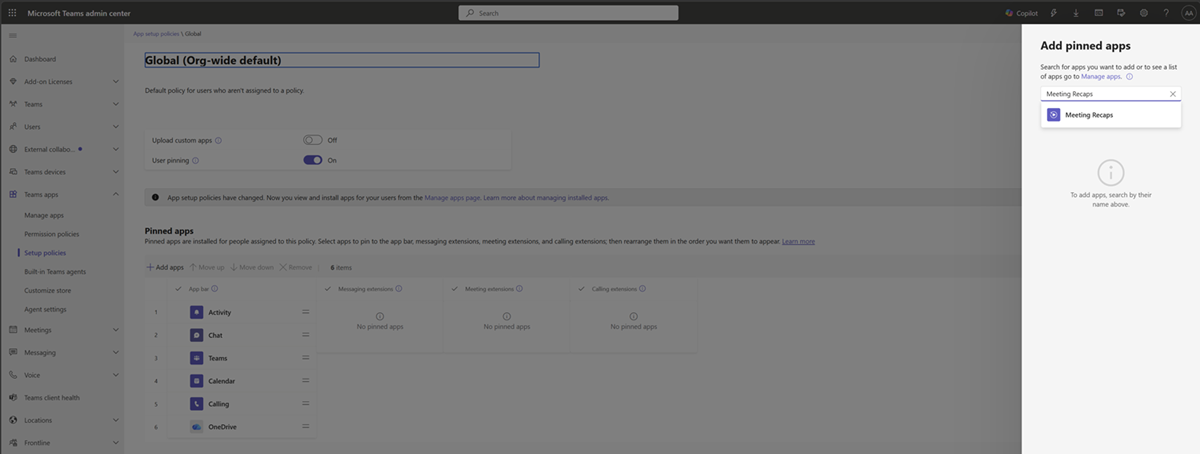
Select Save.