Note
Access to this page requires authorization. You can try signing in or changing directories.
Access to this page requires authorization. You can try changing directories.
Note
Support for agent reactions in Teams is available in public developer preview.
You can build agents that react to messages as well as send text, minimizing notification fatigue while communicating actions efficiently.
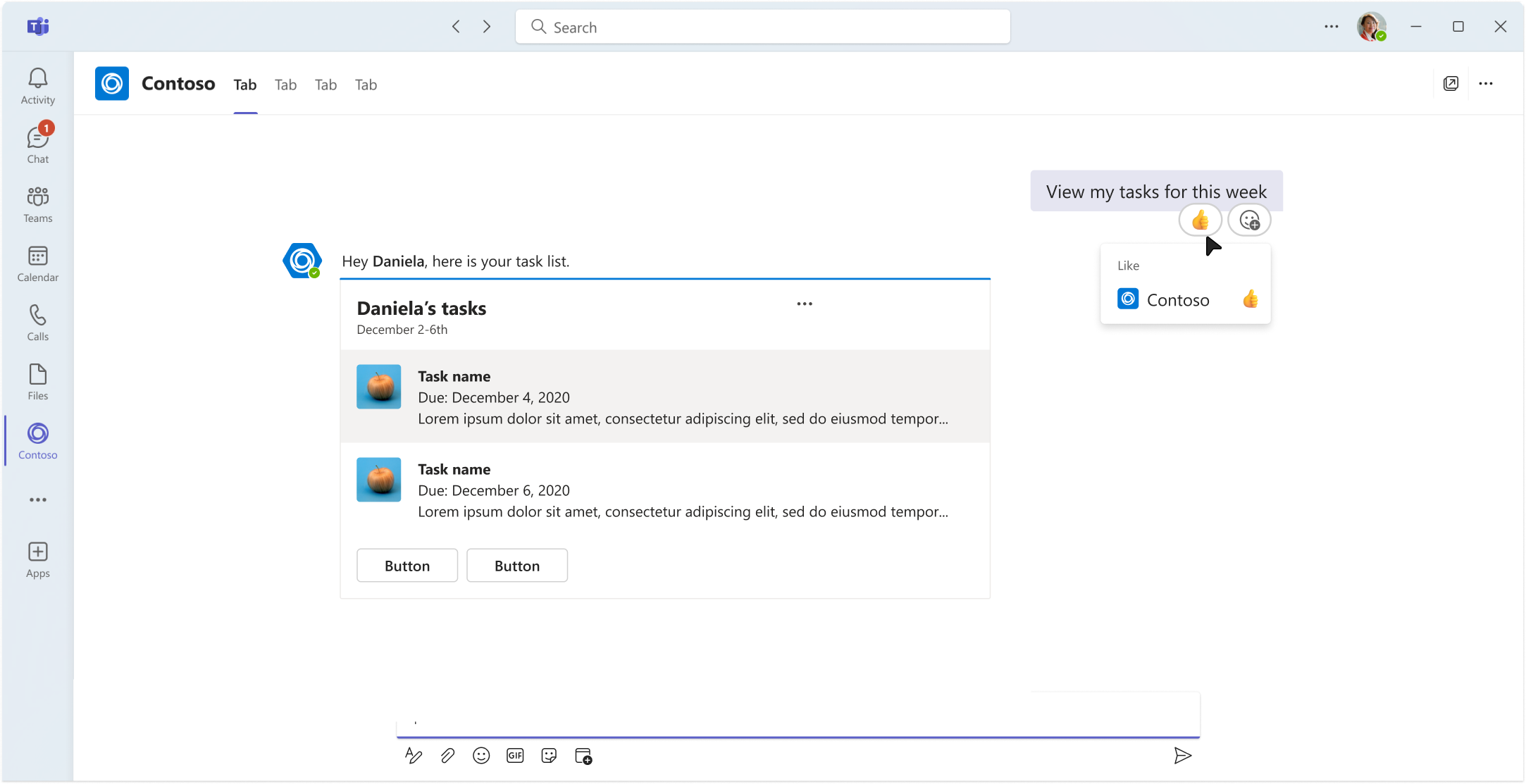
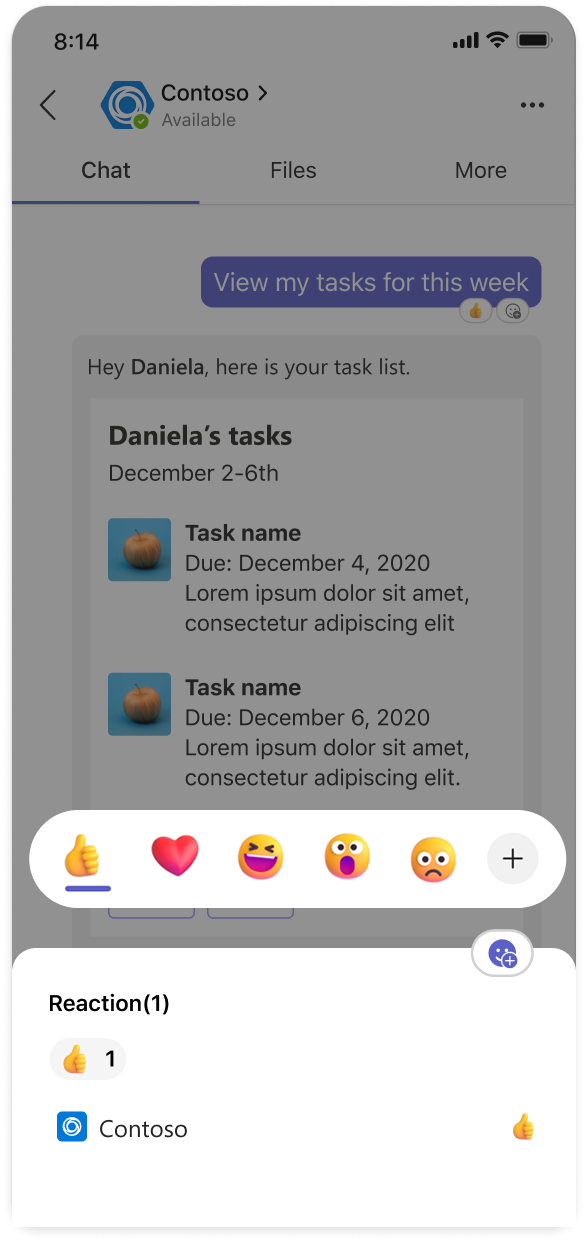
Map emojis and reactions to specific agent actions and use the ID to send the right reaction in the conversation.
Key highlights:
Enable an agent to add reactions
You can enable an agent to send reactions using Teams SDK or REST APIs. An agent can send up to two reactions per second. To enable an agent to send a reaction to a message:
- Use the Teams reactions reference for getting the
reactionIdfor the reactions that you want to add. You can also select a particular skin tone for the emoji by selecting itsreactionId. - Use Teams SDK or REST API to add reactions to messages.
The following code snippet shows an example of adding the Waving hand reaction to a message:
app.OnMessage(async context =>
{
    await context.Send("Hello! I'll react to this message.");

    // Add a reaction to the incoming message
    await context.Api.Conversations.Reactions.AddAsync(
        context.Activity.Conversation.Id,
        context.Activity.Id,
        new ReactionType("1f44b_wavinghand")
    );
});
See Teams SDK.
Handle existing agent reactions
You can handle reaction requests when an agent has already reacted to a message.
- Reaction already added: If an agent tries to react to a message it has already reacted to, the action succeeds but no duplicate reaction is added.
- Replace a reaction: To enable the agent to replace a reaction it already added, remove the reaction that was added, and then add the new reaction.
Enable an agent to remove reactions
You can choose to enable an agent to remove its reaction from messages. To remove the agent's reaction from a message:
- Use the Teams reactions reference for getting the
reactionIdfor the reactions that you want to remove. - Use Teams SDK or REST API to remove reactions from messages.
The following code snippet shows an example of removing a reaction from a message:
app.OnMessage(async context =>
{
    // First, add a reaction
    await context.Api.Conversations.Reactions.AddAsync(
        context.Activity.Conversation.Id,
        context.Activity.Id,
        new ReactionType("1f44b_wavinghand")
    );

    // Wait a bit, then remove it
    await Task.Delay(2000);
    await context.Api.Conversations.Reactions.DeleteAsync(
        context.Activity.Conversation.Id,
        context.Activity.Id,
        new ReactionType("1f44b_wavinghand")
    );
});
See Teams SDK.
Response codes
The following are the success and error codes:
| Response codes | Description | Action |
|---|---|---|
| Success codes | ||
200 OK |
Reaction added successfully | NA |
200 OK |
Deleted reaction successfully | NA |
200 OK |
Deleted non-existent reaction | NA |
| Error codes | ||
400 Bad request |
The reactionId is invalid or exceeds the maximum allowed length. |
Use a valid reactionId from Teams reactions reference. |
Note
200 OKis also returned if the agent or bot adds a reaction that already exists or removes one that isn’t applied. These operations don’t return errors.- You can find more information on error codes for sending messages.
Modify skin tone for emojis
The Teams reactions reference shows skin tone options for emojis. The emojis that offer skin tone are tagged as Diverse. To select a particular skin tone:
Choose a reaction tagged as Diverse.
Copy the
reactionIdfor the Diverse - skin tone that you want to use in your agent.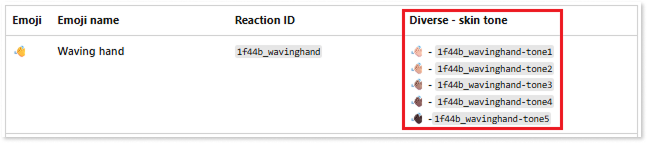
Use the copied
reactionIdin your agent's payload to send the selected reaction in the conversation.
The following code snippet shows an example of selecting a specific skin tone of a diverse reaction to a message:
app.OnMessage(async context =>
{
    await context.Send("Hello! I'll react to this message.");

    // Add a reaction to the incoming message
    await context.Api.Conversations.Reactions.AddAsync(
        context.Activity.Conversation.Id,
        context.Activity.Id,
        new ReactionType("1f44b_wavinghand-tone4")
    );
});
Best practices
- Employ reactions to improve user experience such as acknowledging a message or providing succinct feedback.
- Avoid excessive use of reactions to minimize notification fatigue for users.
- Ensure your agent's reactions fit the message context and avoid having your agent send multiple reactions to the same message without first removing any existing reactions.
See also
Collaborate with us on GitHub
The source for this content can be found on GitHub, where you can also create and review issues and pull requests. For more information, see our contributor guide.
Platform Docs