Note
Access to this page requires authorization. You can try signing in or changing directories.
Access to this page requires authorization. You can try changing directories.
Note
Support for slash commands is available in public developer preview.
Slash commands help users discover and use named command functionality in Teams agents and apps.
If your agent or app has functionality that users should be able to invoke with named commands, you can add configuration that makes those commands quickly discoverable and accessible from the message compose box in Teams. Named slash commands can help users access guidance, create personal follow-up tasks, or manage personalization options.
What is a slash command
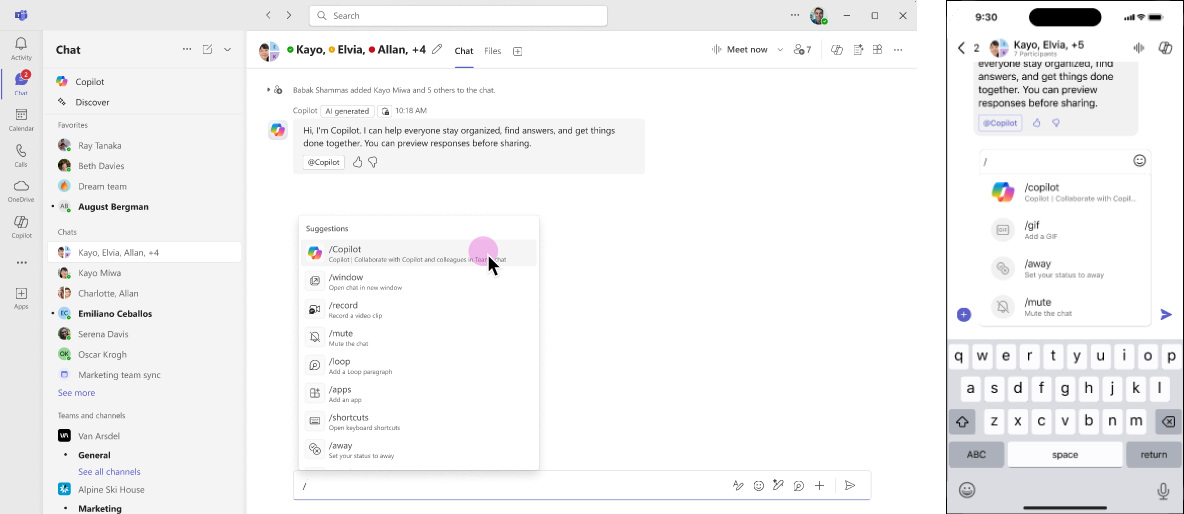
Slash commands in Teams are text-based shortcuts that let users perform actions from the compose box in conversations. When a user enters a / in an empty compose box, Teams displays an autocomplete menu containing built-in commands for common tasks that can be invoked immediately by selecting them.
The slash commands feature enables apps and agents to add their own commands to this list to help users discover and use them.
Types of slash commands
Apps and agents can expose three types of commands via their configuration:
- Targeted messaging: Users send targeted messages to agents by entering an agent's name as a slash command, switching the compose box to targeted message mode
- Agent slash commands: Surface named commands to users in the slash command autocomplete menu
- Message extension slash commands: Enable users to activate your app or agent's message extensions with a slash command
All three types are supported across all client platforms, including mobile.
Important
Targeted messaging and agent slash commands are fundamental to agent design for group conversations, and require careful handling of user privacy expectations. For more information, see Best practices and design guidance.
Targeted messaging
Users send targeted messages to agents by entering an agent's name as a slash command.
In channels, group chats, and meeting chats, the slash command autocomplete menu includes commands named after each agent in the conversation eligible to receive targeted messages.
Activating one of these commands switches the compose box to targeted message mode for the agent. After the user composes a message and selects Send, the resulting message will be targeted to the agent and can't be seen by other participants in the conversation.
For more information, see Send and receive targeted messages in group conversations.
Agent slash commands
Agent slash commands enable agents to surface named commands that users can privately invoke in channels, group chats, and meeting chats. Slash commands are useful for functionality that users need to access quickly and privately in group conversations.
In channels, group chats, and meeting chats, the slash command autocomplete menu includes all commands registered by agents in the current conversation. Each command is displayed with its description and its agent's name and icon, making them discoverable and distinguishing between commands with the same name.
Invoking a command from the menu switches the compose box to targeted messaging mode for the agent and inserts the name of the command as the message text. Selecting Send sends the targeted message to the agent.
Message extension slash commands
Apps that implement action-type message extensions can surface them as slash commands. When a user activates one from the autocomplete menu, Teams immediately opens the associated task module or dialog. Activating a message extension slash command only opens the task module or dialog, and doesn't send a message. Search-type message extensions can't be exposed as commands.
Message extension slash commands can be configured to appear as autocomplete entries in both the compose box and the Teams command box.
Add commands
Targeted messaging and slash commands are configured via the app or agent's manifest.
Targeted messaging
See Receive targeted messages for details about enabling an agent to receive targeted messages.
Agent slash commands
Agent slash commands require an agent to opt in to receive targeted messages; see Receive targeted messages.
Declare commands by configuring the bots[].commandLists[] section of the manifest as shown in the following example.
{
    "bots": [
        {
            "botId": "{{BOT_ID}}",
            "scopes": ["personal", "team", "groupChat"],
            "supportsTargetedMessages": true,
            "commandLists": [
                {
                    "scopes": ["personal", "team", "groupChat"],
                    "triggers": ["mention"],
                    "commands": [
                        { "title": "Summarize", "description": "Summarize a document" },
                        { "title": "Draft", "description": "Draft a document" }
                    ]
                },
                {
                    "scopes": ["team", "groupChat"],
                    "triggers": ["slash"],
                    "commands": [
                        { "title": "Review", "description": "Review a document" }
                    ]
                }
            ]
        }
    ]
}
Use the following example to configure the app manifest for supporting an agent or a bot that makes the same commands available for both @mention and slash triggers.
{
    "bots": [
        {
            "botId": "{{BOT_ID}}",
            "scopes": ["personal", "team", "groupChat"],
            "supportsTargetedMessages": true,
            "commandLists": [
                {
                    "scopes": ["team", "groupChat"],
                    "triggers": ["mention", "slash"],
                    "commands": [
                        { "title": "Ask privately", "description": "Send a private question to the bot" },
                        { "title": "Help", "description": "Get help using this bot" }
                    ]
                }
            ]
        }
    ]
}
Message extension slash commands
Use the triggers property of composeExtensions[].commands[] to expose message extensions as slash commands.
{
    "composeExtensions": [
        {
            "botId": "{{BOT_ID}}",
            "commands": [
                {
                    "id": "summarizeCommand",
                    "type": "action",
                    "title": "Summarize",
                    "description": "Summarize a document",
                    "context": ["compose", "commandBox"]
                },
                {
                    "id": "draftCommand",
                    "type": "action",
                    "title": "Draft",
                    "description": "Draft a document",
                    "context": ["compose", "commandBox"],
                    "triggers": ["slash"]
                },
                {
                    "id": "reviewCommand",
                    "type": "action",
                    "title": "Review",
                    "description": "Review a document",
                    "context": ["compose", "commandBox"],
                    "triggers": ["slash"]
                }
            ]
        }
    ]
}
Implementing agent slash command handling
Configuring agent slash commands only surfaces them to users in the Teams client, it doesn't assist with their implementation.
When a user activates an agent slash command, Teams switches the compose box to targeted message mode and inserts the command name, then returns control to the user to allow them to enter more text and send the message. The agent's message handler is responsible for using the contents of the message to determine whether it should be interpreted as a command invocation and handling it appropriately.
See Best practices and design guidance for other message handling guidance.
Best practices and design guidance
Offer slash commands for common actions that users need to access quickly and repeatedly. They're especially useful for actions that should remain private or that provide user-specific results, such as viewing settings, creating follow-up tasks, or checking personal status. Commands work best for actions that users are likely to invoke frequently and benefit from being easy to discover and reuse.
As with all message-based activity, the design of slash command behaviors should carefully consider whether the user expects a public or private message as a response in group conversations. For general guidance about agent response visibility, see Targeted messaging best practices and design guidance.
Keep slash commands short and action-oriented, and consider adding shortnames or aliases for popular commands. Consider using prompt starters for longer prompts.
Provide clear command descriptions to improve discoverability, including any expected input beyond the command name.
Related content
Collaborate with us on GitHub
The source for this content can be found on GitHub, where you can also create and review issues and pull requests. For more information, see our contributor guide.
Platform Docs