Note
Access to this page requires authorization. You can try signing in or changing directories.
Access to this page requires authorization. You can try changing directories.
By default, one-on-one chat between a user and an agent takes place in a single long-running conversation. With sessions, an agent can hold multiple independent one-on-one conversations with a user.
Note
Sessions for agents are available in public developer preview.
Sessions offer users and agents a structured way to manage multiple tasks or workflows, similar to other modern AI assistant experiences. Encouraging users to organize their interactions into shorter, more focused contexts can also improve the quality of LLM-generated responses.
Sessions is an optional feature enabled via an agent's app manifest, and is recommended for most agents. All existing one-on-one agent chat capabilities continue to work within sessions.
User experience
With session support enabled, either the agent or a user can create new sessions to organize conversations. The first message in a session becomes the session's title.
User controls in the chat header enable enable creating and navigating between sessions.
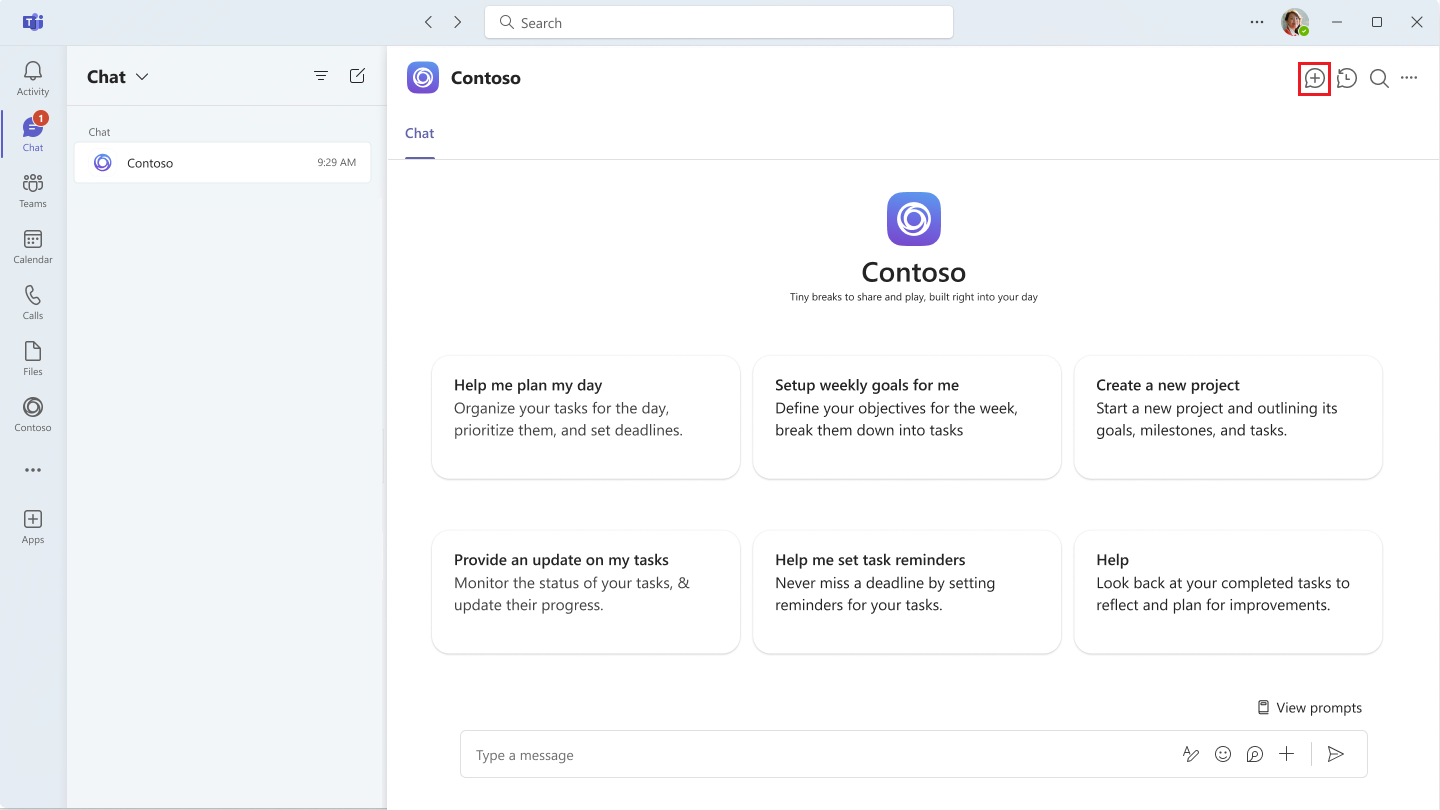
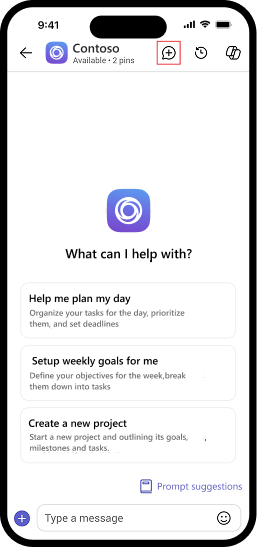
Users can navigate between sessions using the sessions panel. The latest message in a session appears as the preview.
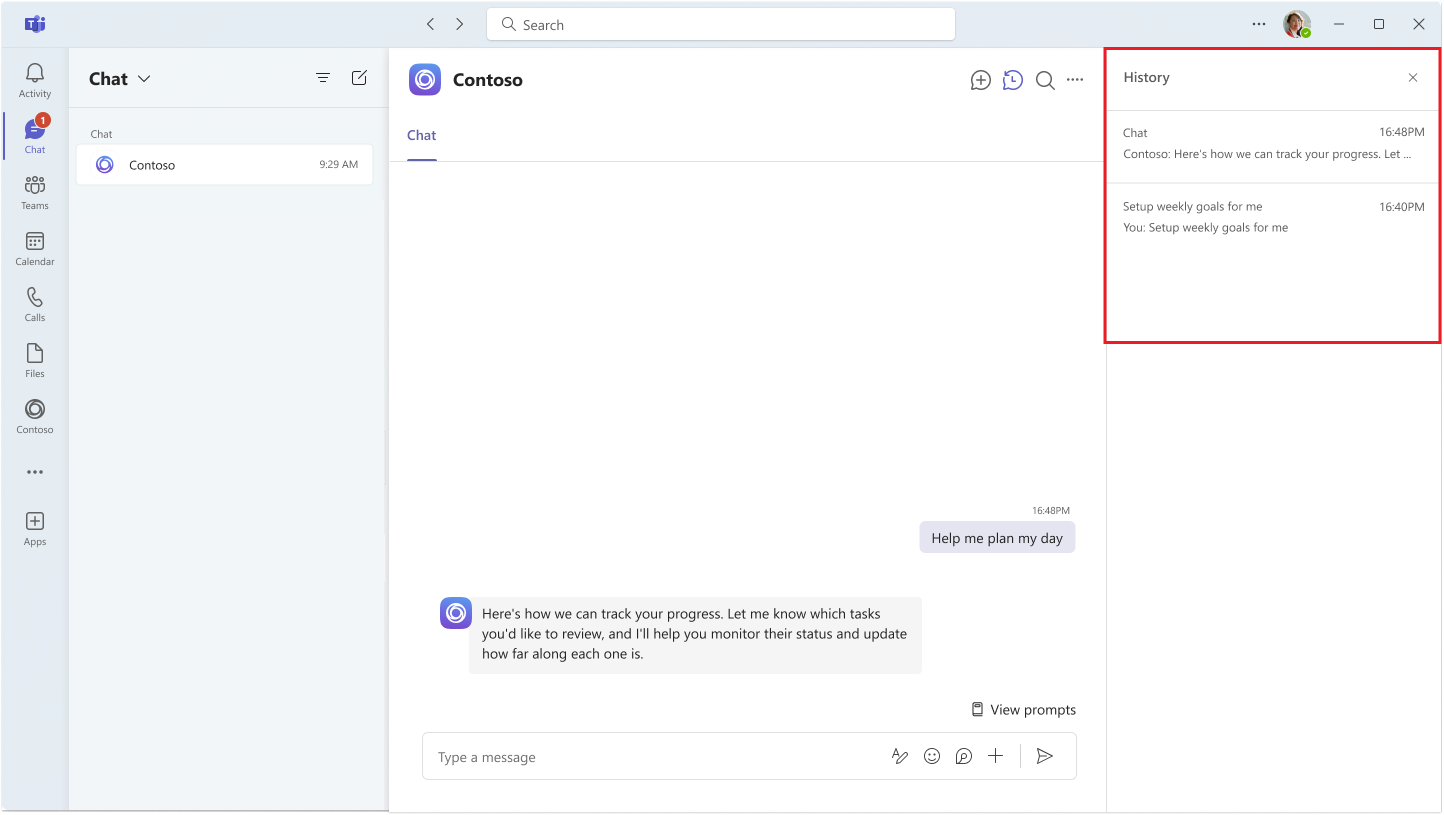
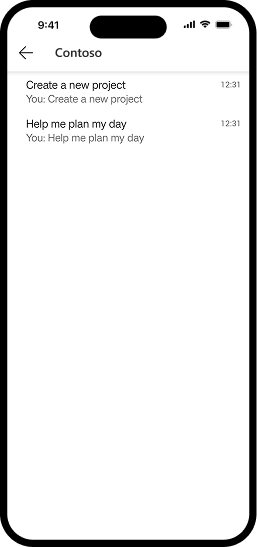
New messages in sessions generate notifications, and result in highlighting and badging of the session in the sessions panel.
Note
Sessions are distinct from threaded replies in channels. A session is a full, independent conversation context within a 1:1 chat and not a reply chain under a single message.
Enable sessions for your agent
Sessions are an opt-in capability that you enable through your app manifest. After you enable sessions and publish the updated app, users see the sessions experience after they install or upgrade the app.
To enable sessions for an agent, set the supportsSessions property in its app manifest to true.
{
  "bots": [
    {
      "botId": "{{BOT_ID}}",
      "supportsSessions": true
    }
  ]
}
Important
Disabling sessions after they have been enabled by setting supportsSessions to false or removing it from the app manifest is not recommended. A sessions-enabled chat can't be restored to the exact state of a regular one-on-one chat.
After you update the manifest, package and republish your app through the Developer Portal for Teams or Teams admin center. Users see the sessions experience after they install or upgrade the app.
Agents that don't enable sessions continue to use the single chat experience. When you enable sessions for an existing agent, Teams automatically moves the existing chat history into a default session. No action is required and users don't lose any conversation history.
Send and receive messages in sessions
Session-specific routing of messages is automatic in most scenarios, including proactive messaging. For agents with sessions enabled, the conversation ID of every received one-on-one chat message activity is scoped to its individual session. Using it, or using the received message's context, to send a message will route the sent message to the appropriate session.
var conversationId = context.Activity.Conversation.Id;
await app.Send(conversationId, "Hello from agent");
const conversationId = activity.conversation.id;
await app.send(conversationId, "Hello from agent");
conversation_id = ctx.activity.conversation.id
await app.send(conversation_id, "Hello from agent")
Existing messaging-handling code will work as expected without changes. If your agent cached a conversation ID before sessions were enabled for the agent, the cached value wll continue to work and will route messages to the default session.
Note
Conversation IDs should be considered opaque values. Construction or modification of a conversation ID should never be needed and is not supported.
HTTP
POST {serviceUrl}/v3/conversations/{sessionConversationId}/activities
Authorization: Bearer {bot-token}
Content-Type: application/json

{
  "type": "message",
  "text": "Follow-up message in this session"
}
To reply to a specific activity, include replyToId:
POST {serviceUrl}/v3/conversations/{sessionConversationId}/activities
Authorization: Bearer {bot-token}
Content-Type: application/json

{
  "type": "message",
  "text": "Reply to your question",
  "replyToId": "1749012345678"
}
To get members:
GET {serviceUrl}/v3/conversations/{sessionConversationId}/members
Authorization: Bearer {bot-token}
Member operations (GetMembers, GetMember, GetProfile) work the same regardless of which session conversationId you use. They always resolve to the underlying 1:1 chat.
Create sessions proactively
To create a new session with a user from a session-enabled agent, use the create conversation operation with a single message activity, specifying the user as the sole member.
using System.Collections.Generic;
using Microsoft.Teams.Api.Activities;
using Microsoft.Teams.Api.Clients;

// Build an authenticated API client targeting the agent's service URL.
var api = new ApiClient(serviceUrl, app.Client);

// Including exactly one initial message activity is required for creating a session
// It becomes the first message of the new session.
var resource = await api.Conversations.CreateAsync(new ConversationClient.CreateRequest
{
    Members = new List<Microsoft.Teams.Api.Account>
    {
        new Microsoft.Teams.Api.Account { Id = userId }
    },
    TenantId = tenantId,
    Activity = new MessageActivity("Hello! Starting a new session."),
}, cancellationToken);

// resource.Id is the session conversationId
string sessionConversationId = resource.Id;

// Send a follow-up into the same session.
await app.Send(
    sessionConversationId,
    "This message is part of the session.",
    serviceUrl: serviceUrl,
    cancellationToken: cancellationToken);
// Including exactly one initial `activity` is required for creating a session
// It becomes the first message of the new session.
const resource = await app.api.conversations.create({
  members: [{ id: userId, role: 'user', name: '' }],
  tenantId,
  activity: { type: 'message', text: 'Hello! Starting a new session.' },
});

// resource.id is the session conversationId
const sessionConversationId = resource.id;

await app.send(sessionConversationId, 'This message is part of the session.');
from microsoft_teams.api import Account, CreateConversationParams, MessageActivityInput

# Exactly one initial message activity is required for creating a session
# It becomes the first message of the new session.
resource = await app.api.conversations.create(
    CreateConversationParams(
        members=[Account(id=user_id, type="person", name="")],
        tenant_id=tenant_id,
        activity=MessageActivityInput(text="Hello! Starting a new session."),
    )
)

# resource.id is the session conversation_id
session_conversation_id = resource.id

# Send a follow-up into the same session.
await app.send(session_conversation_id, "This message is part of the session.")
HTTP
POST {serviceUrl}/v3/conversations
Authorization: Bearer {bot-token}
Content-Type: application/json

{
  "isGroup": false,
  "members": [
    { "id": "29:user-aad-object-id" }
  ],
  "channelData": {
    "tenant": { "id": "tenant-guid" }
  },
  "activity": {
    "type": "message",
    "text": "Starting a new session"
  }
}
Response (201 Created):
{
  "id": "<session-conversationId>",
  "activityId": "1749012345678"
}
The id is the session's conversationId, an opaque, encrypted string. Store it and use it for all subsequent operations within this session.
For more information about proactive messaging, see proactive messaging.
Detect session support through install events
If you have published an agent that does not have sessions enabled and choose to enable it in a new version, you can detect which version a user currently has installed and adjust the agent's behavior accordingly.
In one-on-one (personal-app) conversations, Teams includes the installed app version in activity payloads delivered to your agent through the channelData.app.version field. This field appears in messages, invokes, and installationUpdate activities within the 1:1 scope. It is not currently available in group chats, channels, or meetings.
To determine whether a user is using a sessions-enabled version of your agent, implement logic that evaluates the version identifier and compares it against known identifiers of versions that have sessions enabled.
Note
In some scenarios, channelData.app may not be provided. For example, when a proactive message reaches an agent that isn't installed for the user, or when multiple apps map to a single bot ID. Your agent must handle the case where app ID or version is absent.
{
  "type": "message",
  "conversation": { "id": "conv-s1" },
  "channelData": {
    "app": {
      "id": "your-app-id",
      "version": "1.2.3"
    }
  }
}
When your agent receives an installationUpdate activity in a sessions-enabled chat, the conversationId is the default session ID. This maps to the first session in the chat containing all pre-existing messages. Messages sent using this conversationId land in the default session.
Error codes
Error codes that agents may encounter during session operations:
| HTTP Status | Error Code | Description |
|---|---|---|
| 400 | BadArgument |
The 1:1 conversation already uses a threading mode that cannot be converted to sessions. |
| 400 | BadSyntax |
Missing or empty request body, or null activity. Session creation requires exactly one activity. |
| 400 | MissingProperty |
Required fields missing from the request. |
| 401 | AuthorizationError |
Bot token invalid or expired. |
| 403 | NotEnoughPermissions |
Agent doesn't have permission to message this user. |
| 403 | BotDisabledByAdmin |
Tenant admin has disabled the agent. |
| 403 | BotNotInConversationRoster |
Agent is not installed in the conversation. |
| 404 | ConversationNotFound |
The conversation thread doesn't exist. |
| 429 | Throttled |
Rate limit exceeded. Retry after the indicated delay. |
| 500 | ServiceError |
Unexpected server error. |
| 502 | — | Upstream service timed out while verifying agent session support. |
Best practices and design guidance
Most agents benefit from sessions and should enable them. Sessions improve the user experience for any agent that handles multiple tasks, topics, or workflows with the same user. AI-powered agents benefit from shorter, focused conversation contexts that improve the quality of generated responses. Agents that send proactive notifications alongside interactive conversations can use sessions to keep updates separate from ongoing tasks.
Agents that serve a single, continuous purpose with no need for task separation may not need sessions.
Organize sessions around user tasks
Create sessions that represent clear goals or workflows. For example, you might create separate sessions for individual tickets, pull requests, or customer requests.
Clear session separation helps users quickly locate and resume conversations.
Avoid creating too many sessions
Create a new session only when it represents a distinct task or workflow that benefits from its own conversation context. Avoid creating sessions for transient updates or single-message interactions. Too many sessions make it harder for users to find relevant conversations in the sessions panel.
If your agent sends updates based on activity outside of Teams, such as CI/CD results, service alerts, or external system notifications, route them to a single dedicated notifications session instead of creating a new session for each update. Store the conversation ID of the notifications session after you create it, and reuse that ID for subsequent messages.
Provide meaningful first messages
The first message becomes the session title. Use clear, concise messages so users can quickly identify the session in the panel. Long messages are truncated in the title display.
See also
Collaborate with us on GitHub
The source for this content can be found on GitHub, where you can also create and review issues and pull requests. For more information, see our contributor guide.
Platform Docs