Note
Access to this page requires authorization. You can try signing in or changing directories.
Access to this page requires authorization. You can try changing directories.
Microsoft 365 Extensions let you extend an existing Teams SDK application to channels such as Direct Line and Email without rewriting any Teams-specific capabilities.
Register your existing Teams SDK handlers on the App returned by useTeamsSdk (TypeScript), use_teams_sdk (Python), or AddTeamsSdk (C#).
Microsoft 365 Extensions work with your existing Teams SDK configuration and handlers.
This app is a bridge where Microsoft Agents SDK AgentApplication acts the multichannel host.
Matching Teams activities continue through your Teams SDK handlers, while non-Teams activities and unmatched Teams activities flow through the Agents SDK application.
How to Use It
Install the Microsoft 365 Extensions package alongside the Microsoft Agents SDK:
dotnet add package Microsoft.Agents.Hosting.AspNetCore
dotnet add package Microsoft.Agents.Authentication.Msal
dotnet add package Microsoft.Teams.M365Extensions
Add an Agents SDK host to your existing Teams SDK application, then register your Teams SDK bot with AddTeamsSdk:
using Microsoft.Agents.Storage;
using Microsoft.Teams.M365Extensions;

var builder = WebApplication.CreateBuilder(args);

// Your existing Microsoft Agents SDK agent
builder.AddAgent<MyAgent>();
builder.Services.AddSingleton<IStorage, MemoryStorage>();
builder.Services.AddAgentAspNetAuthentication(builder.Configuration);

// Embed your Teams SDK bot as middleware in the Agents SDK pipeline
builder.Services.AddTeamsSdk<MyTeamsBot>();

var app = builder.Build();

app.UseAuthentication();
app.UseAuthorization();
app.MapAgentApplicationEndpoints(requireAuth: !app.Environment.IsDevelopment());

app.Run();
Install the Microsoft 365 Extensions package alongside the Microsoft Agents SDK:
pip install microsoft-agents-activity microsoft-agents-authentication-msal microsoft-agents-hosting-aiohttp microsoft-agents-hosting-core microsoft-teams-m365extensions
Add an Agents SDK host to your existing Teams SDK application, then replace your current App initialization with use_teams_sdk:
from os import environ

from microsoft_agents.activity import load_configuration_from_env
from microsoft_agents.authentication.msal import MsalConnectionManager
from microsoft_agents.hosting.aiohttp import CloudAdapter
from microsoft_agents.hosting.core import AgentApplication, MemoryStorage, TurnState
from microsoft_agents.hosting.core.app import ApplicationOptions
from microsoft_teams.m365extensions import use_teams_sdk

agents_sdk_config = load_configuration_from_env(dict(environ))
connection_manager = MsalConnectionManager(**agents_sdk_config)
adapter = CloudAdapter(connection_manager=connection_manager)

agent_app = AgentApplication[TurnState](
    options=ApplicationOptions(storage=MemoryStorage(), adapter=adapter),
    connection_manager=connection_manager,
    **agents_sdk_config,
)

app = use_teams_sdk(agent_app, connection_manager)
Install the Microsoft 365 Extensions package alongside the Microsoft Agents SDK:
npm install @microsoft/agents-hosting @microsoft/teams.m365extensions
Add an Agents SDK host to your existing Teams SDK application, then replace your current App initialization with useTeamsSdk:
import {
  AgentApplication,
  CloudAdapter,
  getAuthConfigWithDefaults,
  MemoryStorage,
  type TurnState,
} from '@microsoft/agents-hosting';
import { useTeamsSdk } from '@microsoft/teams.m365extensions';

const authConfig = getAuthConfigWithDefaults({
  clientId: process.env.CLIENT_ID,
  clientSecret: process.env.CLIENT_SECRET,
  tenantId: process.env.TENANT_ID,
});

const adapter = new CloudAdapter(authConfig);
const agentApp = new AgentApplication<TurnState>({
  storage: new MemoryStorage(),
  adapter,
});

const app = useTeamsSdk(agentApp, adapter.connectionManager);
Key Benefits
Extend Your Teams App to Other Channels
Through this extension, you can connect your existing Teams SDK app to other channels such as Direct Line and Email without rewriting your Teams-specific logic.
| Activity | Route |
|---|---|
| Teams activity matching a Teams SDK handler | Teams SDK |
| Teams activity without a matching Teams SDK handler | Agents SDK |
| Direct Line / Direct Line activity | Agents SDK |
| Email activity | Agents SDK |
Example Message Handler
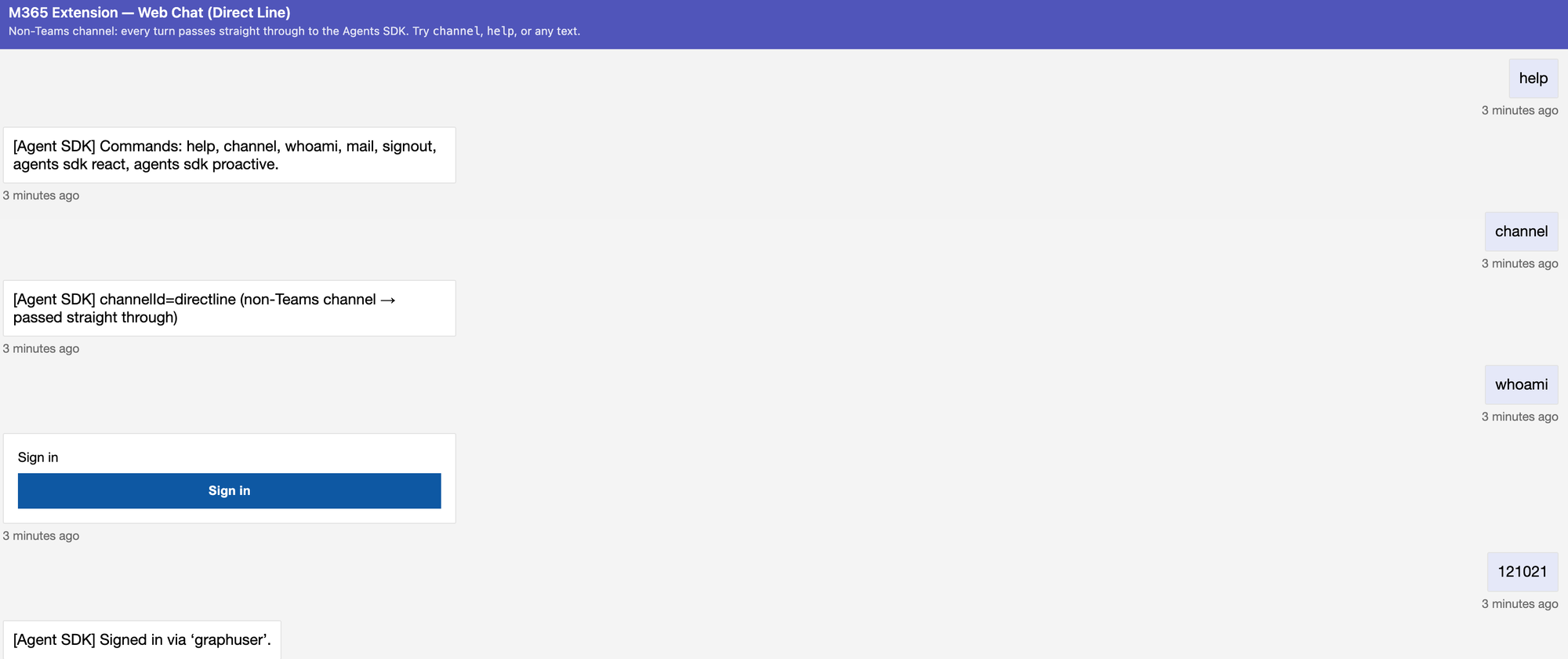
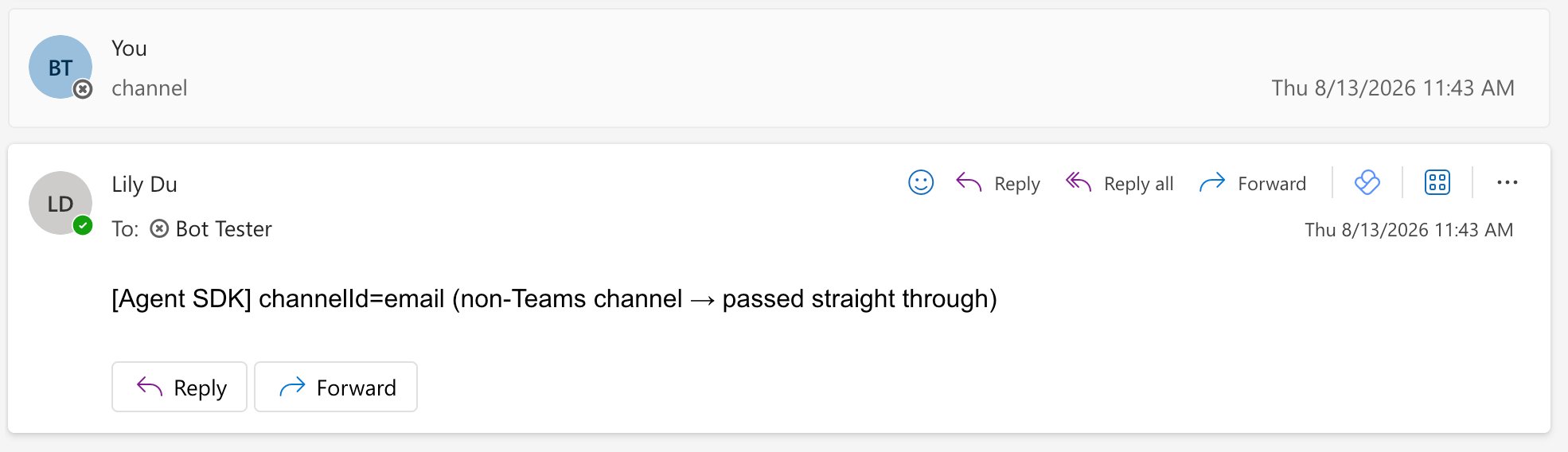
You can use the Agents SDK message handler to identify the incoming channel and confirm how each activity was routed.
The incoming activity is recognized as Teams if the channelId="msteams".
using Microsoft.Agents.Builder;
using Microsoft.Agents.Builder.State;
using Microsoft.Teams.M365Extensions;

private async Task ChannelAsync(ITurnContext context, ITurnState state, CancellationToken ct)
{
    string via = TeamsSdkMiddleware.IsTeamsChannel(context.Activity)
        ? "Teams turn with no matching teams.net route → fell through"
        : "non-Teams channel → passed straight through";
    await context.SendActivityAsync($"[Agent SDK] channelId={context.Activity.ChannelId} ({via})", cancellationToken: ct);
}
@AGENT_SDK_APP.message(_command("channel"))
async def _channel(context: TurnContext, _state: TurnState):
    via = (
        "Teams turn with no matching teams.py route → fell through"
        if is_teams_channel(context.activity)
        else "non-Teams channel → passed straight through"
    )
    await context.send_activity(f"[Agent SDK] channelId={context.activity.channel_id} ({via})")
AGENT_SDK_APP.onMessage(command('channel'), async (context: TurnContext) => {
  const via = isTeamsChannel(context.activity)
    ? 'Teams turn with no matching teams.ts route → fell through'
    : 'non-Teams channel → passed straight through';
  await context.sendActivity(`[Agent SDK] channelId=${context.activity.channelId} (${via})`);
});
Direct Line