Note
Access to this page requires authorization. You can try signing in or changing directories.
Access to this page requires authorization. You can try changing directories.
APPLIES TO:  Meetings
 Events
Note
This feature is currently in Public Preview.
Overview
Microsoft Teams supports mandatory pre-meeting consent for meeting participants. As an admin, you can configure a custom consent message that participants must accept before they can join meetings hosted by organizers in your organization.
This feature helps organizations meet compliance and regulatory requirements by requiring participants to acknowledge important information before joining a meeting. You can present custom terms and conditions, disclaimers, recording notices, responsible AI usage guidelines, and other compliance-related statements to meeting participants.
Participant consent acknowledgments are recorded in audit logs to support compliance, reporting, and governance processes.
How pre-meeting consent works
Pre-meeting consent is controlled through Teams meeting policies and is turned off by default. When enabled, the consent experience applies to meetings organized by users who are assigned the policy.
All meeting participants, including organizers, internal users, external users, and anonymous attendees, must accept the consent message before joining. If a participant doesn't accept the consent message, they can't join the meeting.
Enable and configure pre-meeting consent for meeting participants
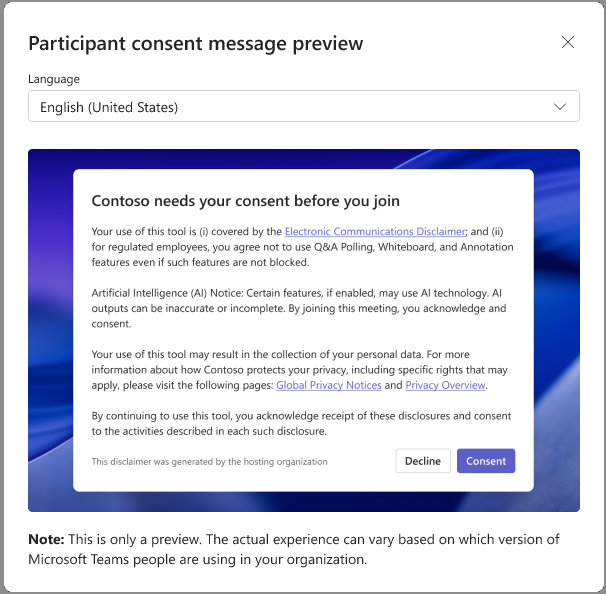
You can enable and configure pre-meeting consent in the Teams admin center or by using PowerShell. After you add your custom consent message, you can preview the participant experience before saving the policy.
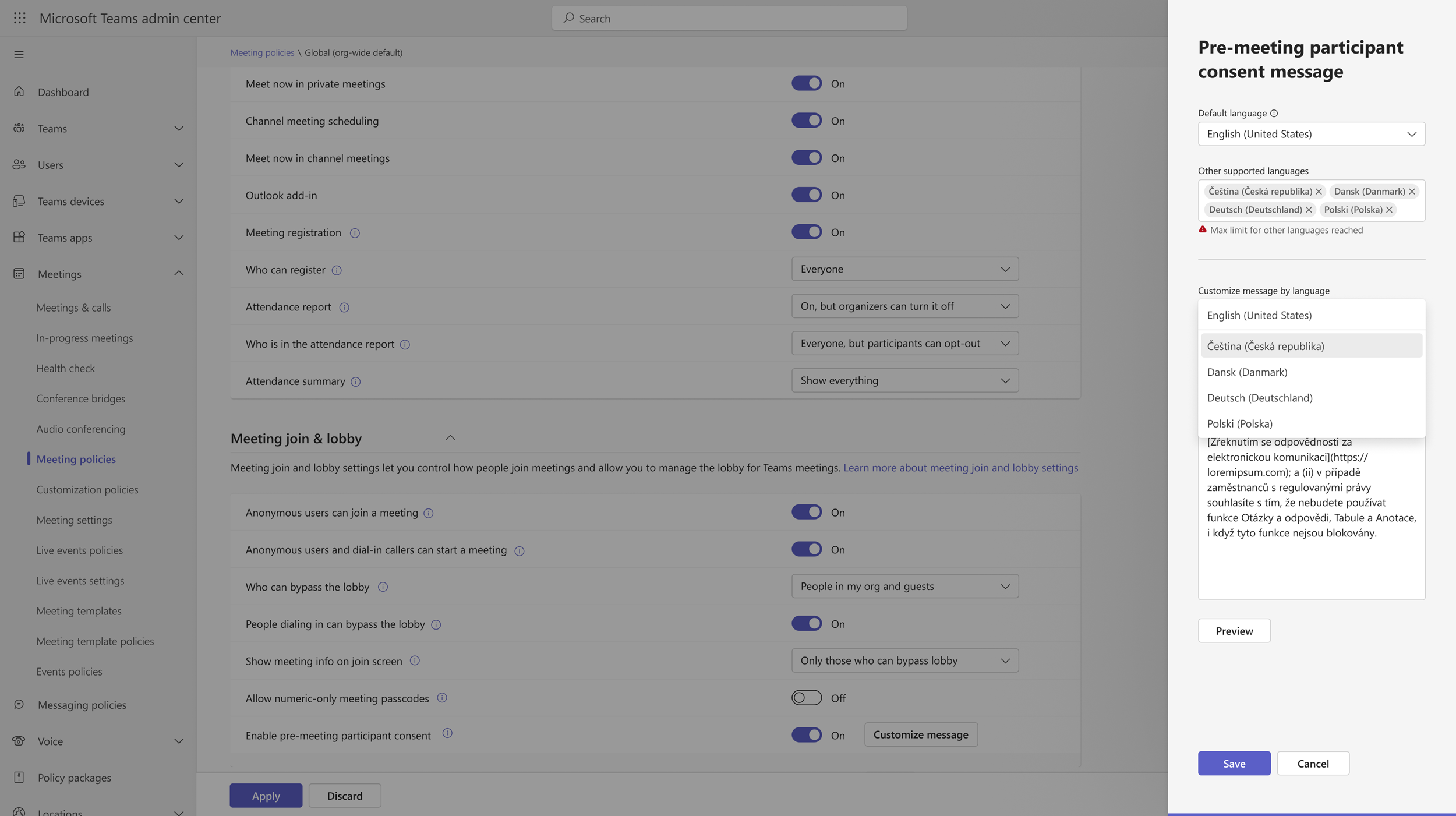
You can specify one default language and up to four additional languages. Participants see the consent message based on their device language settings. If a participant's device language isn’t configured in the policy, the content from the default language is shown to the participant.
Using the Teams admin center
In the left navigation of the Teams admin center, go to Meetings > Meeting policies.
Select an existing policy or create a new one.
Under Meeting join & lobby, turn the Enable pre-meeting participant consent toggle On.
Select Customize message.
In the Pre-meeting participant consent Message pane, complete the following steps:
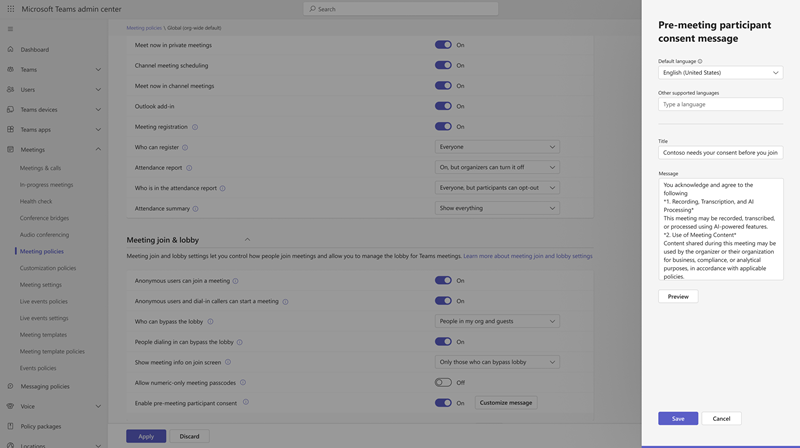
Select the default language for your consent message.
Add a title.
Tip
Include your organization name in the title to help participants recognize the consent message as coming from your organization.
Compose your message. The message can contain up to 1,500 characters.
Select Preview to see how the experience appears for meeting participants.
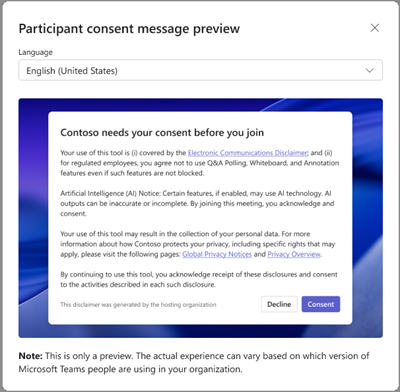
To specify custom messages in additional languages, complete the following steps:
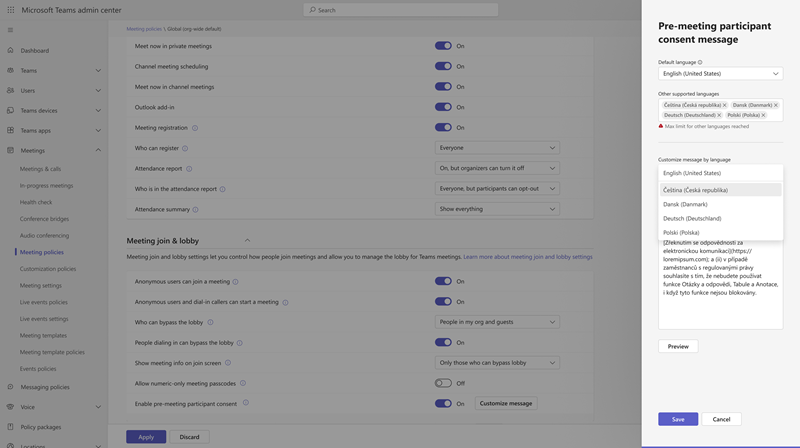
- In Other supported languages, select your additional language. You can add up to four languages.
- To customize the message, in the Customize message by language dropdown list, choose one of your additional languages, and then edit the message, as needed.
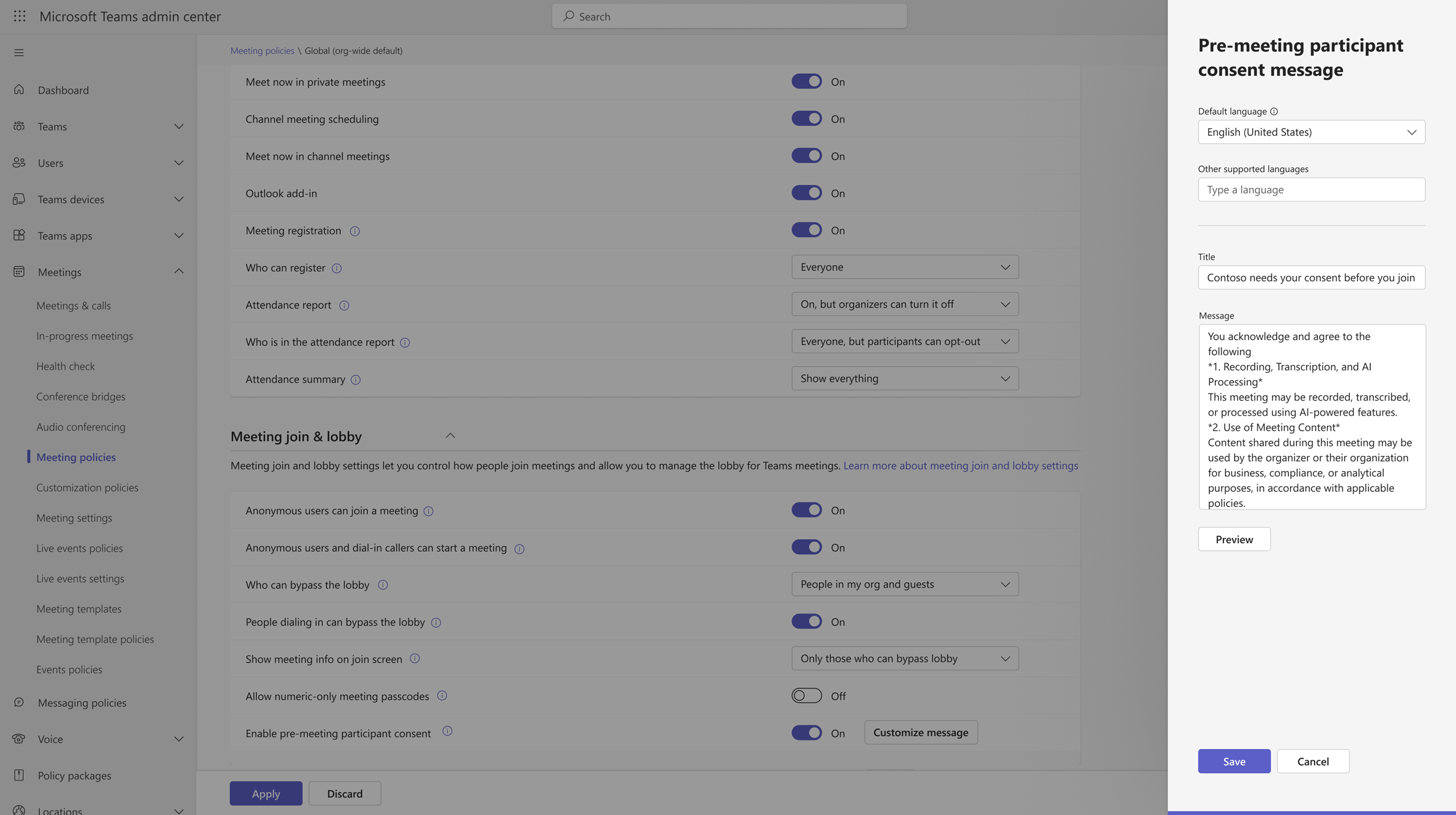
Select Save.
Using PowerShell
The following examples show how to create and manage pre-meeting consent content and associate it with a Teams meeting policy.
Create pre-meeting consent content
Create localized consent content. You can configure up to five languages, with one language set as the default:
$englishContent = New-CsTeamsLocalizedContent `
    -LanguageId "en-US" `
    -Title "Consent required before joining" `
    -Content "By joining this meeting, you agree to Contoso's meeting terms. Read the [privacy statement](https://contoso.com/privacy)." `
    -IsDefault $true

$frenchContent = New-CsTeamsLocalizedContent `
    -LanguageId "fr-FR" `
    -Title "Consentement requis avant de rejoindre la réunion" `
    -Content "En rejoignant cette réunion, vous acceptez les conditions de réunion de Contoso. Consultez la [déclaration de confidentialité](https://contoso.com/privacy)." `
    -IsDefault $false

$consent = New-CsPreMeetingConsent `
    -LocalizedContent @(
        $englishContent
        $frenchContent
    )

$consent
Copy the configuration identifier returned by New-CsPreMeetingConsent:
$consentId = "<consent-configuration-guid>"
Retrieve and view pre-meeting consent content
List all pre-meeting consent configurations:
Get-CsPreMeetingConsent
Retrieve a specific configuration and view its localized content:
$consent = Get-CsPreMeetingConsent `
    -Identity $consentId

$consent.LocalizedContent
Assign consent content to a policy and enable pre-meeting consent
Assign the consent content to a meeting policy and enable pre-meeting consent:
$policyIdentity = "Global"

Set-CsTeamsMeetingPolicy `
    -Identity $policyIdentity `
    -PreMeetingConsentContentIdentifier $consentId `
    -EnablePreMeetingConsent $true
Verify the policy configuration:
Get-CsTeamsMeetingPolicy `
    -Identity $policyIdentity |
    Select-Object Identity,
                  EnablePreMeetingConsent,
                  PreMeetingConsentContentIdentifier
Update pre-meeting consent content
Create updated localized consent content and replace the existing content collection:
$updatedEnglishContent = New-CsTeamsLocalizedContent `
    -LanguageId "en-US" `
    -Title "Review and accept the meeting terms" `
    -Content "Review the [meeting privacy statement](https://contoso.com/privacy) before joining." `
    -IsDefault $true

$updatedFrenchContent = New-CsTeamsLocalizedContent `
    -LanguageId "fr-FR" `
    -Title "Consultez et acceptez les conditions de la réunion" `
    -Content "Consultez la [déclaration de confidentialité de la réunion](https://contoso.com/privacy) avant de la rejoindre." `
    -IsDefault $false

Set-CsPreMeetingConsent `
    -Id $consentId `
    -LocalizedContent @(
        $updatedEnglishContent
        $updatedFrenchContent
    )
Add localized content
Add another language to an existing configuration:
$spanishContent = New-CsTeamsLocalizedContent `
    -LanguageId "es-ES" `
    -Title "Consentimiento necesario antes de unirse" `
    -Content "Al unirse a esta reunión, acepta las condiciones de reunión de Contoso." `
    -IsDefault $false

Set-CsPreMeetingConsent `
    -Id $consentId `
    -LocalizedContent @{
        Add = @($spanishContent)
    }
Disable pre-meeting consent
Disable pre-meeting consent and remove the content assignment from the policy:
Set-CsTeamsMeetingPolicy `
    -Identity $policyIdentity `
    -EnablePreMeetingConsent $false `
    -PreMeetingConsentContentIdentifier $null
Delete pre-meeting consent content
Before deleting a configuration, remove the content assignment from all meeting policies. Then, run the following command:
Remove-CsPreMeetingConsent `
    -Identity $consentId
Verify that the configuration was removed:
Get-CsPreMeetingConsent
Known limitations
Pre-meeting consent doesn't currently apply to the following meeting scenarios:
- Originator initiating an ad-hoc meeting in a channel.
- Accepting an incoming direct request to join a meeting on mobile.
- Using Siri or voice-activated meeting joins on mobile.
- Using Apple CarPlay or other car systems to join a meeting.