Note
Access to this page requires authorization. You can try signing in or changing directories.
Access to this page requires authorization. You can try changing directories.
Overview
Microsoft Teams provides additional protection for QR codes in Teams messages by obscuring images that contain QR codes by default. This experience applies to QR codes in messages from external senders. Users must explicitly reveal the image before they can view or scan the QR code.
This precautionary protection helps increase user awareness and encourages more deliberate interaction with QR code content, which can be used in phishing and fraud attempts. Obscuring QR codes helps ensure that they aren't immediately scannable without user intent.
How QR code obscuring works in Teams
When an external user sends a message that contains an image with a QR code, Teams blurs the image.
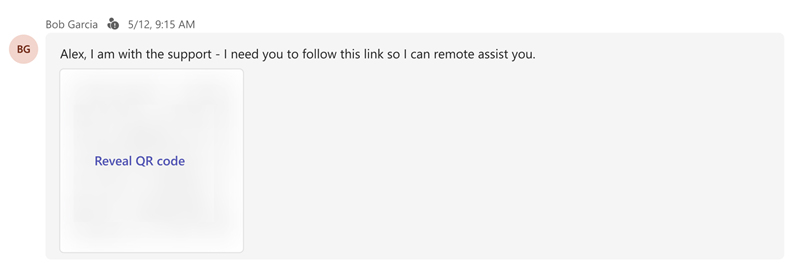
Users can select Reveal QR code to view or scan the QR code.
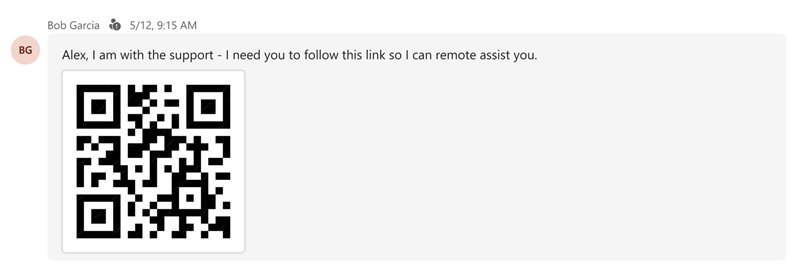
A blurred QR code doesn't mean that Teams identified the QR code as malicious. Teams applies this protection to reduce risk and help users make more informed decisions when interacting with QR codes.
Key considerations
- This experience is enabled by default, and there are no admin controls to enable or disable it.
- This experience applies to QR codes in Teams messages sent by external users.
- This experience is supported on Teams desktop, web, and mobile clients.
Note
For users in China on Teams mobile, this experience applies to QR codes in messages sent by both internal and external users.