Note
Access to this page requires authorization. You can try signing in or changing directories.
Access to this page requires authorization. You can try changing directories.
Overview
The Security detections report in the Microsoft Teams admin center helps you investigate security detections generated for Teams communications in your organization.
This report provides a centralized view of security detections across Teams, enabling you to review potentially malicious conversations, investigate detection details, and export the results to a CSV file for further analysis.
The report includes detections generated by Teams security protections, such as impersonation, malicious URL, and weaponizable file detections.
View the Security detections report
To view the Security detections report:
In the left navigation of the Teams admin center, go to Analytics & reports > Protection reports.
On the View reports tab, under Report, select Security detections.
Under Date range, select a predefined time range. For example, Last 7 days or Last 30 days.
Select Run report.
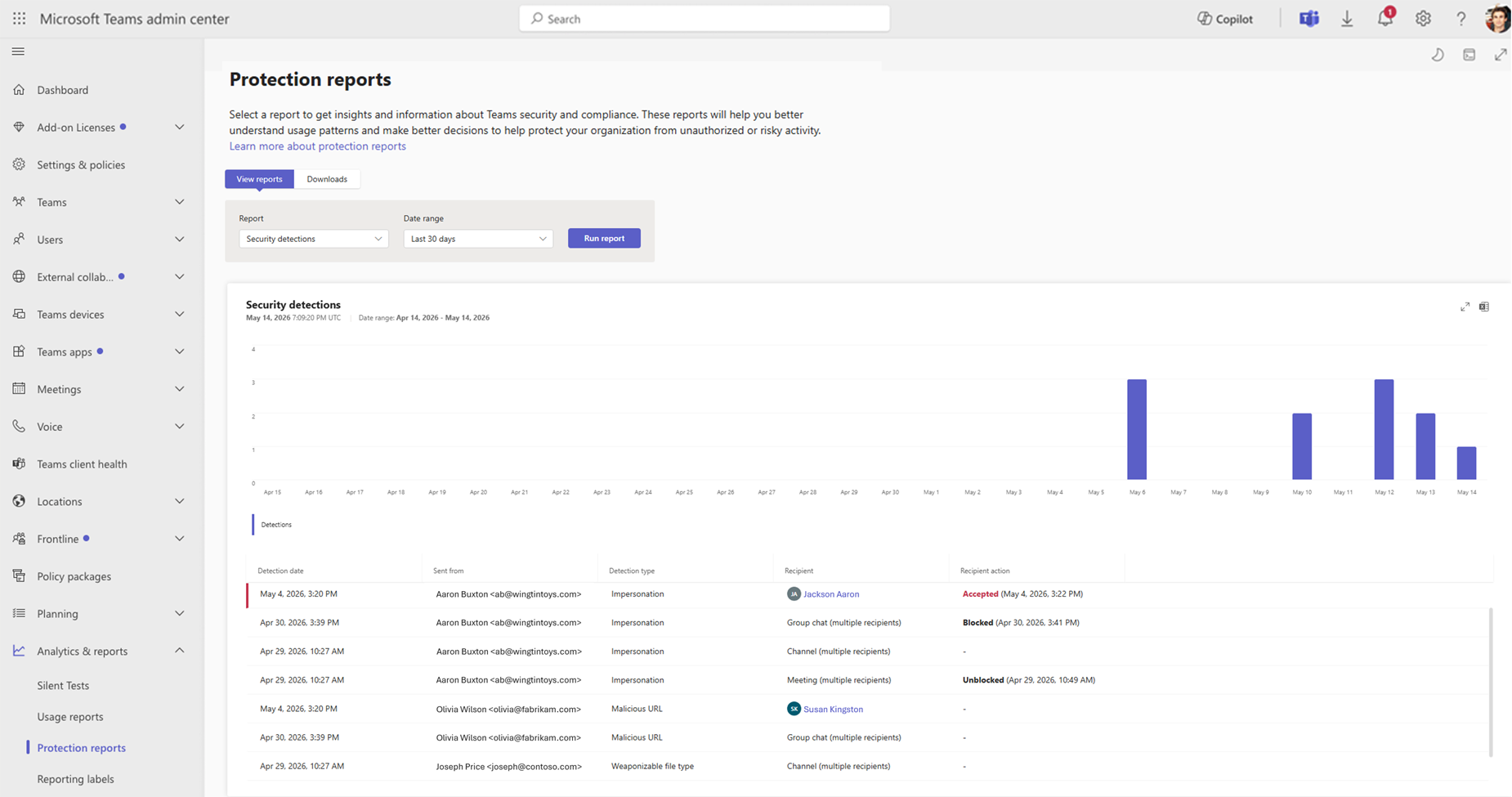
The report displays security detections triggered within the selected date range.
Report structure and export behavior
The report consists of two main components:
- Chart: The chart displays the number of security detections generated during the selected date range.
- Table: The table displays the individual security detections that occurred during the same time period.
The report provides two separate export options:
- Chart export downloads the chart data for the selected date range.
- Table export downloads the detection records displayed in the table for the selected date range. The exported CSV file includes all columns shown in the report, as well as additional investigation fields such as Sender MRI, Recipient email, Recipient ID, and Thread ID.
Interpret the Security detections report
Use the information in the following table to interpret the data in the report.
| Item | Description |
|---|---|
| Detection date | Date and time when the security detection was triggered. |
| Sender name | Display name of the detected sender. |
| Sender email | Email address of the sender, if available. For users of Teams for personal use, this value might be unavailable depending on the sender's privacy settings. |
| Detection type | The type of the security detection triggered, such as Impersonation, Malicious URL, or Weaponizable File. |
| Recipient | The recipient associated with the detection. For group chats, channels, or meetings, the report displays the conversation type instead of listing all recipients. Select the recipient name to open the recipient's User details page in the Teams admin center. |
| Recipient action | Indicates whether the recipient Accepted, Blocked or Unblocked the conversation after an Impersonation detection was presented, along with the date and time when the action occurred. This information is available only for Impersonation detections. For other detection types, this field is blank. |
| Sender MRI1 | The Microsoft Resource Identifier (MRI) of the sender. Admins can use this identifier when blocking the sender on the External Access page of the Teams admin center. |
| Recipient email1 | Email address of the recipient. |
| Recipient ID1 | Unique identifier of the recipient. |
| Thread ID1 | Unique identifier of the conversation thread. Admins can use this value to locate the conversation during investigations, such as Microsoft Purview eDiscovery. |
1Available only in the exported CSV file.