Note
Access to this page requires authorization. You can try signing in or changing directories.
Access to this page requires authorization. You can try changing directories.
Just like you can create custom blocks and entities, you can create custom items in Minecraft, too! This tutorial shows you how—what types of files different kinds of items need, where they go in resource and behavior packs, and what JSON files to edit or create.
Caution
Just like entities and blocks, files for items have specific names (or extensions), and they need to be placed in the correct folders or sub-folders. If your add-on pack for a new or customized item doesn't work, doublecheck that everything is in the right place!
You should be familiar with these other tutorials before tackling custom items:
- Getting Started with Add-On Development
- Introduction to Resource Packs
- Introduction to Behavior Packs
- How to Add a Simple Custom Block
- Minecraft Item Wizard
You might also want to take a look at the files and folder structure of the Vanilla Minecraft Add-On Packs.
Make some items
We're going to make four items that don't exist in vanilla Minecraft. In order of complexity:
- Goo
- Wrench
- Crown
- Custom Chestplate with Vanilla Armor Trim
And, at the end, we'll talk about dyeable custom items.
You can create an add-on pack for each item, or do sets of packs for two or more items.
This is the general process for creating items we'll follow:
- Create Behavior Pack and Resource Pack folders.
- Create the folder and file structure for the item you want to create, being sure to include the manifest.json files.
- Copy and paste the contents for the custom item files from the content in each section.
- Download and save the graphic files into the correct location.
- Copy or move the packs into the development_behavior_pack and development_resource_pack folders in your com.mojang folder.
- Launch Minecraft: Bedrock Edition.
- Create a world with the behavior pack and resource packs activated.
- Choose either Creative Mode or Survival Mode with cheats toggled on.
- Go into your world and use the
/give @s demo:<item>command to get your custom item.
Tip
While we're providing you with graphics and model files, you can edit them or create entirely new ones in Blockbench or a similar editor.
Each manifest.json file follows a similar template—the same one in the Resource Pack and Behavior Pack tutorials. As with those, be sure you create new UUIDs for your items!
The Behavior Pack manifest.json file looks like this:
{
  "format_version": 2,
  "header": {
    "description": "Custom Item Behavior Pack",
    "name": "Custom Item Behavior Pack",
    "uuid": "<ADD YOUR OWN UUID>",
    "version": [1, 0, 1],
    "min_engine_version": [1, 20, 30]
  },
  "modules": [
    {
      "description": "Custom Item Behavior Pack",
      "type": "data",
      "uuid": "<ADD YOUR OWN UUID>",
      "version": [1, 0, 1]
    }
  ]
}
The Resource Pack manifest.json file looks like this:
{
  "format_version": 2,
  "header": {
    "description": "Custom Item Resource Pack",
    "name": "Custom Item Resource Pack",
    "uuid": "<ADD YOUR OWN UUID>",
    "version": [1, 0, 1],
    "min_engine_version": [1, 20, 30]
  },
  "modules": [
    {
      "description": "Custom Item Resource Pack",
      "type": "resources",
      "uuid": "<ADD YOUR OWN UUID>",
      "version": [1, 0, 1]
    }
  ]
}
Goo
Goo is the simplest custom item: you don't wear it or eat it, it's just a handful of weird goo. It's useful for making sure your add-on packs work and for experimenting with stack size and the display name.
Goo Behavior Pack

Copy and paste this JSON into development_behavior_pack/items/goo.json:
{
  "format_version": "1.20.30",
  "minecraft:item": {
    "description": {
      "identifier": "demo:goo",
      "category": "Items"
    },
    "components": {
      "minecraft:max_stack_size": 16,
      "minecraft:icon": {
        "texture": "demo:goo"
      },
      "minecraft:display_name": {
        "value": "Weird Goo"
      }
    }
  }
}
Goo Resource Pack

Copy and paste this JSON into development_resource_pack/textures/item_texture.json:
{
  "resource_pack_name": "Goo Resource Pack",
  "texture_data": {
    "demo:goo": {
      "textures": "textures/items/goo"
    }
  }
}
Here is a PNG file to use as the goo texture:

Copy that file into development_resource_pack/textures/items/.
Custom Goo Result
After you create the packs, go into Minecraft, and give yourself goo, it should look like this:

Wrench
An awesome giant wrench! This item has separate texture files for the version in your hotbar and the version you hold in your hand.
Wrench Behavior Pack
Copy and past this JSON into development_behavior_pack/items/wrench.json:
{
  "format_version": "1.20.30",
  "minecraft:item": {
    "description": {
      "identifier": "demo:wrench",
      "category": "Items"
    },

    "components": {
      "minecraft:max_stack_size": 16,
      "minecraft:icon": {
        "texture": "demo:wrench"
      },
      "minecraft:wearable": {
        "dispensable": true,
        "slot": "slot.weapon.offhand"
      }
    }
  }
}
Wrench Resource Pack

Copy and past this JSON into development_resource_pack/attachables/wrench.player.json:
{
  "format_version": "1.20.30",
  "minecraft:attachable": {
    "description": {
      "identifier": "demo:wrench",
      "item": { "demo:wrench": "query.is_owner_identifier_any('minecraft:player')" },
      "materials": {
        "default": "entity",
        "enchanted": "entity_alphatest_glint"
      },
      "textures": {
        "default": "textures/items/wrench",
        "enchanted": "textures/misc/enchanted_item_glint"
      },
      "geometry": {
        "default": "geometry.wrench"
      },
      "animations": {
        "hold_first_person": "animation.steve_head.hold_first_person",
        "hold_third_person": "animation.steve_head.hold_third_person"
      },
      "scripts": {
        "animate": [
          {
            "hold_first_person": "context.is_first_person == 1.0"
          },
          {
            "hold_third_person": "context.is_first_person == 0.0"
          }
        ]
      },
      "render_controllers": ["controller.render.item_default"]
    }
  }
}
Note
What's an "attachable"? That's an item that the player (or other entities) can hold or wear. For more information about attachables, read Using Attachables!
Now, copy and paste this JSON into development_resource_pack/models/entity/wrench.geo.json. This is the wrench's geometry and bone definition:
{
  "format_version": "1.16.0",
  "minecraft:geometry": [
    {
      "description": {
        "identifier": "geometry.wrench",
        "texture_width": 32,
        "texture_height": 32,
        "visible_bounds_width": 3,
        "visible_bounds_height": 4,
        "visible_bounds_offset": [0, 1, 0]
      },
      "bones": [
        {
          "name": "bb_main",
          "pivot": [0.1, 19, -6],
          "rotation": [125, 0, 0],
          "binding": "q.item_slot_to_bone_name(context.item_slot)",
          "cubes": [
            {"origin": [-0.9, 9, -8], "size": [2, 16, 3], "uv": [0, 13]},
            {"origin": [-0.9, 25, -11], "size": [2, 4, 9], "uv": [0, 0]},
            {"origin": [-0.9, 29, -5], "size": [2, 2, 3], "uv": [13, 0]},
            {"origin": [-0.9, 29, -11], "size": [2, 1, 3], "uv": [10, 13]},
            {"origin": [-0.9, 30, -10], "size": [2, 1, 2], "uv": [10, 17]},
            {"origin": [-0.9, 31, -5], "size": [2, 1, 3], "uv": [13, 5]},
            {"origin": [-0.9, 32, -5], "size": [2, 1, 2], "uv": [0, 6]},
            {"origin": [-0.9, 31, -9], "size": [2, 1, 1], "uv": [17, 19]},
            {"origin": [-0.9, 33, -5], "size": [2, 1, 1], "uv": [16, 17]},
            {"origin": [-0.9, 24, -5], "size": [2, 1, 2], "uv": [0, 3]},
            {"origin": [-0.9, 24, -10], "size": [2, 1, 2], "uv": [0, 0]},
            {"origin": [-0.9, 23, -5], "size": [2, 1, 1], "uv": [17, 13]},
            {"origin": [-0.9, 23, -9], "size": [2, 1, 1], "uv": [7, 13]}
          ]
        }
      ]
    }
  ]
}
Now, you'll need to download these two graphics files and put them into development_resource_pack/textures/items:
This is the wrench icon...

...and this is the wrench's texture:

To complete the Resource Pack, you'll need to copy and paste this JSON into development_resource_pack/textures/item_texture.json:
{
  "resource_pack_name": "Wrench Resource Pack",
  "texture_data": {
    "demo:wrench": {
      "textures": "textures/items/wrench_ico"
    }
  }
}
After you create the packs, go into Minecraft, and give yourself a wrench, it should look like this:

Crown
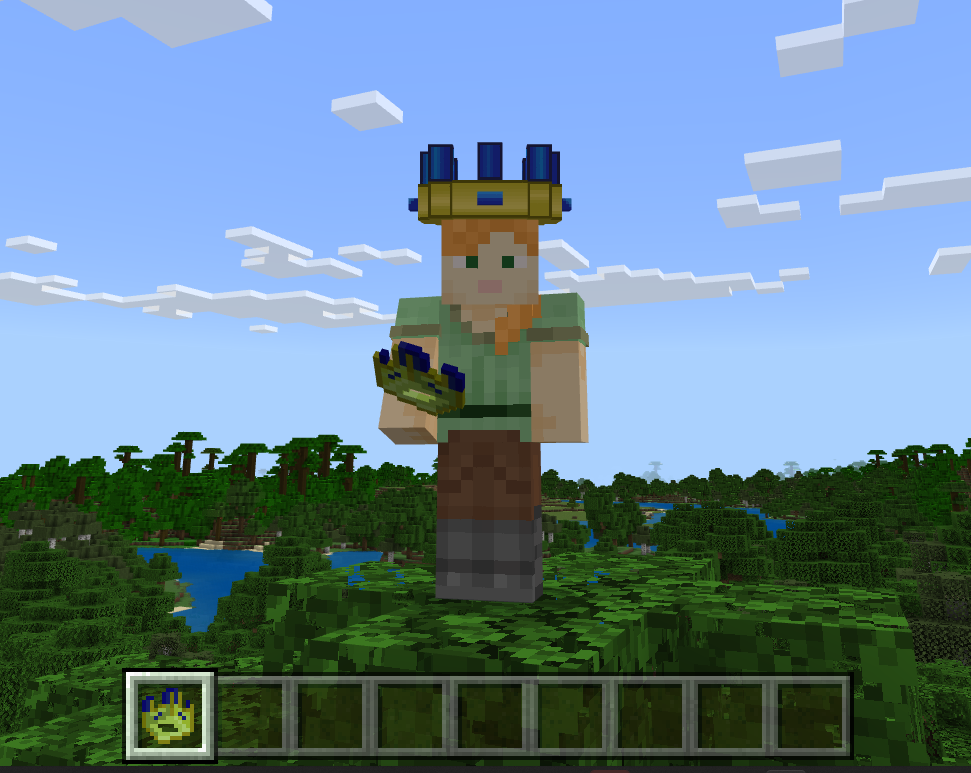
We'll create a crown item by customizing a helmet.
Crown Behavior Pack

Copy and paste this JSON into development_behavior_pack/items/crown.json:
{
  "format_version": "1.20.30",
  "minecraft:item": {
    "description": {
      "identifier": "demo:crown",
      "category": "Items"
    },
    "components": {
      "minecraft:max_stack_size": 1,
      "minecraft:icon": {
        "texture": "demo:crown"
      },
      "minecraft:wearable": {
        "dispensable": true,
        "slot": "slot.armor.head"
      }
    }
  }
}
Crown Resource Pack

Copy and paste this JSON into development_resource_pack/attachables/crown.player.json:
{
  "format_version": "1.19.80",
  "minecraft:attachable": {
    "description": {
      "identifier": "demo:crown_hat.player",
      "item": { "demo:crown": "query.is_owner_identifier_any('minecraft:player')" },
      "materials": {
        "default": "armor",
        "enchanted": "armor_enchanted"
      },
      "textures": {
        "default": "textures/items/crown_minecraft",
        "enchanted": "textures/misc/enchanted_item_glint"
      },
      "geometry": {
        "default": "geometry.crown"
      },
      "scripts": {
        "parent_setup": "variable.helmet_layer_visible = 0.0;"
      },
      "render_controllers": ["controller.render.armor"]
    }
  }
}
Copy and paste this JSON into development_resource_pack/models/entity/crown.geo.json:
{
  "format_version": "1.16.0",
  "minecraft:geometry": [
    {
      "description": {
        "identifier": "geometry.crown",
        "texture_width": 32,
        "texture_height": 32,
        "visible_bounds_width": 2,
        "visible_bounds_height": 3.5,
        "visible_bounds_offset": [0, 1.25, 0]
      },
      "bones": [
        {
          "name": "Crownbase",
          "pivot": [0, 0, 0],
          "binding": "q.item_slot_to_bone_name(context.item_slot)",
          "cubes": [
            {"origin": [-3, 31, -6.4], "size": [6, 3, 2], "uv": [1, 0]},
            {"origin": [-5, 31, -6.4], "size": [6, 3, 2], "pivot": [-1, 31, -1.4], "rotation": [0, 90, 0], "uv": [0, 0]},
            {"origin": [-3, 31, 1.6], "size": [6, 3, 2], "pivot": [1, 31, -1.4], "rotation": [0, 90, 0], "uv": [0, 0]},
            {"origin": [-3, 31, 4.6], "size": [6, 3, 2], "uv": [1, 0]},
            {"origin": [3, 31, -5.4], "size": [2, 3, 2], "uv": [24, 0]},
            {"origin": [3, 31, 2.6], "size": [2, 3, 2], "uv": [22, 23]},
            {
              "origin": [-5, 31, -5.4],
              "size": [2, 3, 2],
              "uv": {
                "north": {"uv": [18, 22], "uv_size": [2, 3]},
                "east": {"uv": [16, 22], "uv_size": [2, 3]},
                "south": {"uv": [22, 22], "uv_size": [2, 3]},
                "west": {"uv": [20, 22], "uv_size": [2, 3]},
                "up": {"uv": [18, 20], "uv_size": [2, 2]},
                "down": {"uv": [20, 22], "uv_size": [2, -2]}
              }
            },
            {"origin": [-5, 31, 2.6], "size": [2, 3, 2], "uv": [20, 10]}
          ]
        },
        {
          "name": "crownprongs",
          "pivot": [0, 0, 0],
          "binding": "q.item_slot_to_bone_name(context.item_slot)",
          "cubes": [
            {"origin": [-5, 34, -5.4], "size": [2, 3, 2], "uv": [8, 20]},
            {"origin": [3, 34, 2.6], "size": [2, 3, 2], "uv": [20, 5]},
            {"origin": [3, 34, -5.4], "size": [2, 3, 2], "uv": [0, 20]},
            {"origin": [-5, 34, 2.6], "size": [2, 3, 2], "uv": [16, 15]}
          ]
        },
        {
          "name": "crownextraprongs",
          "pivot": [0, 0, 0],
          "binding": "q.item_slot_to_bone_name(context.item_slot)",
          "cubes": [
            {"origin": [-1, 34, -6.4], "size": [2, 3, 2], "uv": [8, 15]},
            {"origin": [-6, 34, -1.4], "size": [2, 3, 2], "uv": [0, 15]},
            {"origin": [-1, 34, 4.6], "size": [2, 3, 2], "uv": [12, 10]},
            {"origin": [4, 34, -1.4], "size": [2, 3, 2], "uv": [12, 5]}
          ]
        },
        {
          "name": "crownjewels",
          "pivot": [0, 0, 0],
          "binding": "q.item_slot_to_bone_name(context.item_slot)",
          "cubes": [
            {"origin": [-7, 32, -1.4], "size": [1, 1, 2], "uv": [6, 25]},
            {"origin": [5, 32, -2.4], "size": [1, 1, 2], "pivot": [0, 31, -1.4], "rotation": [0, 90, 0], "uv": [0, 25]},
            {"origin": [-6, 32, 0.6], "size": [1, 1, 2], "pivot": [0, 31, 1.6], "rotation": [0, 90, 0], "uv": [22, 18]},
            {"origin": [6, 32, -1.4], "size": [1, 1, 2], "uv": [24, 15]}
          ]
        }
      ]
    }
  ]
}
That file creates the custom shape of the crown that the texture will be mapped on to.
Now, here are the image files to download and use for the crown icon and the crown texture itself. Copy these images into development_resource_pack/textures/items.
Here is the crown icon:

Here is the crown texture:

Last but not least, copy and paste this JSON into development_resource_pack/textures/item_texture.json:
{
  "resource_pack_name": "crown_resource_pack",
  "texture_data": {
    "demo:crown": {
      "textures": "textures/items/crown"
    }
  }
}
Custom crown result
After you create the packs, go into Minecraft, give yourself a crown, and put it on, you should look like this:
Custom chestplate with vanilla armor trim
If you create a custom chestplate, either by hand or through using the Minecraft Item Wizard, you can have it support all the Armor Trims available as of release 1.20.70. You can modify the trim patterns to better fit your custom armor too!
Note
To use armor trim on your custom armor, you need to set your format_version on the item and attachable to a minimum of 1.20.60.
Chestplate Behavior Pack
Copy and paste this JSON into development_behavior_pack/items/custom_chestplate.item.json:
{
"format_version": "1.20.60",
  "minecraft:item": {
    "description": {
      "identifier": "demo:custom_chestplate",
      "menu_category": {
        "category": "equipment",
        "group": "itemGroup.name.chestplate"
      }
    },
    "components": {
      "minecraft:max_stack_size": 1,
      "minecraft:icon": {
        "textures": {
          "default": "custom_chestplate" }
      },
      "minecraft:wearable": {
        "protection": 10,
        "slot": "slot.armor.chest"
      },
      "minecraft:durability": {
        "damage_chance": {
          "min": 10,
          "max": 50
      },
        "max_durability": 1560
      },
      "minecraft:repairable": {
        "repair_items": [
          {
            "items": ["pink_dye"],
            "repair_amount": 390
          }
        ]
      },
      "minecraft:tags": {
        "tags": [
          "minecraft:is_armor",
          "minecraft:trimmable_armors"
        ]
      }
    }
  }
}
Chestplate Resource Pack
Copy and paste this JSON into development_resource_pack/attachables/custom_chestplate.attachable.json:
{
  "format_version": "1.20.60",
  "minecraft:attachable": {
    "description": {
      "identifier": "demo:custom_chestplate",
      "render_controllers": ["controller.render.armor"],
      "materials": {
        "default": "entity_alphatest",
        "enchanted": "entity_alphatest_glint"
      },
      "textures": {
        "default": "textures/entity/attachable/custom_chestplate",
        "enchanted": "textures/misc/enchanted_item_glint",
        "wild_trim": "textures/models/armor/custom_wild",
        "iron_palette": "textures/trims/color_palettes/diamond_darker"
      },
      "geometry": {
        "default": "geometry.custom_chestplate"
      }
    }
  }
}
This file defines which geometry will appear for the chestplate, as well as the armor trim palette that will be used and any adjusted trim patterns. You can add any of the existing vanilla armor trim patterns to the textures section to supply adjusted trim textures to your new armor.
Copy and paste this JSON into development_resource_pack/models/entity/custom_chestplate.geo.json:
{
  "format_version": "1.16.0",
  "minecraft:geometry": [
    {
      "description": {
        "identifier": "geometry.custom_chestplate",
        "texture_width": 32,
        "texture_height": 32,
        "visible_bounds_width": 3,
        "visible_bounds_height": 2.5,
        "visible_bounds_offset": [0, 0.75, 0]
      },
      "bones": [
        {
          "name": "body",
          "pivot": [0, 14, 0]
        },
        {
          "name": "chestplate",
          "parent": "body",
          "pivot": [0, 0, 0],
          "binding": "'body'",
          "cubes": [
            {"origin": [-4, 2, -2], "size": [8, 12, 4], "inflate": 1.01, "uv": [0, 0]}
          ]
        },
        {
          "name": "arm_right",
          "pivot": [-5, 12, 0]
        },
        {
          "name": "arm_plate_right",
          "parent": "arm_right",
          "pivot": [-5, 12, 0],
          "binding": "'rightarm'",
          "cubes": [
            {"origin": [-8, 2, -2], "size": [4, 12, 4], "inflate": 1, "uv": [0, 16]}
          ]
        },
        {
          "name": "arm_left",
          "pivot": [5, 12, 0]
        },
        {
          "name": "arm_plate_left",
          "parent": "arm_left",
          "pivot": [5, 12, 0],
          "binding": "'leftarm'",
          "cubes": [
            {"origin": [4, 2, -2], "size": [4, 12, 4], "inflate": 1, "uv": [0, 16], "mirror": true}
          ]
        }
      ]
    }
  ]
}
This file creates the custom shape of the chestplate that the texture and armor trim will be mapped on to.
Here are the image files to download and use for the custom chestplate icon and the geometry's texture itself.
Here is the chestplate icon:

Here is the chestplate texture:

Here is the modified "wild" trim pattern:

Copy and paste this JSON into development_resource_pack/textures/item_texture.json:
{
    "texture_data": {
        "custom_chestplate": {
            "textures": "textures/items/custom_chestplate.png"
        }
    }
}
Custom Chestplate Result
After you create the packs, go into Minecraft, give yourself the custom chestplate, and put it on. You should look like this:

Give yourself the wild armor trim template and combine your chestplate with the wild template at a smithing table, and put it back on, you should now look like this:

If your chestplate instead looks like this...

... then check the paths to your textures in the item_texture.json and custom_chestplate.attachable.json files. If there are any spelling errors or textures in incorrect folders, the geometry will display the "missing texture pattern" on your armor.
Dyeable custom items
Custom items can now be dyed in cauldrons. To use the dyeable component, format_version on the item and the attachable needs to be 1.21.30 or higher.
This section of the tutorial assumes that you have successfully completed the previous section, and made your custom chestplate with vanilla armor trim. Make a copy of its add-on pack.
Dyeable custom chestplate Behavior Pack
Inside the behavior pack, open textures/item_texture.json and do this:
Edit the format version to be 1.21.30.
Edit
minecraft:icon:"minecraft:icon": { "textures": { "default": "custom_chestplate_icon", "dyed": "custom_chestplate_icon_gray" } },Add
minecraft:dyeable."minecraft:dyeable": { "default_color": "#175882" }
The final version of item_texture.json should look like this:
{
"format_version": "1.21.30",
"minecraft:item": {
"description": {
"identifier": "demo:custom_chestplate",
"menu_category": {
"category": "equipment",
"group": "itemGroup.name.chestplate"
}
},
"components": {
"minecraft:max_stack_size": 1,
"minecraft:icon": {
  "textures": {
    "default": "custom_chestplate_icon",
    "dyed": "custom_chestplate_icon_gray"
    }
},
"minecraft:wearable": {
"protection": 10,
"slot": "slot.armor.chest"
},
"minecraft:durability": {
"damage_chance": {
"min": 10,
"max": 50
},
"max_durability": 1560
},
"minecraft:repairable": {
"repair_items": [
{
"items": ["pink_dye"],
"repair_amount": 390
}
]
},
"minecraft:tags": {
"tags": [
"minecraft:is_armor",
"minecraft:trimmable_armors"
]
},
"minecraft:dyeable": {
  "default_color":  "#175882"
}
}
}
}
If you do not want a default color you can leave the default_color off, and the texture will be the same as if you did not have the component until it is dyed.
For the icon to be dyed correctly, you need to provide a grayscale TGA version of your icon image. To do this, make a copy of the PNG file, change the extension to TGA, and then change the configuration to grayscale.
Hint: You can use the icon graphics from the previous section.
Dyeable custom chestplate Resource Pack
Edit development_resource_pack/attachables/custom_chestplate.attachable.json like this...
Edit the format version to be 1.21.30.
Edit
render_controllerslike this..."render_controllers": [ "controller.render.custom_chestplate" ],Edit
materialsto be:"materials": { "default": "armor", "dyed": "entity_alphatest_change_color" },Edit
texturesto be:"textures": { "default": "textures/items/custom_chestplate.png", "dyed": "textures/items/custom_chestplate_grayscale.tga" },Add scripts:
"scripts": { "pre_animation": [ "variable.is_dyed = query.armor_color_slot(1, 0) != 1.0 || query.armor_color_slot(1, 1) != 1.0 || query.armor_color_slot(1, 2) != 1.0" ] }
The final version of custom_chestplate.attachable.json should look like this:
{
"format_version": "1.20.60",
"minecraft:attachable": {
"description": {
"identifier": "demo:custom_chestplate",
"render_controllers": ["controller.render.armor"],
"materials": {
  "default": "armor",
  "dyed": "entity_alphatest_change_color"
},
"textures": {
  "default": "textures/items/custom_chestplate.png",
  "dyed": "textures/items/custom_chestplate_grayscale.tga"
},
"geometry": {
"default": "geometry.custom_chestplate"
},
"scripts": {
  "pre_animation": [
    "variable.is_dyed = query.armor_color_slot(1, 0) != 1.0 || query.armor_color_slot(1, 1) != 1.0 || query.armor_color_slot(1, 2) != 1.0"
  ]
}
}
}
}
Render controller
In the resource pack, add a render_controllers directory and put a new file in there named custom_chestplate.render_controllers.json.
Copy and paste this content in there:
{
  "format_version": "1.8.0",
  "render_controllers": {
    "controller.render.custom_chestplate": {
      "geometry": "Geometry.default",
      "materials": [ { "*": "variable.is_dyed ? Material.dyed : Material.default" }
],
      "textures": [
        "variable.is_dyed ? Texture.dyed : Texture.default"
      ]
    }
  }
}
Copy and paste this JSON into development_resource_pack/items/item_texture.json:
{
  "texture_data": {
    "custom_chestplate": {
      "textures": "textures/items/custom_chestplate.png"
    },
    "custom_chestplate_icon_gray": {
      "textures": "textures/items/custom_chestplate_icon_grayscale.tga"
    }
  }
}
After you have edited and saved all of the files, you should be able to dye your custom chestplate in a cauldron full of dye and it will look like this:

To learn more about the dyeable item component, take a look at the minecraft:dyeable reference page.
Next Steps
After you create the custom item packs and get them to work, take a look at the item components and try adding some of these to your own custom items! Or, go through the Custom Item Wizard and compare the add-on packs created by the Wizard to the ones you created on your own.