Note
Access to this page requires authorization. You can try signing in or changing directories.
Access to this page requires authorization. You can try changing directories.
Use the Brush to paint blocks in configurable shapes and sizes. Paint a single shape with one press or continuously while holding the mouse.

You can change the brush size, ranging from 1 to 16. Brush sizes are rendered as squares of the selected brush size. This means a brush size of 1 draws a 1x1 block shape. If you select a brush size of 3, you get a 3x3 block shape, or 9 total blocks arranged as a cube.
You can click once once to place one block shape, or click and drag to place blocks everywhere you touch. This should make it easier to build up shapes from the ground - like mountains!

Cursor Settings

Input Methods
Keyboard Only
Uses the directional keys to move the cursor around the world. The mouse and W,A,S,D keys are still used to move and look around the world, but they're not involved in determining block placement.
Mouse & Keys
Places blocks based on the location of the cursor. You can click and drag the mouse to create a cascade of blocks with the shape you specify across a wide area.
Fixed Distance
Places the blocks at a fixed location away from you, in the center of the Editor screen.
Tip
You can use the scroll wheel on the mouse to increase or decrease the distance between you and the selection cube.
Brush Target
Block
Replaces the block(s) you highlight with the cursor with Brush contents.
Adjacent
Places the blocks next to, above, or below solid blocks that you highlight with the cursor.
Brush Settings

Brush Types
Choose a cursor with one of the five supported shapes:
Ellipsoid
Cuboid
Cylinder
Cone
Pyramid
Offset
Specify the selection's offset from the cursor location.
Shape Settings
Here, you'll find sliders that adjust the radius of each of the Brush's axes to fine-tune the shape to suit your needs.
Note
Cylinder, Cone, and Pyramid brushes also include an axis of extrusion.

Uniform
Normalizes the depth field with the length field, resulting in a single radius/length field (regular polyhedrons) or both a length and height field (irregular polyhedrons).
Width
Defines the selection's width (X-Axis), in blocks.
Height
Defines the selection's height (Y Axis), in blocks.
Depth
Defines the selection's depth (Z Axis), in blocks.
Fill Constraints
Block Filters determine what type of blocks are affected by the Brush Paint action and how your selection is filled.
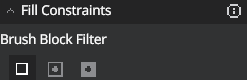
Disabled
Uses the type of block currently selected in the Block Picker to fill the entirety of your selection with.
Mask
Lets you specify a list of block types to exclude from the Brush Paint action, preventing them from changing even when included in your selection.
Replace
Lets you specify what type of blocks to replace and the type of block to replace them with.
Practice: A humble tree...
Move to a clear area.
Switch to Brush by clicking the button in the toolbar on the left of the Editor.
Tip
Pressing Ctrl+B also switches to Brush.
Set the Brush to Uniform Cuboid with a Length of 1, then use the block picker to choose a type of log.
Find a clear place on the ground and place one log block.
Place some more log blocks on top of each other to create a tree trunk.

Change the Brush to Uniform Ellipsoid with a Length of 3, change the block type to Leaves, then click the top of your log stack to put leaves around the top of your tree.

Keyboard shortcuts
For the full list, see Editor Hotkeys.
| Name | Shortcut |
|---|---|
| Brush Tool | Ctrl+B |
| Paint at Cursor (one‑shot) | Enter |