Note
Access to this page requires authorization. You can try signing in or changing directories.
Access to this page requires authorization. You can try changing directories.
One of the most wonderful aspects of being a Minecraft creator (and also, one of the most frustrating) is that no two players are the same: some are younger, some are older; some are on top-of-the-line gaming PCs, some are on muted mobile devices; the list goes on.
With such a vast range of factors to account for, how do you ensure that all of your players are having an amazing experience? That's where sub-packs come in!
Sub-packs let players choose between different variations of a resource pack and switch between them at any time—there's no need to create separate packs! Creators can use sub-packs to offer multiple levels of fidelity, different content for different user types, and more. As with most features in Minecraft, the only limitation is what you can imagine.
Creating a sub-pack
Open the resource pack for your world and create a new folder named
subpacks.Open the
subpacksfolder and create a new folder for each sub-pack you would like to create. We're using the names SP1, SP2, and SP3 for this example, but feel free to use whatever names work for your project.Tip
Just remember to keep your custom sub-pack name short so you don't run into any issues with the character limit.
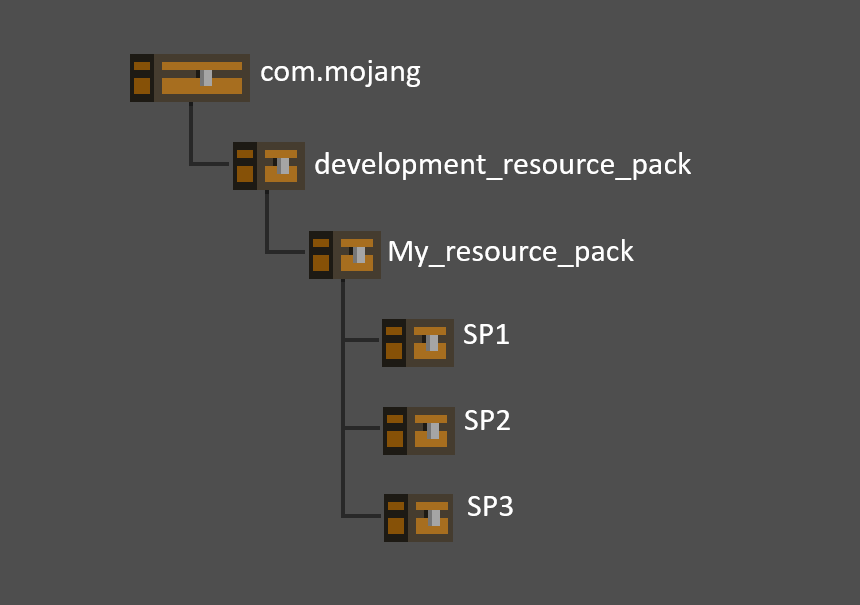
Add the content for each subpack into its respective folder. Any files that normally go into your resource pack can be added into your sub-pack 'SP' folders.
Note
Files added to sub-packs will override the files in the main resource pack.
Adding sub-packs to manifest.json
Once you've created your sub-pack folders, it's time to edit the manifest.json file so the game knows that the files exist and pulls them in correctly. Use these components to create your own custom subpack, or copy and paste the example below into your manifest.json file.
| Name | Description |
|---|---|
| folder_name | The name of the folder where your sub-pack is located |
| name | The name players see when choosing your sub-pack |
| memory_tier | Designates the minimum amount of RAM required to run the sub-pack (each tier represents 250 MB). In a future release, this component will be completely replaced by memory_performance_tier |
| memory_performance_tier | Denotes the optimal platform for a subpack (values range 1–5). This component is still in experimental and requires manifest V3 to use |
| type | Lets you enter a description of your pack and sub-packs |
| text | The description players see when choosing your sub-pack |
Note
The name and text fields can't be translated and additional type and text combinations must be used for additional paragraphs.
Example sub-pack manifest
{
    "format_version": "1.20.30",
    "header": {
        "name": "Name of your resource pack",
        "description": "A brief summary of your pack",
        "version": [1, 0, 0],
        "base_game_version": [1, 18, 0],
        "uuid": "b955dcc1-911e-4d2c-9674-59cb1b760284"
    },
    "modules": [
        {
            "type": "resources",
            "version": [1, 0, 0],
            "uuid": "84d63d51-cd77-4bad-b51c-aac62d9cf773"
        }
    ],
    "subpacks": [
        {
            "folder_name": "SP1",
            "name": "Low-fi Assets",
            "memory_tier": 6,
            "memory_performance_tier": 1
        },
        {
            "folder_name": "SP2",
            "name": "Standard Assets",
            "memory_tier": 12,
            "memory_performance_tier": 2
        },
        {
            "folder_name": "SP3",
            "name": "Hi-fi Assets",
            "memory_tier": 64,
            "memory_performance_tier": 5
        }
    ],
    "settings": [
        {
            "type": "label",
            "text": "A description of what the pack and sub-packs include. Multiple paragraphs require multiple type/text pairs."
        },
        {
            "type": "label",
            "text": "This would be the second paragraph that the player reads when looking at the description of the pack and sub-packs."
        }
      ]
    }
Now that our manifest is complete, here is our example sub-pack in action!
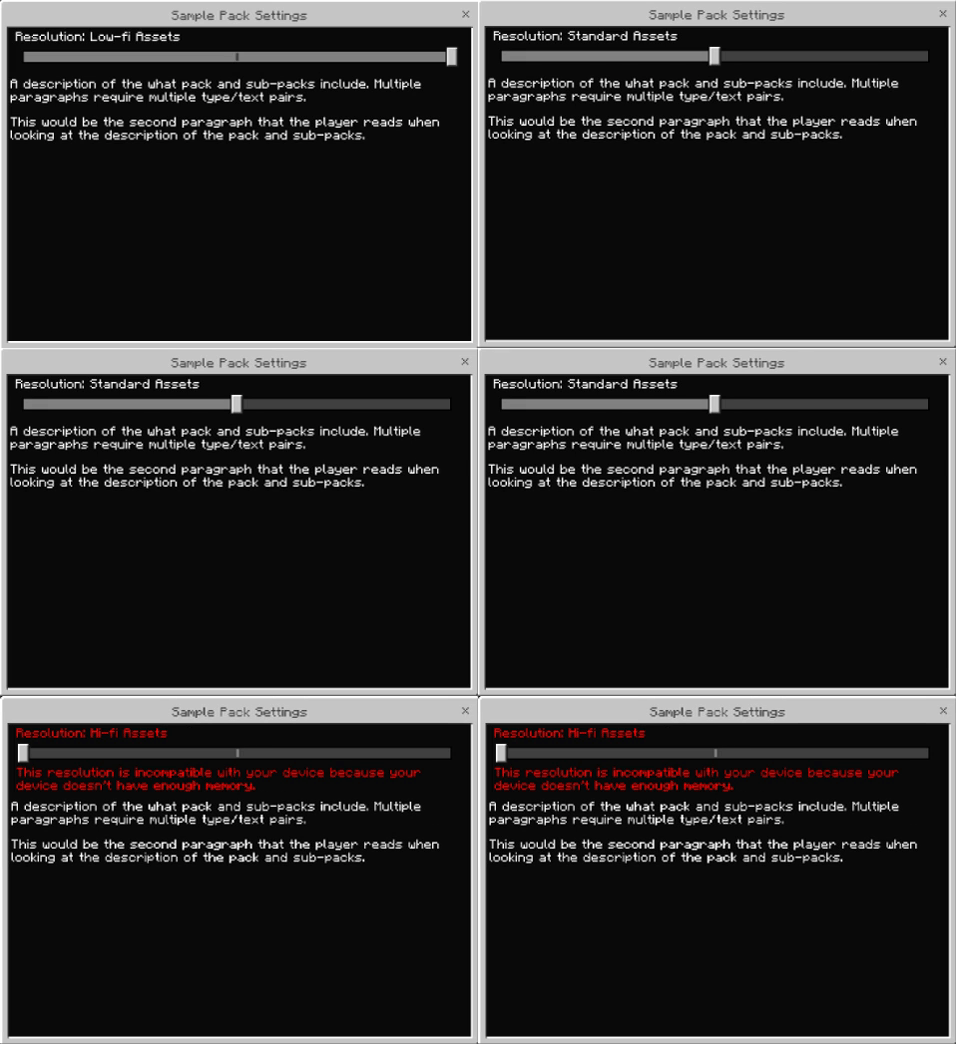
Subpack selection
With our new tier system, each tier represents a different platform. So, there's no more guess-work required when you're trying to assign a tier to your device's memory capacity.
Memory tier alignment
| Memory Performance Tier | Platform | Memory Tier | Memory Range (GB) |
|---|---|---|---|
| 1 | Nintendo Switch | ≤11 | 2-4 |
| 2 | PS4; PS4 Pro; Xbox One; Xbox One S; 60% Mobile | 12-16 | 4-5 |
| 3 | Xbox One X; Xbox Series S | 18-20 | 6-8 |
| 4 | Xbox Series X; PS5 | 24-28 | 8-12 |
| 5 | PS5 Pro; 70% PC | ≥32 | >12 |
By default, the system scans the list of subpacks in your manifest file for the highest memory_performance_tier value that doesn't exceed the tier of the player's device to select a sub-pack. Players can change the subpack selection to one lower than the default as long as it's within their platform capabilities. For example, a PS5 Pro defaults to Tier 5 but can be manually changed to select Tier 4 instead.
Note
In the case of a tie, the system selects the last subpack listed of that tier. We recommend you avoid including multiple subpacks of the same tier in a single manifest file to avoid those confusing conflicts.
What's Next?
Now that you know how sub-packs work, experiment with using them in different ways! Whatever you choose to create, sub-packs are a great tool for making sure you deliver an enjoyable experience for all users. Remove spiders from a spooky pack to help players with arachnophobia, let players choose the music they want to hear while they play your pack, or which biome they start in. Your worlds are your oysters!