Note
Access to this page requires authorization. You can try signing in or changing directories.
Access to this page requires authorization. You can try changing directories.
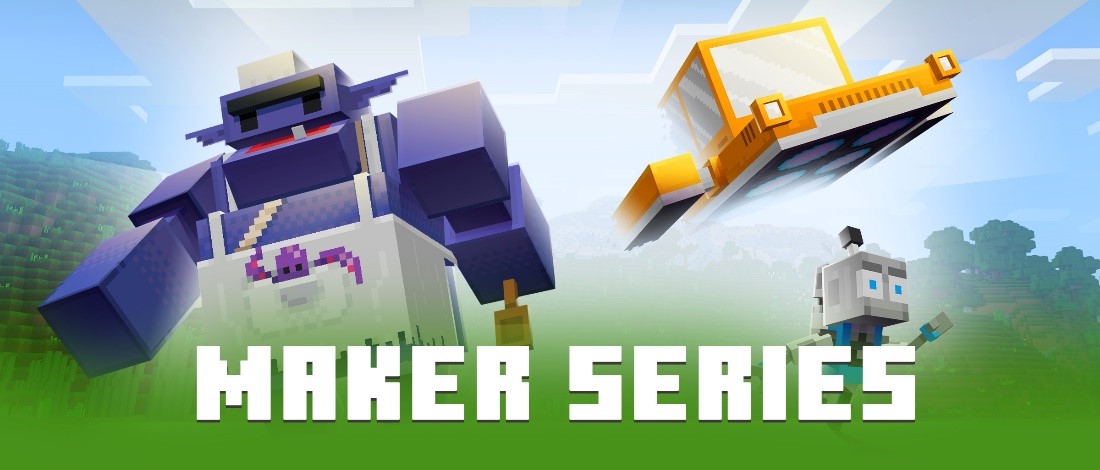
This tutorial provides an inside look at how professional Minecraft creators make something cool from beginning to end. Instead of teaching the basics, we'll assume you have some base knowledge of the main Minecraft creator tools like the Minecraft: Bedrock Edition Editor, Blockbench, and mctools.dev.
We'll spend more time focusing on the creative decision-making process, like color choice or finding the right proportions, to give you direct insight into how the pros think while they are creating. The videos that accompany this tutorial feature one of Mojang’s 3D artists, Peter Sheff, to help walk you through the custom Goblin Chef entity’s creation from the early concept phase of the Chef all the way to it being ready to be placed inside of Minecraft.
Part 1: Modeling
In this video, Peter starts with the fundamentals of creating a new entity. The initial focus is using the 3D shape tools in Blockbench to focus on getting the 3D form of the Goblin Chef just right.
Start by brainstorming the entity you want to create. It’s often helpful to consider similar entities that you like in other media to help you come up with a general idea of your custom entity’s form and behaviors.
Use the 3D shape tools in Blockbench to create the general shape for each piece of your entity (arms, legs, head, etc.). Then, arrange them into the entity’s base shape.
Tip
Don’t worry about making a perfect copy of your reference – what starts as a mistake can become a defining detail of your entity!
Add more detail to each piece of the entity to give it a bit more character.
Part 2: Texturing
Now that the basic shape of the goblin chef is established, it's time to apply a set of colors and textures to the new entity.
Add even more detail to the goblin chef by adding more, smaller blocks to enhance the entity’s overall texture.
Tip
It can be helpful to name and organize the blocks and “parts” you use for your texture features to make them easier to find later.
Add color to your chef’s body parts and the different texture enhancements you made. We recommend starting with the biggest details and working your way down to the smaller textures.
Use the Blockbench Eraser to add fine details like the apron straps and to shape the goblin chef’s ears.
Add shadows below the chef’s eyebrow, to its spatula, and to whatever else you’d like to emphasize with the Blockbench Paintbrush.
Part 3: Animating
In the animating section, you'll see how Peter animates the basic parts of the Goblin Chef, adding natural animations to the head, arms, and legs to create a walk cycle. You can see how to adjust the motion of various parts by adding keyframes in the Timeline tool of Blockbench.
Using the Blockbench Timeline, establish pivot points on your model to represent the model's movable joints.
Switch to Animation, then add and name your new animation.
Select all the joints you want to animate to add them to your timeline.
Note
If you don’t see the joints you created in the outliner, it may be because you haven’t grouped your cubes. You can group your cubes by right-clicking them from the Edit menu.
Animate your rotations, taking your vision for the entity’s personality into account when considering the rotational range and speed of each part of the model.
Refine your arm and body animations to make them feel more natural by adjusting the spacing between animation loops with eases and subtle overlapping actions.