Note
Access to this page requires authorization. You can try signing in or changing directories.
Access to this page requires authorization. You can try changing directories.
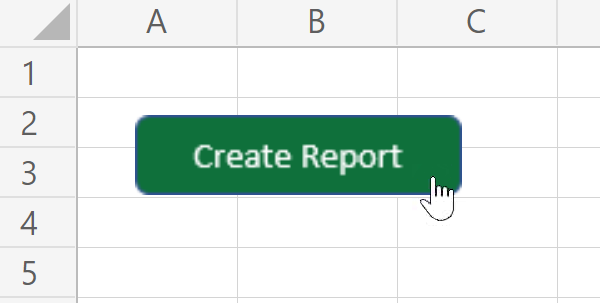
Help your colleagues find and run your scripts by adding script buttons to a workbook.
Note
Script buttons aren't available during the Office Scripts preview for personal and family Microsoft 365 subscriptions.
Create script buttons
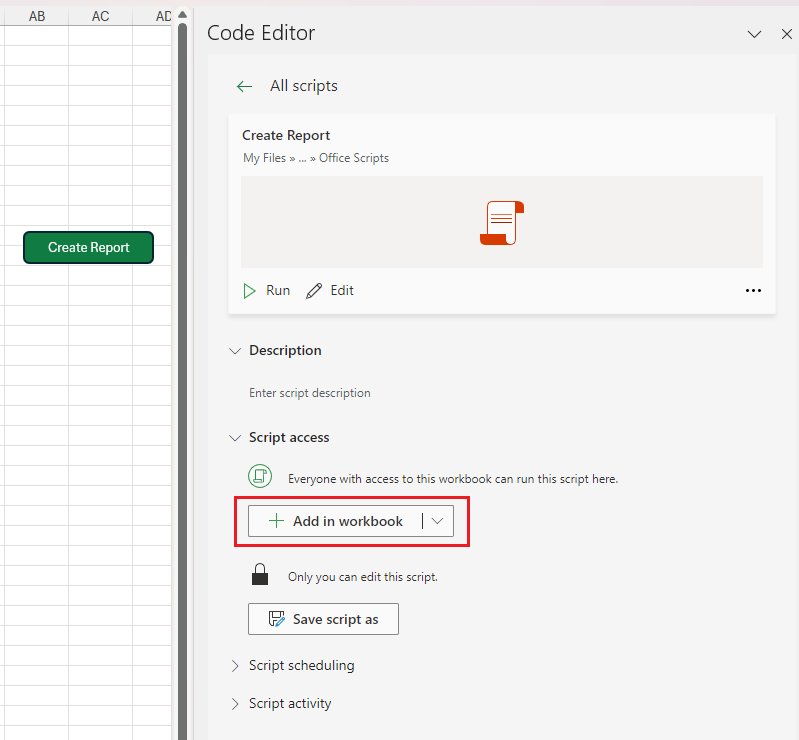
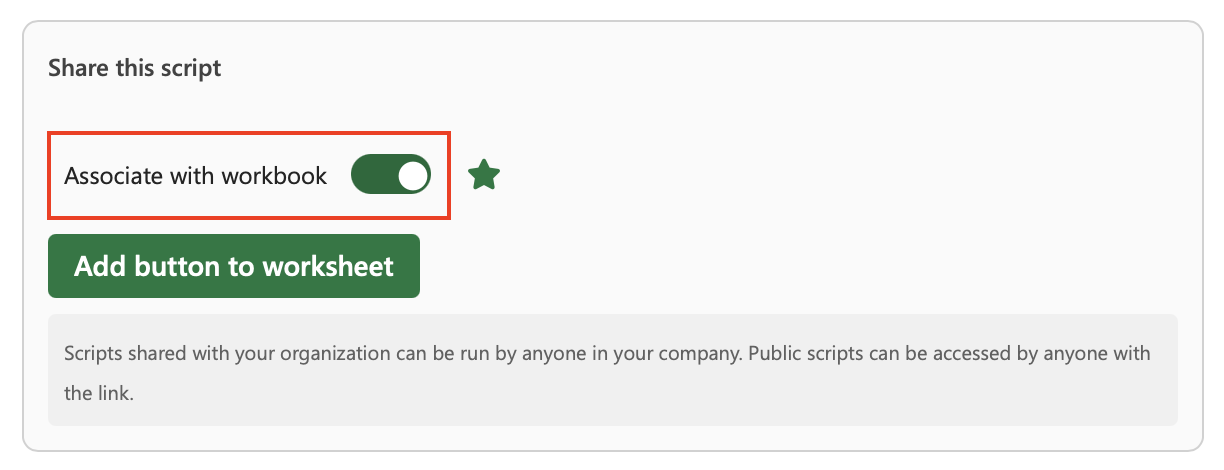
When viewing a script, scroll to the Share this script section and enable the Associate with workbook toggle. This shares the script with the workbook, so everyone with write permissions to the workbook can use your helpful automation. Select Add button to worksheet to create a button in the worksheet that runs the associated script.
Important
If OneDrive sharing is restricted by organizational policies, you can't associate a script or create a script button.
Remove script buttons
To stop sharing a script, disable the Associate with workbook toggle in the Share this script section of the script details page. This removes all the buttons that run the script from the workbook.
Important
Deleting a script button from the Excel grid removes that button, but the script still remains associated with the workbook.
Older versions of Excel
Script buttons won't work when opened in versions of Excel that don't support Office Scripts. In that case, the button still appears, but selecting it has no effect.
See also
Collaborate with us on GitHub
The source for this content can be found on GitHub, where you can also create and review issues and pull requests. For more information, see our contributor guide.
Office Scripts