Note
Access to this page requires authorization. You can try signing in or changing directories.
Access to this page requires authorization. You can try changing directories.
Note
Instant sandboxes issued to eligible customers with enterprise accounts starting July 2026 include add-on commerce capability, so you can purchase additional paid licenses and services including Microsoft 365 Copilot directly from within the sandbox. For more information, see Instant sandbox.
Prerequisites
Before you begin, ensure you have:
- An active M365 Developer Program sandbox.
- Global Admin credentials for your Developer Program sandbox.
- A valid payment method to purchase your license.
Step 1: Sign in to the Microsoft 365 admin center
- Navigate to the Microsoft 365 admin center.
- Sign in using your Global Admin credentials for your Developer Program sandbox (for example, abc@xyz123.onmicrosoft.com).
Note
You can find your login email on your Developer Program dashboard.
Step 2: Navigate to the Copilot product page
- In the left-hand navigation menu, select Marketplace > All products.
- Use the search bar to find Microsoft 365 Copilot.
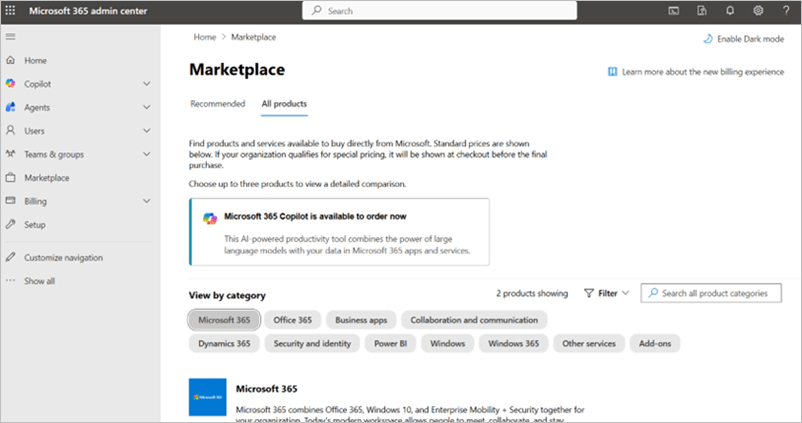
Step 3: Create a billing account
When you select Microsoft 365 Copilot, you'll see a prompt to create a new billing account.
Select Create a new billing account.
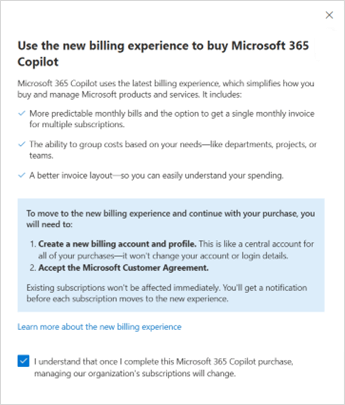
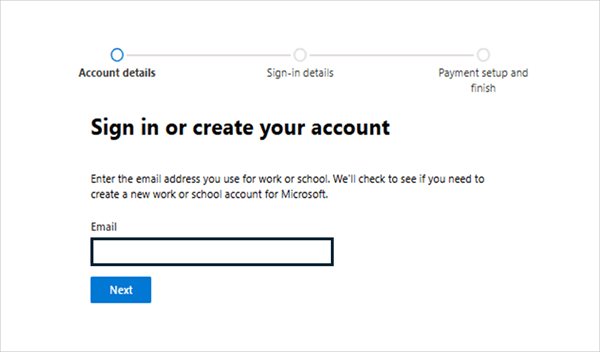
Enter your email address.
Important
You must use the same email address as your Developer Program Global Admin to correctly link the billing account to your Developer Program.
Enter your work communication address.
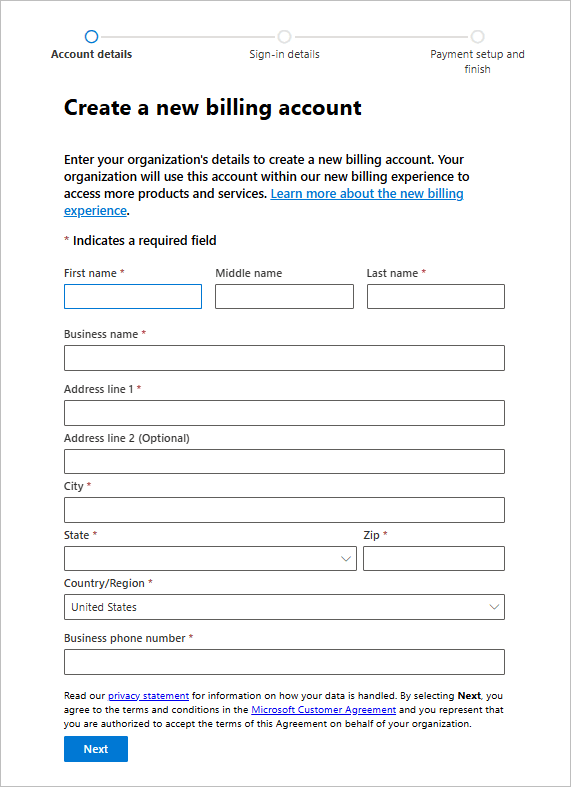
After your address is validated, you'll be redirected back to the admin center.
Step 4: Select your license plan
Choose the number of licenses you want to purchase.
Select your preferred Microsoft 365 Copilot plan.
Select Buy to proceed to checkout.
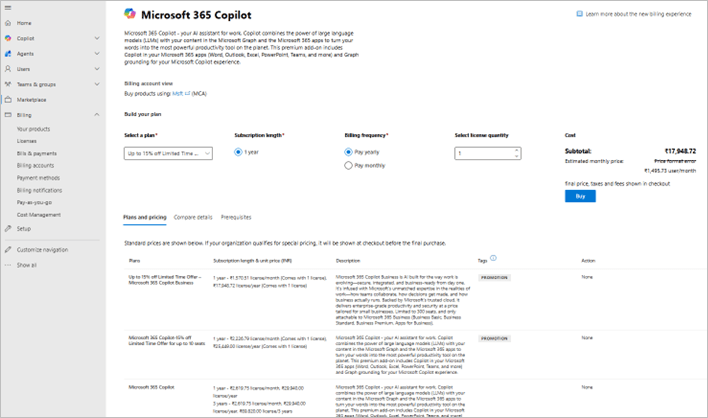
Step 5: Complete your purchase
On the checkout page, select Create a new billing profile in the top-right corner.
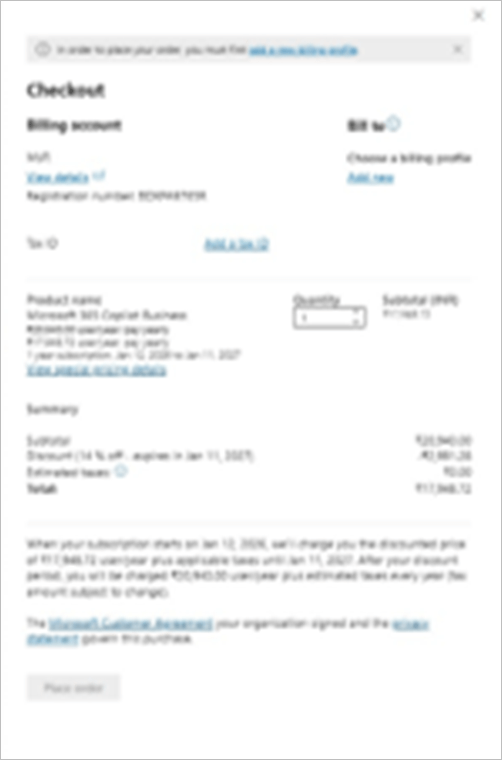
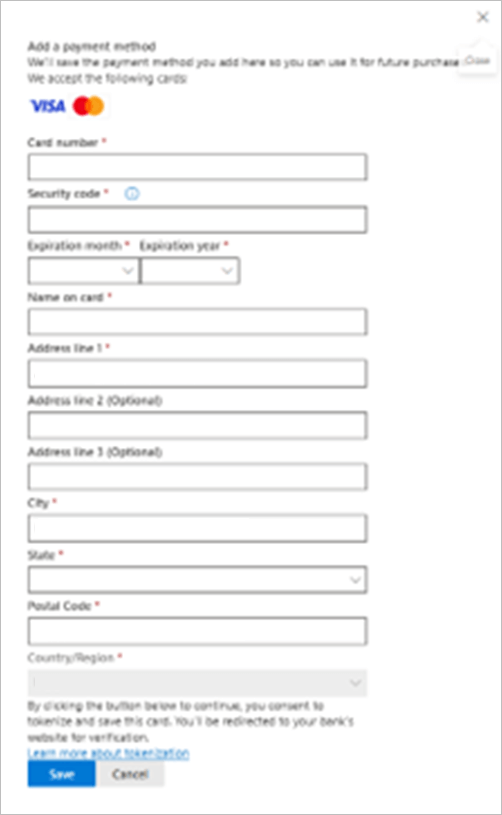
Enter your billing details and payment information.
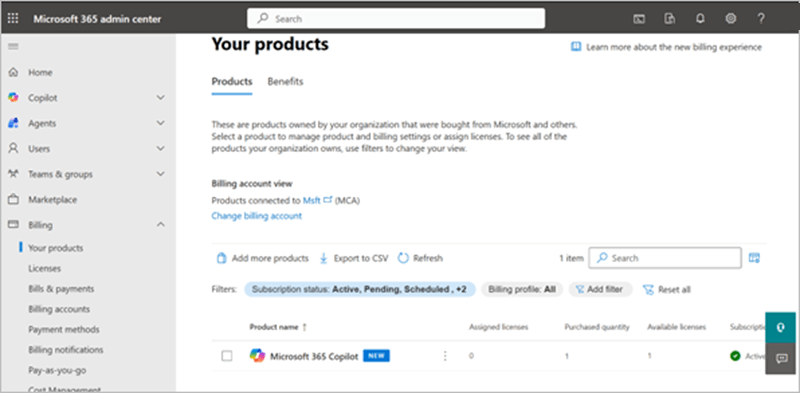
Complete the purchase. After the purchase is complete, Microsoft 365 Copilot will appear under Billing > Your products.
Step 6: Assign licenses to users
- In the admin center, navigate to Users > Active users.
- Select the user you want to assign a license to.
- Select Manage product licenses.
- Enable Microsoft 365 Copilot for the selected user.
- Save your changes.
Next steps
After assigning licenses, users may need to:
- Sign out and sign back in to their Microsoft 365 applications to activate Copilot.
- Review Microsoft 365 Copilot documentation to learn how to use the features.