Note
Access to this page requires authorization. You can try signing in or changing directories.
Access to this page requires authorization. You can try changing directories.
This article explains how you can access earnings data through the Earnings APIs instead of the Partner Center UI. These APIs provide a programmatic way to provide the capability of the Export data feature in Partner Center.
Important
Azure Active Directory (Azure AD) Graph is deprecated as of June 30, 2023. Going forward, we're making no further investments in Azure AD Graph. Azure AD Graph APIs have no SLA or maintenance commitment beyond security-related fixes. Investments in new features and functionalities will only be made in Microsoft Graph.
We'll retire Azure AD Graph in incremental steps so that you have sufficient time to migrate your applications to Microsoft Graph APIs. At a later date that we will announce, we will block the creation of any new applications using Azure AD Graph.
To learn more, see Important: Azure AD Graph Retirement and Powershell Module Deprecation.
Available APIs
See all available APIs at Partner Payouts.
Prerequisites
- Have a working subscription in Azure portal.
- Have access to a web browser.
- Be able to make REST API calls, either programmatically or through dedicated software.
Register an application with the Microsoft identity platform
Follow the instructions to create an App Registration with Microsoft Identity Platform.
Give the app appropriate delegated permissions.
- In the newly created app registration, go to Manage → API Permissions. Select "Add a permission."
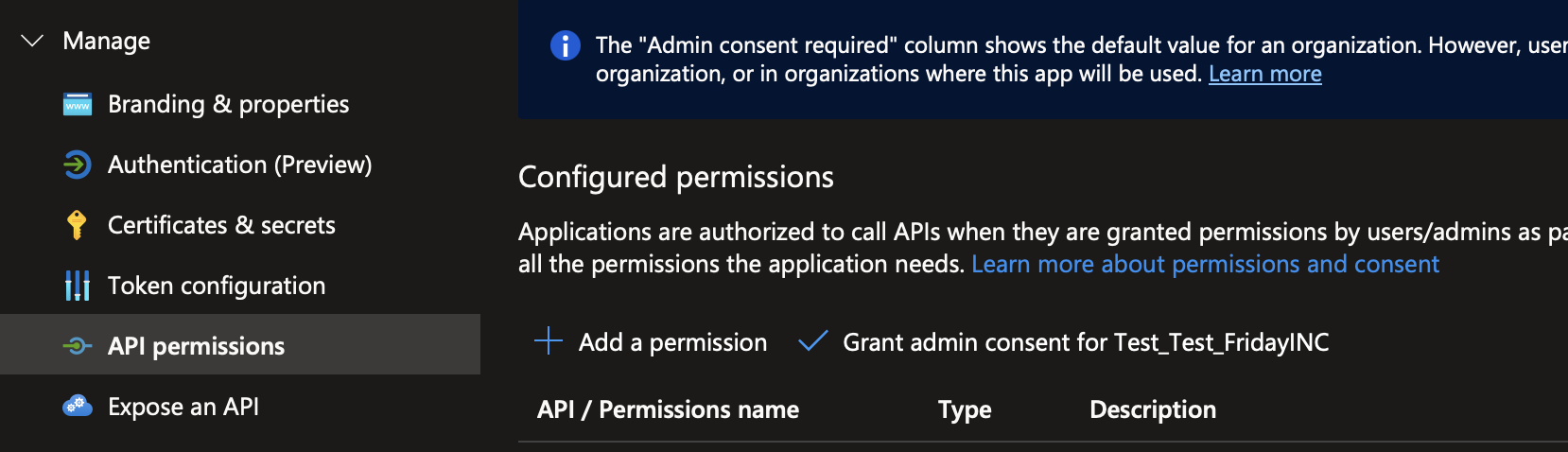
- Select the tab "APIs my organization uses," then look up the AppId "4990cffe-04e8-4e8b-808a-1175604b879f" or by name "Microsoft Dev Center." For permissions, select "user_impersonation." Select "Add permissions."
- Troubleshooting: If searching for the Dev Center API returns no results, you may need to create the service principals required to access these APIs manually. They can be created with AzCLI:
Afterwards, the API permissions should be available to select from the search dialog.az ad sp create --id 4990cffe-04e8-4e8b-808a-1175604b879f
- Troubleshooting: If searching for the Dev Center API returns no results, you may need to create the service principals required to access these APIs manually. They can be created with AzCLI:
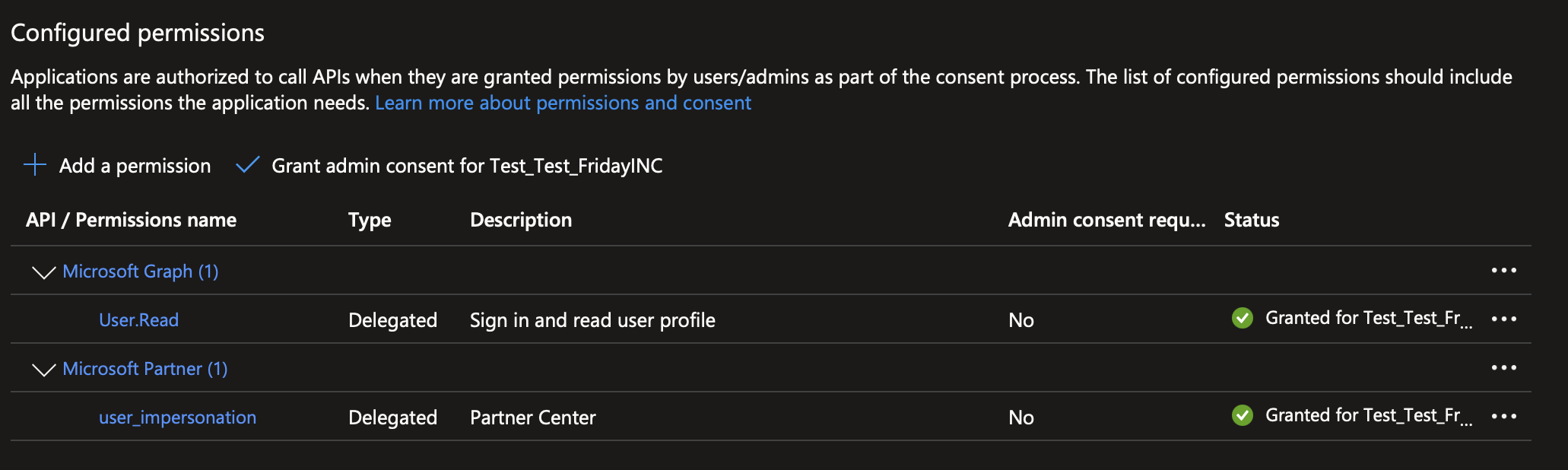
- On top of that, ensure that your app has a "User.Read" permission in Microsoft Graph. If it doesn't, add it by selecting Microsoft Graph in the Microsoft APIs tab.
- Select "Grant admin consent" for all three permissions you obtained.
- Your app permissions should look as follows (note the green tick next to each permission):
- In the newly created app registration, go to Manage → API Permissions. Select "Add a permission."
Set up a redirect URI for Web platform.
- Go to Manage → Authentication. Select "Add a platform."
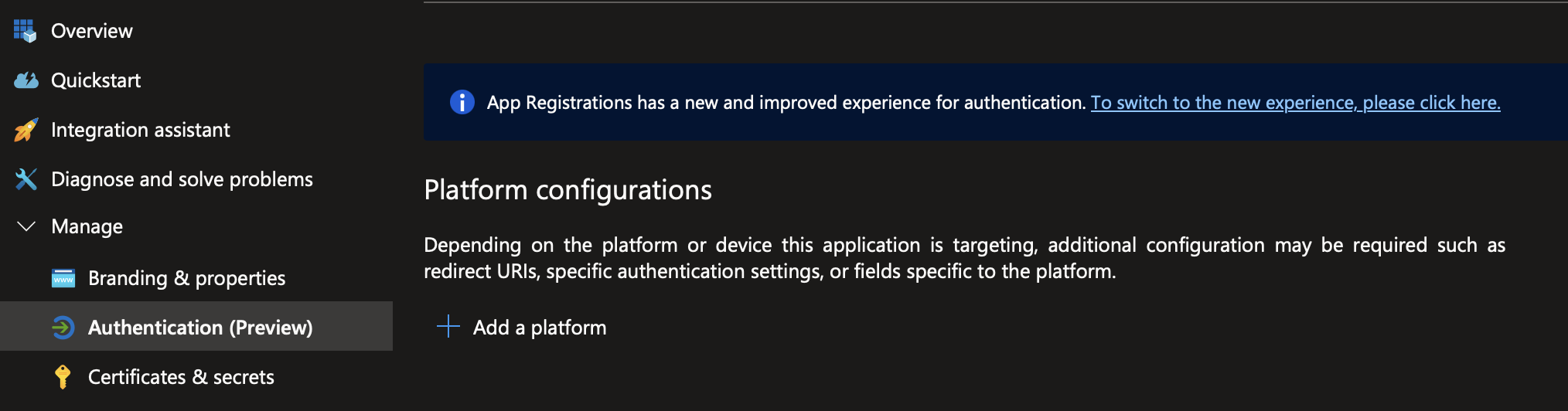
- Select "Web."
- In Redirect URIs, enter the URI you want to user for your application, for example
https://localhost:3000. Note down this URI for later. Press "Configure."
- Go to Manage → Authentication. Select "Add a platform."
Generate a client secret to use when getting access tokens.
- Go to Manage → Certificates & secrets. Go to "Client secrets" tab, select "New client secret."
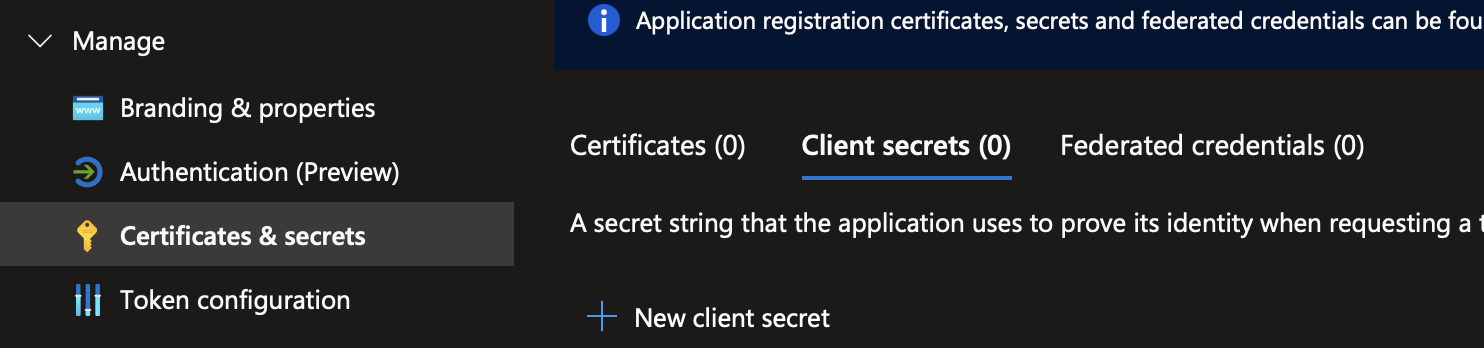
- Enter the desired name and duration.
- Select Add secret.
- Note down the Value somewhere else. Be sure to keep it in a secure location, for example a key vault. You use this secret when requesting the AccessToken and RefreshToken.
- Go to Manage → Certificates & secrets. Go to "Client secrets" tab, select "New client secret."

Get Access Token - MFA-enabled accounts
The Earnings APIs require an AccessToken to be provided as the Authorization bearer token in the request, with the prefix Bearer <access-token> in the Authorization header. You can obtain this token by logging in with your account; however, access tokens are short-lived. Logging into an MFA-enabled account to generate a token each time you need to call the API isn't practical for workflows involving automation.
These steps walk you through the process to generate a RefreshToken. It has a longer lifespan (about 3 months) and can be used to obtain the AccessToken. By storing a RefreshToken in a secure location, you can use it to programmatically obtain an AccessToken to call the Earnings API.
Note: RefreshToken can only be used once, after which it becomes obsolete. In the response, a new RefreshToken is returned together with the AccessToken. Make sure to replace the old value of RefreshToken in your secure storage each time you use a RefreshToken.
Get AuthCode through browser. Currently, this process has to be done using a web browser’s UI and can't be done programmatically.
- Follow the template here to build a URL that is used to retrieve the AuthCode.
- Use tenant ID and client ID for the created application.
- Set scope to
https://api.partner.microsoft.com/.default. - Set redirect URL to the configured redirect URL previously.
The URL template is:
https://login.microsoftonline.com/<tenant-id>/oauth2/v2.0/authorize?client_id=<client-id>&response_type=code&redirect_uri=<redirect-uri>&scope=https%3A%2F%2Fapi.partner.microsoft.com%2F.default
- Go to the built URL and sign in using the credentials of an authorized user.
- Upon successful sign-in, your browser attempts to open a URL of the format
<redirect-uri>/?code=<auth-code>&session_state=<state-id>#. For the redirect URI example in a previous step, the URL you're sent to should behttps://localhost:3000/?code=<auth-code>?session_state=<state-id>#. Save the returned AuthCode somewhere secure.- Since there's usually no app listening on localhost:3000, the browser gives an error message "unable to connect." This error is expected, since we just need to manually copy the AuthCode value from the
codeURL query parameter shown previously. - In a prod solution, one might create an app that automatically handles this part of the auth process. For example, it could be a workflow where the user goes to a single page application (SPA). The user selects a "sign in" button that takes them to the URL constructed previously. Upon sign-in, the SPA extracts the value of the AuthCode and saves it to a vault. The SPA then uses the AuthCode to obtain RefreshToken and AccessToken as described in the next steps.
- Since there's usually no app listening on localhost:3000, the browser gives an error message "unable to connect." This error is expected, since we just need to manually copy the AuthCode value from the
- Follow the template here to build a URL that is used to retrieve the AuthCode.
Use AuthCode to obtain RefreshToken and initial AccessToken. Note: RefreshToken expires every 3 months and needs to be reobtained and stored in some key vault.
- Build a POST API request following the template provided here.
- Use the same values for tenant/client ID and redirect URL.
- Set scope to
https://api.partner.microsoft.com/.default offline_access. - Set code to the AuthCode obtained in the step before.
- Set client_secret to the secret generated for the created application.
The URL should then be structured as follows:
https://login.microsoftonline.com/<tenant-id>/oauth2/v2.0/token
- Build a POST API request following the template provided here.
Later, you can use RefreshToken to get new AccessToken.
- Build a POST API request following the template provided here.
- Use the same values for tenant/client ID and redirect URL.
- Set scope to
https://api.partner.microsoft.com/.default - Set refresh_token to the RefreshToken obtained in the previous step
- Set client_secret to the secret generated for the created application.
- Build a POST API request following the template provided here.
Get Access Token - Non-MFA accounts
- Obtain AccessToken using the information for the new app registration.
- Build a POST API request following the template provided here.
- Use the same values for tenant/client ID
- Set scope to
https://api.partner.microsoft.com/.default - Use the username/password for an authorized user
The URL should then be structured as follows:
https://login.microsoftonline.com/<tenant-id>/oauth2/v2.0/token
- The request returns AccessToken and a new RefreshToken. Make sure to update the stored value for the RefreshToken, as you can no longer use the old value.
- Build a POST API request following the template provided here.
Call Earnings (formerly transactionhistory)/Payments
- Use the AccessToken obtained previously in the Authorization header with the prefix
Bearer <access-token>to create new Earnings (formerly transactionhistory) or Payments reports.