Note
Access to this page requires authorization. You can try signing in or changing directories.
Access to this page requires authorization. You can try changing directories.
APPLIES TO:  Power BI Desktop
  Power BI service
By using linked goals, you can show the same goal on multiple scorecards, across multiple workspaces. All check-ins, edits, and updates appear in all the goal locations, so you don't need to create duplicate goals to track the same thing. For example, in many organizations, the leadership team has a scorecard, and each department has its own scorecard with goals from the leadership team, along with other goals that are relevant to their department. By using this feature, you can link such goals to any number of scorecards and keep them in sync automatically.
If you link multiple goals at once, the parent-child relationships and the goals’ order from the source scorecard stay the same in the destination scorecard. Use the Set For All option to apply permissions to descendant goals on the source scorecard, even if linked goals are between the parent and descendants.
Permissions
Say you have build access to a scorecard, meaning you can build content with the data associated with the scorecard. You can link goals from that scorecard to any scorecards you have edit access to. Only users who have view access to the source goal can see the linked goal.
Create a linked goal
Open a scorecard and select Edit.
Select the New button.
Select Link to existing goal (preview).
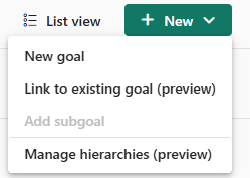
Select the scorecard that contains the goal you want to link from the list provided.
Select the goals you want to include in this scorecard.
Select Continue. The linked goals appear on this scorecard.
Check in and edit a linked goal
You can add check-ins right from the linked goal if you have permission to check in on the source goal. All scorecards that contain the linked goal and source goal reflect the check-ins.
You can make edits only in the source goal. You can navigate from the linked goal to the source goal. Select Go to source goal from the overflow menu of the linked goal.
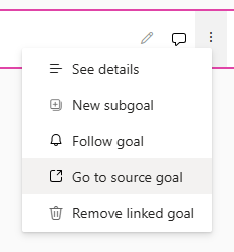
All scorecards that contain the linked goal reflect the edits.
Linked goal details
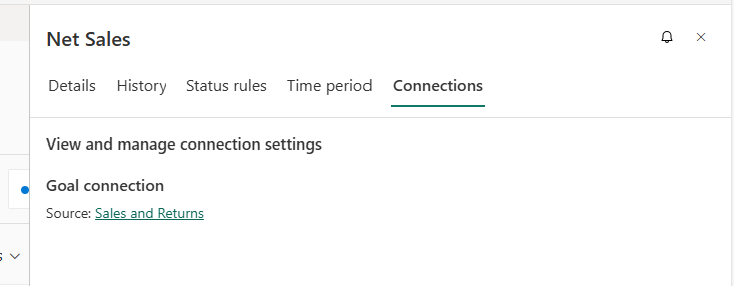
You can see the name and link to the source scorecard in the Details pane.
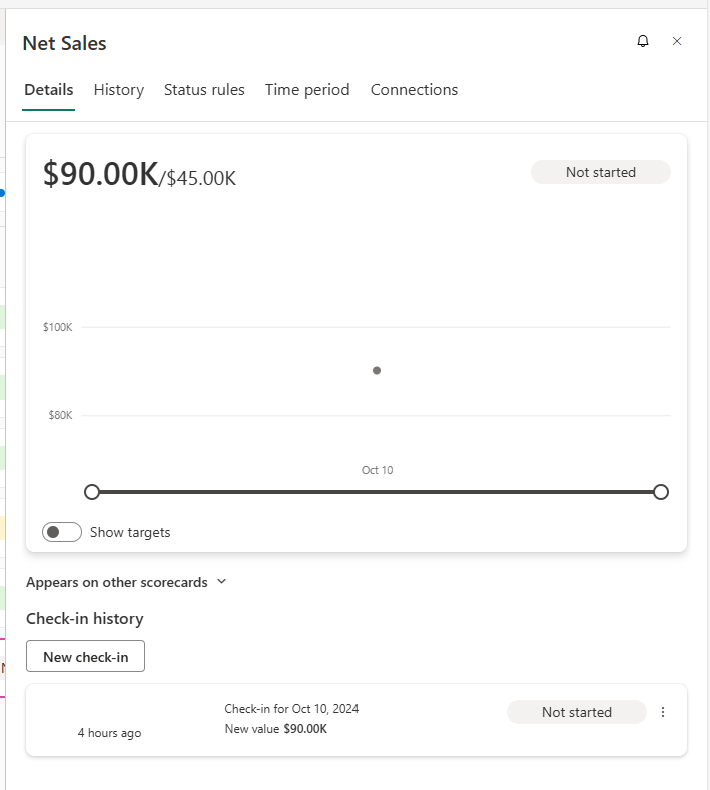
You can also see this information in the Connections pane.
Linked goals considerations
Linked goals and hierarchies
If you filter your scorecard by a hierarchy, linked goals aren't filtered. They continue showing their original value. You can't add check-ins to linked goals on a hierarchical child scorecard.
Linked goals and rollups
If you link a rollup goal onto a different scorecard, it continues to show its calculated value from the source scorecard and doesn't take into account any child goals on the destination scorecard. Additionally, if a linked goal is the child of a rollup goal, the linked goal isn't included in the parent's calculation.
Related content
Have more questions? Try the Power BI Community.