Note
Access to this page requires authorization. You can try signing in or changing directories.
Access to this page requires authorization. You can try changing directories.
Track Fabric service health using either the Fabric Admin Portal or the Microsoft 365 admin center to monitor current issues and view historical service data. You can also review known issues that might affect your environment. Fabric admins can access these health monitoring tools to quickly identify and troubleshoot service problems.
Service Health
Fabric Admin Portal
Note
If your Fabric admin has configured an internal Help-Desk, only users who are permitted to create support requests with Microsoft will be able to view service health updates in Fabric.
Navigate to the Fabric Admin Portal > Help + Support > Service Health.
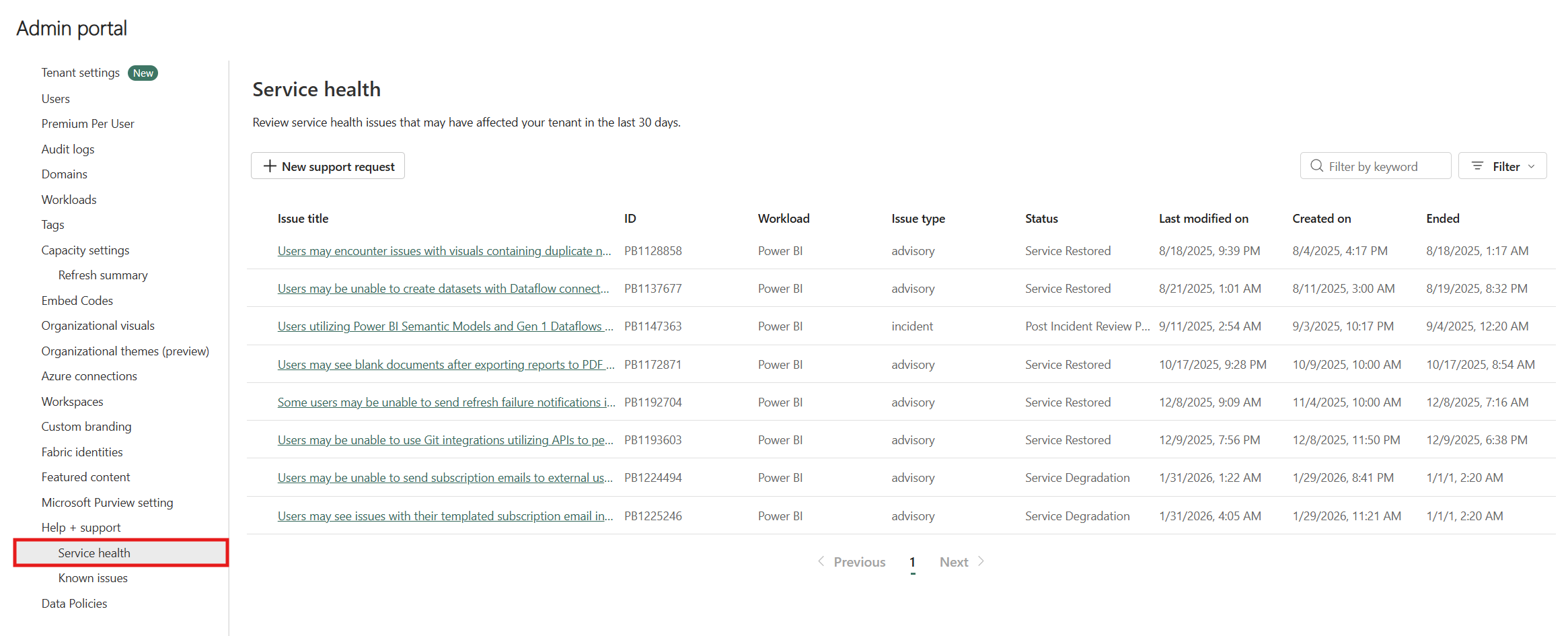
To see more information, select an item.
To see all updates on an incident, select All updates. Scroll down to see more information, then close the pane when you're finished.
Microsoft 365 admin center
In the Microsoft 365 admin center, Fabric service health is listed under the Power BI service.
To access service health information, you must have the Fabric administrator role. For more information about roles, see Administrator roles related to Power BI.
Sign in to the Microsoft 365 admin center.
From the nav pane, select Show all > Health > Service health. The Service health page appears. Active issues are listed on this overview page:
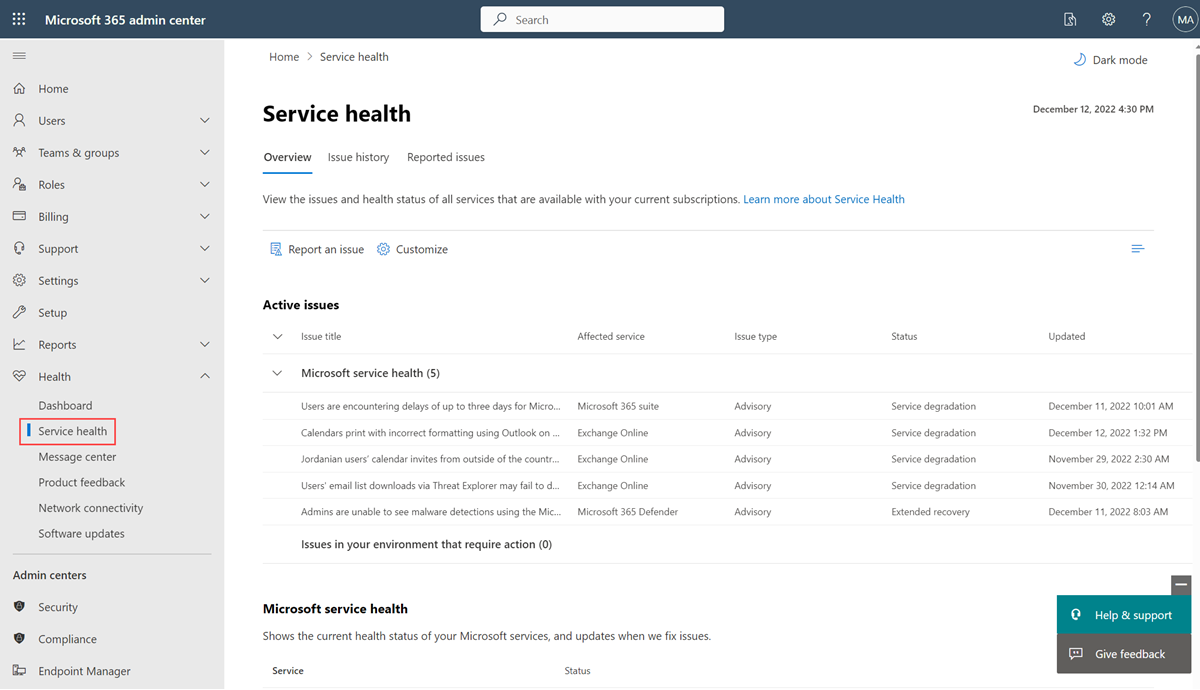
To see more information, select an item.
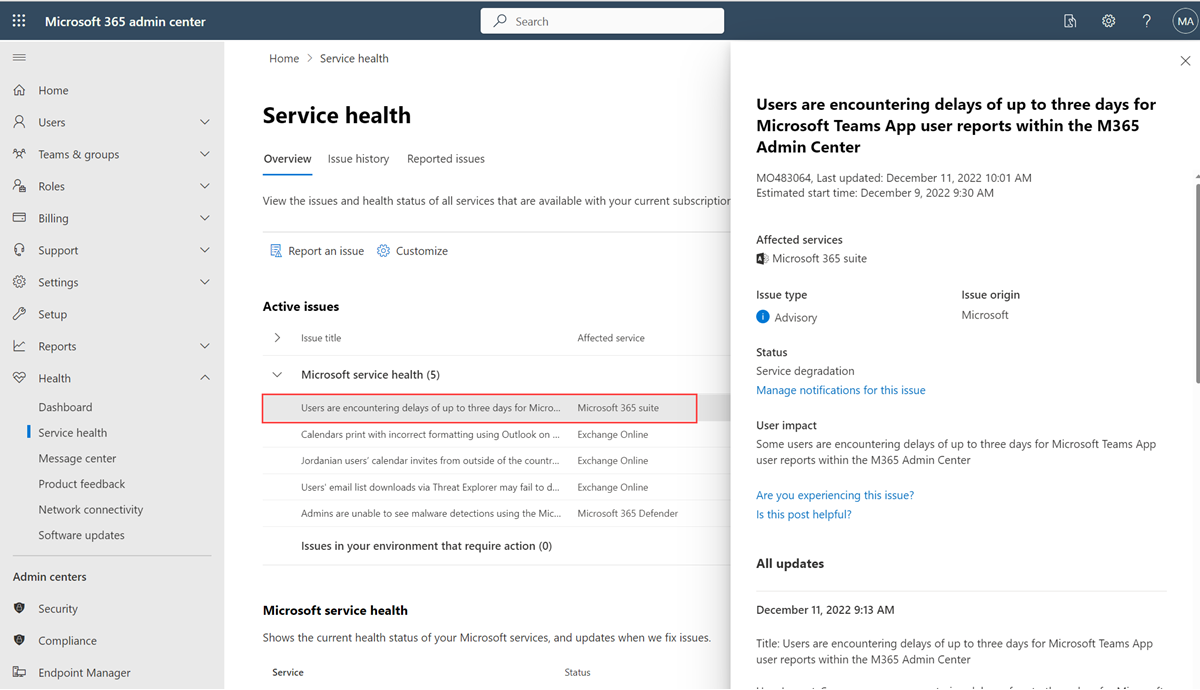
Scroll down to see more information, then close the pane when you're finished.
To see historical information across all services, select Issue history, and then select Past 7 days or Past 30 days.
To return to current service health, select Overview.
Known Issues
You can review the Fabric Known Issues either in the Fabric Admin Portal or on the Fabric Support page.
Select a known issue to view its details.