Note
Access to this page requires authorization. You can try signing in or changing directories.
Access to this page requires authorization. You can try changing directories.
[This article is prerelease documentation and is subject to change.]
Filtered view security supports tables with non-filtered record ownership types. It provides filter-based access control in addition to the table's ownership model.
For existing user or team, and organization record ownership tables, you can supplement the standard row-level data access that security roles, ownership, business units, teams, and record sharing provide with filtered view permissions. Filtered view permissions add access to records that match configured filter conditions without replacing the underlying Dataverse security model or changing the table's ownership type.
Important
- This is a preview feature.
- Preview features aren’t meant for production use and may have restricted functionality. These features are available before an official release so that customers can get early access and provide feedback.
Common use cases for filtered view security
Common use cases for filtered view security include filter conditions on the same table and on a related table.
Use a column in the same table to filter records
Use a same-table filter when access to records can be determined from a column in the table being queried. For example, an organization wants users to access only accounts located in Redmond. Configure the filter on the account table and add a condition where the City column equals Redmond.
The following FetchXML example shows the filter structure. Replace the sample column name with the logical name used in your environment.
<fetch distinct="true">
  <entity name="account">
    <filter type="and">
      <condition
        attribute="address1_city"
        operator="eq"
        value="Redmond" />
    </filter>
  </entity>
</fetch>
In this example, the condition is evaluated directly against the City column on each account record. When the filter applies to a user, the filtered view returns accounts where City is Redmond. Accounts with another City value, or no City value, aren't returned by the filtered view.
You can use this pattern for other record attributes, such as geographic location, business unit, category, status, or classification.
Use a related or link table to filter records
Use a related table filter when access to records depends on data stored in another table. For example, a relationship manager (RM) is out of office, and another RM is assigned as the Buddy RM. The Buddy RM assignment table identifies the unavailable RM, the Buddy RM, and the delegation period. The account table contains the records that the Buddy RM needs to access.
Create a related table
Create a related table which is used as a link table for the Buddy RM assignment.

Create a one-to-many relationship from the source table, such as Account to the BuddyRM.
Add the following lookup:
- Lookup col display name – Account
- Lookup col name – prefix_Account
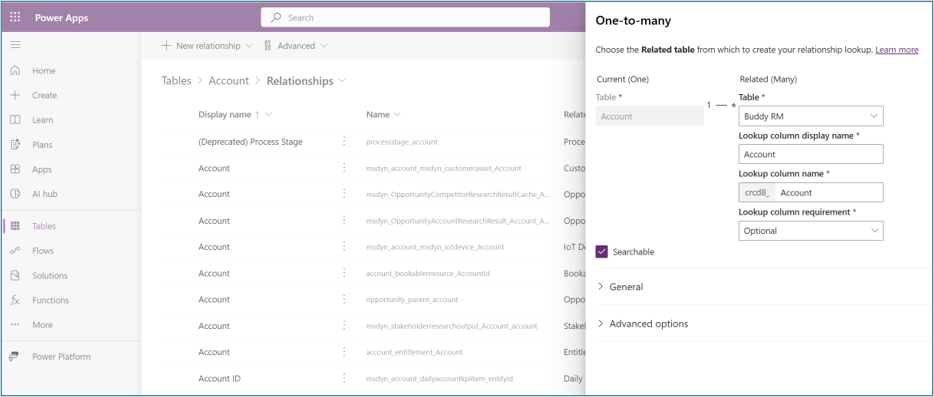
Configure the filter on the account table and add a FetchXML link-entity for the Buddy RM assignment table. The link-entity joins the account owner to the RM specified in the assignment. Conditions on the related table limit the results to active assignments where the Buddy RM is the current user.
The following example shows the filter structure. Replace the sample table and column names with the logical names used in your environment.
<fetch version="1.0" output-format="xml-platform" mapping="logical" no-lock="false" distinct="true">
  <entity name="account">
    <attribute name="entityimage" />
    <attribute name="statecode" />
    <attribute name="name" />
    <attribute name="parentaccountid" />
    <attribute name="ownerid" />
    <attribute name="telephone1" />
    <attribute name="emailaddress1" />
    <attribute name="accountid" />

    <order attribute="name" descending="false" />

    <filter type="and">
      <condition attribute="statecode" operator="eq" value="0" />
    </filter>

    <link-entity
      name="crcd8_buddyrm"
      alias="buddy"
      link-type="inner"
      from="crcd8_rm"
      to="ownerid">
      <filter type="and">
        <condition
          attribute="crcd8_buddyrmname"
          operator="eq-userid" />
        <condition
          attribute="statecode"
          operator="eq"
          value="0" />
      </filter>
    </link-entity>
  </entity>
</fetch>
In this example, the link-entity joins the RM column in the Buddy RM assignment table to the account owner. The eq-userid condition limits the results to assignments for the current user, and the state condition limits the results to active assignments. You can add conditions for the effective date and end date when the delegation is time-bound.
With this filter, the Buddy RM can access accounts owned by the unavailable RM without changing record ownership or granting permanent access. When the assignment is deactivated or expires, the related accounts are no longer returned by the filtered view.