Note
Access to this page requires authorization. You can try signing in or changing directories.
Access to this page requires authorization. You can try changing directories.
Use the Azure Synapse Link to connect your Microsoft Dataverse data to Azure Synapse Analytics to explore your data and accelerate time to insight. This article shows you how to create a view of your Dataverse data in your Azure Synapse Analytics workspace.
Note
Azure Synapse Link for Microsoft Dataverse was formerly known as Export to data lake. The service was renamed effective May 2021 and will continue to export data to Azure Data Lake as well as Azure Synapse Analytics.
Prerequisites
This section describes the prerequisites necessary to create a view of your Dataverse data after using the Azure Synapse Link for Dataverse service.
Azure Synapse Link for Dataverse. This guide assumes that you have already exported data from Dataverse by using the Azure Synapse Link for Dataverse.
Storage Account Access. You must be granted one of the following roles for the storage account: Storage Blob Data Reader, Storage Blob Data Contributor, or Storage Blob Data Owner.
Synapse administrator. You must be granted Synapse Administrator role access within Synapse studio.
Create a view of your Dataverse data
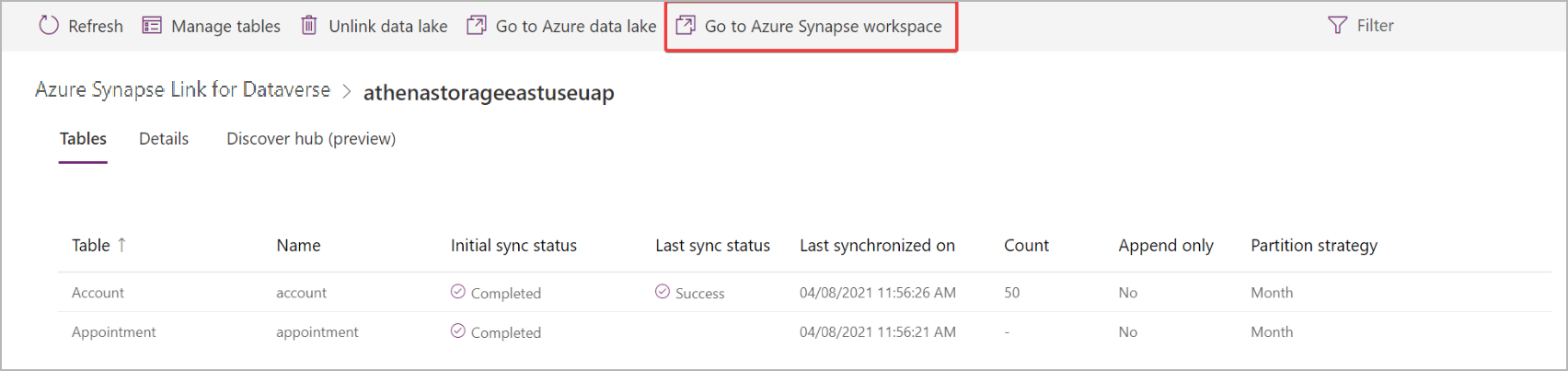
In Power Apps, select your Azure Synapse Link from the list, and then select Go to Azure Synapse workspace.
Create User-defined schema within Synapse SQL
CREATE SCHEMA [SCHEMA NAME]
GO
Run a create view script by specifying a view name, the column names, Dataverse database name under the new schema, and then exported table name.
CREATE OR ALTER VIEW [SCHEMA NAME].[VIEW NAME]
AS
SELECT [COLUMN NAMES]
FROM [DATAVERSE DATABASE NAME].[dbo].[TABLE NAME]
Use a view of your Dataverse data
You can use views in your queries the same way you use views in SQL Server queries. The view is created and available under the Views folder in SQL Server Management Studio (SSMS).
Important
Custom database objects created by a customer within the Azure Synapse Link database are deleted once the unlink is completed.
Customers will need to implement their own version control of their custom database objects scripts to ensure they have a backup.