Note
Access to this page requires authorization. You can try signing in or changing directories.
Access to this page requires authorization. You can try changing directories.
Power Automate includes several features that are designed to streamline the process of creating automated flows. This article describes how to view the underlying code of actions and triggers, add notes for better team communication, and use copy-paste actions to save time and boost productivity.
Where you find these features depends on whether you're using the new designer or the classic designer. Learn more in What is the cloud flows designer?.
In the classic designer, you can find all the features discussed in this article in the action menu, as shown in the following example.

The following sections describe where to find the features in the new designer.
View underlying code
Peek code (classic designer) or code view (new designer) allows you to view the underlying JSON representation of actions and triggers in a flow. It's useful if you want to understand the structure and configuration of your flows. You can't edit the code directly to make changes to actions or triggers. However, you can view information such as the trigger polling frequency, type, and conditions, and the JSON schema of the dynamic content in an action.
Code view (new designer)
In the new designer, select an action, and then select Code view.

Peek code (classic designer)
In the classic designer, select the ellipsis (…) on an action or trigger, and then select Peek code. Select Done to close the peek.
Add notes
Notes in Power Automate cloud flows are like comments in code—they're a helpful way to document the purpose, logic, and details of actions and triggers. They improve the readability and maintainability of your flows, whether you build flows as part of a team or on your own.
Add a note (new designer)
In the new designer, select an action. Select the vertical ellipsis (⋮), and then select Add a note.

Type your note.
A note icon appears on the action or trigger to indicate that a note is present. To view the note, hover over the icon.

Add a note (classic designer)
In the classic designer, select the ellipsis (…) on an action or trigger, and then select Add a note.
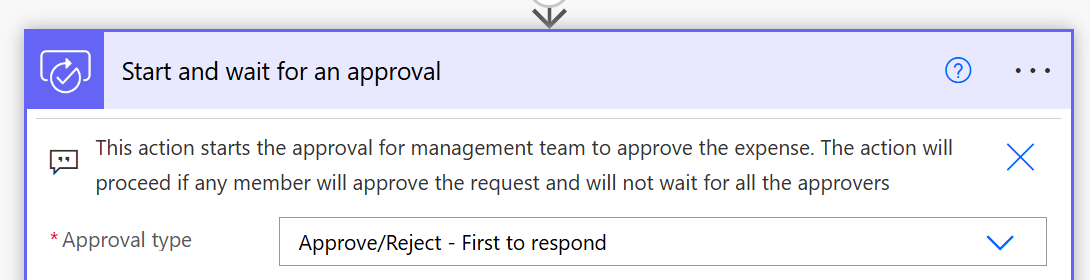
Select the text box under Note and type your note. Press Enter to save it.

The note appears under the action name.
Copy and paste actions
You can copy and paste actions to reuse them in a flow or across different flows. You can copy individual actions or entire conditions or scope actions. You can't copy triggers.
Copy an action (new designer)
In the new designer, right-click the action you want to reuse, and then select Copy action.

Right-click the plus icon (+) where you want to add a new action, and then select Paste an action > Paste an action.

Copy an action (classic designer)
In the classic designer, select the ellipsis (…) on an action, and then select Copy to my clipboard.
Select the plus icon (+) where you want to add a new action, and then select My clipboard.

Select the action you copied earlier.