Note
Access to this page requires authorization. You can try signing in or changing directories.
Access to this page requires authorization. You can try changing directories.
[This article is prerelease documentation and is subject to change.]
The attribute filter in the process intelligence experience allows you to filter data by selecting specific values from an attribute.
Important
- This is a preview feature.
- Preview features aren’t meant for production use and may have restricted functionality. These features are available before an official release so that customers can get early access and provide feedback.
- For more information, go to our preview terms.
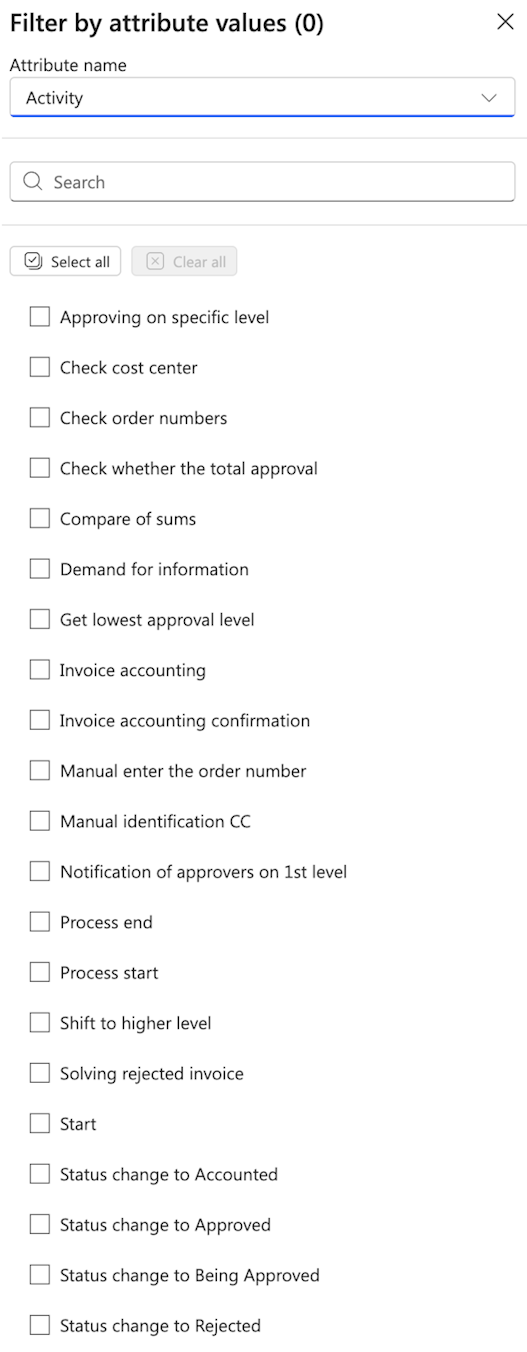
Configuration
Attribute name
From the dropdown menu, select the attribute you want to filter by. In the example, Activity is selected.
Search
To quickly find specific attribute values in the list, use the Search field. This feature is helpful when working with long lists of values.
Select all / Clear all
- Select all: Checks all checkboxes in the list to include all attribute values
- Clear all: Unchecks all checkboxes to remove all selections
Note
Select all is available only on a list with a maximum of 100 values. If the list is longer, use the search functionality to limit the list of values.
Checkbox selection
Select individual attribute values by checking the corresponding checkboxes. You can select multiple values at once.
Selection counter
The title displays a counter showing how many attribute values are currently selected: Filter by attribute values (0). The number updates as you select or deselect values.
If you don't select any values, the counter shows (0).
Apply and Cancel
Once you make your selections, select one of the following options:
Apply: Confirms your variant selections and applies the filter.
Changes take effect only when you select Apply.
Cancel: Closes the dialog without applying any changes to your variant filter.