Note
Access to this page requires authorization. You can try signing in or changing directories.
Access to this page requires authorization. You can try changing directories.
Static screenshots of Power BI visuals can become outdated as the underlying data changes. By using Power BI live visual sharing (preview), you can share a link to a visual in Outlook on the web or in Microsoft Loop so that recipients view and interact with current data instead of a fixed image.
This article shows you how to copy a link to a Power BI visual and paste it into an Outlook email or a Microsoft Loop page. In both places, the link renders as a live Loop component, which is a portable piece of content that stays synchronized wherever it's shared.
Important
Power BI live visual sharing is currently in preview. This information relates to a prerelease product that might be substantially modified before it's released. Microsoft makes no warranties, expressed or implied, with respect to the information provided here.
Prerequisites
- Recipients need the license and permissions to view the underlying Power BI content.
- To share in Outlook, use Outlook on the web. Outlook for Windows desktop isn't supported.
Enable the Loop components tenant setting
A tenant setting in the Power BI admin portal controls Power BI live visual sharing through Loop. Until a Power BI admin turns this setting on, users in the tenant can't paste a Power BI visual link into Outlook or Loop and have it render as a live Loop component. If the setting is off, the pasted link falls back to a static link instead of an interactive visual.
If you're a Power BI admin, follow these steps to enable the feature for your organization:
In the Power BI service, select Settings (gear icon), then select Admin portal.
Select Tenant settings.
Under Export and sharing settings, expand Users can share Power BI visuals as Loop components (preview).
Set the toggle to Enabled.
Choose who the setting applies to. Enable it for the entire organization, or scope it to specific security groups and exclude others.
Select Apply.
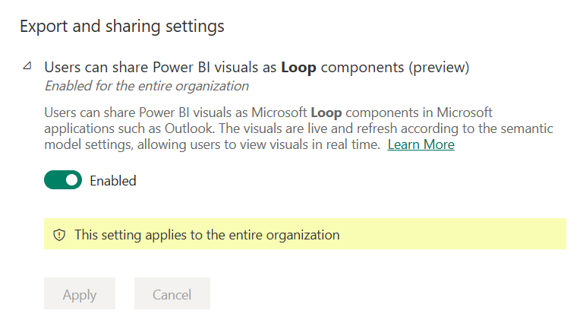
It can take up to 15 minutes for the setting change to take effect for users in your tenant. If users still can't share visuals as Loop components after this time, ask them to sign out and sign back in.
For general guidance on managing tenant settings, see About tenant settings.
Share a live visual in Outlook or Microsoft Loop
Follow these steps to copy a link to a Power BI visual and share it in Outlook on the web or in Microsoft Loop.
Note
Recipients must have access to the underlying Power BI content, along with the appropriate license, to see the rendered visual. If a recipient doesn't have access, the visual doesn't render and they see a message that they need permission to view it. Grant recipients access to the report before you share the link.
Open a Power BI report in the Power BI service.
Select the visual you want to share, and then select the ellipsis (...) in the upper-right corner of the visual.
Select Share, then select Link to this visual.
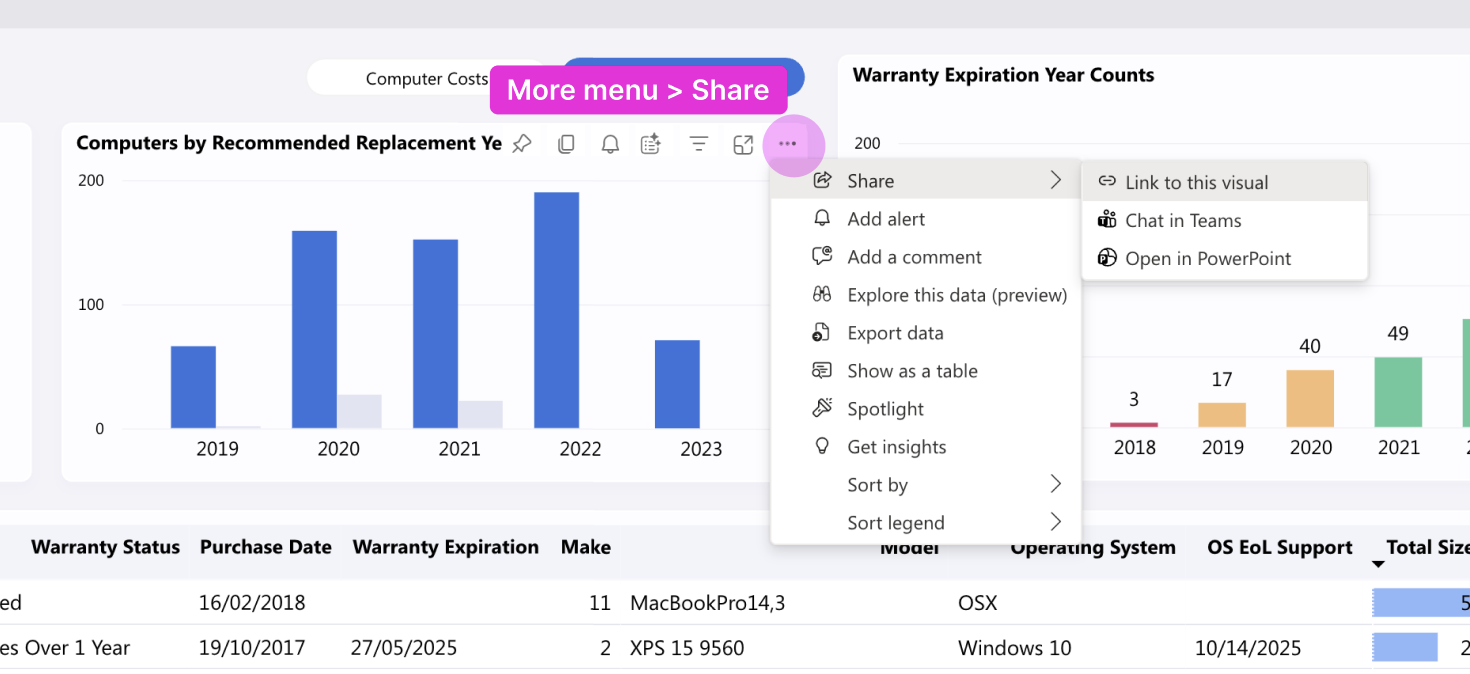
Choose whether to include the current view. Select the Use current view checkbox to keep the filters and slicers you applied, or deselect the checkbox to share the default view.
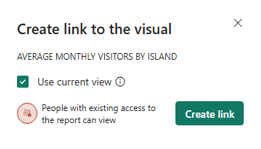
Select Create link. Power BI copies the link to your clipboard.
Paste the link where you want to share the visual:
- In Outlook on the web, create a new email and paste the link into the body of the email.
- In Microsoft Loop, open a page or workspace and paste the link into the page.
After a few seconds, the link renders as a live Loop component that recipients can view and interact with. The following screenshot shows a rendered visual in an Outlook email.
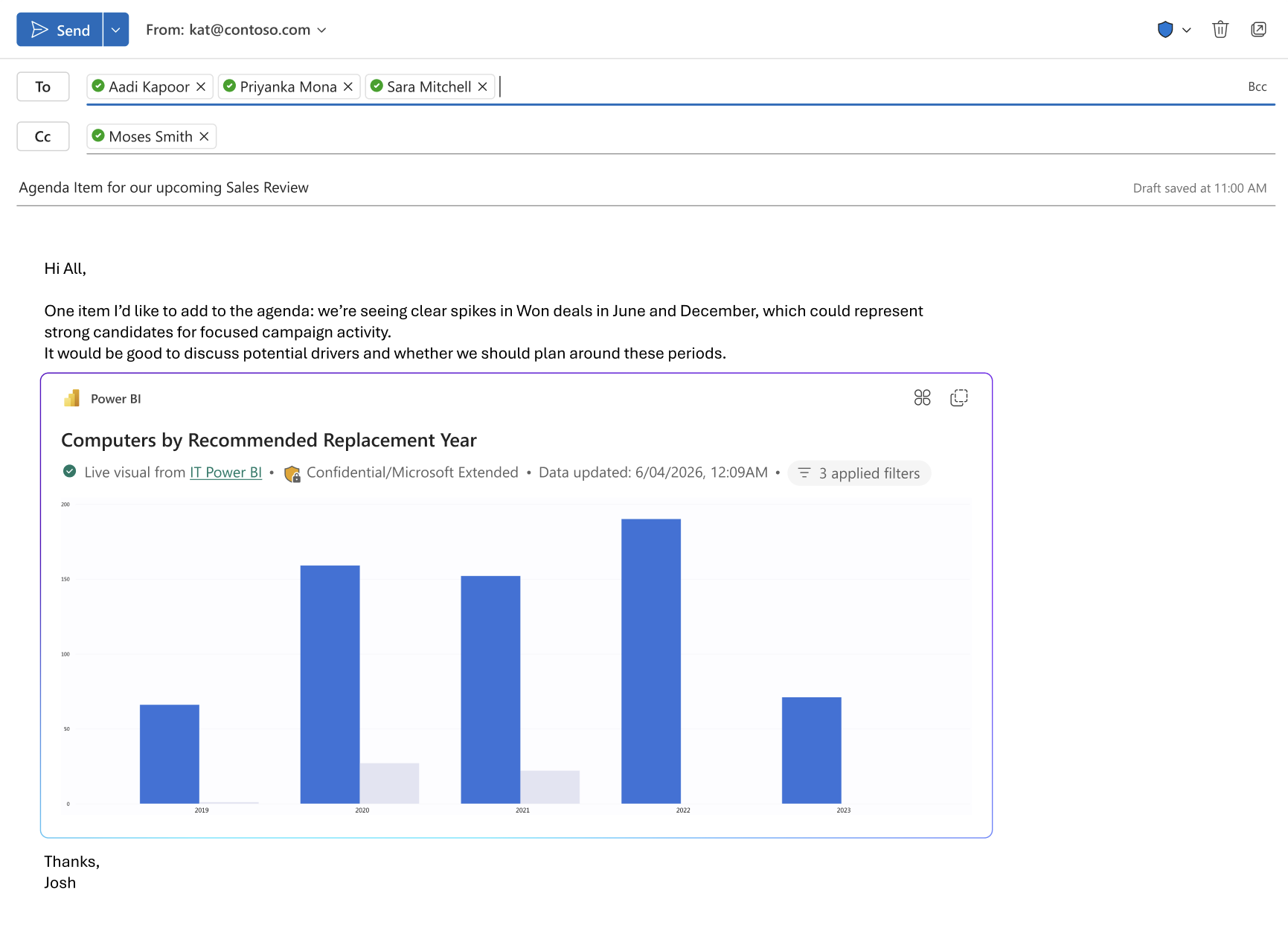
Share the content. In Outlook, send the email. In Microsoft Loop, share the page. Recipients see the same live visual and can interact with it.
Considerations and limitations
Keep the following limits in mind when you use Power BI live visual sharing:
- You can include up to five live visuals in an Outlook email or a Loop page.
- If you don't use Outlook on the web for a while and then open it in a new tab, you might notice that pasting the link into the email doesn't render the visual at first. Wait a few minutes for Outlook background loading to complete before you paste the visual link into an email. If it still doesn't render when pasting after a few minutes, refresh the page.
- If it's the first time you used a Loop page in a while, sometimes pasting the link onto the page doesn't render the visual at first. If this condition occurs, refresh the page.
- Live visual rendering works only in Outlook on the web. It doesn't work in the Outlook for Windows desktop app.
- Recipients who don't have the required license or access to the underlying report can't view the visual.
- Narrative visuals aren't currently supported for live visual sharing.
- A Power BI visual doesn't render when you paste a link inside a Loop table.
- Visual-specific custom backgrounds aren't supported when you share a live visual. The visual uses a generic background color instead.
Related content
- Use Power BI in Microsoft Outlook and Microsoft 365
- Share a filtered Power BI report
- Share Power BI reports and dashboards
- Collaborate with Power BI in Microsoft Teams
More questions? Ask the Power BI Community.