Note
Access to this page requires authorization. You can try signing in or changing directories.
Access to this page requires authorization. You can try changing directories.
Important
This feature is in preview.
Copilot in Power BI is available as a full-screen, standalone Copilot experience that finds and answers questions about any report, semantic model, and Fabric data agent they have access to. This experience is different from the Copilot pane, which only answers questions about the report you currently have open. The standalone Copilot experience is also available in preview in the Power BI mobile apps.
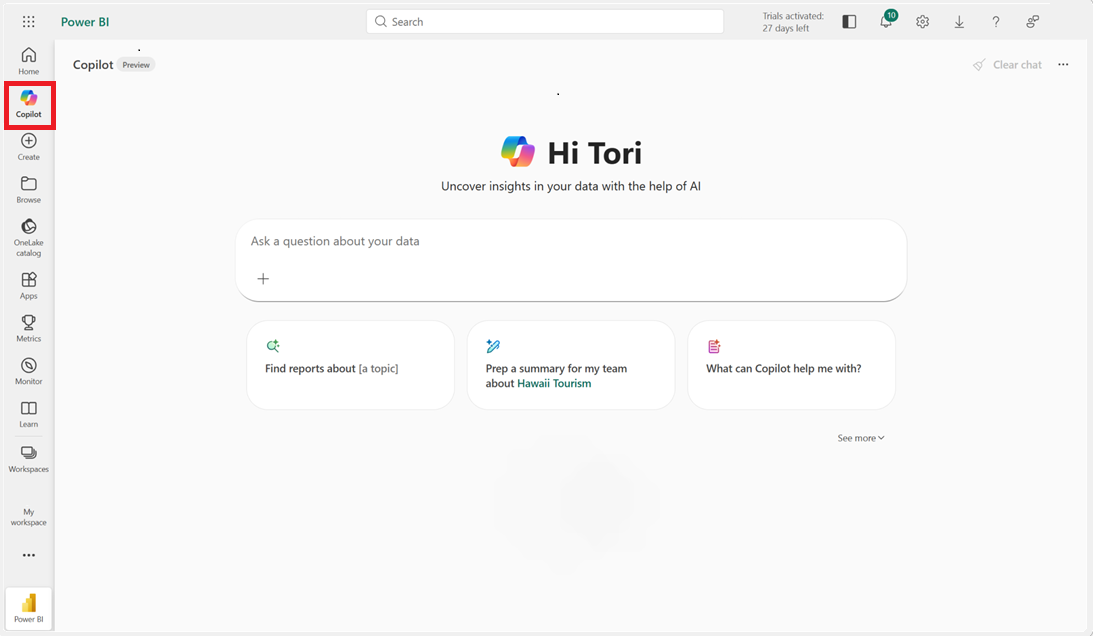
The first entry point is the Copilot icon in the left navigation bar. The Copilot icon can be moved or unpinned like other items.
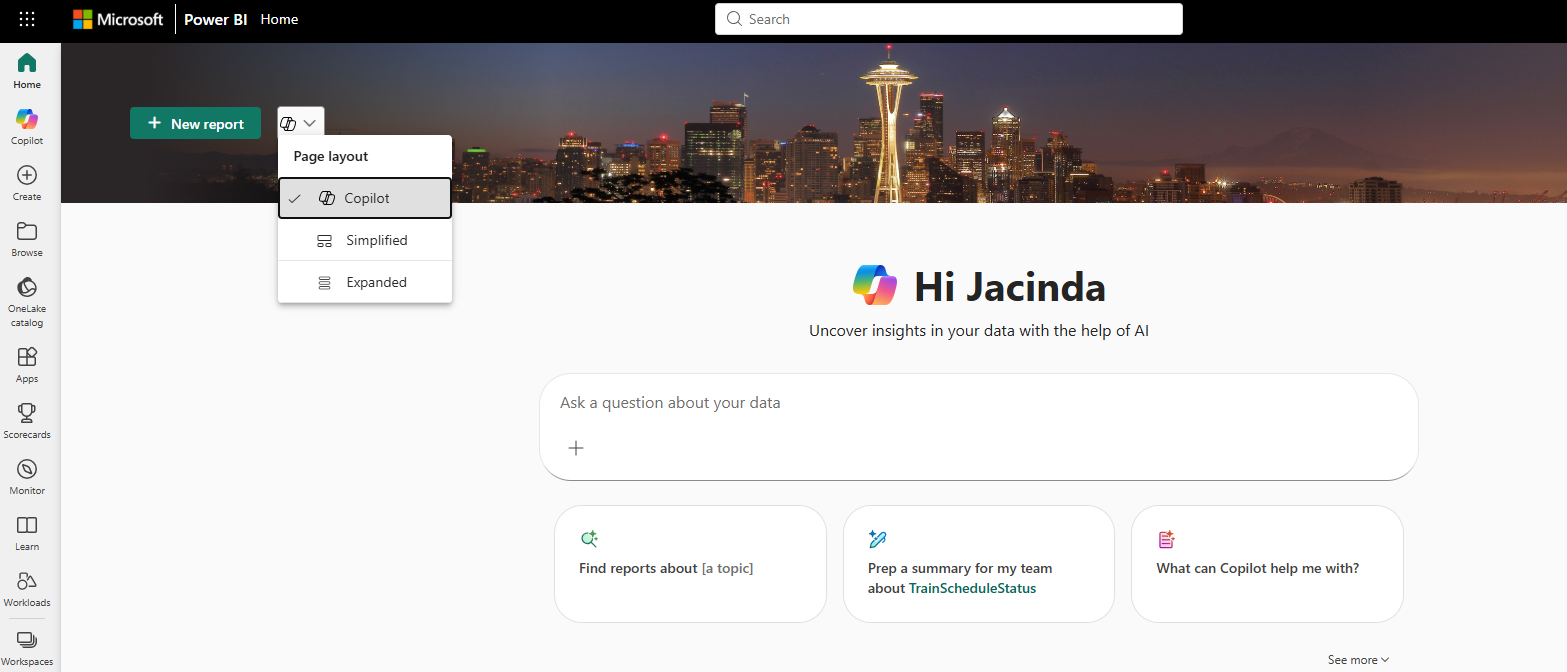
The second entry point is on the Power BI Home page. This entry point appears automatically when the standalone Copilot is enabled by your tenant admin and there's a valid Copilot capacity available. If you prefer the classic view, you can switch back to Simplified using the picker at the top of the Home page.
Note
Admins need to turn on the tenant setting: To try it out, admins need to enable Copilot in Power BI, and additionally enable the following new tenant setting: Users can access a standalone, cross-item Power BI Copilot experience.
Data must be prepped for Copilot: Copilot works best when the report author has prepared the data specifically for Copilot, and marked the model as approved for Copilot. If that setup hasn’t been done, answers may be limited or inaccurate. For more information, see Prepare your data for AI.
Approve your data for Copilot: Semantic model authors have the ability to approve a model for use with Copilot in model settings. This impacts the appearance of content warnings for end users. For more information, see Approve your model for use with AI.
Warnings on data not set as approved for Copilot: Models that aren't approved for Copilot will appear with warnings that the answer quality could be low.
Capabilities
The standalone Copilot experience in Power BI offers a range of powerful capabilities to help you interact with your data more effectively. Copilot provides a conversational interface that simplifies data exploration and analysis. Here are some key features available in this experience.
Find the right data to answer your question
When you ask questions about your data, Copilot will work with you to understand your topic of interest and use that context to identify the right report, semantic model, or data agent to use as its source. If it finds an item that's a strong match for your question, it will select it in the background and deliver you an answer right away. When more context is needed, Copilot will ask simple clarifying questions to narrow it down. For best results, instead of typing a few keywords like we do with search engines, communicate like you would with a colleague:
- Use full sentences.
- Include contextual details to help Copilot find the right source.
- Respond thoughtfully to follow-up questions.

Although the additional reasoning may require a short wait, getting your answer from a reliable source is worth the pause. Alternately, if you know exactly which report or semantic model you want to reference, you can attach it to your chat using the + option. Then it appears in the Copilot conversation and is used to answer your questions.

Deliver answers, visuals, and summaries
The standalone Copilot experience can summarize data from reports (learn more about summarizing a report or topic here), and use the report visuals to answer specific questions. If the answer can't be found in the report, Copilot will then use the measures and other data fields in your semantic model (or even create new DAX calculations) to generate the answer for you. Learn more about asking questions about your data.
Search for items
You can ask Copilot to find reports, semantic models, apps, and data agents that you have access to. In response, you get a hyperlinked list of relevant items, with helpful descriptions to make it easy for you to find the right thing. Learn more about searching for items

Use a Fabric data agent
You can use Fabric data agents to get answers without leaving the standalone Copilot experience. Fabric data agents are custom-built experts in specific topics, trained by a developer within your organization.

Prep data for AI and mark as approved for Copilot
You must prepare your data for it to work well with Copilot. Preparing your data for AI creates the foundation for high-quality, grounded, and context-aware AI experiences. When data is unstructured or ambiguous, AI systems can struggle to interpret it correctly - leading to generic, inaccurate, or even misleading outputs.
Once your data is prepared for AI, you should mark the semantic model as approved for Copilot. If your data is not marked as approved for Copilot, you get a warning that the answer might be low quality. You can choose to explore the data or view the answer anyway.

If you select the View answer button, the response appears in chat.

Once your data is set as approved for Copilot, responses appear in the chat without the warning.
Copilot requirements
Read about requirements to use the standalone Copilot experience.
Considerations and limitations
- The standalone Copilot experience is only available to customers with home tenants in geographical regions that support Fabric—so it's only available for customers with home tenants in this list. You don't need to have Fabric enabled to use Copilot, they just need to have home tenants in one of the listed regions.