Note
Access to this page requires authorization. You can try signing in or changing directories.
Access to this page requires authorization. You can try changing directories.
Power BI Desktop for Apps brings custom report app creation into your Power BI workflow, without requiring you to set up or manage developer tools. Describe what you need in natural language, generate an app powered by Fabric Apps, and preview it locally as you work. Refine the app through chat or manual edits, then publish it to a workspace when you're ready to share it.
Connect existing semantic models hosted in the Power BI service to build your app around the business data and definitions you already use. You can also reopen a local app project and continue editing from this desktop experience.
Prerequisites
- Enable access: The tenant setting for Power BI Desktop for Apps is on by default, but your Fabric administrator can restrict or disable access. To use the Power BI Desktop entry points, also enable the Power BI Desktop preview setting, and sign in to Power BI. Turning off the preview setting hides those entry points but doesn't block direct use of an installed app when tenant access is enabled. For administrator guidance, see Power BI Desktop for Apps tenant setting.
- Install Power BI Desktop for Apps and sign in to Power BI and GitHub. You need a GitHub account with a GitHub Copilot license.
- Semantic-model permissions: You need Build permission on each semantic model you connect to your app. The semantic models must be hosted in the Power BI service. People who use your app need Read permission on each connected semantic model, plus permission to open and use the published app.
For more details about prerequisites and getting started, see Set up Power BI Desktop for Apps.
Open Power BI Desktop for Apps
Power BI Desktop for Apps connects to semantic models hosted in the Power BI service. Connections to local semantic models aren't supported.
- Open Power BI Desktop for Apps using one of these options:
In the Power BI Desktop File/start experience, select Report app in the New section. This option opens the app without passing a semantic model from Power BI Desktop.

In Report view or Model view, open the Home ribbon and select New report app in the Power BI Desktop For Apps section.

After installation, open Power BI Desktop for Apps directly, like any other application on your computer.
- If you selected New report app from the ribbon, the next step depends on the report's semantic model:
Import or DirectQuery: A dialog box lets you choose whether to use the report's semantic model or open without it. To use the open report's semantic model in your app, select Publish and open, choose a destination workspace, and publish the report and its semantic model. When publishing finishes, select Open Power BI Desktop for Apps. You can also select Open without publishing to open Power BI Desktop for Apps without the semantic model.

Live connection to a Power BI semantic model hosted in the service: Power BI Desktop for Apps opens directly with the report's semantic-model context. You don't need to publish the report first.


Note
Using a report's semantic model in an app doesn't convert the report's pages or visuals into an app.
Start creating a new app
On the start page in Power BI Desktop for Apps, describe the Fabric app you want to build in the chat bar.
Before sending your first prompt, review the project name and local folder location and change them if needed.
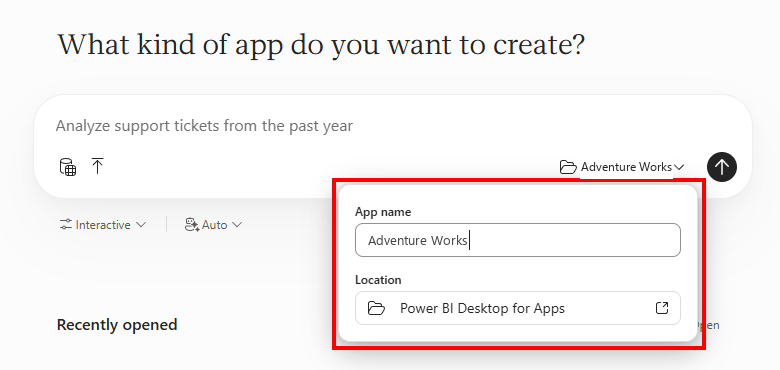
At any point while chatting, you can also:
- Connect semantic models: Select Add content > Get data in the chat bar to select existing semantic models hosted in the Power BI service. A Fabric app can use multiple semantic models. You need Build permission on each semantic model to connect.
- Add context: Upload files or images with the upload button, or drag and drop them into the chat bar.
- Customize your AI settings: Choose an agent mode and tool permissions from the Interactive dropdown, and select an AI model to use.
Note
If Power BI Desktop for Apps is already running, launching it from Power BI Desktop doesn't automatically attach the report's semantic model. Check that the intended semantic model is selected before sending your prompt. If it isn't attached, select Add content > Get data in the chat bar to select it.
Generate and refine your app
- Send your first prompt to create and open the new Fabric app project.
- Wait for the authoring operation to finish.
- Review the local preview of your app in the app pane, which opens in View mode.
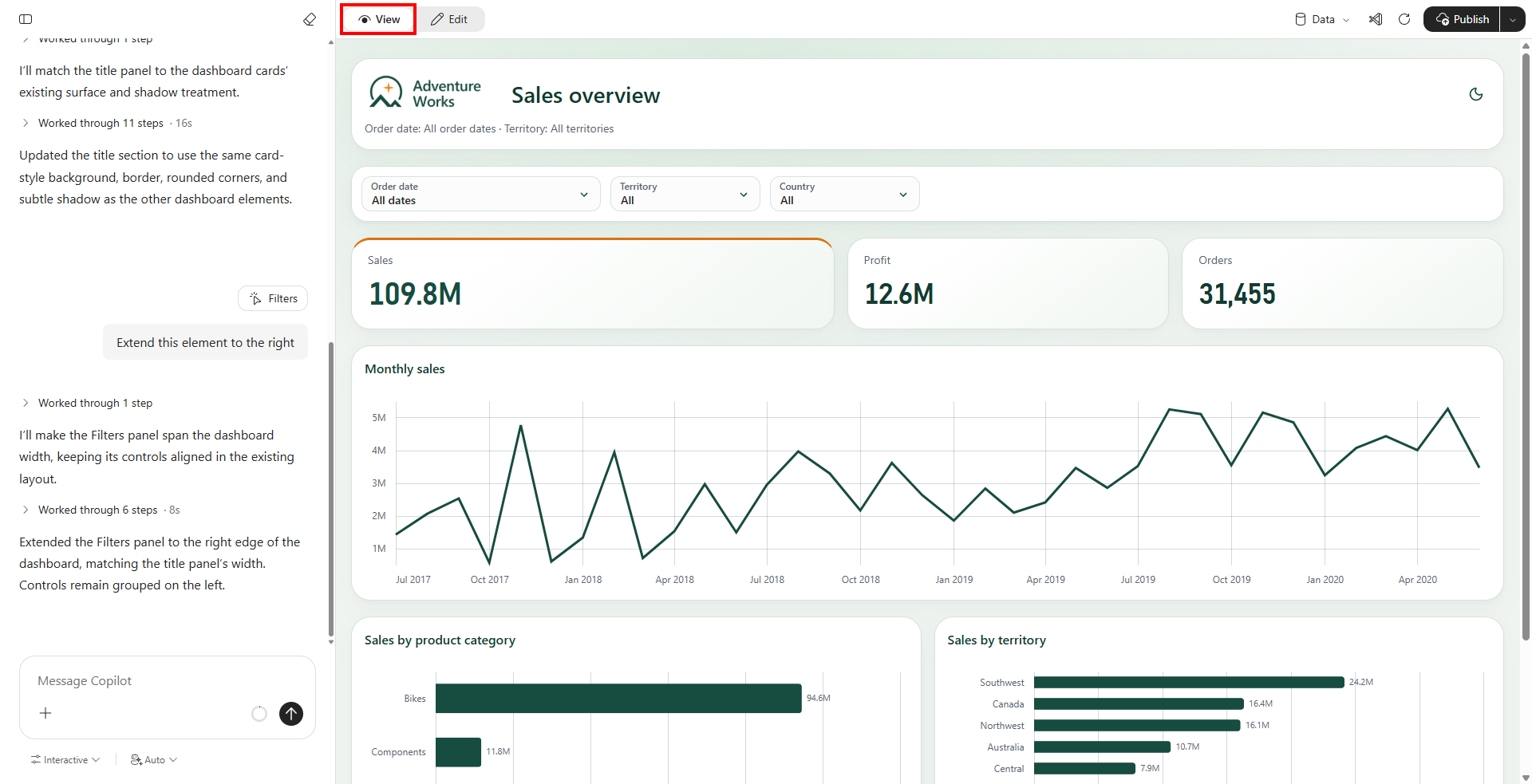
To refine your app in chat, send a message describing the change you want. Wait for the change to finish, then review the updated app in the app pane. You can also make changes in Edit mode, as described in the following section.
Make targeted changes in Edit mode
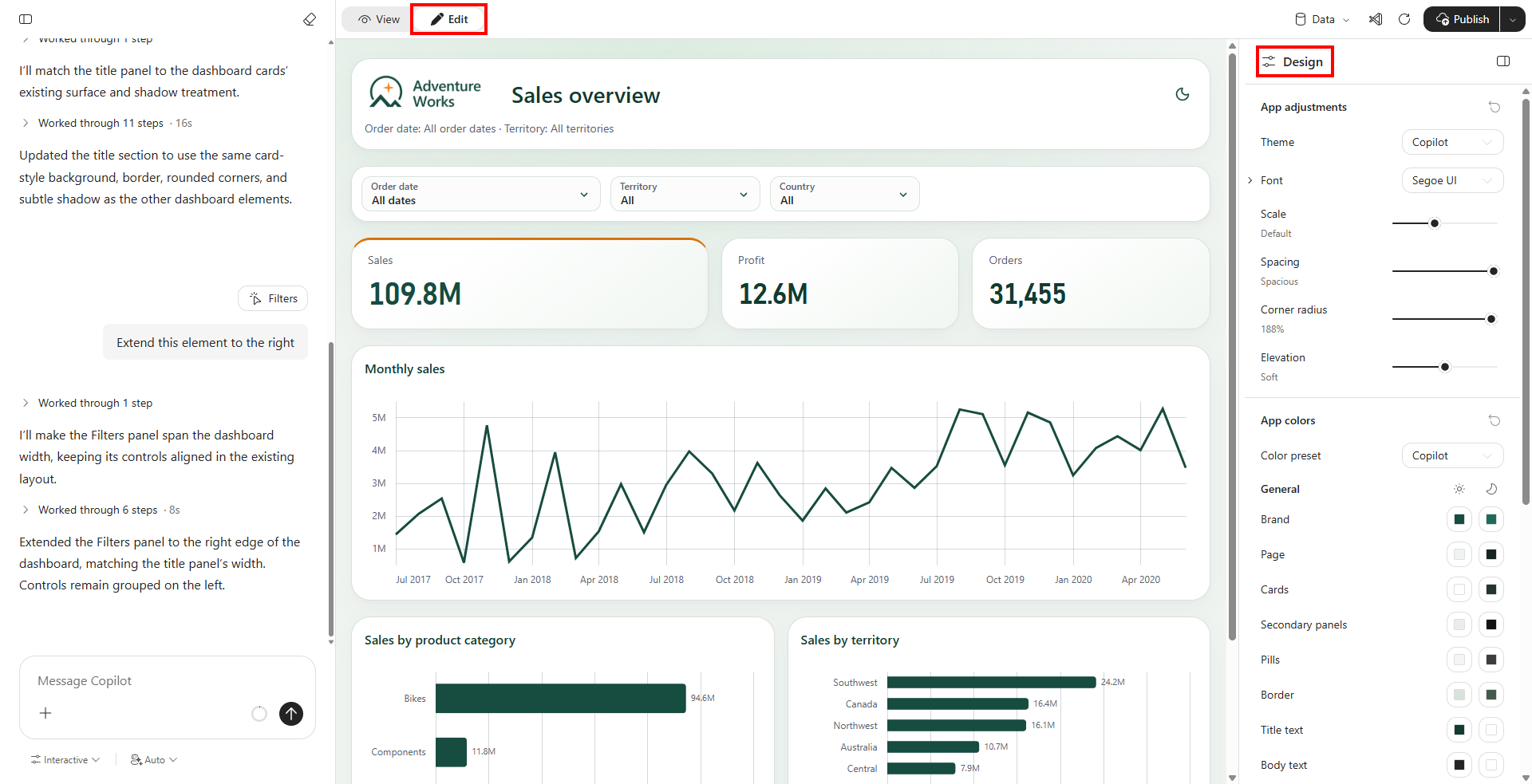
- Select Edit at the top of the app pane. The Design pane opens on the right.
- Use the Design pane to change the app's appearance. For example, you can adjust its theme, fonts, colors, and spacing.
- Select View and check both appearance and behavior.
In Edit mode, you can also select and edit static text, such as a heading or button label. You can't directly edit text that comes from data or calculations.
You can also pin an element as context for chat:
In Edit mode, select the element you want to change.
Pin the selected element as chat context. This step identifies the element you're referring to in your message.
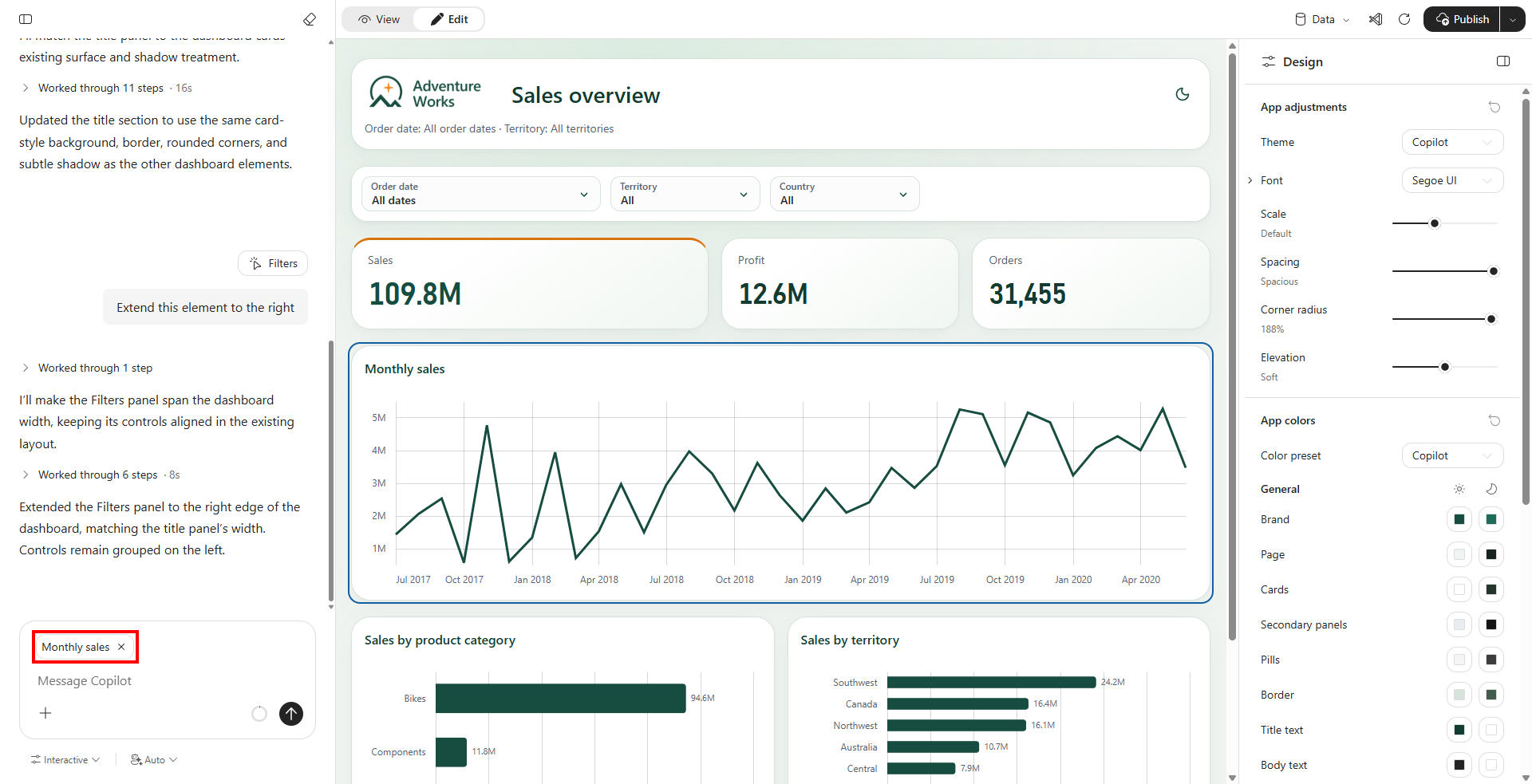
Enter the change you want to make in chat and send your message.
Review the updated element in the app pane.
Tip
To undo a change made through chat or Edit mode, select Undo in the top ribbon. Select Redo to restore an undone change.
Reopen a local app
To continue an existing project instead of creating a new app:
- Open Power BI Desktop for Apps.
- Open your project using one of these options:
- Select it under Recently opened on the home page.
- Select it from the project dropdown in the top ribbon.
- Select the Open folder icon and choose a local app project in File Explorer.
- Check that you opened the intended project and wait for the app to load. You can then continue making changes.
Rename or move a local project
Close Power BI Desktop for Apps before renaming or moving a local project folder. Then rename or move the folder in File Explorer and reopen it by using the Open folder icon.
Renaming the folder doesn't change the name of your published app. To rename a published app, use the Fabric portal.
Check the app before publishing
Before publishing, review the app preview:
- Check that visuals display correctly and text is readable.
- Use the app's filters and other controls to check that they work as expected.
- Review the displayed data and number formatting.
Local preview supports data access through Power BI semantic models in the service. Local app preview doesn't support database connections or write-back.
For publishing steps, updates to an existing app, and access checks, see Publish a Fabric app and manage access.