Note
Access to this page requires authorization. You can try signing in or changing directories.
Access to this page requires authorization. You can try changing directories.
Applies to: ✅ Power BI Desktop and Power BI service
The Design ribbon brings report themes and common page settings together. Use it to apply a built-in theme, open the Theme pane, or go directly to page size, background, and wallpaper settings.
In the Power BI service, the Design ribbon is available in Editing mode when you turn on Try the new ribbon (preview). For more information about the preview, see Use Report view in the Power BI service.
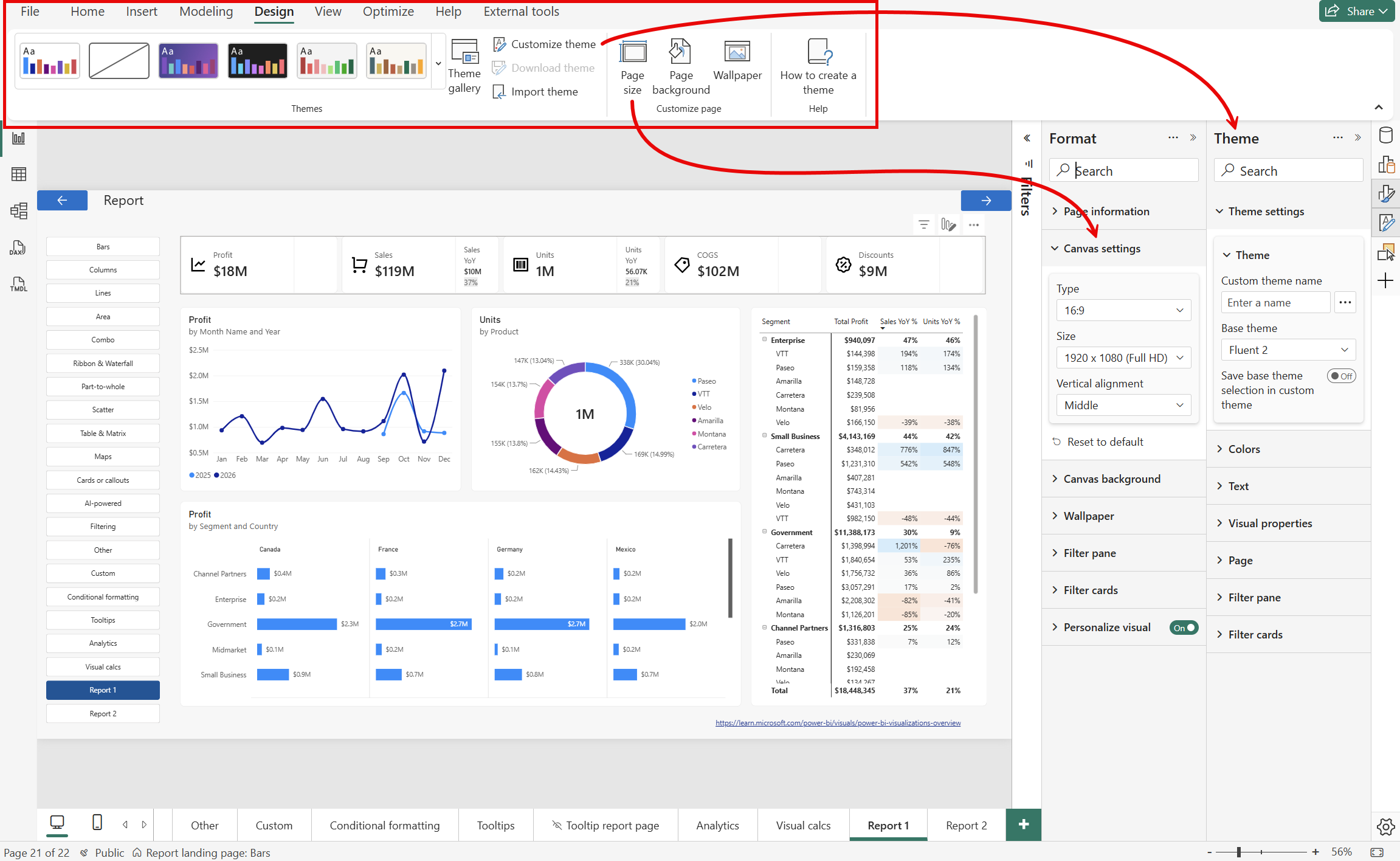
Apply a built-in theme
Built-in themes provide coordinated colors and formatting for your report.
- Select the Design ribbon.
- In the Themes gallery, select a theme.
The theme applies to all report pages. Formatting that you apply directly to a visual or page takes precedence over theme defaults. For more information, see Use report themes in Power BI.
To find more themes, expand the Themes gallery and select Theme gallery. Theme customization, import, and download commands are available directly on the Design ribbon rather than in the expanded gallery.
Open the Theme pane
Use the Theme pane to update report-wide defaults for colors, text, visual properties, pages, and filters.
- On the Design ribbon, select Customize theme.
- In the Theme pane, expand the section that you want to update.
You can also use the commands next to Customize theme to import a theme or download the current theme. For details about the available settings, see Visual defaults in Power BI reports.
Open page settings
The Customize page group provides shortcuts to settings for the current report page:
- Page size opens Canvas settings in the Format pane.
- Page background opens Canvas background in the Format pane.
- Wallpaper opens Wallpaper in the Format pane.
Changes that you make from these settings apply to the current page. To define page defaults across the report, use the Page section of the Theme pane. For more information about page size, see Apply page size and settings in a Power BI report.