Note
Access to this page requires authorization. You can try signing in or changing directories.
Access to this page requires authorization. You can try changing directories.
Translytical task flows help analytics teams set up alerts directly in Power BI reports, so report consumers stay informed about data changes and incidents without mass emails. Email-based alerts tend to suffer from two problems: they either become background noise that users learn to ignore, or they fail to reach the right audience at the right time.
If your team faces the challenge of reports serving a broad set of stakeholders with no reliable way to keep them informed about data problems, refreshes, or changes, translytical task flows offer a lightweight, no-email solution that brings notifications directly into Power BI reports themselves.
This article shows you how to set up an in-report notification system that shows alerts to the right audience, with a single source of truth and no email distribution lists.
You can use this pattern for common scenarios such as data quality incidents, planned maintenance windows, and report-specific messaging.
Understand the problem this pattern solves
Traditional notification workflows for analytics reports suffer from several shortcomings:
- You can easily send emails but targeting is hard.
- Distribution lists often include people who don't use the affected report or miss people who do.
- After you send an email, there's no central record of active alerts tied to a specific report.
- Users who open a report after the email was sent might never see the alert.
The result is a gap between the people who know about an issue and the people who need to know. A dynamic, in-report notification system closes that gap.
Review the end-to-end flow
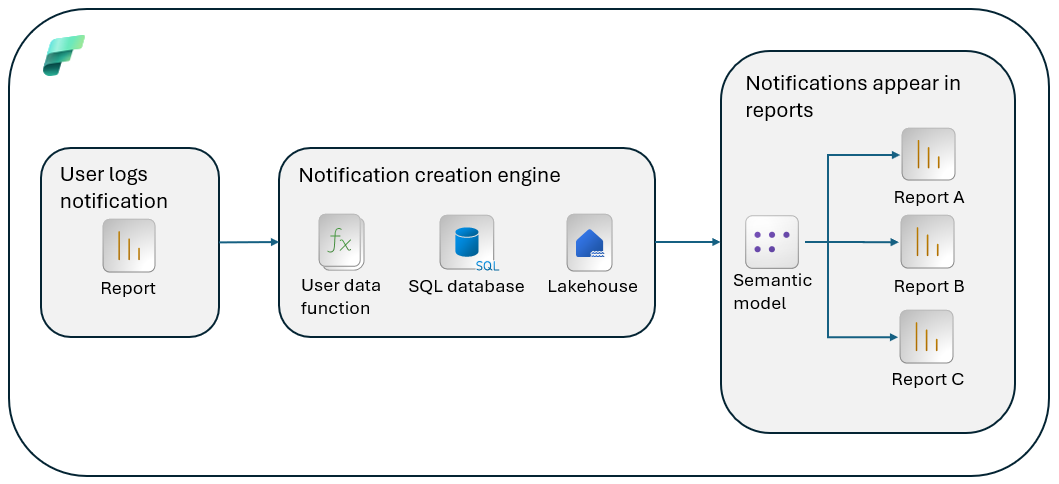
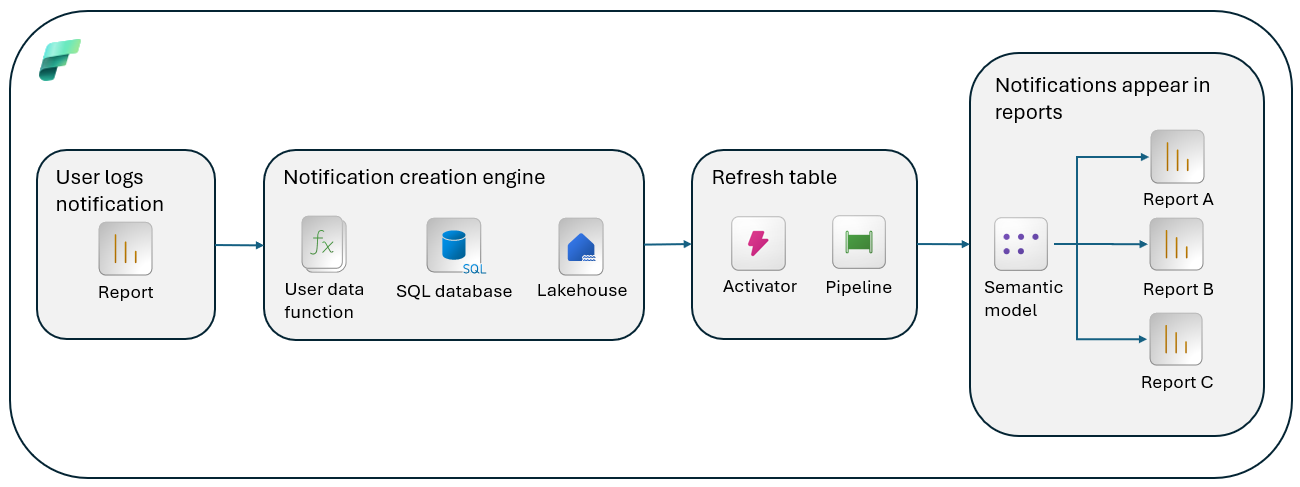
This solution uses a few core Fabric components to create a lightweight, self-service notification pipeline. User Data Functions handle most of the work. The notification lifecycle follows four steps:
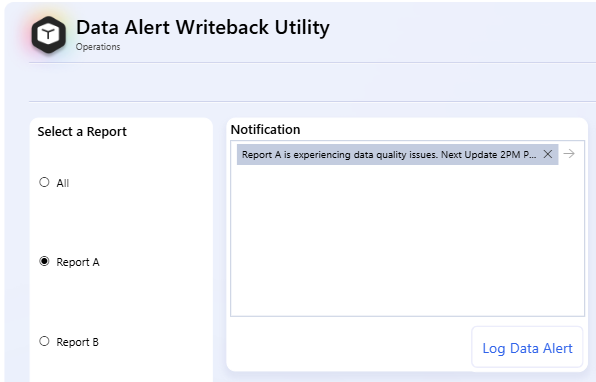
- Create – A user opens a dedicated "Data Alert Writeback" report, selects the target report from a predefined list, types a notification message, and selects Log Data Alert.
- Store – The button fires a connected User Data Function, which runs a SQL stored procedure to insert a new record into a notification table in SQL database in Fabric.
- Replicate – A Lakehouse shortcut mirrors the notification table, so the data is immediately available to the Direct Lake semantic model without a separate extract, transform, load (ETL) step.
- Show – Every report that references the semantic model can display relevant notifications, filtered by report name, so users see only the alerts that apply to them.
Because the notification table is exposed through a shortcut from SQL database to a Lakehouse on a Direct Lake model, the data flows through naturally.
Define the notification data model
Treat notifications as data and design a table that supports both targeting and lifecycle management. At minimum, include:
- Notification ID
- Created by
- Created date/time
- Target report
- Notification message
- Active status
Depending on your requirements, you might also include severity, effective start and end times, and an optional link for remediation guidance.
Keep this table authoritative for all active alerts so every downstream report reads from the same source of truth.
Create a notification
To create a notification, use a purpose-built Power BI report that uses translytical task flows. This report provides a guided experience:
Select the target production report from a dropdown list. For this scenario, compile a list of valid reports by scraping the production workspace with SemPy.
Enter a clear, concise message describing the issue or update. For example:
"Report A is experiencing data quality issues. Next update expected at 2:00 PM PST."
Select Log Data Alert to submit.
Track notification visibility
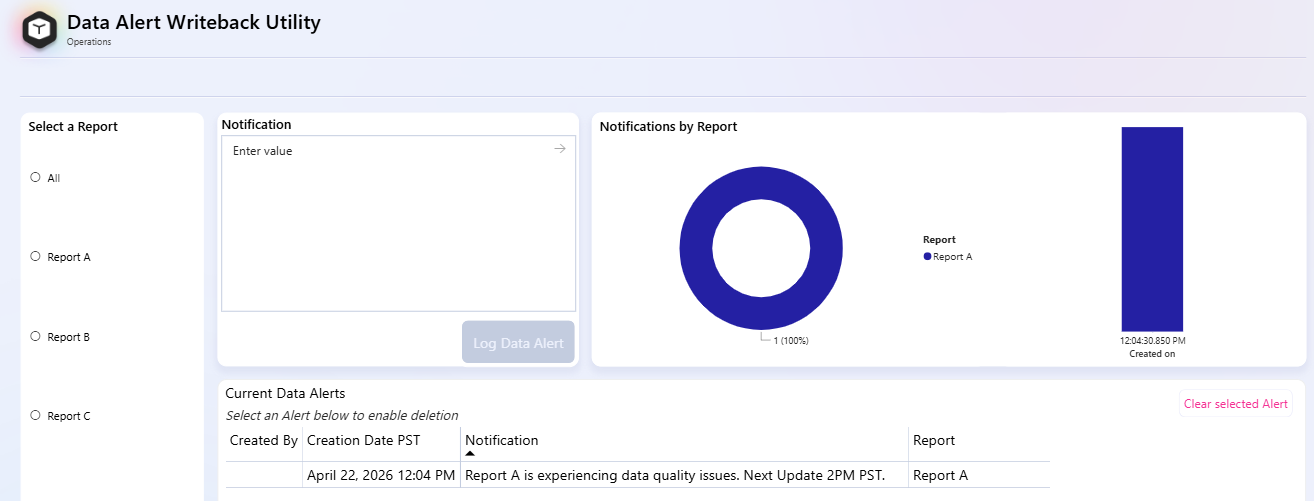
Within seconds of submission, shortcuts and Direct Lake add the notification to the semantic model. A dedicated tracking view lets administrators and report owners monitor all active notifications at a glance. Key fields include:
- Created By
- Creation Date (PST)
- Notification Message
- Target Report
Because the semantic model acts as a single source of truth for all downstream reports, every connected dashboard benefits from the same notification data.
Control which alerts appear on each report
Not every notification belongs on every report. The framework uses Power BI's built-in filtering to let each report owner decide which alerts are relevant. A typical filter configuration might include:
- Report = "All" – for service-wide announcements visible everywhere.
- Report = "Report A" – for alerts specific to a single report.
When to use this pattern
This pattern works best when report consumers need timely, targeted updates in context:
- Data quality incidents: Inform users when data is delayed, incomplete, or under investigation.
- Planned maintenance windows: Communicate upcoming refresh changes, migrations, or expected downtime.
- Report-specific messaging: Share caveats, release notes, or temporary guidance for a specific report or report group.
Show alerts inside the report
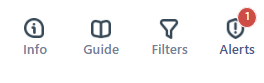
Users interact with notifications through a utility bar at the top of each report:
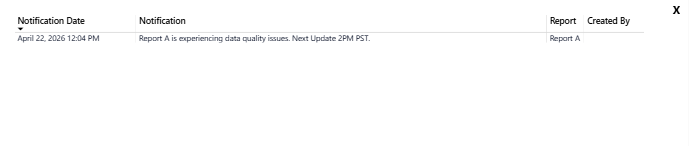
- Persistent indicator: An Alerts button is always visible in the utility bar.
- Live count: A badge on the button shows the count of active notifications based on the report's filter configuration.
- Detail view: Selecting the button opens a detail view listing every active notification with its date, message, target report, and creator.
This design keeps alerts visible but nonintrusive. Users are informed the moment they open the report, and they can drill into details on demand.
Adapt the pattern for non–Direct Lake models
If your semantic model doesn't use Direct Lake mode, the notification data won't appear automatically after the Lakehouse shortcut is updated. In this case, extend the architecture with two other components:
- Trigger: Data Activator monitors the notification table for new records.
- Refresh pipeline: A Fabric pipeline uses a refresh semantic model activity to select and hydrate a single table (the notification table) when the Activator fires.
For this variant, keep the refresh scope as narrow as possible (notification table only) so you reduce latency and avoid unnecessary model processing.
The implementation sequence is:
- Configure Data Activator to detect new or changed active notifications.
- Trigger a Fabric pipeline run when that event occurs.
- Refresh only the notification table in the semantic model.
- Validate that report filters still scope notifications by report name.
The rest of the flow remains identical. Users still create notifications through the same writeback report, and downstream reports still consume them through the semantic model.
Summary
By using translytical task flows in Fabric, you can show targeted, in-context notifications without a single email. The benefits include:
- Users see alerts where they work - inside the report.
- Alert targeting is precise, controlled at the report level.
- There's a single source of truth for all notification data.
- The framework is lightweight and built entirely on Fabric.
Whether your semantic model uses Direct Lake or import tables, this pattern is adaptable and puts the right information in front of the right people at the right time.
Ready to get started? Start with the translytical task flow overview or explore User Data Functions to set up your first notification pipeline.
Related content
- Understand translytical task flows – Learn the core concepts behind translytical task flows in Microsoft Fabric.
- User Data Functions Overview – Explore how User Data Functions run stored procedures to power the notification pipeline.
- Use SQL database as the source data engine for translytical applications – Use this architecture as a template for SQL-backed translytical patterns in Fabric.
- Get started with Data Activator – Set up triggers to monitor your notification table for non–Direct Lake models.
- Lakehouse shortcuts in Microsoft Fabric – Understand how shortcuts mirror your notification table into the Lakehouse.