Note
Access to this page requires authorization. You can try signing in or changing directories.
Access to this page requires authorization. You can try changing directories.
You can't display page tabs to the user in a multiple-language report because page tabs in a Power BI report don't support localization. For localization, you must provide some other means for users to navigate from page to page.
You can use a design technique where you add a navigation menu that uses buttons. When the user selects a button, the button applies a bookmark to navigate to another page. This section describes the process of building a navigation menu that supports localization using measures from the Localized Labels table.
This article uses the multiple-language demo project and Power BI Desktop. You don't need a Power BI license to start developing in Power BI Desktop. If you don't already have Power BI Desktop installed, see Get Power BI Desktop.
Hide tabs
When you hide all but one of the tabs in your report, none of the tabs appear in the published report. The report opens to the page of the unhidden tab. Even that tab isn't displayed.
Start by hiding all but one of the tabs.
Open the report in Power BI Desktop.
For each tab that you hide, right-click and select Hide Page from the context menu.

Create bookmarks
Each button uses a bookmark to take the reader to a page. For more information on bookmarks, see Create page and bookmark navigators.
From the View ribbon, select Bookmarks to display the Bookmarks pane.
In the Bookmarks pane, create a set of bookmarks. Each bookmark navigates to a specific page.
Select a tab, starting with Sales Summary, which serves as the landing page.
In Bookmarks, select Add.
Right-click the new bookmark and select Rename. Enter a bookmark name, such as GoToSalesSummary.
Right-click the bookmark name and disable Data and Display. Enable Current Page behavior.

Repeat these steps for each of the hidden tabs. The Bookmark pane has the following bookmarks:

Configure buttons
The multiple-language demo project contains buttons for navigation. To learn more about adding buttons, see Create buttons in Power BI reports.
Select a button at the top of the report, starting with Sales Summary.
Under Format, select Button > Action. Set Action to On.
Under Action, set Type to Bookmark and Bookmark to the relevant bookmark, starting with GoToSalesSummary.
In the same way, configure each button in the navigation menu to apply a bookmark to navigate to a specific page.
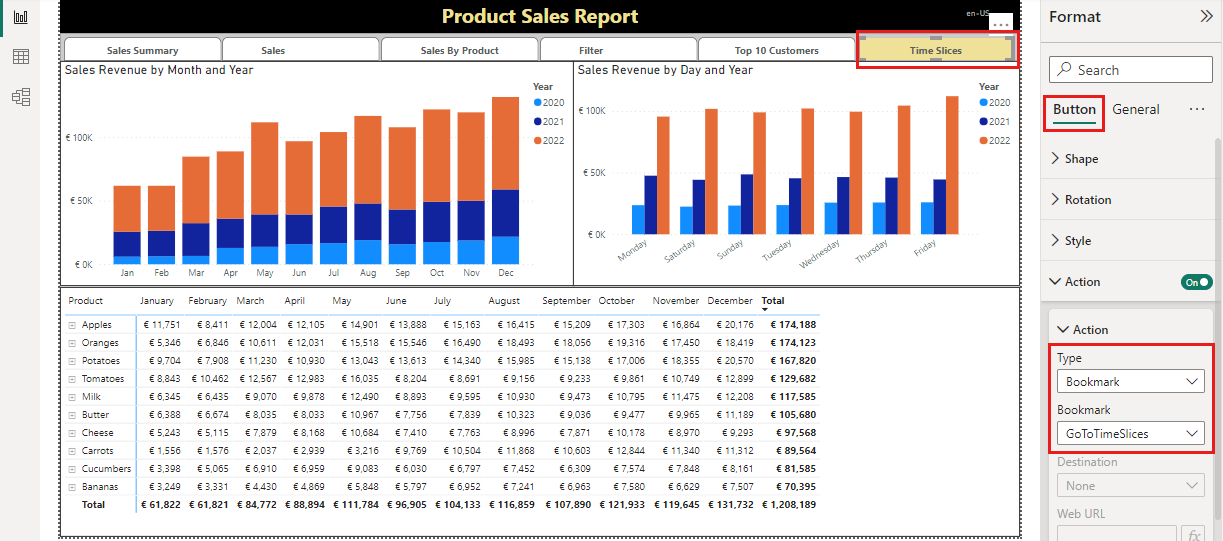
For each button, select Button > Style > Text and then select the function button.

In the Text - State dialog box, from the Translated Localized Labels table, select the entry that corresponds to that button. For instance, Time Slices Label for Time Slices.

Select OK to save your selection.


The report now has no visible tabs when you publish it to the Power BI service. The report opens to the Sales Summary page. Readers can move from page to page by using the buttons, which are localized by using the Translated Localized Labels table.
Note
With this technique, the screen reader treats each button as a separate entity and doesn't group them together as it would with tabs.