Note
Access to this page requires authorization. You can try signing in or changing directories.
Access to this page requires authorization. You can try changing directories.
Copilot in web modeling is an AI-powered assistant integrated into the Power BI service semantic model experience. It helps model authors analyze and improve their semantic models using natural language.
You can use natural language with Copilot alongside manual editing to get recommendations or apply changes directly to your model, with the flexibility to seamlessly switch between manual and AI-assisted edits.
Key capabilities
These capabilities represent just some of the key ways Copilot can help you enhance your semantic models. You can also explore additional actions beyond this list to further refine and optimize your model.
Model analysis and guided recommendations
- Identify problems like unclear structures and inconsistent naming
- Get best-practice recommendations to improve your model's design and quality
Model editing
- Create, update, and manage tables, columns, measures, and relationships by using natural language
- Generate or refine DAX business measures by using natural language (for example, totals, growth metrics, or aggregations)
- Create RLS roles to ensure secure data access
Model discoverability
- Suggest and implement clearer descriptions for tables, columns, and measures
- Propose display folder structures to organize fields logically
- Recommend which technical or intermediate fields to hide from report authors
Where to access Copilot in web modeling
You can use Copilot in web modeling in the Power BI service:
Open a semantic model in Model view
Switch from Viewing mode to Editing mode using the dropdown
Select Copilot from the ribbon
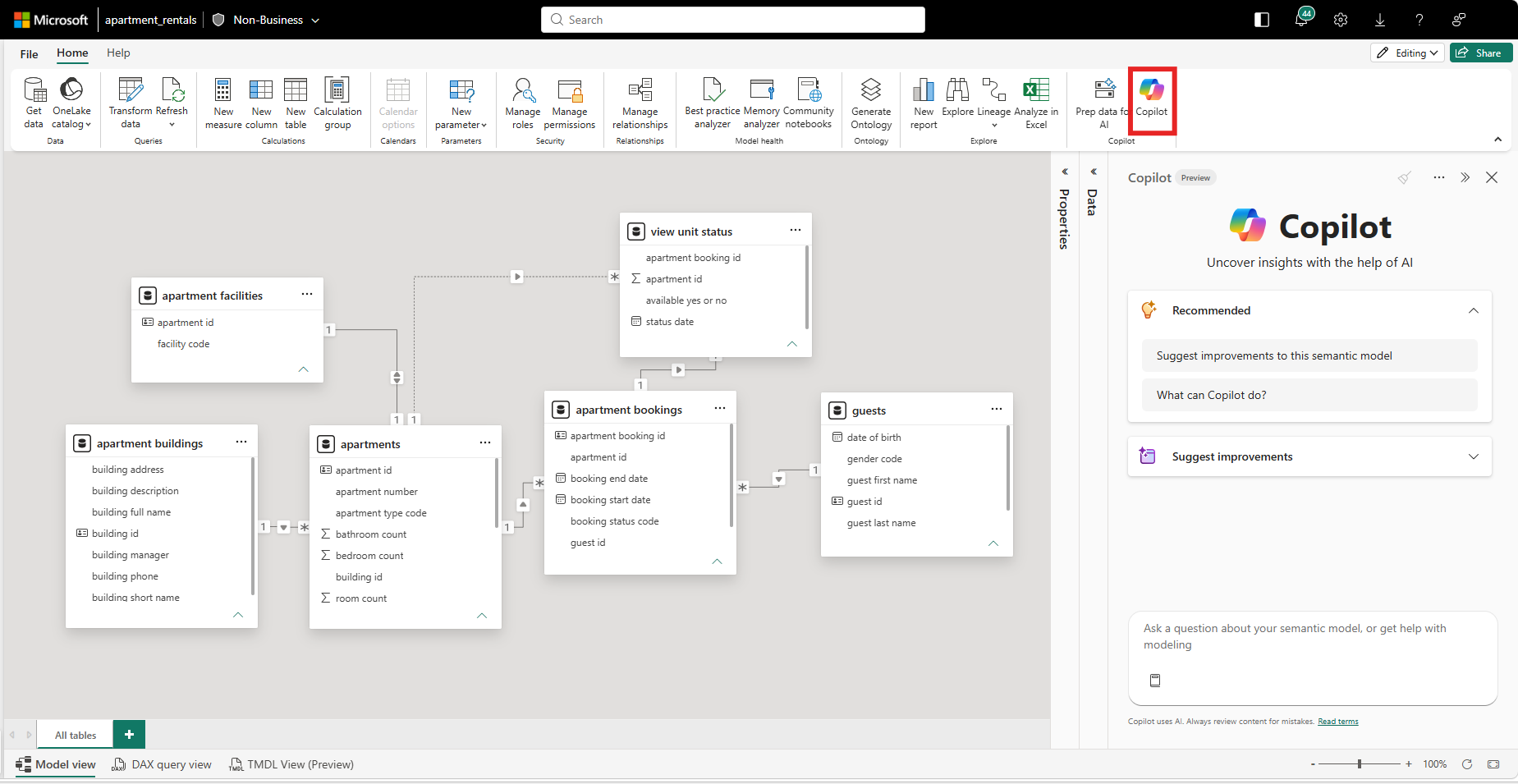
From the Copilot pane, you can start with suggested prompts or enter your own questions to analyze or update your model.
Controlled model updates
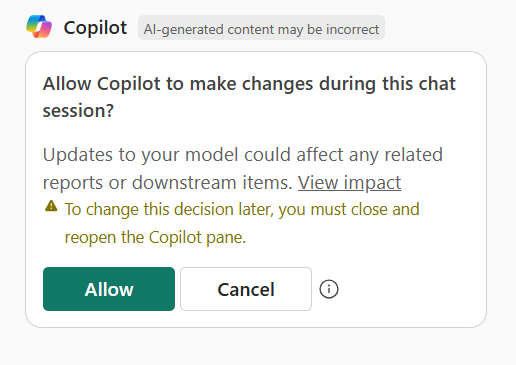
Before responding to your first prompt, Copilot asks for your permission before reviewing your model or suggesting changes. This is a one-time permission prompt that appears at the start of each Copilot session to ensure no updates are made without your approval. By providing approval, you are consenting to Copilot making changes to the specific semantic model you have opened during the full duration of the chat session for changes to be made. Copilot may also run DAX queries to access data from your semantic model in order to generate responses.
After you grant permission, Copilot creates a restore checkpoint at the start of the session using semantic model version history. You can use this checkpoint to revert the semantic model back to its original state before Copilot changes were applied in that specific chat session. This allows you to safely experiment with suggested updates, review changes, and restore your model if needed.
Permissions and model access
Copilot in web modeling respects your existing Power BI permissions. You can use Copilot to make changes only if you have the Write permission to edit the semantic model. Workspace Admins, Members, and Contributors all have Write access and can use Copilot to edit the active model.
Copilot’s editing access is limited to the model open in the current Copilot pane. It can also retrieve schema information of the other models you have access to in the same workspace, but those models are always read-only and can't be modified.
Considerations
As with any AI-assisted experience, review all suggested changes to ensure they meet your requirements. Copilot uses the current model context to interpret requests, so unclear or incomplete prompts may result in less accurate suggestions.
Limitations
- Using Copilot in web modeling to set prep data for AI currently isn't supported.
- Copilot in web modeling is designed to help with semantic modeling tasks, and requests outside this scope may not be supported.
- Copilot in web modeling is subject to Copilot for Power BI limitations and licensing requirements.