Note
Access to this page requires authorization. You can try signing in or changing directories.
Access to this page requires authorization. You can try changing directories.
APPLIES TO:  Power BI Desktop
Power BI service
Power BI Desktop
Power BI service
With the relative date slicer or relative date filter, you can apply time-based selections to the slicer or filter using a date column from your data model. For example, you can use the relative date slicer to show only sales data from within the last 30 days or last calendar month. When you view the report, the relative date period is applied and the specified range filters the other visuals on the page.
Create the relative date range slicer
You can use the relative date slicer just like any other slicer or visual when editing a report in Power BI. Select a Slicer visual to add it to your report page and then select a date column for the Field value. In the following image, we selected the Date column.
Note
If your report has a hierarchy with your data column from the auto date/time feature, the date column itself must be used instead of the hierarchy to use the slicer in relative date mode.
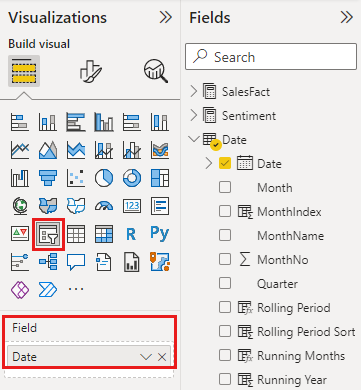
Select the slicer visual, and in the Format pane, under Visualizations > Slicer settings > Options, change the Style to Relative Date.

You can then select the settings in the date slicers. These settings are relative to the day the report is viewed, not the data range in the date column.
For the first setting, you have the following choices:
- Last
- Next
- This
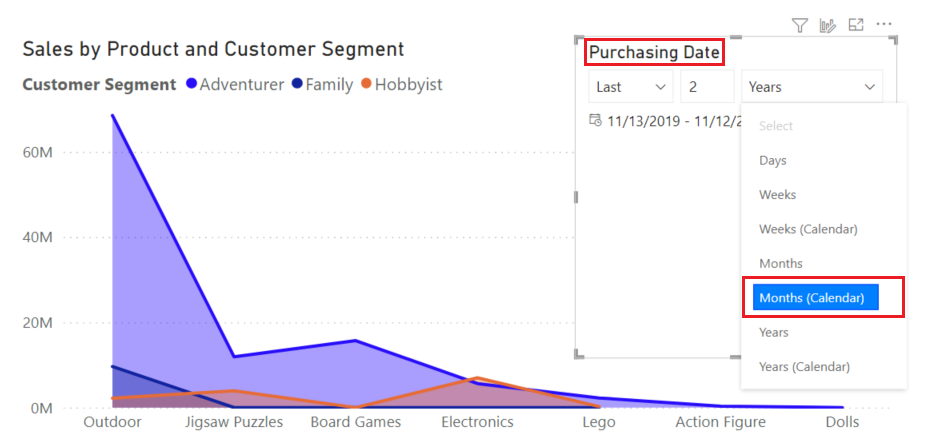
In the screenshot, Last is selected.

In the second (middle) setting in the relative date slicer, you enter a number to define the relative date range. This is only available for Last or Next, and disabled for This from the first setting.
In the screenshot, 2 is selected.

In the third setting, you pick the date part. You have the following choices:
- Days
- Weeks
- Weeks (Calendar)
- Months
- Months (Calendar)
- Years
- Years (Calendar)
In the screenshot, Years is selected. The settings are read as in the last 2 years and the date column is filtered to only dates in the last 2 years for the other visuals on the report page.

If you select Months instead, to make it the last 2 months, here's what happens:
If today is July 20:
- The data included in visuals constrained by the slicer shows data for the previous two months,
- Starting on May 21 and going through July 20 (today's date).
In comparison, if you selected Months (Calendar), the visuals constrained would show data from May 1 through June 30. The setting corresponds to the last two complete calendar months.
Tip
To avoid showing the partial current month in reports comparing months to prior months, use the months (calendar) setting to ensure only full months are selected.
Create the relative date range filter
You can also create a relative date range filter for your report page or your entire report. To do so, drag a date column from the Data pane into the Filters on this page section or the Filters on all pages section in the Filters pane:
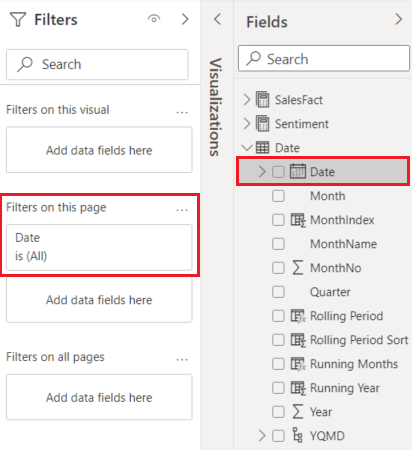
Once there, you can change the relative date range. It's similar to how you can customize the relative date slicer. Select Relative date from the Filter type drop-down.
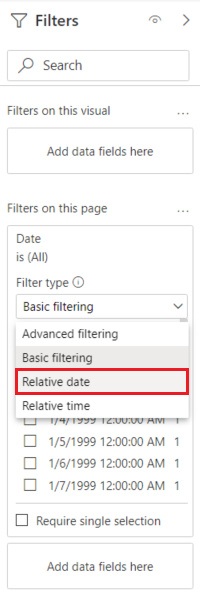
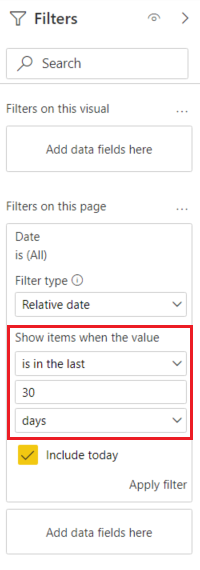
After you select Relative date, you see three sections to change under Show items when the value, including a middle numeric box, just like the slicer.
Considerations and limitations
The following considerations and limitations apply before showing the relative options in the slicer or filter pane.
- The data type for the column used in the slicer must be a date.
- The date hierarchy for auto date/time in Power BI can't be used. Use the date column directly.
- Date columns in Power BI don't include time zone info.
- When the report is published, slicer and filter relative options are always based on the time in UTC. If you set up a filter in a report and send it to a colleague in a different time zone, you both see the same data.