Note
Access to this page requires authorization. You can try signing in or changing directories.
Access to this page requires authorization. You can try changing directories.
Applies to: ✅ Power BI Desktop and Power BI service
Action buttons add dedicated buttons to a visual so report readers can take actions right from the visual. The Filter action button opens the filters for the visual in an overlay. Readers can change the visual's editable filters with the same experience as the Filters pane, without leaving the visual. Locked or hidden filters aren't available for readers to change.
You turn on action buttons for each visual in the Format visual pane. After you add an action button, report readers can use it when they view the report.
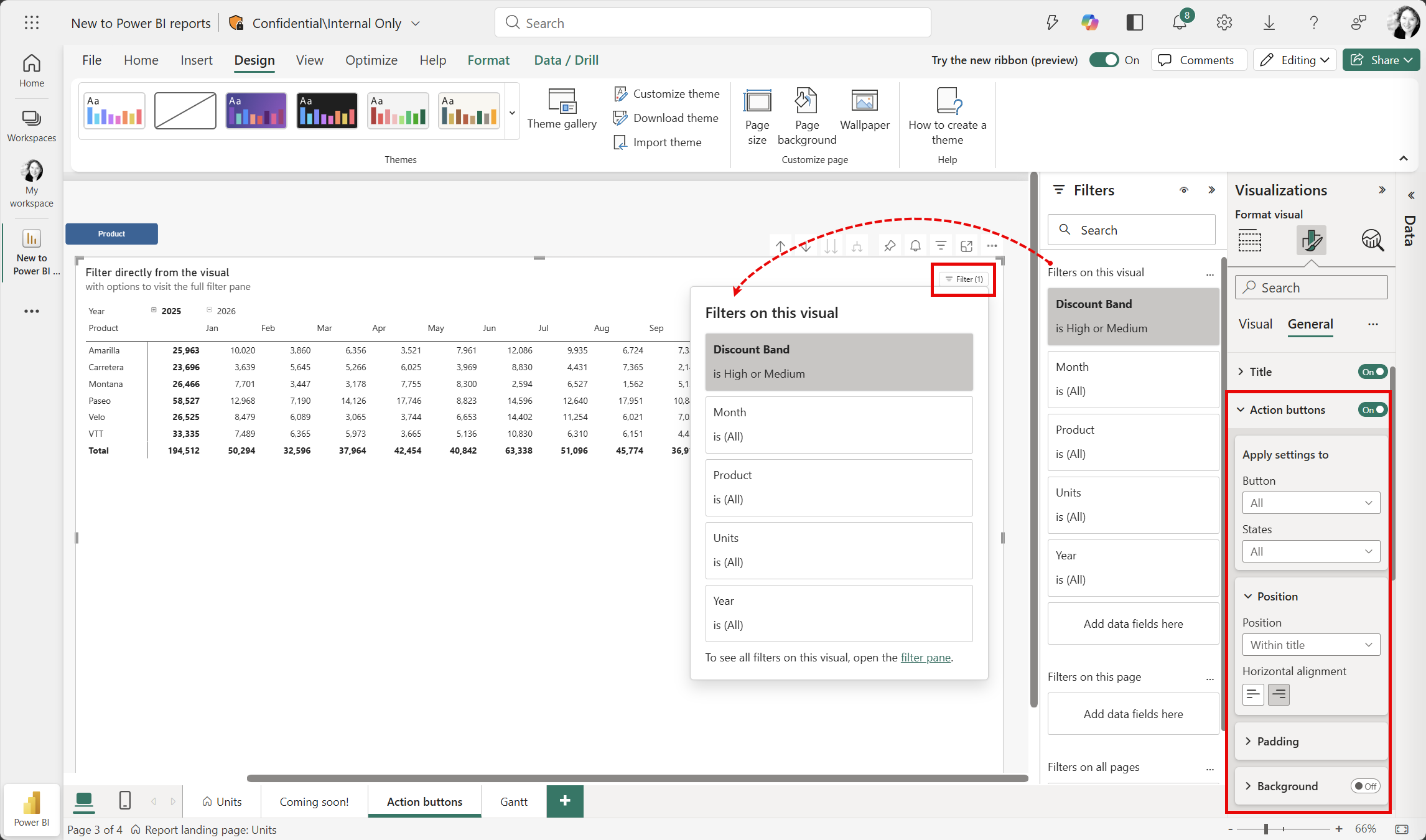
How the Filter action button works
The Filter action button brings the Filters on this visual section of the Filters pane to the visual itself.
- Active filter count: The Filter button shows the number of active visual-level filters. Page-level filters, report-level filters, and filters from slicers aren't included in the count.
- Visual filters only: The overlay shows only the filters in the Filters on this visual section. To change page or report filters, readers use the Filters pane. A link at the bottom of the overlay opens the Filters pane.
- Independent of the Filters pane: You can turn on the Filter action button whether the Filters pane is shown or hidden from report readers.
- Same filter card formatting: Filter cards in the overlay look the same as they do in the Filters pane. To change how they look, format the Filters pane.
- Light or dark background: The overlay background matches the light or dark mode setting in Power BI.
Add a Filter action button
Add a Filter action button to each visual you want readers to filter directly.
- Open your report in Power BI Desktop, or in editing mode in the Power BI service.
- Select the visual.
- In the Visualizations pane, select the Format visual icon, and then select the General tab.
- Turn on Action buttons.
The Filter button appears on the visual.
Format action buttons
Expand Action buttons on the General tab to change how the buttons look and where they appear.
- Apply settings to: Choose the Button and button States to format. Select All to apply your changes to every button or state.
- Position: Choose where the button appears. Select Within title, Above, or Below. Then set the Horizontal alignment to left or right.
- Padding: Set the space around the button.
- Background: Turn on a background for the button and set its color.
- Icons: Customize the appearance of button icons.
- Button text: Format the text displayed on buttons.
- Fill, Border, Shadow, and Glow: Customize button fills, borders, and visual effects.
Filter a visual with the Filter button
Report readers use the Filter button to change the filters on a visual.
- On the visual, select Filter. The Filters on this visual overlay opens.
- Expand a filter card, and then change the filter values.
For more information about changing filter values, see Modify filters.
Considerations and limitations
Action buttons are available only for table and matrix visuals.