Note
Access to this page requires authorization. You can try signing in or changing directories.
Access to this page requires authorization. You can try changing directories.
One of the most time-consuming tasks when using email or other productivity apps is sharing information in your line-of-business applications with colleagues. For example, you have to jump out of your Outlook web experience, open your line-of-business app, navigate to a record, and then copy and paste the link of the record into your email.
Wouldn't it be great if you could quickly access Dynamics 365 or Dataverse data directly from Microsoft 365 Copilot inside of your Outlook or other productivity apps?
That's now possible with a simple configuration in the Power Platform admin center. You can quickly allow your users to link to business records Microsoft 365 Copilot inside of productivity apps like Word, Outlook, and Teams. The records are available by using the /mention feature.
Security is top of mind, so only records that a user has access to and most recently used are available in the Microsoft 365 Copilot and productivity apps.
Geo, service, and compliance boundaries
A small set of data from Dataverse syncs with Microsoft 365 data. This sync might cross geo boundaries for multi-geo organizations where the Dataverse data might be in a different geographic region than the data stored for a user in Microsoft 365. Be aware that this sync also crosses service and compliance boundaries between the two platforms. Synced data includes the environment name, app name, and record name, and a link to the most recently used record.
If you make any changes to the synced data, including updates or deletions, the record updates or deletes in Microsoft 365.
Turn on the /mention feature
Turn on the Search for records in Microsoft 365 apps setting in the Power Platform admin center. When you turn on this setting, you can link to business records in productivity apps by using the /mention feature.
- Sign in to the Power Platform admin center.
- In the navigation pane, select Manage.
- In the Manage pane, select Environments.
- On the Environments page, select an environment.
- In the command bar, select Settings.
- Expand Product, and then select Features.
- Under the Search section, turn on Search for records in Microsoft 365 apps.
- Select Save to apply the changes.
After turning on the Search for records in Microsoft 365 apps setting, your users can open their Microsoft 365 Copilot inside of their productivity apps like Outlook web clients and quickly add links to their most recently used records to share with colleagues.
Important
- It can take up to 15 minutes after you view a record on your Dynamics 365 or model-driven apps before you can /mention that record on Microsoft 365 Copilot Chat in your productivity apps, like Outlook web client.
- The recipient of the email must have access to the environment with security roles that grant access to the data and must be able to access the shared record.
Most recently viewed Dynamics 365 and Power Apps records
Most recently viewed Dynamics 365 and Power Apps records are available in Microsoft 365 Copilot through the /mention experience, making it easy for users to reference business data directly within Copilot. Each record is displayed with an enhanced label that includes the Environment Name + App Name + Record Name, helping users quickly identify the correct record and its source.
If you access the same record through multiple apps, the label reflects the most recently used app from which you viewed the record. This label provides extra context and helps you distinguish between records that might exist across different business applications.
Link to business records in email messages in your Outlook web client
Copilot Chat
- Open your Outlook web client.
- Open Copilot.
- In Copilot, enter a prompt to create a new email with instructions to include business data, with /account.
- Copilot provides a draft email with business data.
- Ask Copilot to send the email.
Outlook client
Open your Outlook web client.
Select a new email.
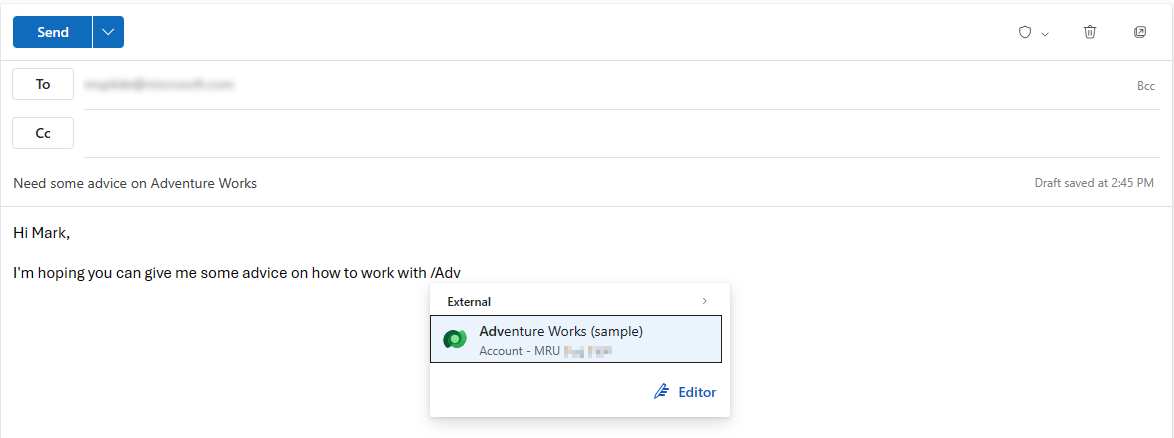
In the body of the email, type / and select the record you want to share with a colleague.
In this example, you see that the / mention is followed by the account "Adventure Works". When you select a record, a link to the record is inserted into the body of the email.
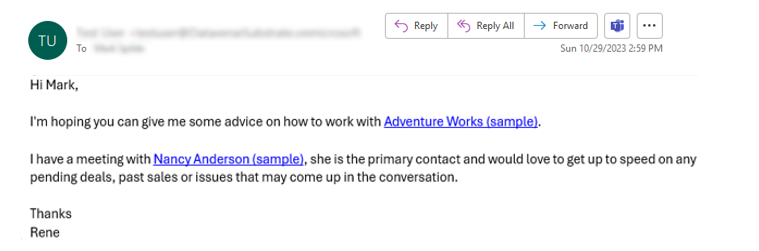
After selecting a record in the /mention form, a link to the record is added to the email in the Outlook web client. The recipient of the email can select the link and open the record, assuming the recipient has access to the environment, the app, and the record.
Link to business records in Copilot Chat, Researcher, Word, and Teams clients
Ask Copilot Chat with references to business record
To reference a recently viewed Dynamics 365 or Power Apps record in Copilot Chat, type / and the first few characters of the record and select the desired record from the suggested list. Copilot uses the referenced record as context to ground its response and perform actions against the relevant business data.
Example prompt: "Show all closed opportunities for /Contoso account"
In this example, /Contoso account is a recently viewed record selected through the /mention experience, allowing Copilot to automatically use that account as context for the request.
Ask Researcher to build a short brief
Similar to the Copilot Chat experience, you can reference recently viewed Dynamics 365 and Power Apps records in Researcher by typing / followed by a few characters of the record name and selecting the desired record from the suggested list. Use the selected record as context to help guide Researcher's analysis and report generation.
Example prompt: "Prepare a market analysis for /Contoso account"
Note
Currently, Researcher uses the referenced record as contextual grounding to gather and synthesize information from the web and your Microsoft 365 productivity data (such as emails, files, meetings, and chats). Researcher doesn't currently retrieve or reason over live Dynamics 365 or Power Apps data associated with the referenced record.
Use Copilot to draft a status update in Word
- Open Word.
- Open Copilot.
- Ask Copilot to draft a brief status update using the recently accessed opportunity or account.
Ask Copilot to create a meeting agenda in Teams
- Open Teams.
- Open Copilot.
- Ask Copilot to create a meeting agenda for /Adatum Corporation, including a summary of closed opportunities and a discussion topic to review the list open opportunities.