Note
Access to this page requires authorization. You can try signing in or changing directories.
Access to this page requires authorization. You can try changing directories.
Unified System Administrator user management for Finance and Operations in Power Platform admin center centralizes admin user creation, updates, and removal for unified environments. Admin user and role data is mastered in Dataverse and synchronized with Finance and Operations.
Because Dataverse and Finance and Operations are fundamentally part of a single unified environment, System Administrators should be able to manage admin activities across both from one place. This unification simplifies admin management, makes environment administration easier, streamlines admin-related provisioning changes, and reduces dependency on a single user.
How admin user management works after unification
After you turn on unified admin user management:
- Power Platform admin center (PPAC) becomes the authoritative source.
- Admin users and role assignments are maintained in Dataverse.
- Updates are automatically synchronized to Finance and Operations.
This article describes these supported scenarios:
- System Administrator users, including users who inherit the admin role through teams
- Environment Admin, or provisioning admin, management
Prerequisites
This feature is available only in environments running the following versions:
- Platform Update 72 (PU72), version 7.0.7996.61 or later
- Unified User Management Solution, version 9.3.3445.2 or later. To update the solution, go to Environment > Resources > Dynamics apps or Applications, search for Unified User Management, and select Update if the status shows Update available.
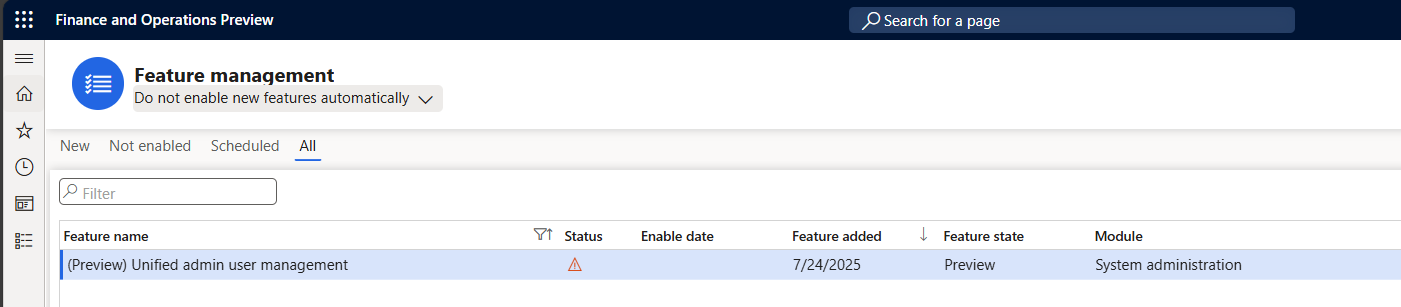
A user with the System Administrator role in both Dataverse and Finance and Operations takes the following steps to turn on (Preview) Unified admin user management in the Finance and Operations app.
- Go to System administration > Workspace > Feature management.
- Select All.
- Turn on (Preview) Unified admin user management.
Verify that unified admin user management is turned on by checking that Dataverse environment admins appear in the Finance and Operations app. This check confirms that admin users are now unified and synchronized from Dataverse into Finance and Operations.
Important
After you turn on unified admin user management, the Power Platform admin center becomes the source of truth for admin roles. Synchronization doesn't remove users from Finance and Operations, but admin roles that exist only in Finance and Operations and not in Dataverse are removed to prevent role drift.
Tip
Only make changes to the Environment admin role during planned downtime to avoid disrupting active batch jobs or running processes.
System Administrator user and users inheriting admin role via teams (Owner type)
After the feature is enabled successfully, Dataverse becomes the master source. Any changes to System Administrator users must be made in Dataverse, and corresponding changes are blocked in Finance and Operations. All create, read, update, and delete operations for System Administrators, including changes to System Administrator role assignments made directly or through Owner teams in Dataverse, synchronize to Finance and Operations when performed from PPAC or Dataverse. The user then receives System Administrator access in Finance and Operations. For more information, see Security setup for Dataverse and teams management.
Finance and Operations Environment Admin (provisioning admin user)
Each Finance and Operations environment has one Environment Admin. When you create the environment, you need to designate a user as the Environment Admin, also called the provisioning admin.
- The user ID, Admin, always represents the Environment Admin.
- You can't remove the Environment Admin role unless another System Administrator exists.
- If another System Administrator exists and you remove the current Environment Admin in the Power Platform admin center, the system automatically promotes another System Administrator.
You can update the Environment Admin user in either of these two ways:
Make Environment Admin in Finance and Operations app
To assign a user the Environment Admin role in the Finance and Operations app, follow these steps:
- Select a user who has the System Administrator role.
- Select Make Environment Admin.
Remove System Administrator role in Power Platform admin center
To remove the System Administrator role in the Power Platform admin center, follow these steps:
- Select Manage and then select Environments.
- Select the environment where you want to remove the System Administrator role.
- Select Settings and then expand Users + permissions.
- Select Users.
- Select the user and then select Manage roles.
- Clear the System Administrator role.
- Select Save.
During synchronization, the system removes the role and promotes another System Administrator automatically.
Note
You can remove the Environment Admin (provisioning) role only when the environment has at least three System Administrators. If fewer than three admins exist, the deletion isn't supported.
Admin user teams management
Admin user management also supports teams-based assignments.
Create an admin team
To create unified System Administrator users for teams, follow these steps in the Power Platform admin center:
- Select Manage and then select Environments.
- Select an environment.
- Select Settings.
- Expand Users and permissions and select Teams.
- Select Create team. Fill out the New team form. Expand Team type and select Owner (use this type for Finance and Operations).
- Add users to the team.
- Assign the System Administrator role to the team.
- Select Save.
This process sets up all team members as System Administrators in Finance and Operations. The changes synchronize asynchronously.
Remove the System Administrator role from the team
When you remove the System Administrator role from a team, all team members lose admin access in Finance and Operations unless they have the role assigned directly. The changes synchronize asynchronously.
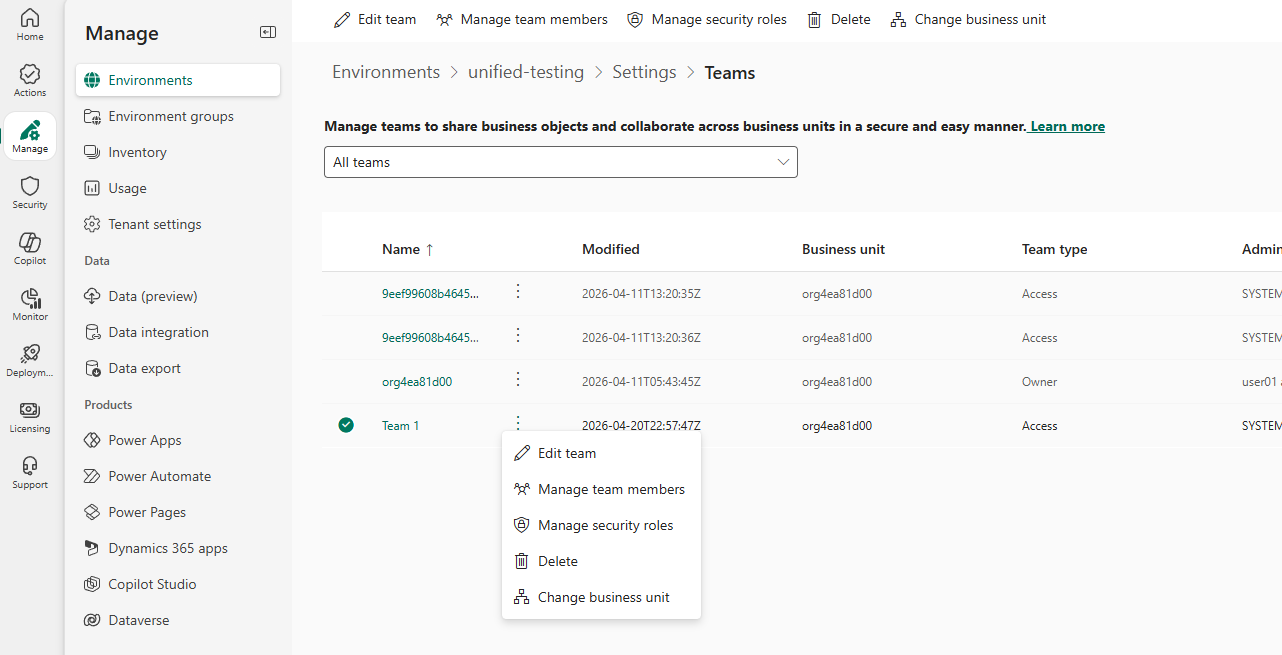
To add or remove the System Administrator role from the team, follow these steps on the Teams settings page in the Power Platform admin center:
- Select the three dots next to the team that has the System Administrator role.
- Select Manage security roles.
- Scroll to System Administrator and then check or clear the System Administrator selection.
- Select Save.
Add or remove team members
When you add a user to a team with the System Administrator role, you grant admin access. When you remove a user from the team, the user loses admin access but keeps the system user role. The changes synchronize asynchronously.
To add or remove team members, follow these steps on the Teams settings page in the Power Platform admin center:
- Select the three dots next to the team that has the System Administrator role.
- Select Manage Team members.
- Add or remove team members as needed.
- Select Save.
Unsupported scenario
Non-owner teams aren't supported in public preview. Only teams with Team type = Owner are supported for admin user management. You can't use teams of other types to provision or manage System Administrator access.
Known issues
Environment, or provisioning, admin changes in Dataverse might cause inconsistencies.
Issue
If you delete the current provisioning admin or revoke the System Administrator role in Dataverse while the environment has fewer than three admins, provisioning admin changes might not be reflected in Finance and Operations.
Guidance
Before you make these changes in Dataverse, make sure the environment has at least three admins. If the action has already been performed and the provisioning admin is stuck, add another admin in Dataverse. After the change is reflected in Finance and Operations, use Make Environment Admin on the Users page.